Trial and subscription
A new organisation starts with a trial. Then the organisation subscribes, and the subscription pays for a number of seats. Access belongs to the organisation, so it applies to all its users. The subscription is on the Billing page, which only the organisation’s administrator sees.
See when the trial ends
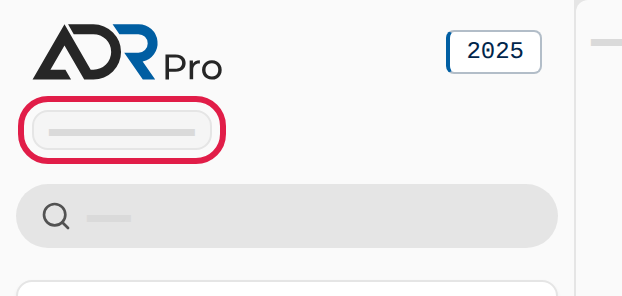
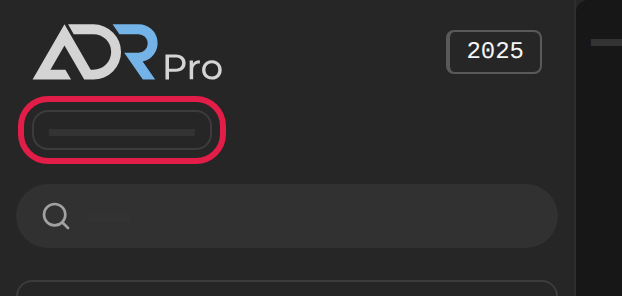
Copy link to “See when the trial ends”While the trial runs, Trial is under the logo at the top of the sidebar.
In the sidebar
Copy link to “In the sidebar”- On a computer: Point at Trial (1) under the logo. A small box shows the last day of the trial.
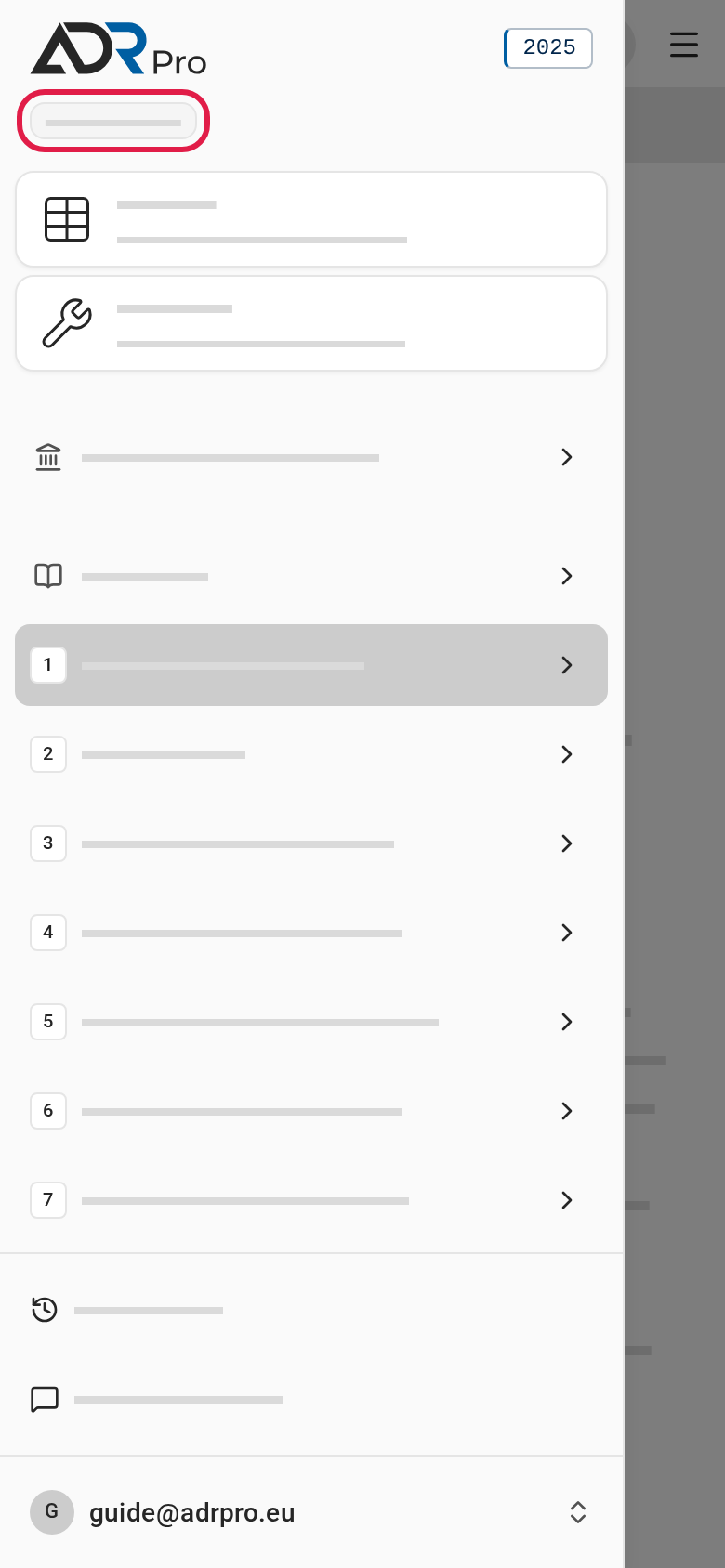
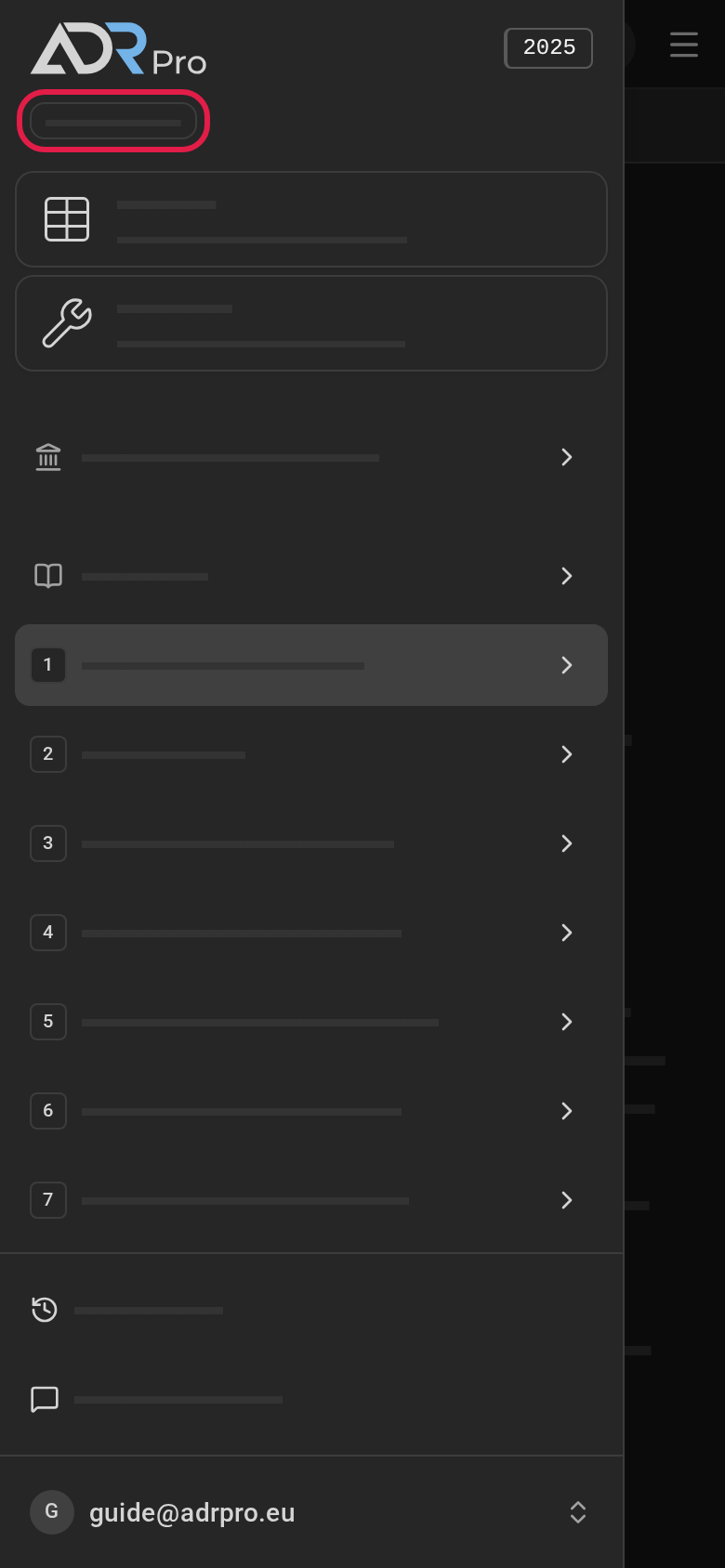
- On a phone: Choose the menu button at the top right. Trial (1) is under the logo. The date is on the Billing page.
On Billing
Copy link to “On Billing”- Choose your name or email address at the bottom of the sidebar, choose Settings, and choose Billing. On a phone, first choose the menu button at the top right, as described in Open the settings in Settings.
- Under Subscription are Trial (1) and the line The trial runs until … inclusive. (2) with the last day of the trial.
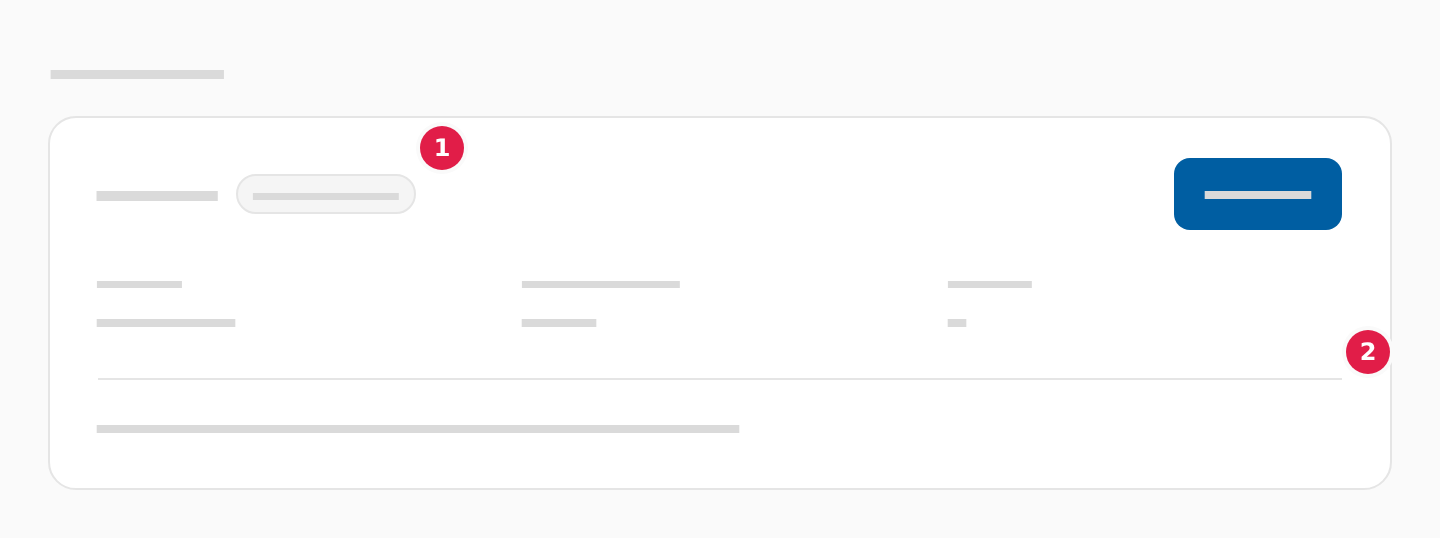
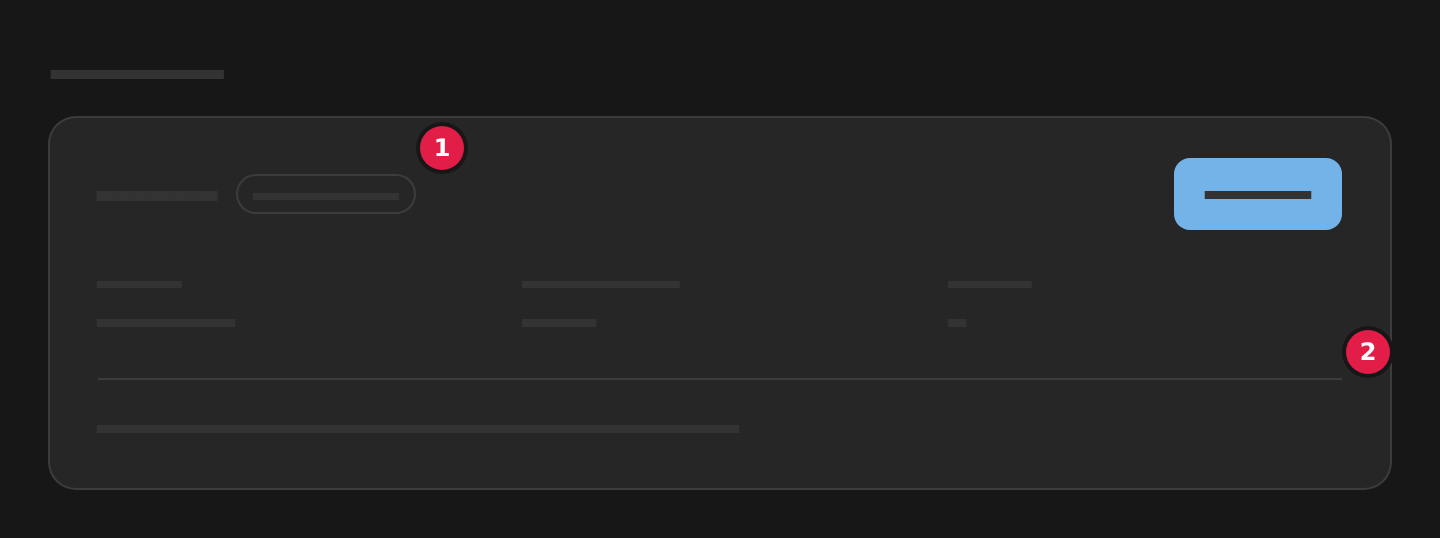
On the other settings pages, Your trial runs until … inclusive. is under the page’s title. Choose See subscription in it to go to Billing.
Subscribe
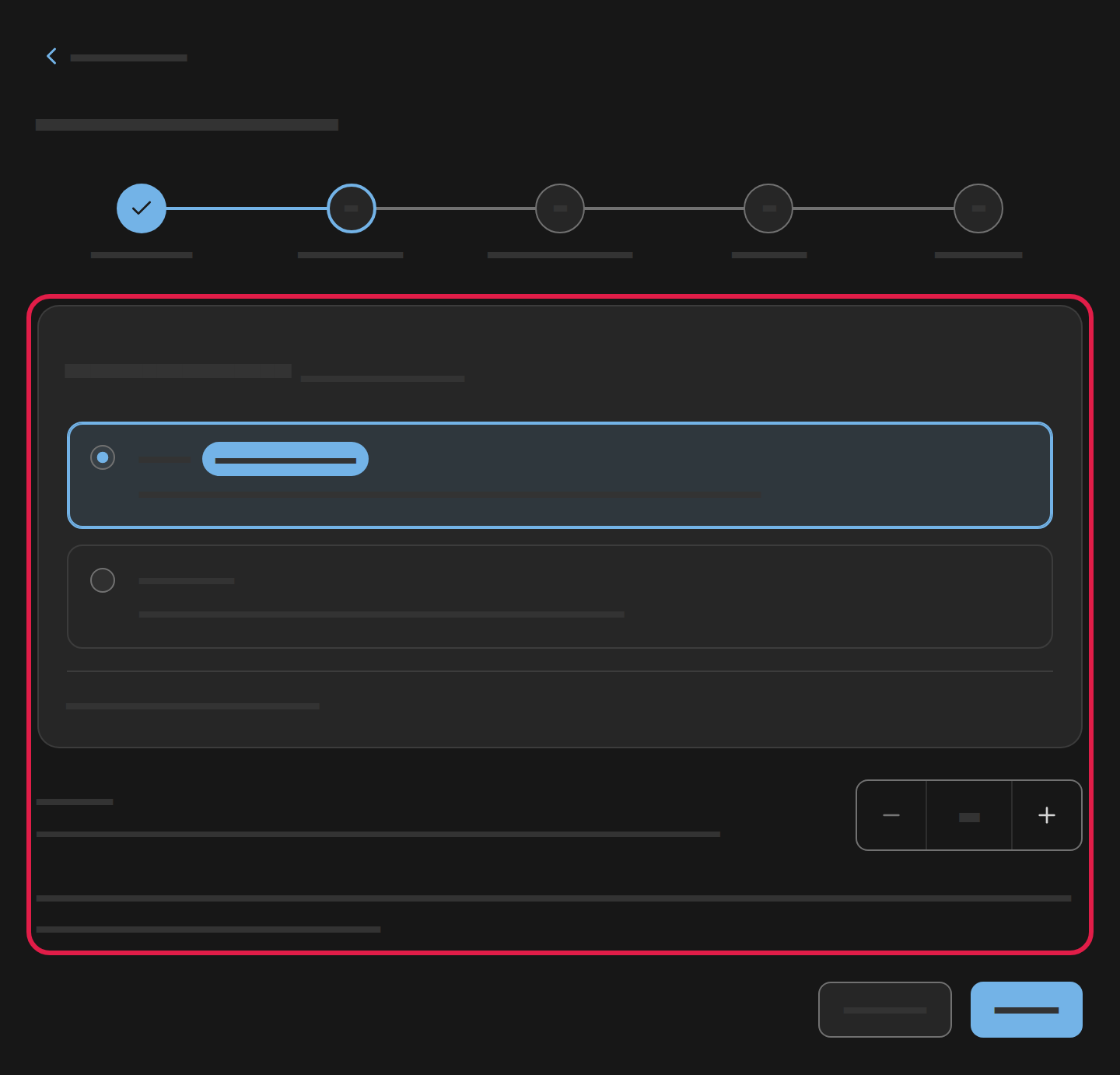
Copy link to “Subscribe”Subscribe is a page under Billing with five steps: Company, Plan, Review order, Payment and Receipt. The steps are shown at the top of the page. If the organisation already has its name, a verified CVR number and address, the page opens on Plan, and Company shows as done.
-
Choose Subscribe on the card under Subscription on the Billing page.
-
If the organisation lacks details for the invoice, or its CVR number is not verified, the page opens on Company. Type the eight-digit CVR number in CVR number, and choose Verify CVR. ADR Pro looks the company up in the EU’s VAT register (VIES), and a bar shows the lookup is running. It can take up to 15 seconds. Once the number is verified, the field locks with a checkmark and the name the company is registered under. If Company name is empty, it is filled with that name. Fill in the address and E-mail for invoices, and choose Continue. Continue works only once the CVR number is verified.
- If the VAT register does not answer, choose Verify CVR again in a moment. Nobody can buy while the register does not answer.
- If the VAT register does not know the number as registered for VAT, check that it is the company’s CVR number. A company that is not registered for VAT cannot buy.
- To change a verified number, choose Edit. Cancel goes back to the verified number.
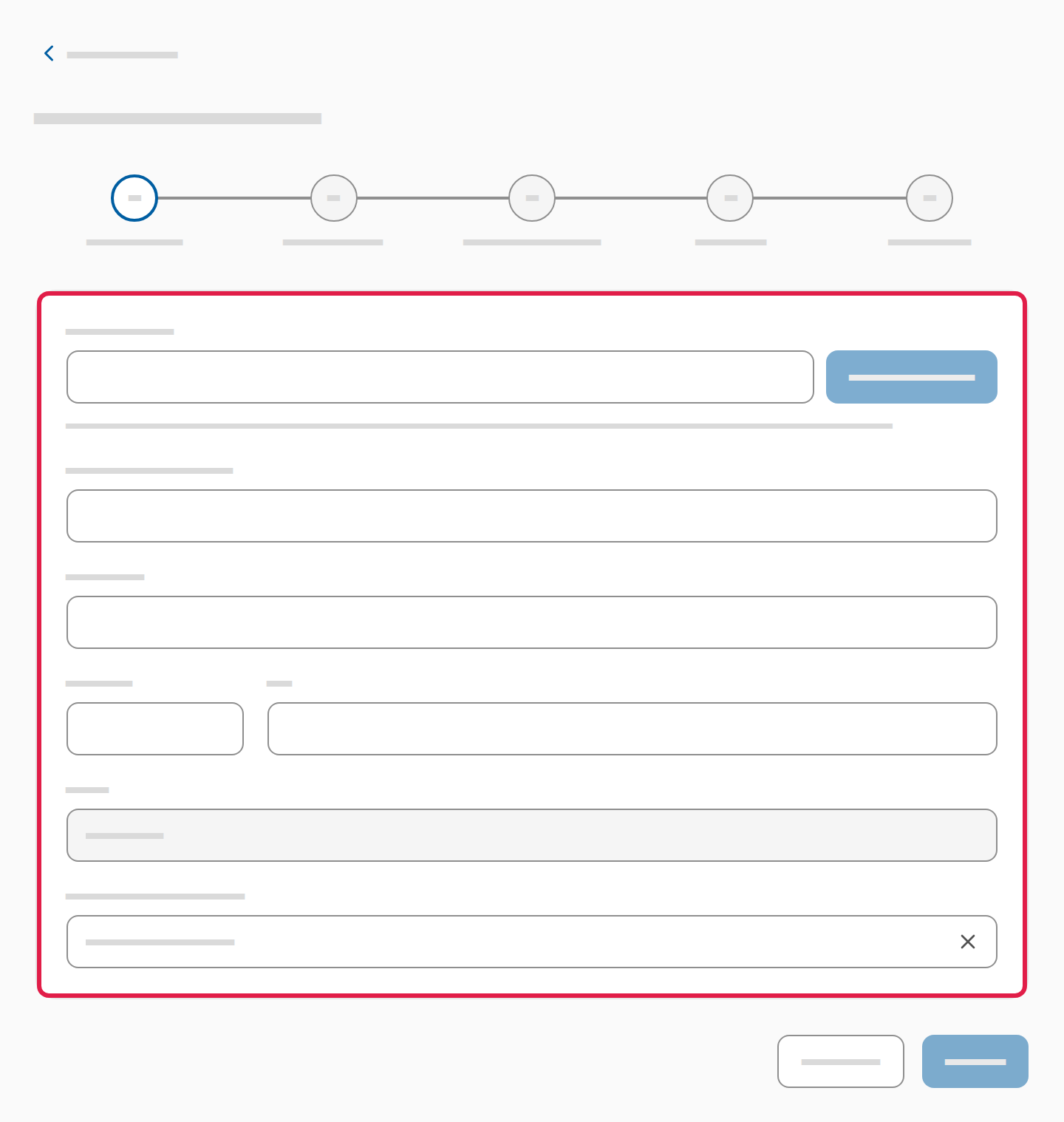
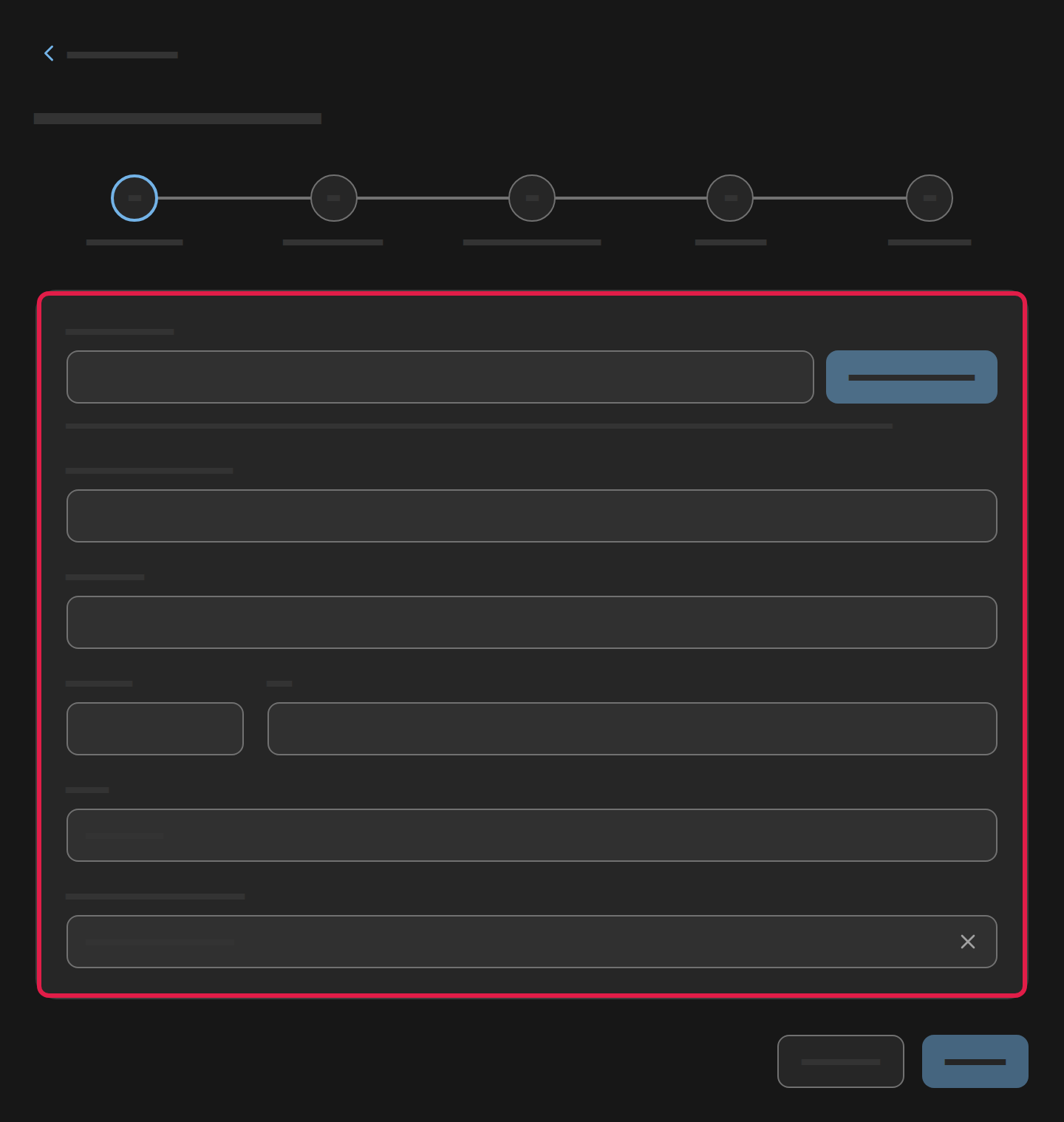
- On Plan, choose Yearly or Monthly and how many seats the company needs. The prices are excl. VAT. One seat per user who needs access, and you invite the users afterwards. Choose Continue.
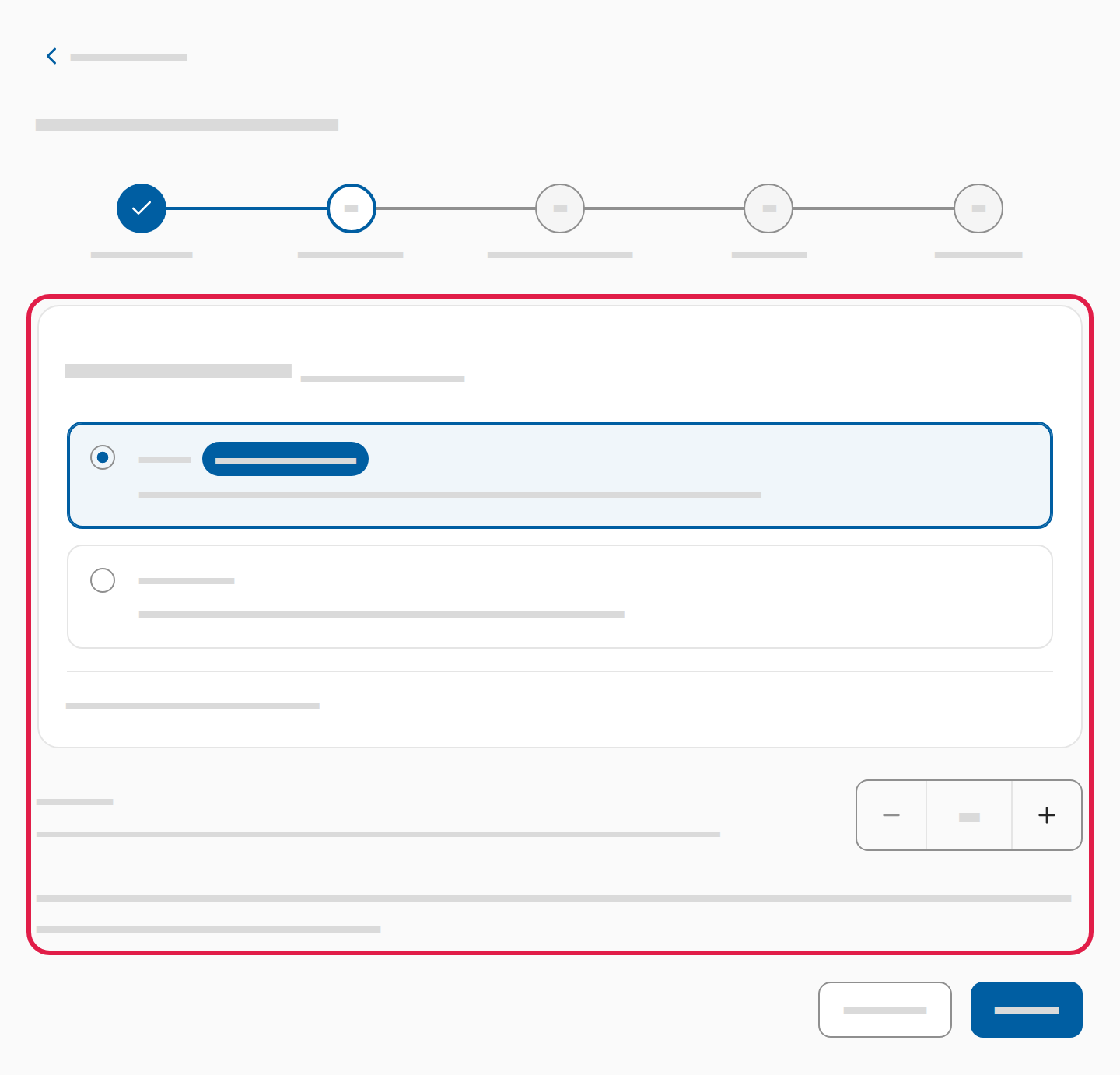
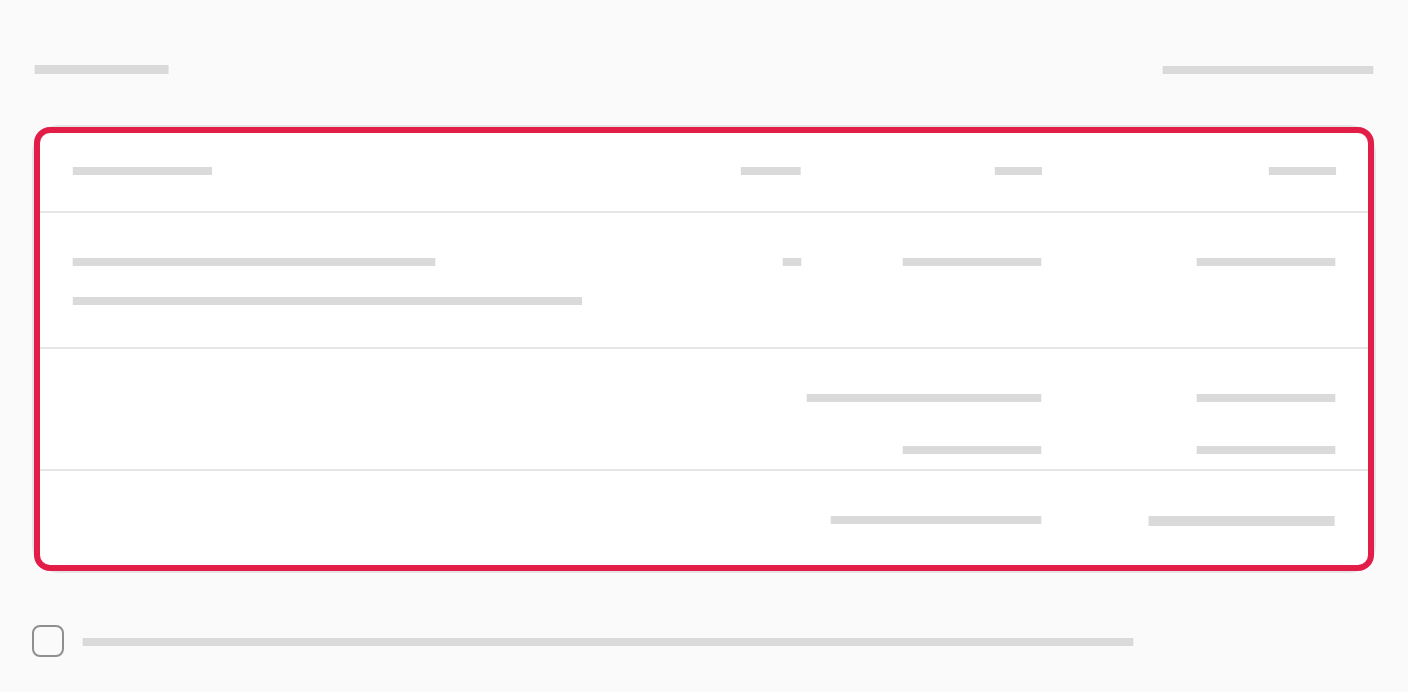
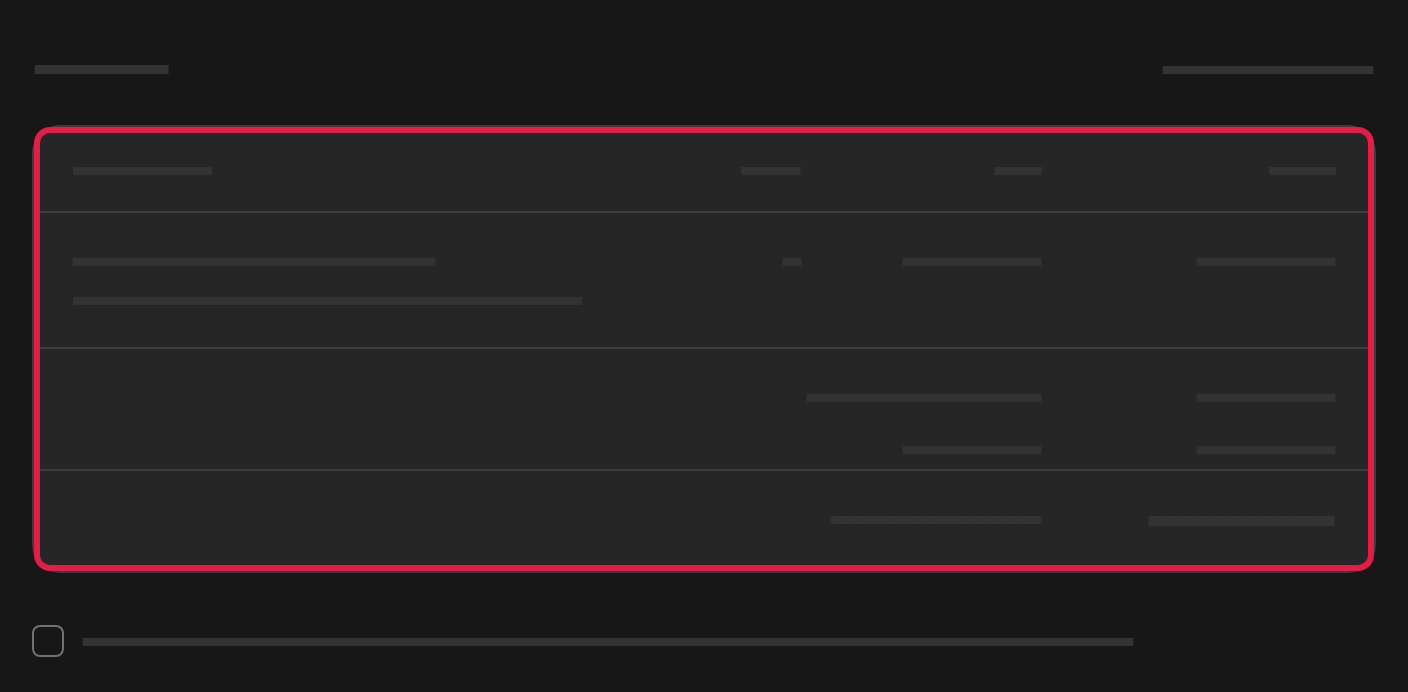
- On Review order, you see the company’s details and the order: the plan, the first period, the seats, the price per seat, VAT and the total. Tick the terms of service, and choose Continue to payment.
- On Payment, the total is at the top. Fill in the card, and choose Complete the purchase. The page ends on Receipt with the plan and the first payment, and Go to Billing takes you to Billing, where the card under Subscription shows the subscription.
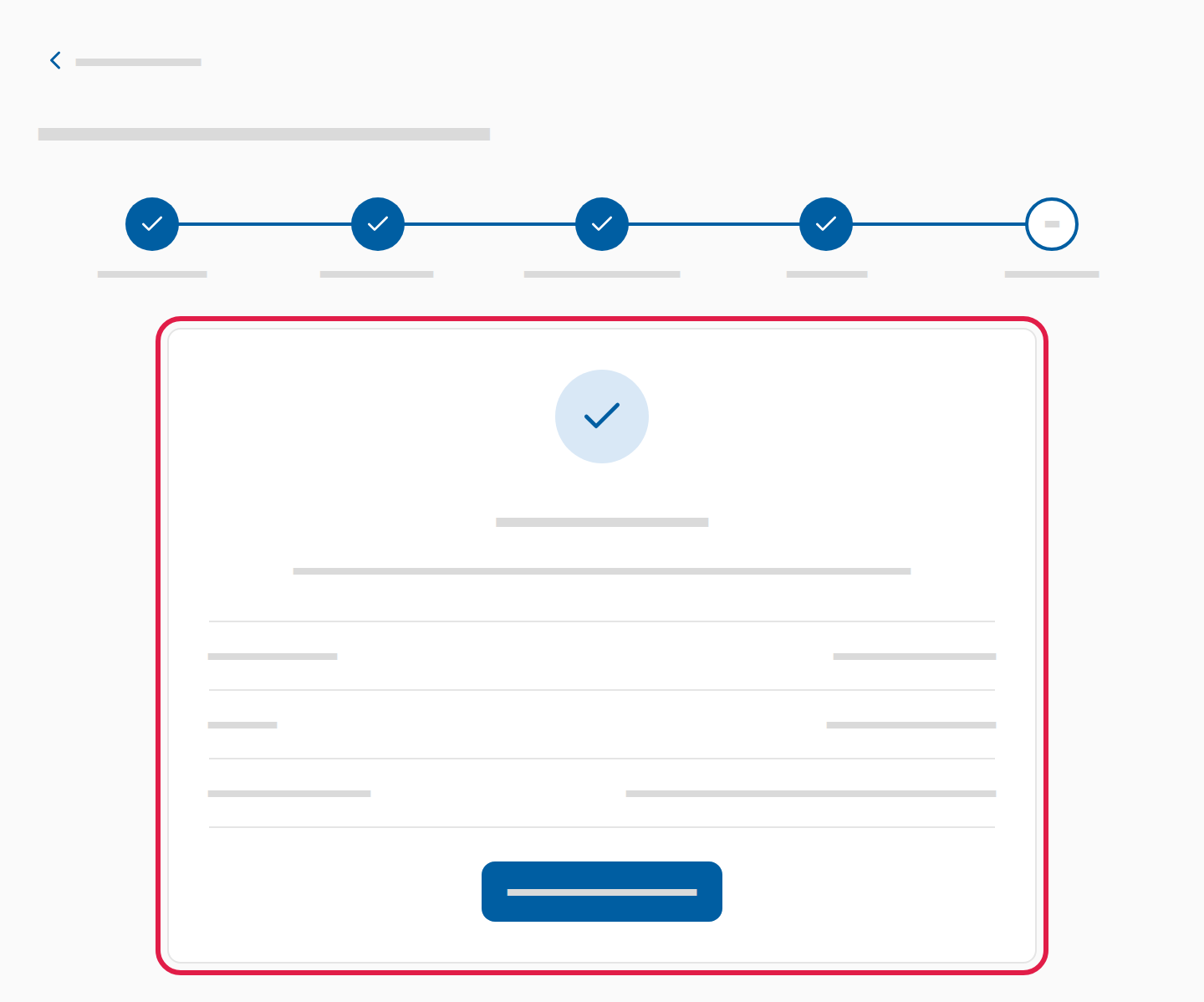
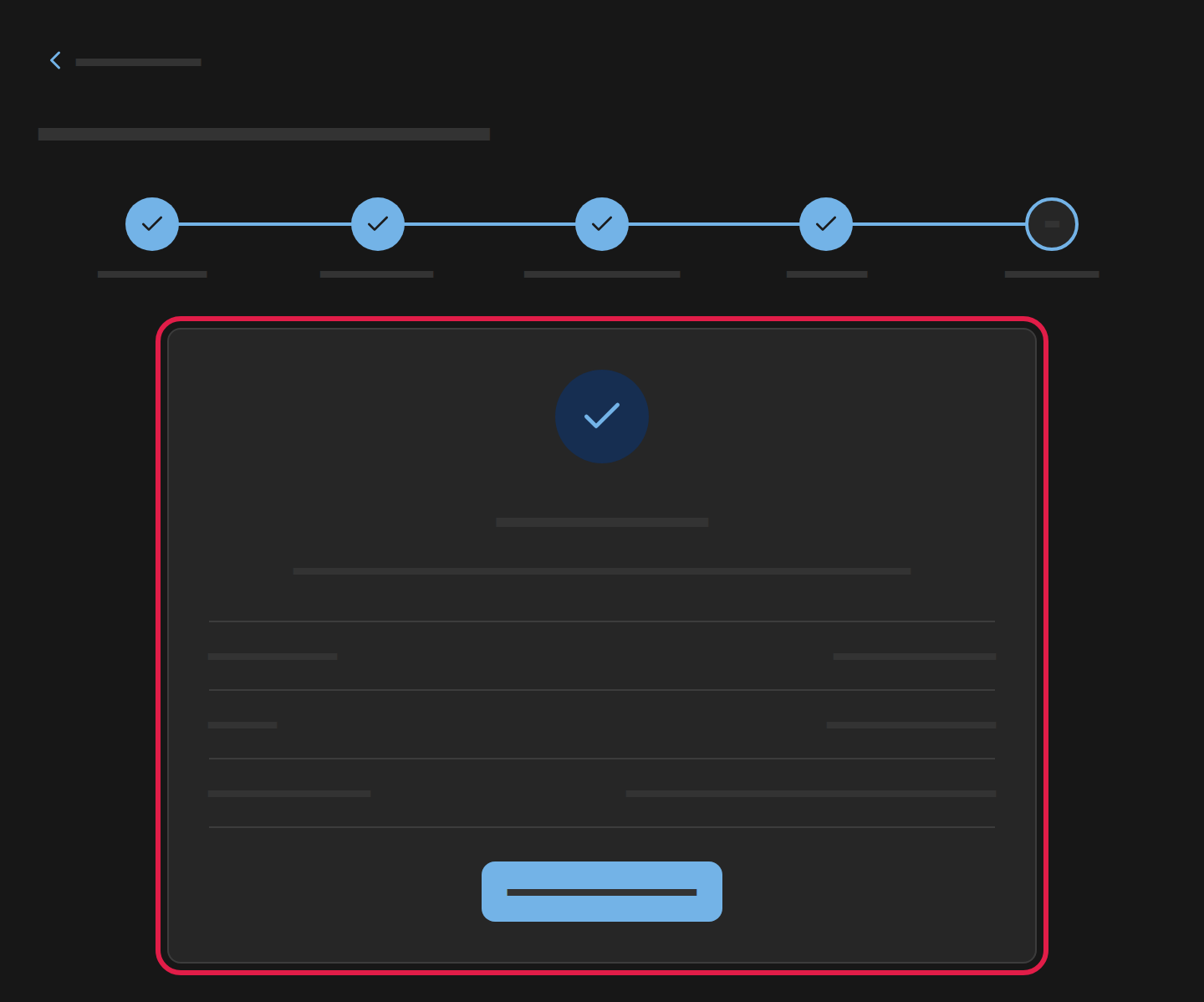
Choose Change by Company or Change plan by Your order on Review order to correct the details or the plan. You can also choose a done step at the top of the page. Continue takes you back to where you came from.
Choose Cancel or Billing above the page’s title to go back without buying. The page does not keep what you filled in.
If you buy during the trial, the subscription starts the day after the last day of the trial, and the payment is taken only then.
See the subscription
Copy link to “See the subscription”Once the organisation subscribes, the card under Subscription on the Billing page shows the subscription:
- The subscription’s status (1): Active, Scheduled when it starts later, Not renewing when it ends at the end of the period, Not starting when a scheduled subscription will not start, or Expired.
- Seats (2): how many of the organisation’s seats are in use, out of how many.
- Price per seat (3): the price of one seat per year or per month.
- Renews (4): the day the subscription renews. When the subscription starts later, it says Starts, and when it ends, Ends.
- The large figure (5): the price of all the seats per year or per month, and when it is charged.
Under the card is All prices exclude VAT.
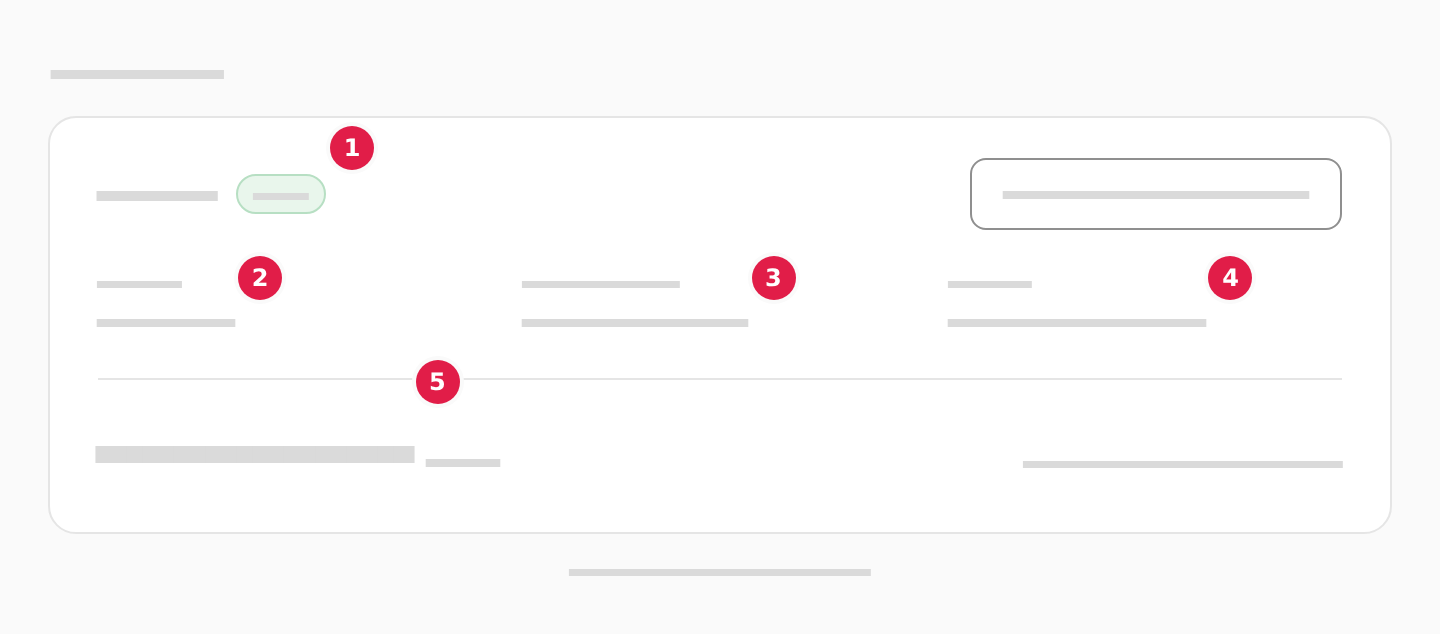
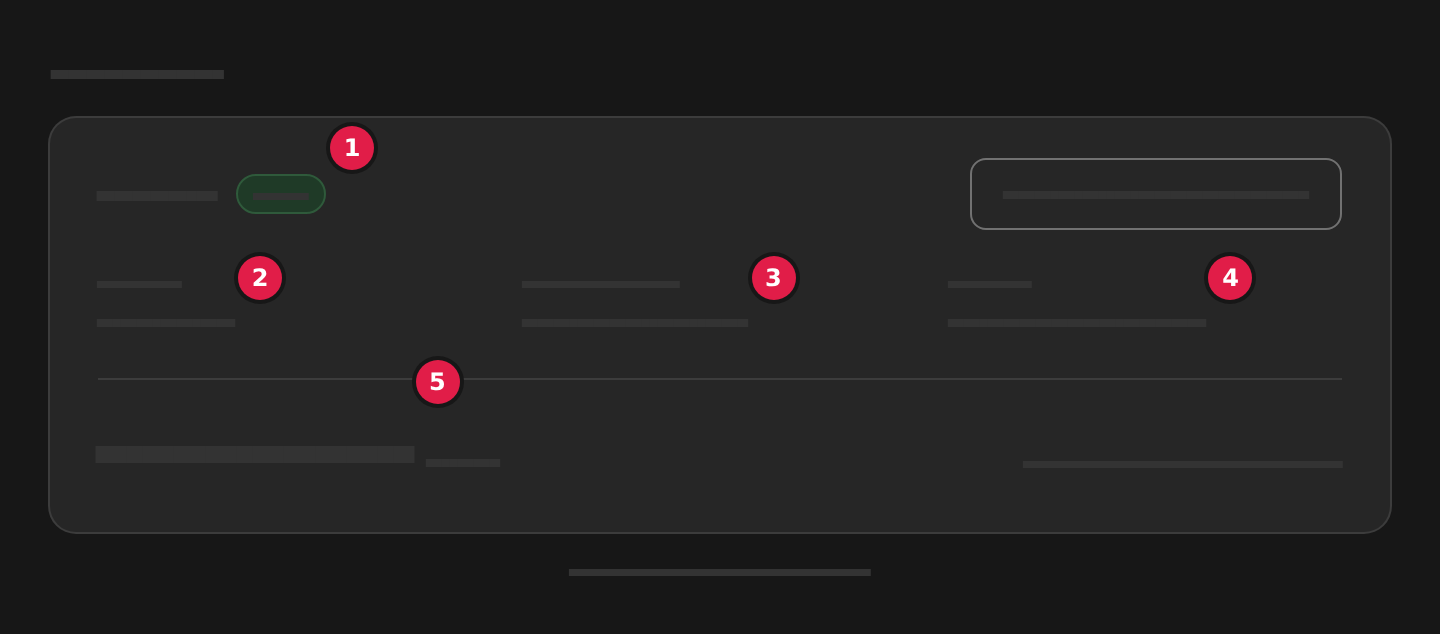
If ADR Pro has given the organisation free access, the card says Free access, and the price is Free.
Change the number of seats or the payment
Copy link to “Change the number of seats or the payment”- Choose Manage subscription on the card under Subscription.
- Choose Monthly or Yearly at Payment, and choose the number at Seats.
- Choose Save changes.
More seats can be used at once. Fewer seats and a change of payment apply from the next renewal.
If more users hold a seat than there are seats from the renewal, it says Continue instead of Save changes. Choose Continue, choose under Who loses access? the users who lose access that day, and choose Save changes.
Until the renewal, the reduction is on the card under From the renewal on …. Choose Undo the reduction to keep the seats.
Cancel the subscription
Copy link to “Cancel the subscription”You can cancel the subscription at any time. It stops at the end of the paid period and does not renew. Nothing is refunded when you cancel.
- Choose Manage subscription on the card under Subscription.
- Choose Cancel the subscription at the bottom of the window.
- The window shows the day the subscription stops. Choose Cancel the subscription.
Once the subscription is cancelled, the card says Not renewing with Ends. Choose Resume on the card if the subscription should go on after all.
Payment card and invoices
Copy link to “Payment card and invoices”Under Payment is the card the subscription is charged to.
- Choose Change card. If the organisation has no card, the button reads Add card.
- The Change payment card page opens. Fill in the card, and choose Save card.
Under Invoices are the organisation’s invoices. Choose the download button by an invoice to download it as a PDF. If an invoice is not paid, choose Pay beside it.
If the payment for a new period does not go through, the last day to pay is at the top of Billing. Choose Pay beside the invoice, or change the card: the new card pays the invoice. If the invoice is not paid by the day after the period began, the subscription ends and access stops. The organisation owes nothing for that period. Subscribe again on Billing to keep reading.
When access ends
Copy link to “When access ends”When the trial or the subscription ends without the organisation subscribing, reading is paused. The sidebar shows Your access has expired. instead of the parts of the agreement, and the settings stay open.
- If you are the organisation’s administrator, Go to Billing is under the message. When you try to read, ADR Pro also sends you to Billing. At the top is Your access has expired. Subscribe to keep reading., and the card shows Expired. If the organisation has never had access, it says No active access. Subscribe to start reading. instead.
- If you are a user in the organisation, the message names the organisation’s administrator. Ask the administrator to renew the subscription.
You can read again as soon as the organisation subscribes again.
If you are an administrator without a seat, the agreement is closed to you even when the organisation has access. The sidebar tells you that you do not hold a seat. Choose Go to Users in it, and take a free seat as described in Take or leave your own seat in Organisation and users.