Your account
Under Account are your name and your sign-in details: the address you sign in with, and your password. Here you also choose which emails you get, and here you delete your account.
Open Account
Copy link to “Open Account”- Choose your name or email address at the bottom of the sidebar, choose Settings, and choose Account. On a phone, first choose the menu button at the top right, as described in Open the settings in Settings.
Change your name
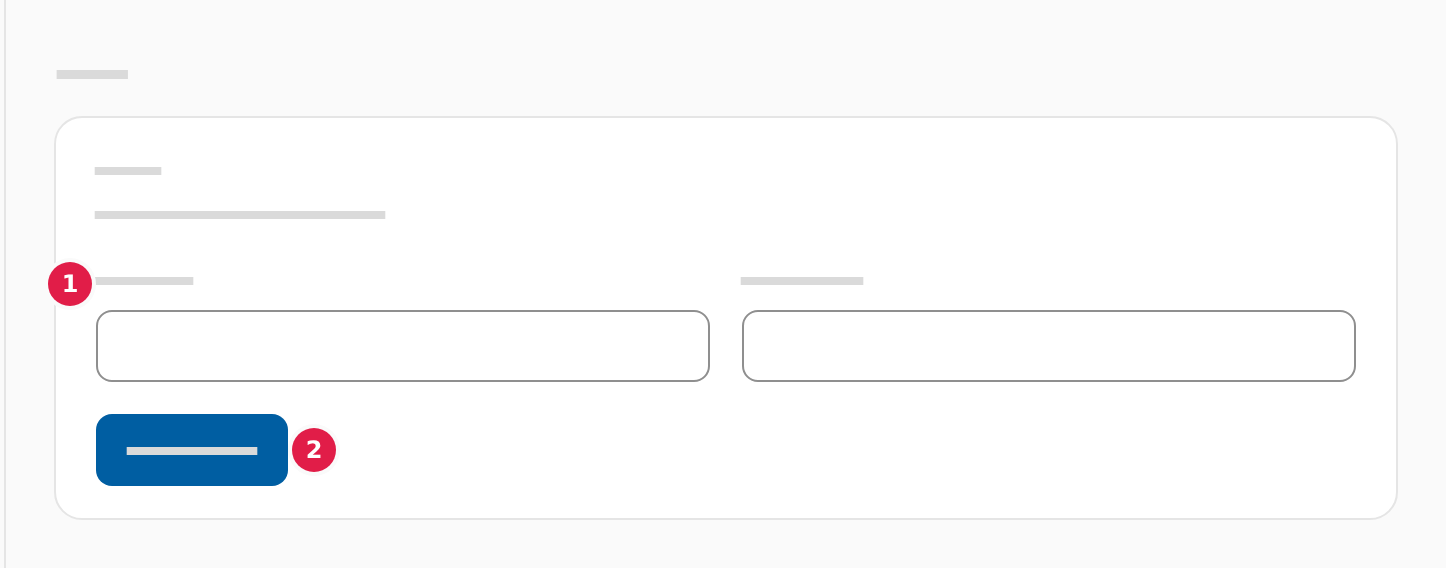
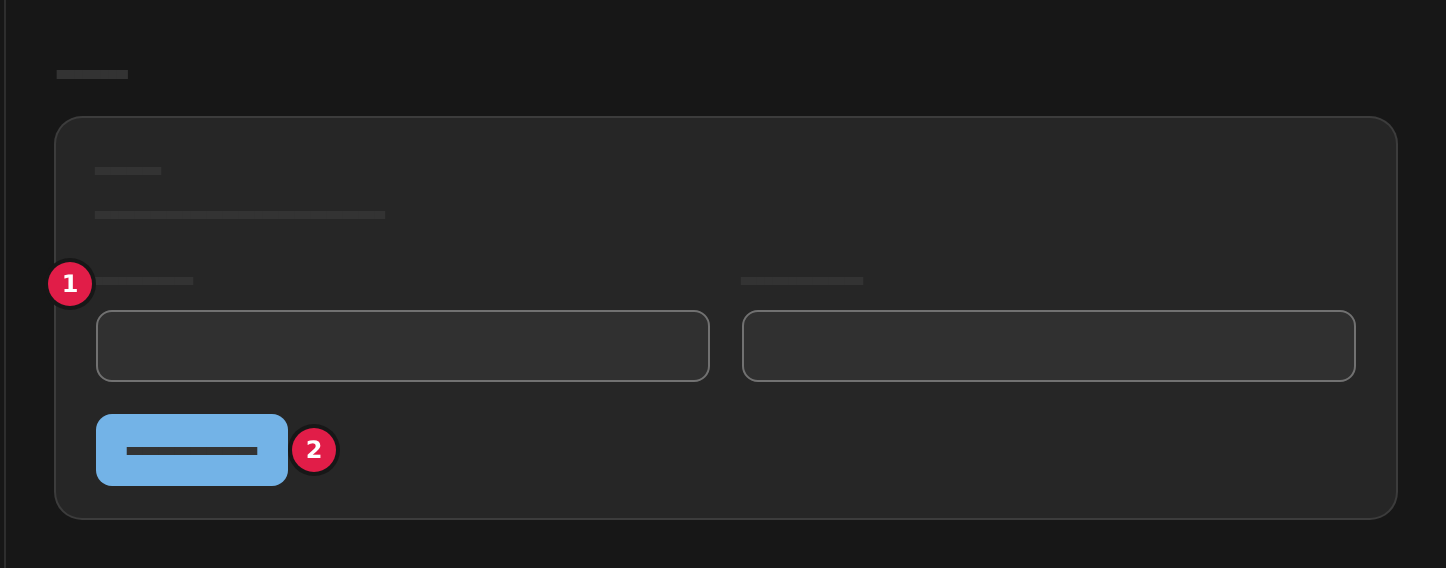
Copy link to “Change your name”- Type your name in the fields First name (1) and Last name at Name.
- Choose Save name (2). The name shows in the account menu.
Change your email address
Copy link to “Change your email address”-
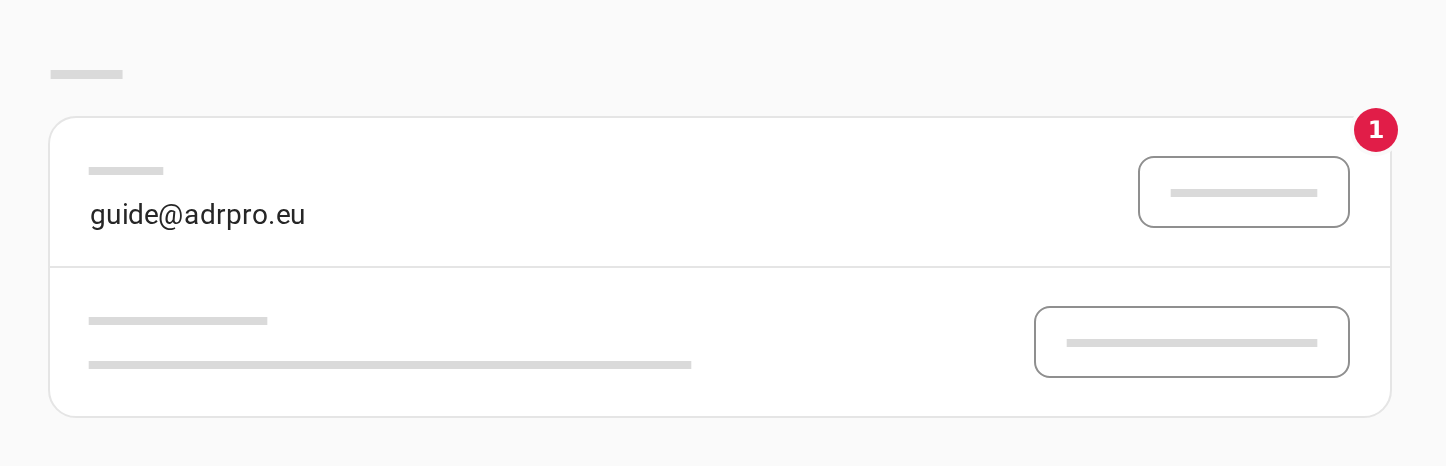
Choose Change email (1) at Email under Sign-in.
-
A window explains that the new address must be confirmed from a mail before the change takes effect. Type the new address in the field New email and your password in the field Current password, and choose Change email.
-
Open the mail that comes to the new address, and confirm it with the link. Until then, the page says Waiting for confirmation of …, and you keep signing in with your current address.
If your organisation manages your login address, you cannot change it yourself. Ask your administrator to change it.
Change your password
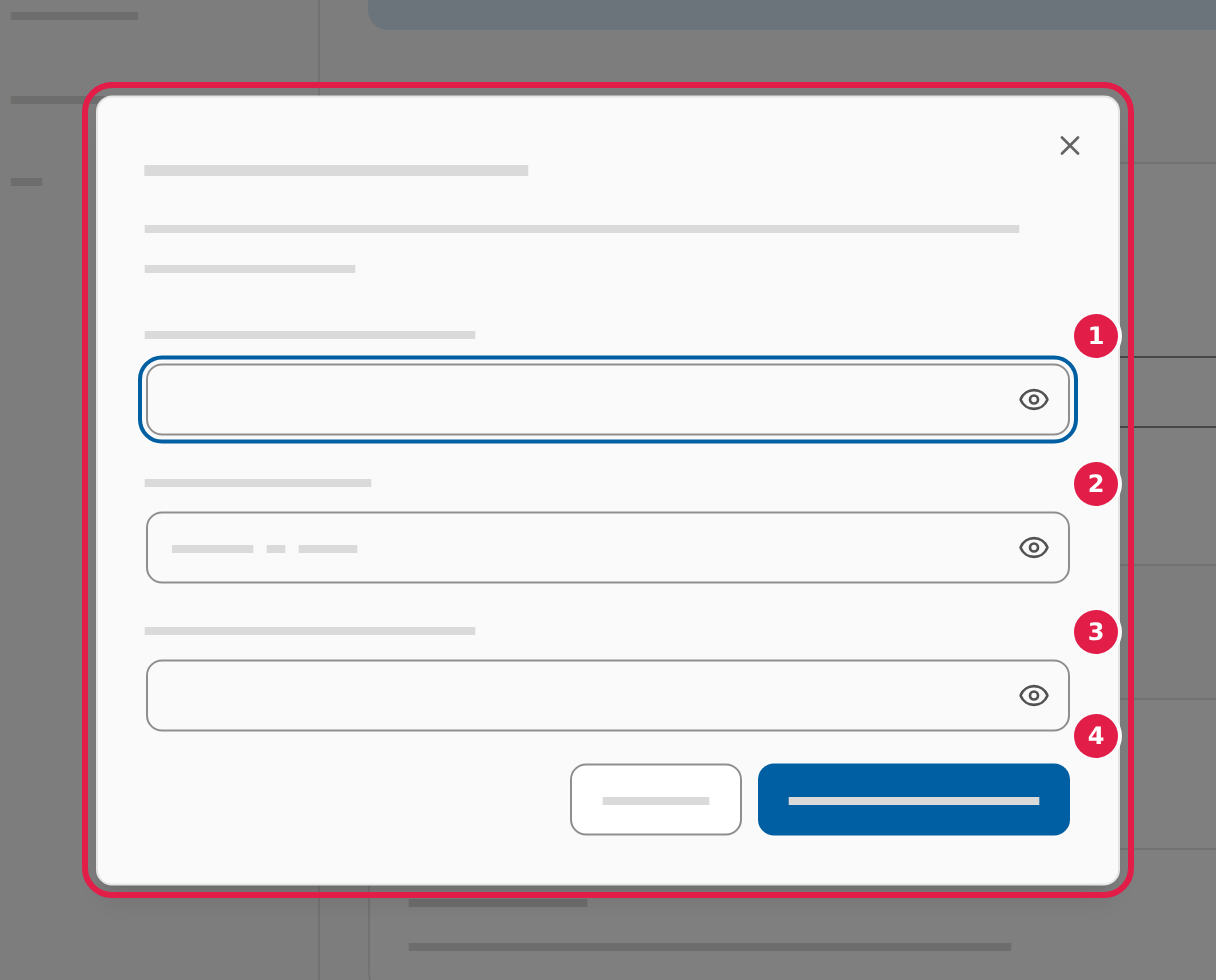
Copy link to “Change your password”- Choose Change password at Password under Sign-in.
- Type your password in the field Current password (1).
- Type a new password of at least 8 characters in the field New password (2), and type it again in the field Confirm new password (3).
- Choose Change password (4). A message says Your password has been changed.
Sign out of your other devices
Copy link to “Sign out of your other devices”If you forgot to sign out on another computer or phone, you can sign out of it from here.
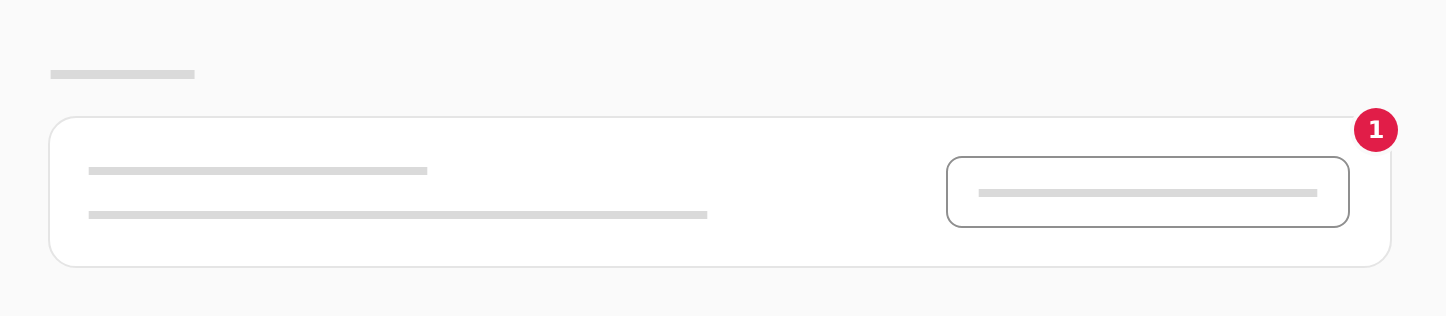
- Choose Sign out other devices (1) under Security.
- A window asks whether you want to sign out of your other devices. Choose Sign out in it. You stay signed in here, while every other device will need to sign in again.
Choose your emails
Copy link to “Choose your emails”Under Notifications you choose whether ADR Pro sends you an email when there is something new.
- Turn on Email me when content is updated if you want an email when the text of ADR is updated.
- Turn on Email me when a new edition is available if you want an email when a new edition of ADR comes out.
A choice applies at once, so there is no button to save it.
Delete your account
Copy link to “Delete your account”- Choose Delete account at Delete your account at the bottom of the Account page.
- The Delete account page shows what is deleted at once and what is kept.
- Type your password in the field Your password, and choose Delete my account. Deleting cannot be undone.
If you are the administrator of an organisation with other users, first make one of them the administrator, or remove them. How to do either is in Hand over the administrator role and Remove a user in Organisation and users.
When you have a subscription
Copy link to “When you have a subscription”- If you have a subscription that runs, the account is not deleted at once. The button reads Schedule the deletion, and the page shows the day the subscription runs until and including. If the subscription is not cancelled, the deletion cancels it. The account is deleted the day after the subscription’s last day. Until then you can use the account as now.
- Once the deletion is scheduled, the Delete account page shows the day the account is deleted, and so does Billing. Choose Undo the deletion to keep the account. The subscription stays cancelled, but you can resume it under Billing afterwards.
When the account is deleted, we also delete your details at our billing provider: the name and email address that receipts and invoices go to, and the payment card. The receipts and invoices themselves are kept for five years, because the bookkeeping act requires it.
If your account belongs to an organisation you are not the administrator of, you cannot delete it yourself. Ask the organisation’s administrator to remove you.