ADR Pro on a phone
ADR Pro has the same features on a phone as on a computer, and the rest of the guide applies on a phone too. This is what is different: how the screen is laid out, that menus, peeks and footnotes open as a sheet at the bottom, and that wide tables become cards.
The screen on a phone
Copy link to “The screen on a phone”- Search (1): searches the whole agreement.
- The menu button (2): opens the menu with the parts, the documents, Table A and your account. The menu holds the same as the sidebar on a computer, with larger targets to tap.
- The plus button (3): opens a new tab.
- The tabs: sit under the search, left of the plus button. Choose a tab to switch to it.
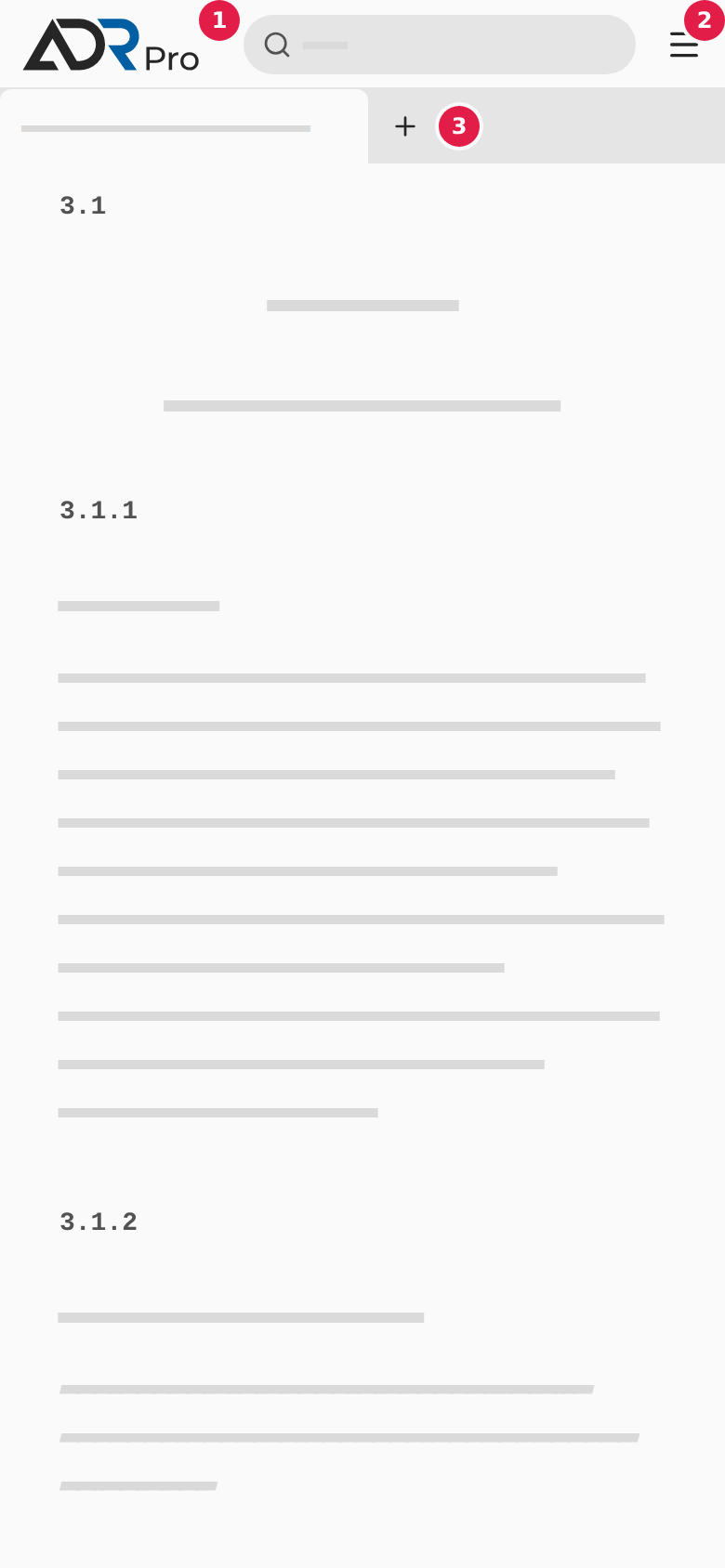
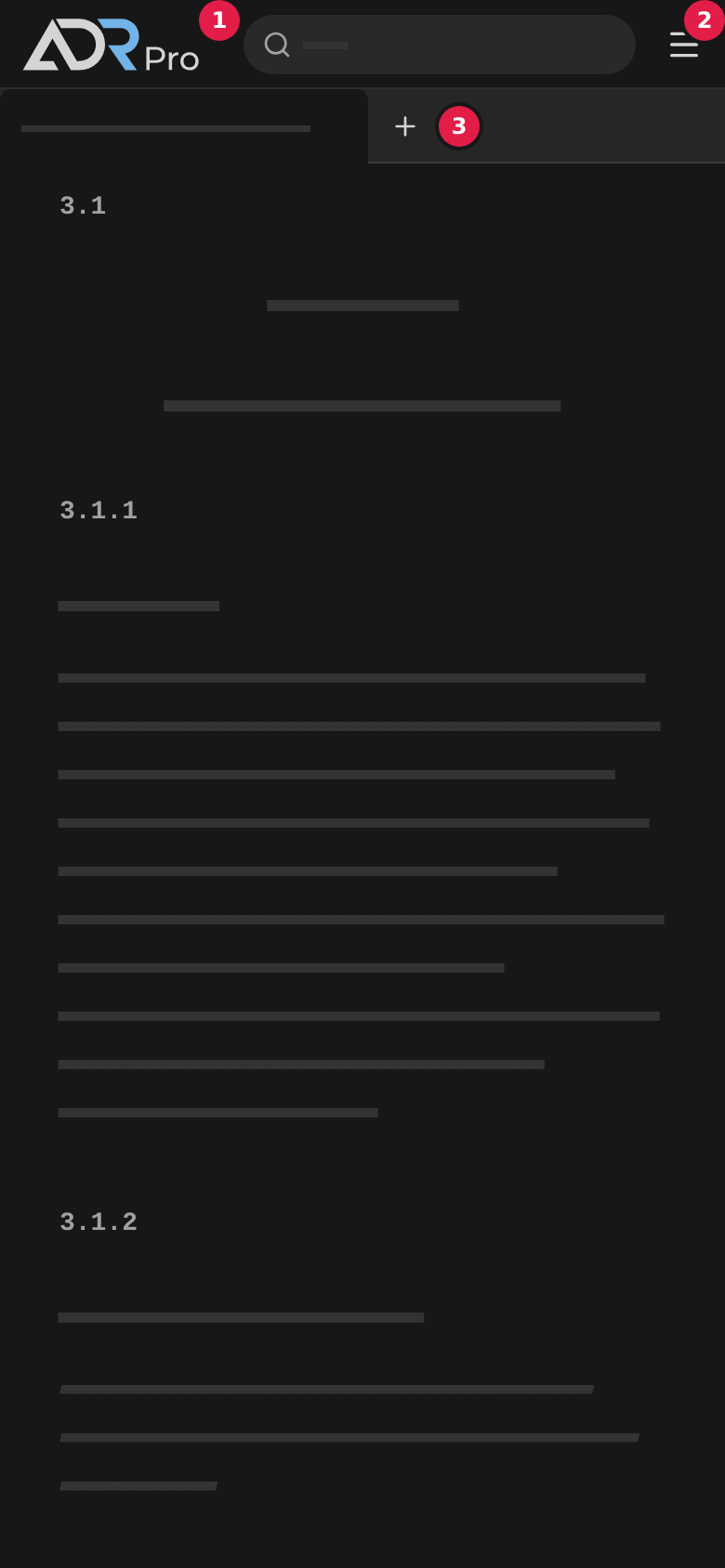
The top hides when you scroll down through the text and comes back when you scroll up. The outline of the section’s headings, which is on the right on a computer, does not show on a phone.
Sheets at the bottom of the screen
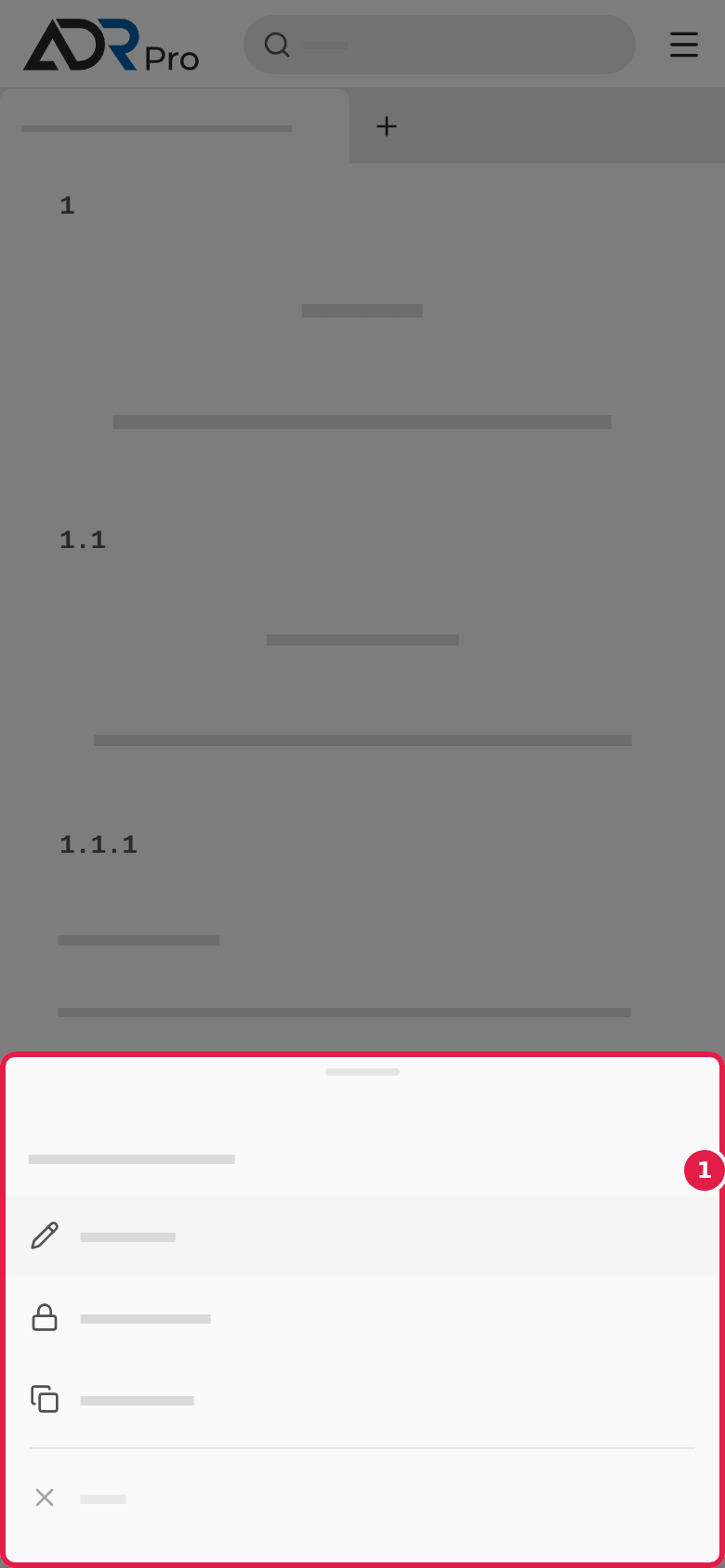
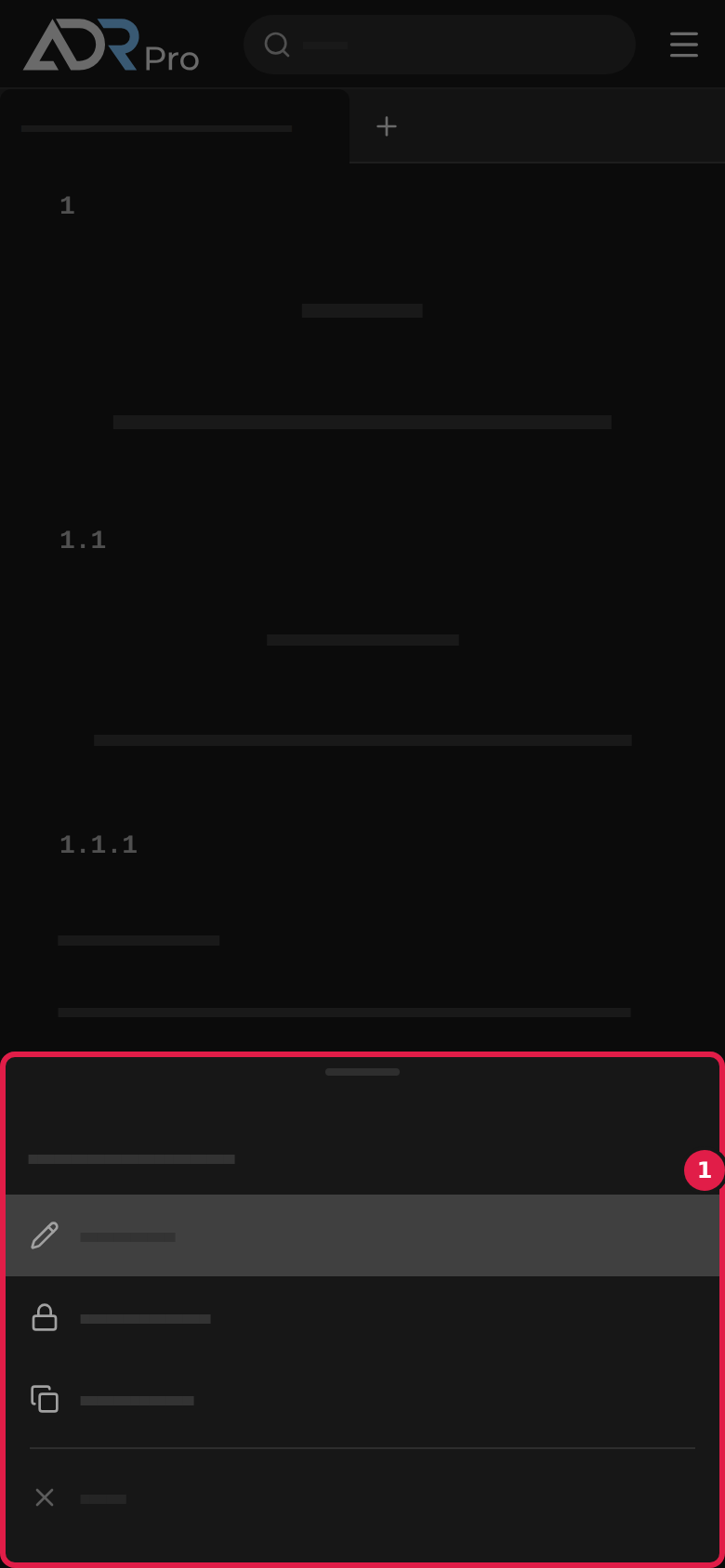
Copy link to “Sheets at the bottom of the screen”Menus, peeks and footnotes open as a sheet at the bottom of the screen. Drag a sheet down to put it away.
-
Menus: Press and hold a tab, or a part in the menu, and its menu opens in a sheet, for example with Open in new tab on a part or Rename… (1) on a tab.
-
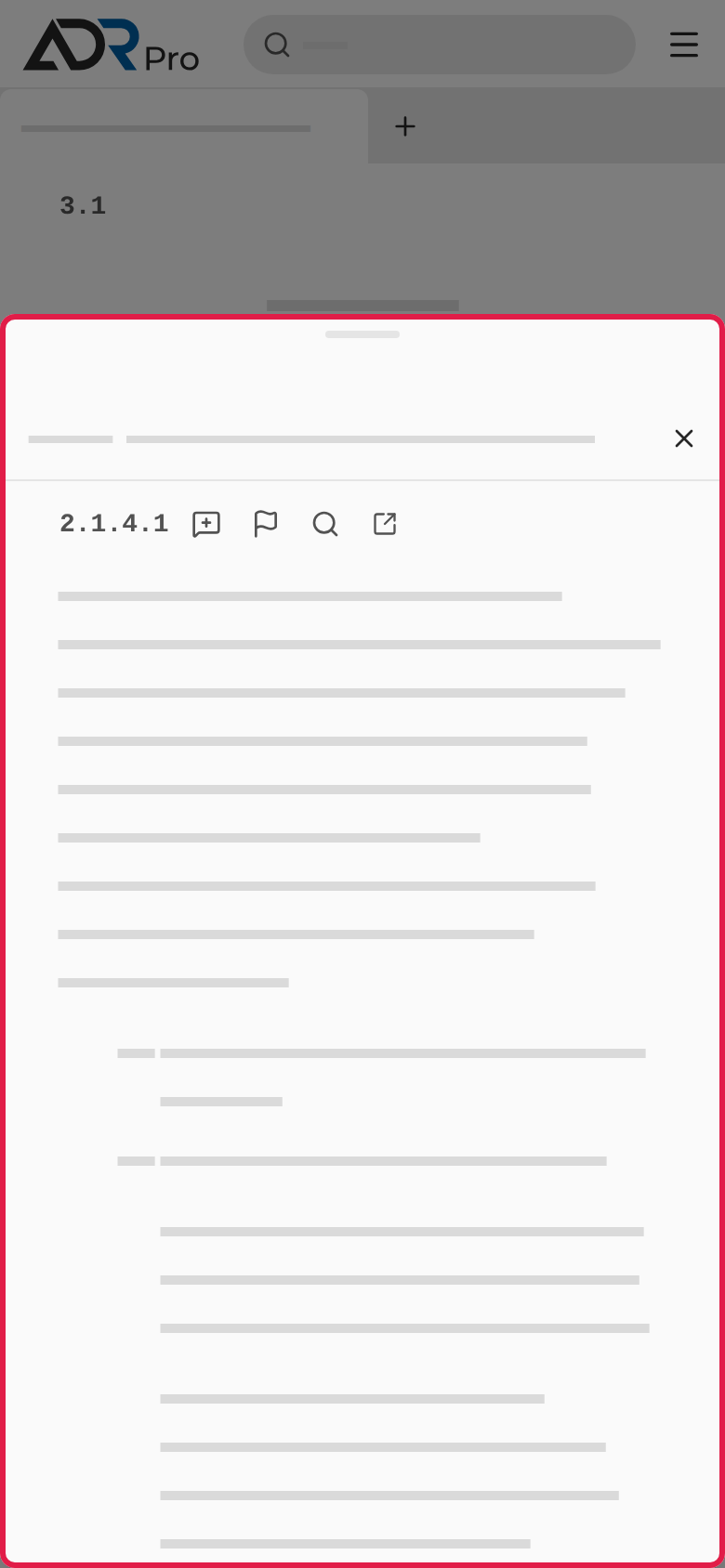
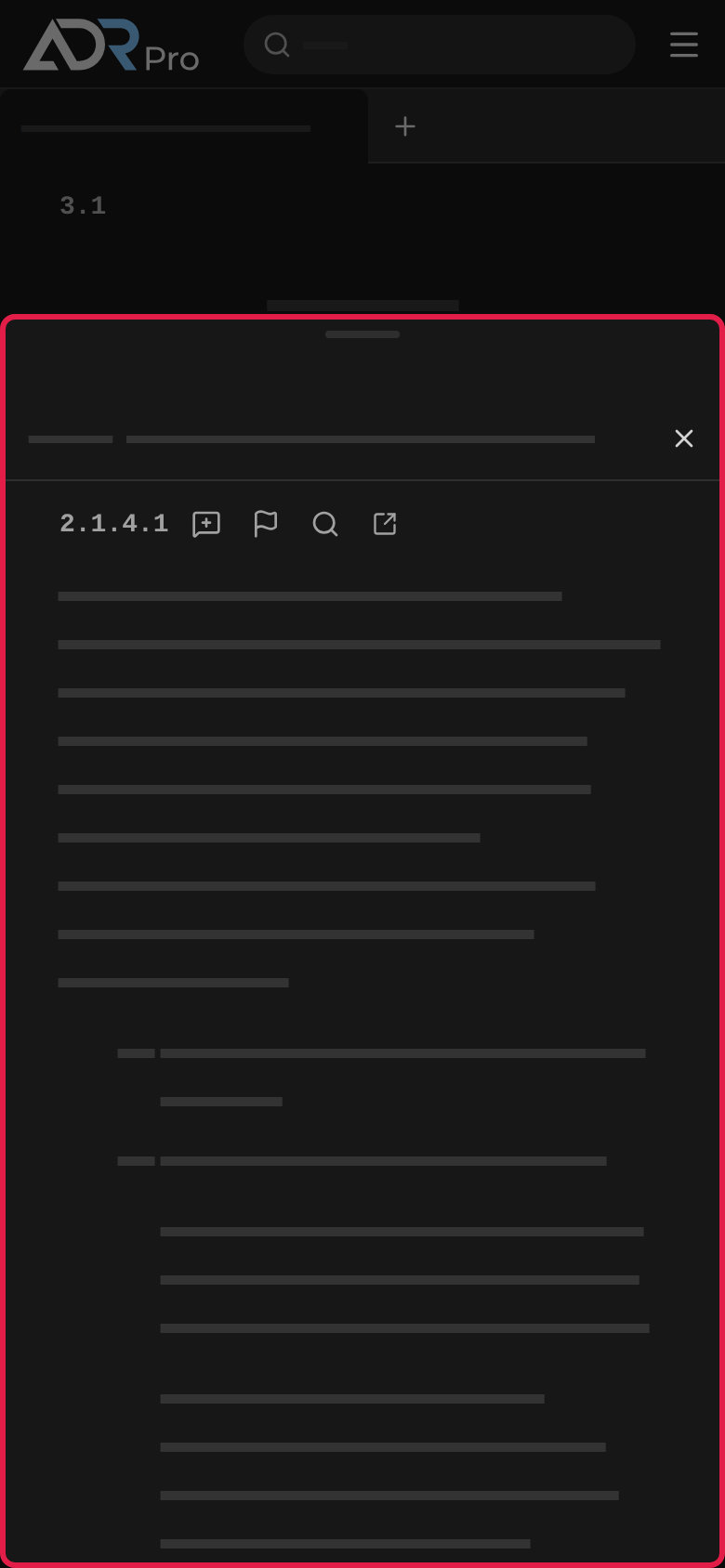
Peeks: Choose a reference in the text, and the section it points to opens in a sheet while your text stays above it. If you have several peeks open, choose the title at the top of the sheet to see them all. When you put the sheet away, the peeks wait in a bar at the bottom. Choose the double arrow on the left of the bar to open them again.
-
Footnotes: Choose a footnote mark, and the footnote opens in a sheet.
Tables become cards
Copy link to “Tables become cards”Wide tables become cards you can read without zooming. Each row of the table is a card, and each value sits with its column’s heading.
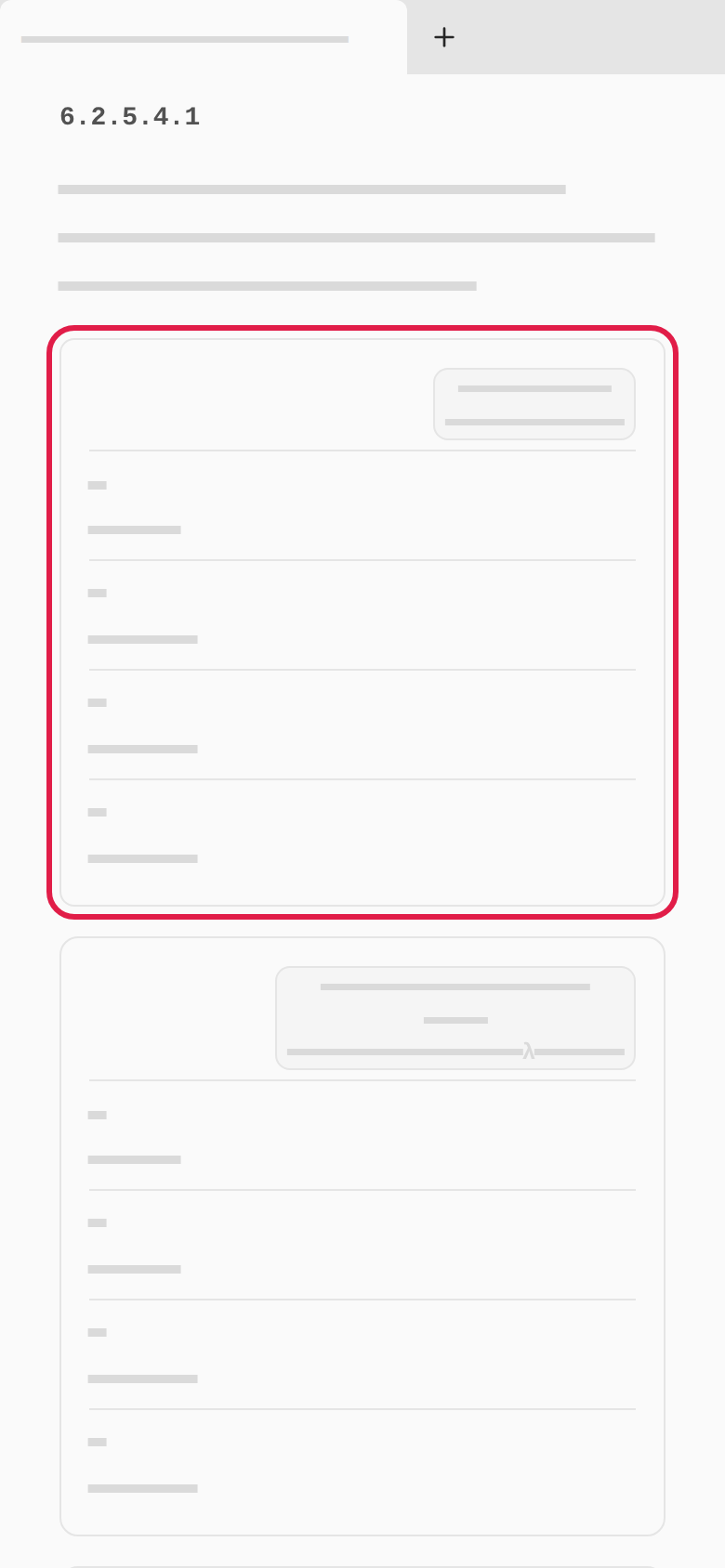
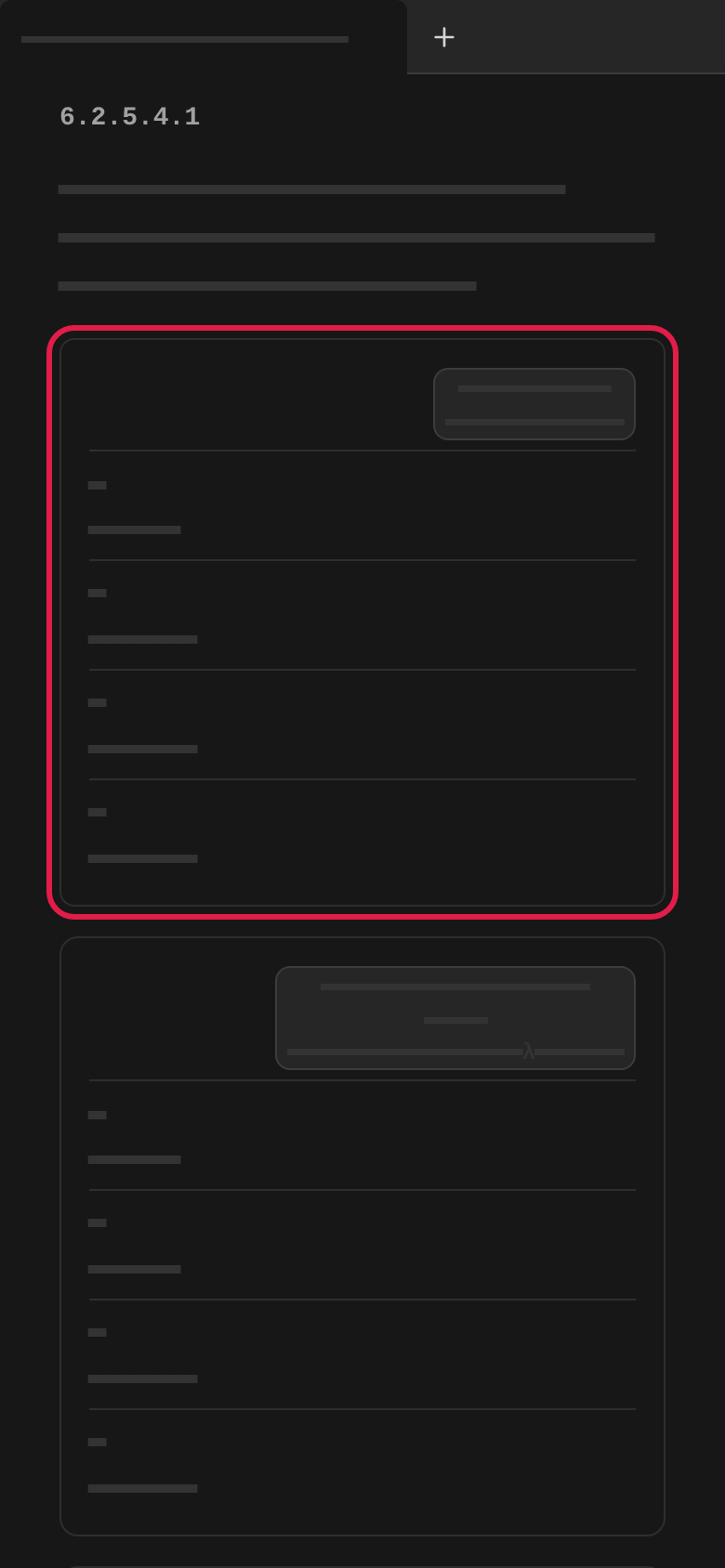
Table A becomes cards too. How you search, filter and open a card there is in On a phone in Table A.