Table A
This is how you open Table A, find a row, filter and choose columns, and how you read a row and open what it refers to. On a phone the table is laid out differently, as described in On a phone.
Open Table A
Copy link to “Open Table A”Table A is the list of dangerous goods, ordered by UN number. The search field at the top of the table shows only the rows that match what you type.
- Choose the Table A card under the search field in the sidebar. On a phone, choose the menu button first.
- Table A opens in the tab you are reading in. The rows are in UN number order, lowest first.
Search by UN number or name
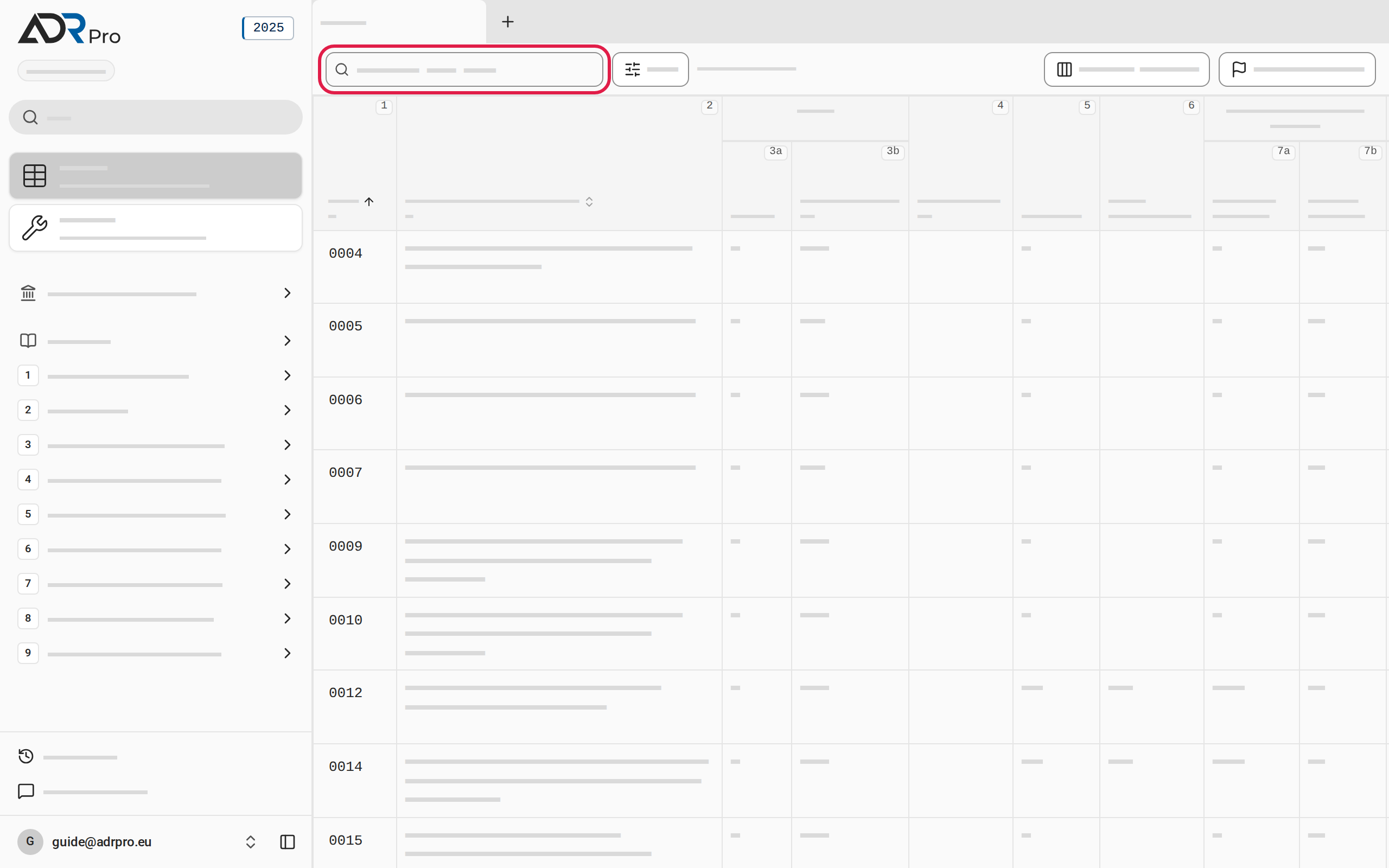
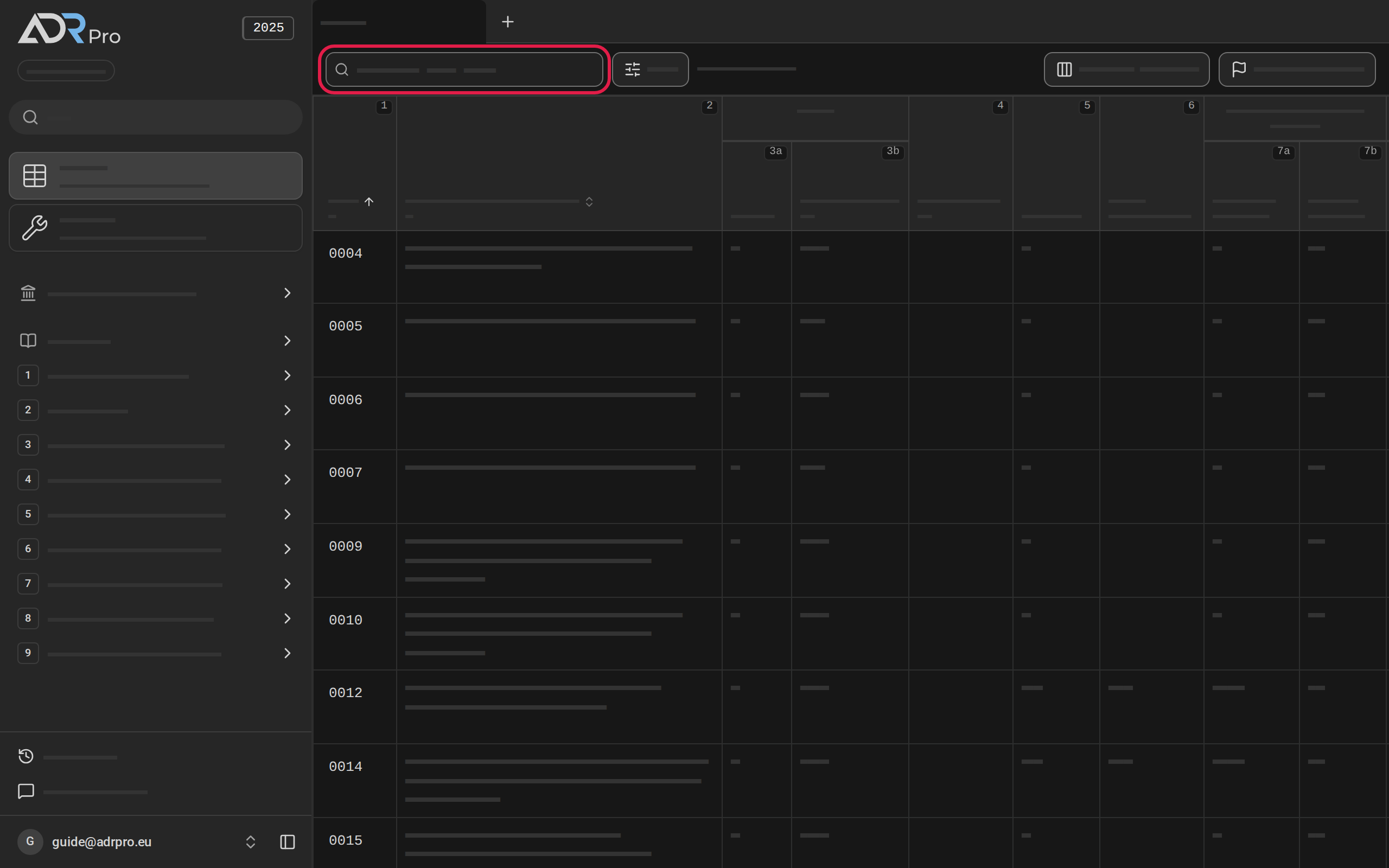
Copy link to “Search by UN number or name”- Choose the UN number or name search field.
On a computer you can also press / anywhere outside a field.
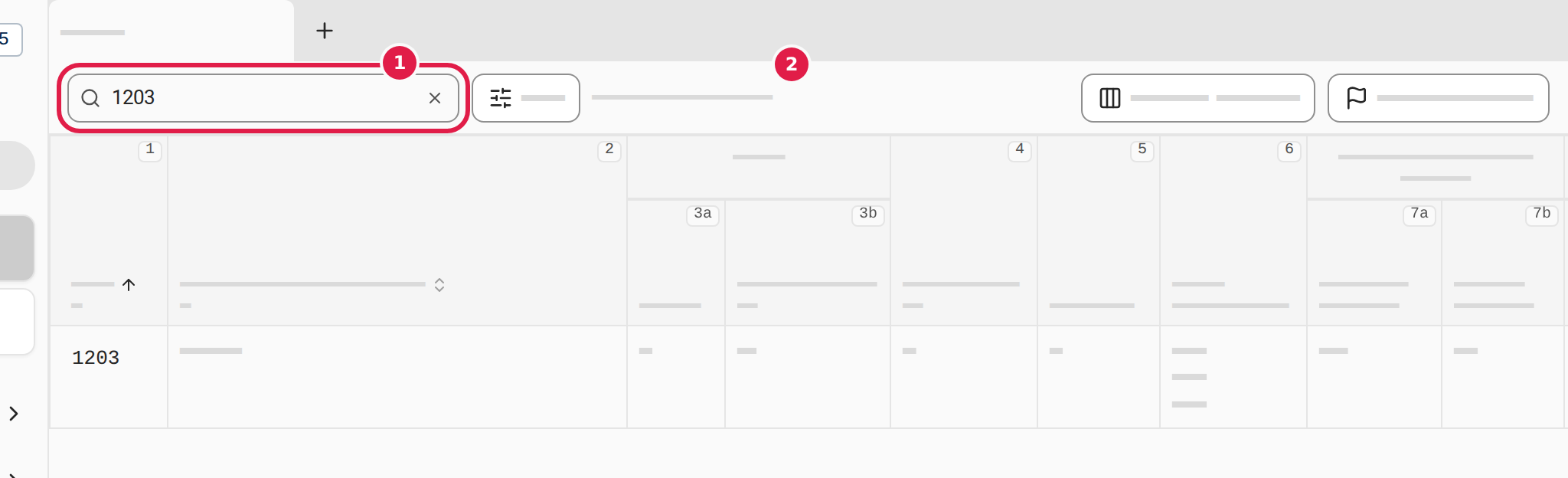
- Type a UN number, a name or a code:
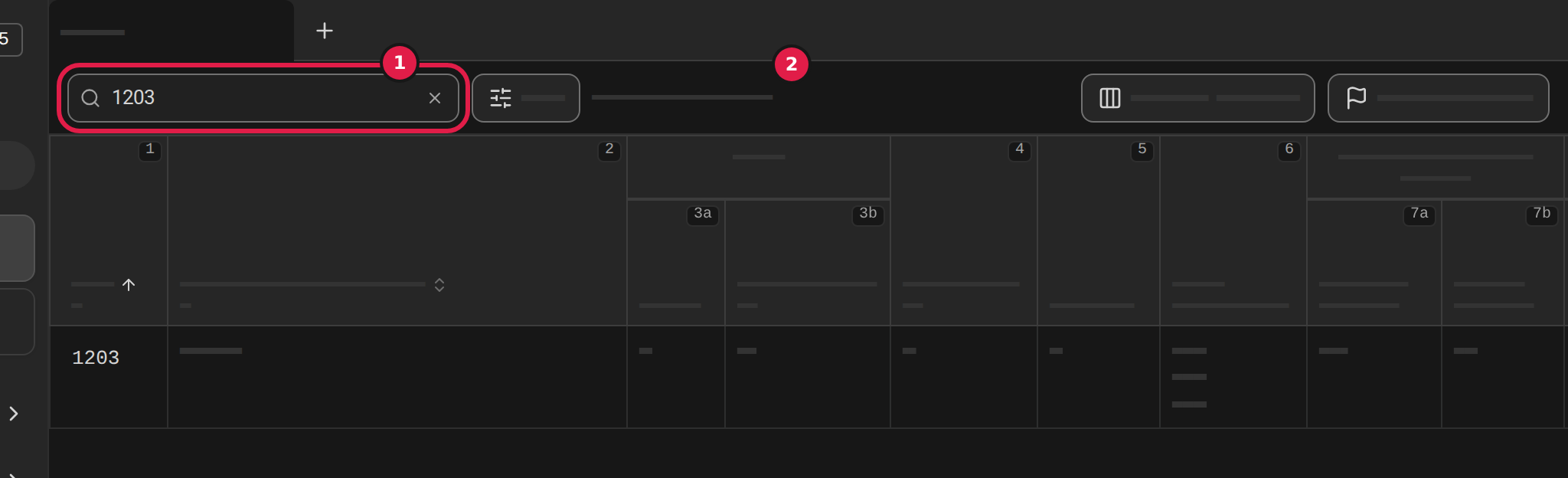
- If you type only digits, the table shows the UN numbers that start with them. 1203 finds UN 1203.
- If you type words, the table shows the rows whose name contains them.
- A code, for example a classification code such as F1, finds the rows that have the code.
- Above the table it says how many rows are showing out of the total (2).
- Choose the cross (1) in the search field to see every row again.
On a computer you can also press Esc.
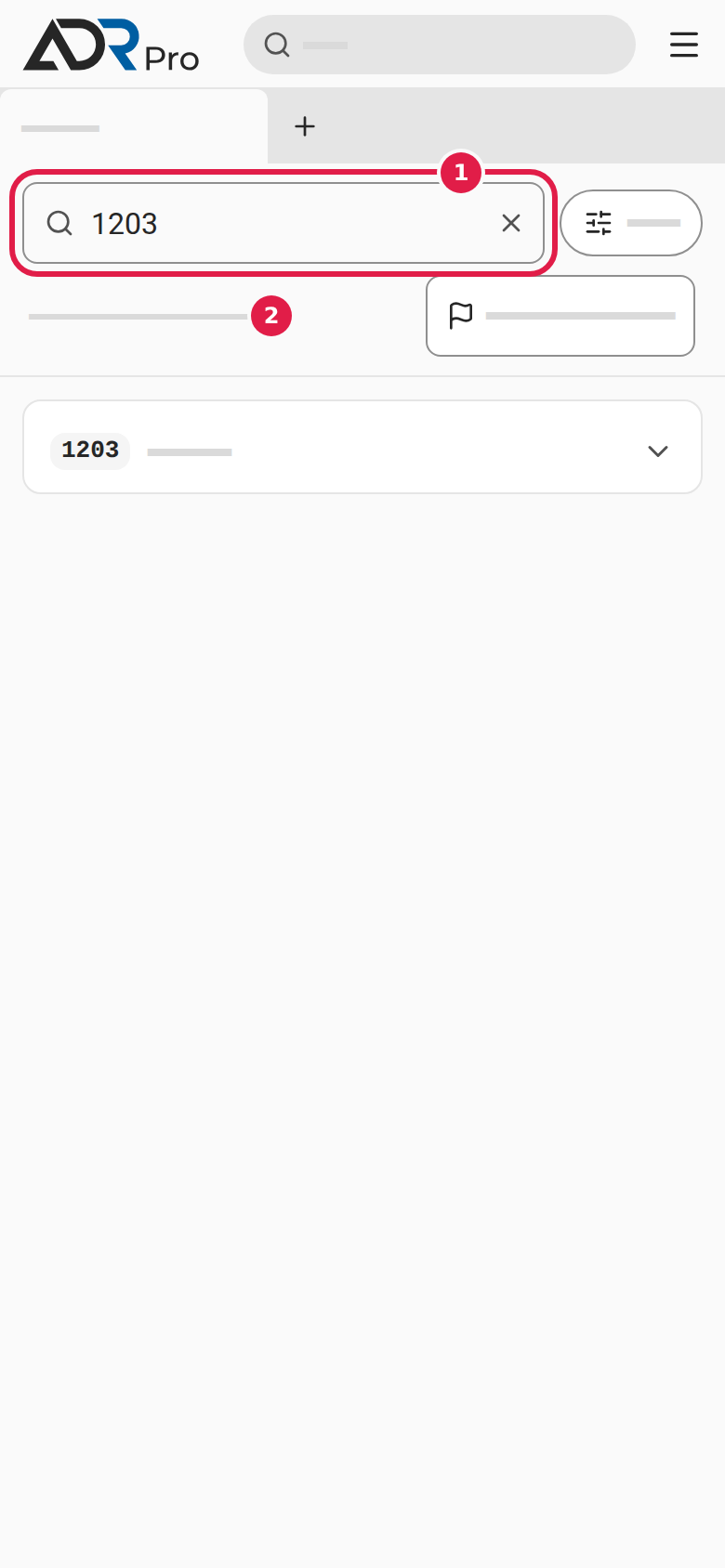
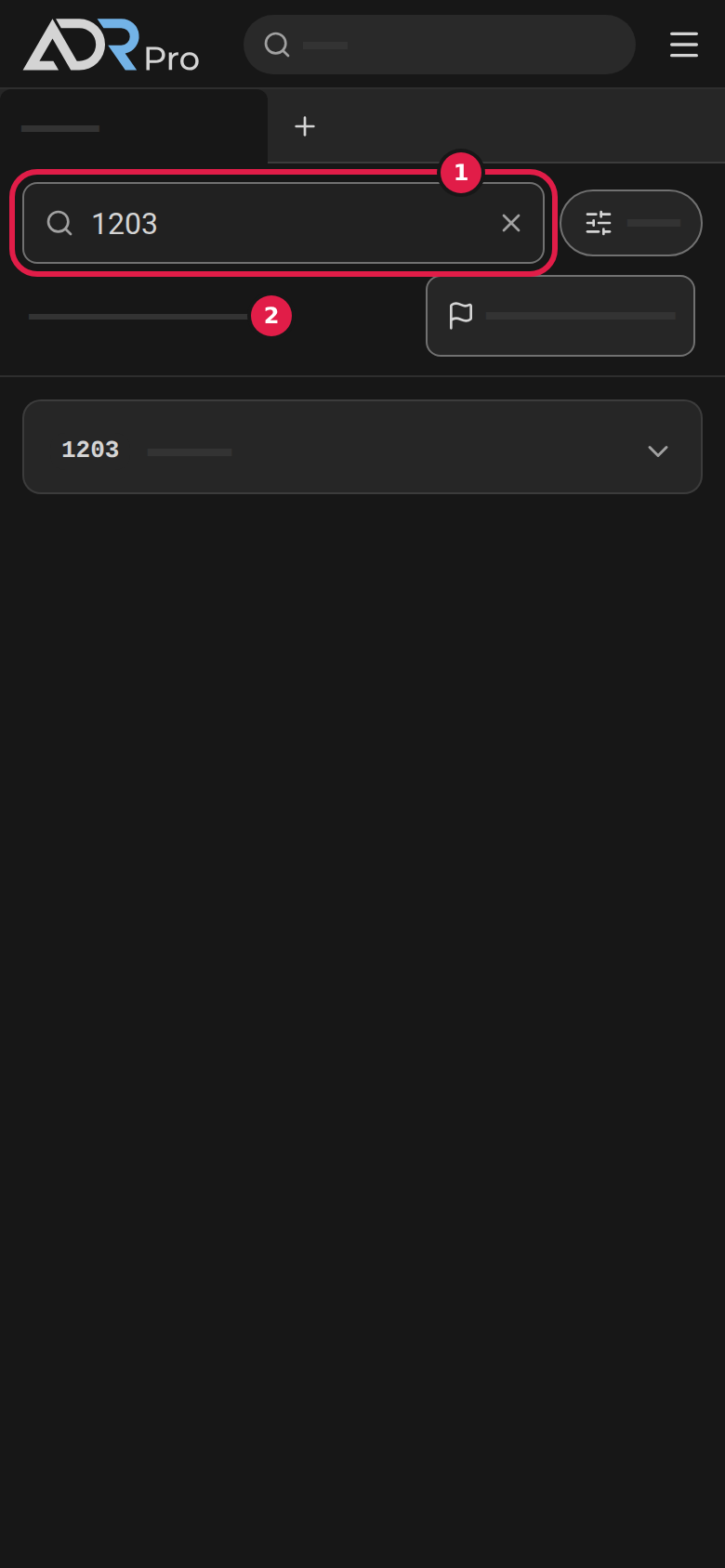
The search belongs to the tab. If you switch to another tab and back, it is still there.
You can also find a Table A row from search, which searches the whole agreement.
Filter a column
Copy link to “Filter a column”A filter shows only the rows that have the values you choose in a column, for example every row in class 3. You can filter several columns at once.
Choose values in a column
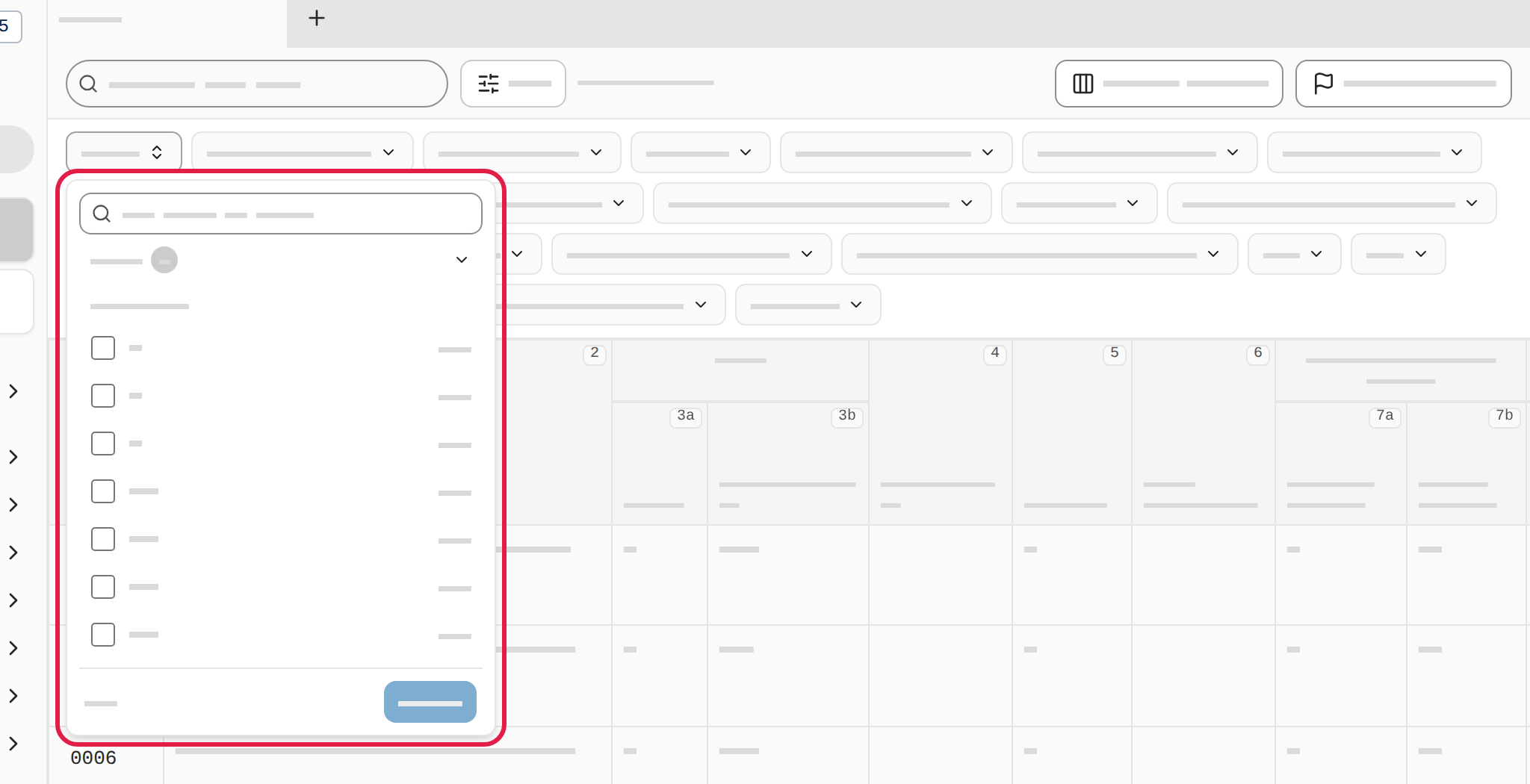
Copy link to “Choose values in a column”- Choose Filters above the table. A bar with a button for each column opens above the table.
- Choose the column. A list of the column’s values opens, with the number of rows beside each value.
- Tick the values you want to see. If the list is long, type in the Search … values field at the top.
- Choose Apply. If you close the list without choosing Apply, nothing changes.
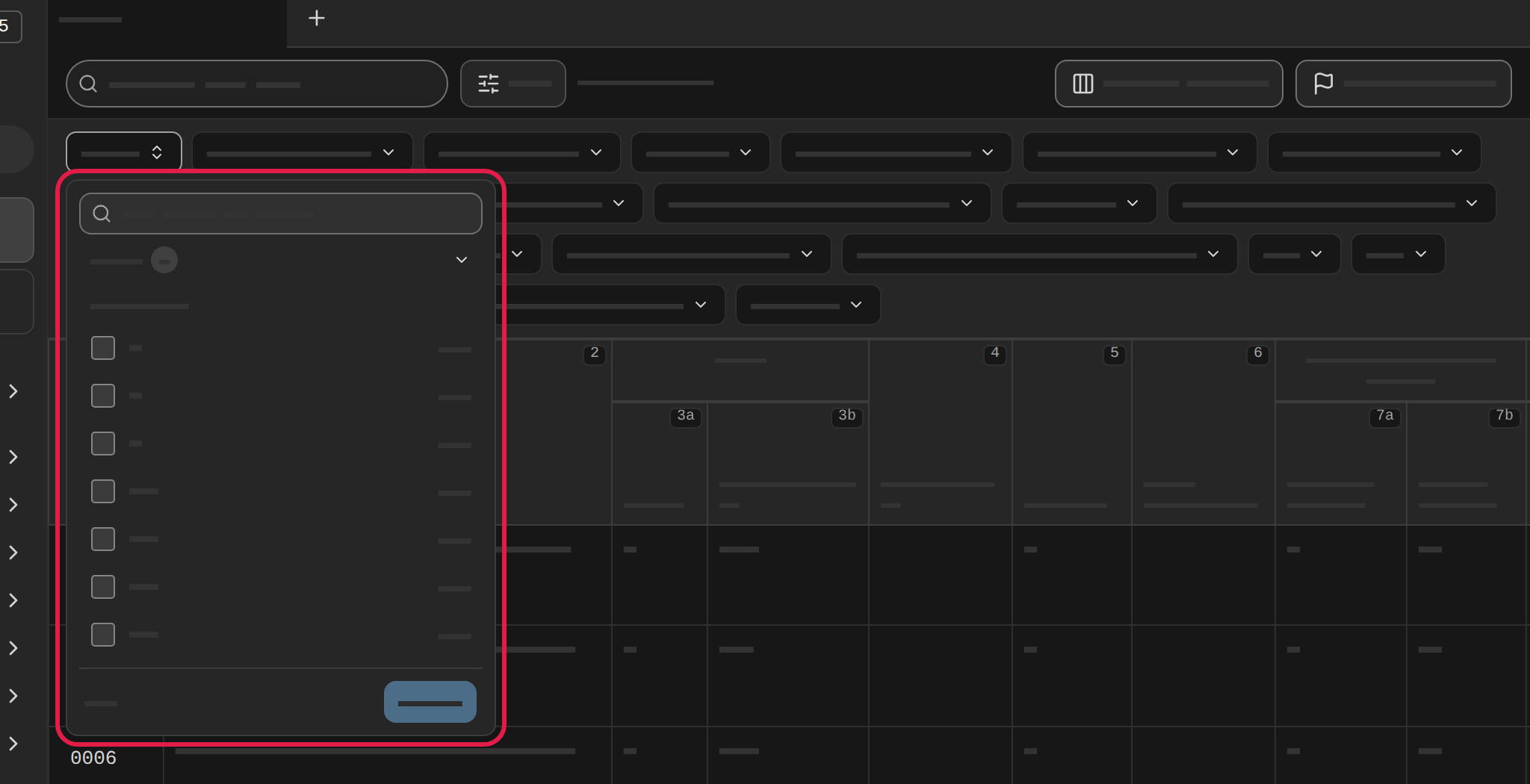
See and clear your filters
Copy link to “See and clear your filters”- A filtered column shows the chosen values on its button. Above the table it says how many rows are showing out of the total (2), and Filters (1) shows how many filters are in use.
- Choose the cross by a value to remove just that value.
- Choose the column and then Clear to remove the column’s filter.
- Choose Clear filters to remove every filter.
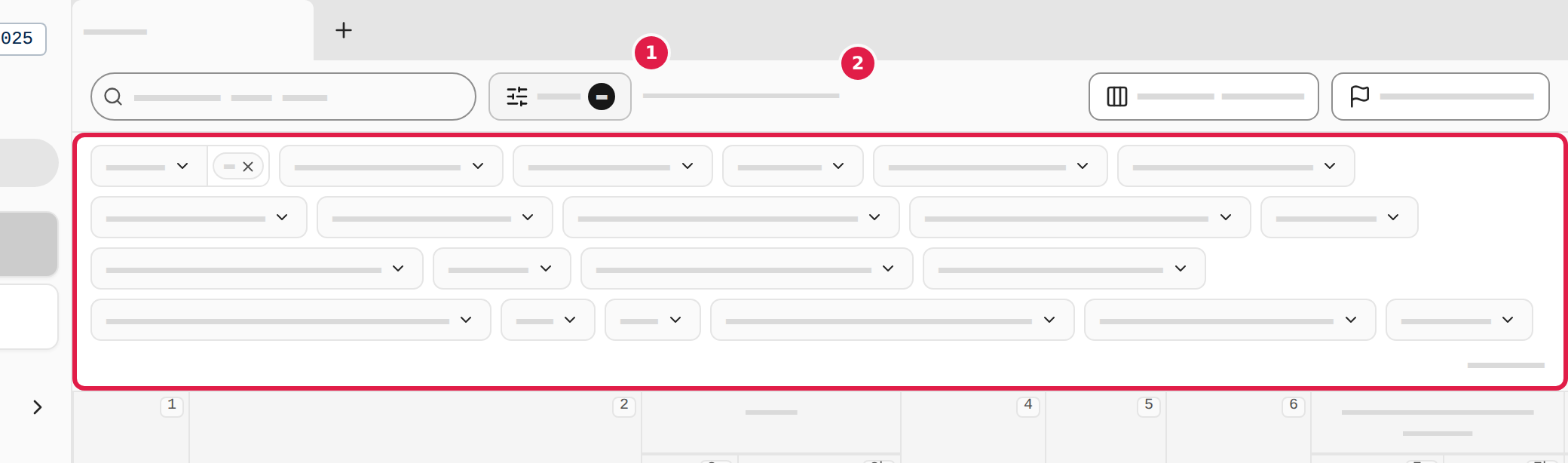
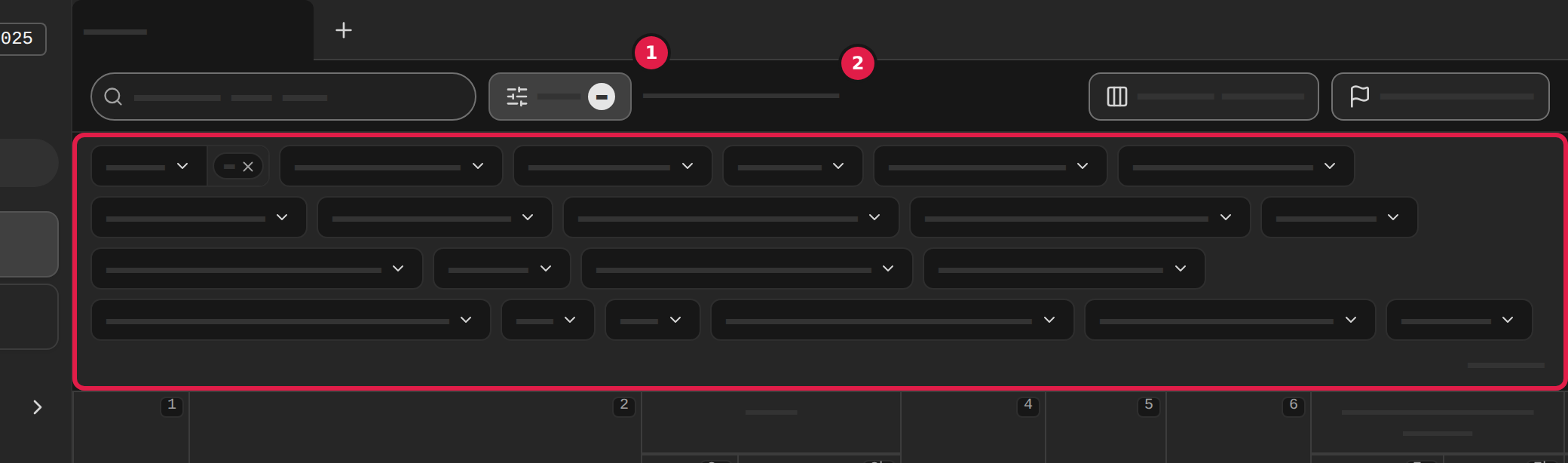
A filter also applies to a column you have hidden under Columns. How to hide a column is in Choose columns. The filters belong to the tab, like the search.
On a phone the filters are in a sheet, as described in On a phone.
Choose columns
Copy link to “Choose columns”Table A has many columns. You can hide the ones you do not use. The UN number and the name always show.
Hide or show columns
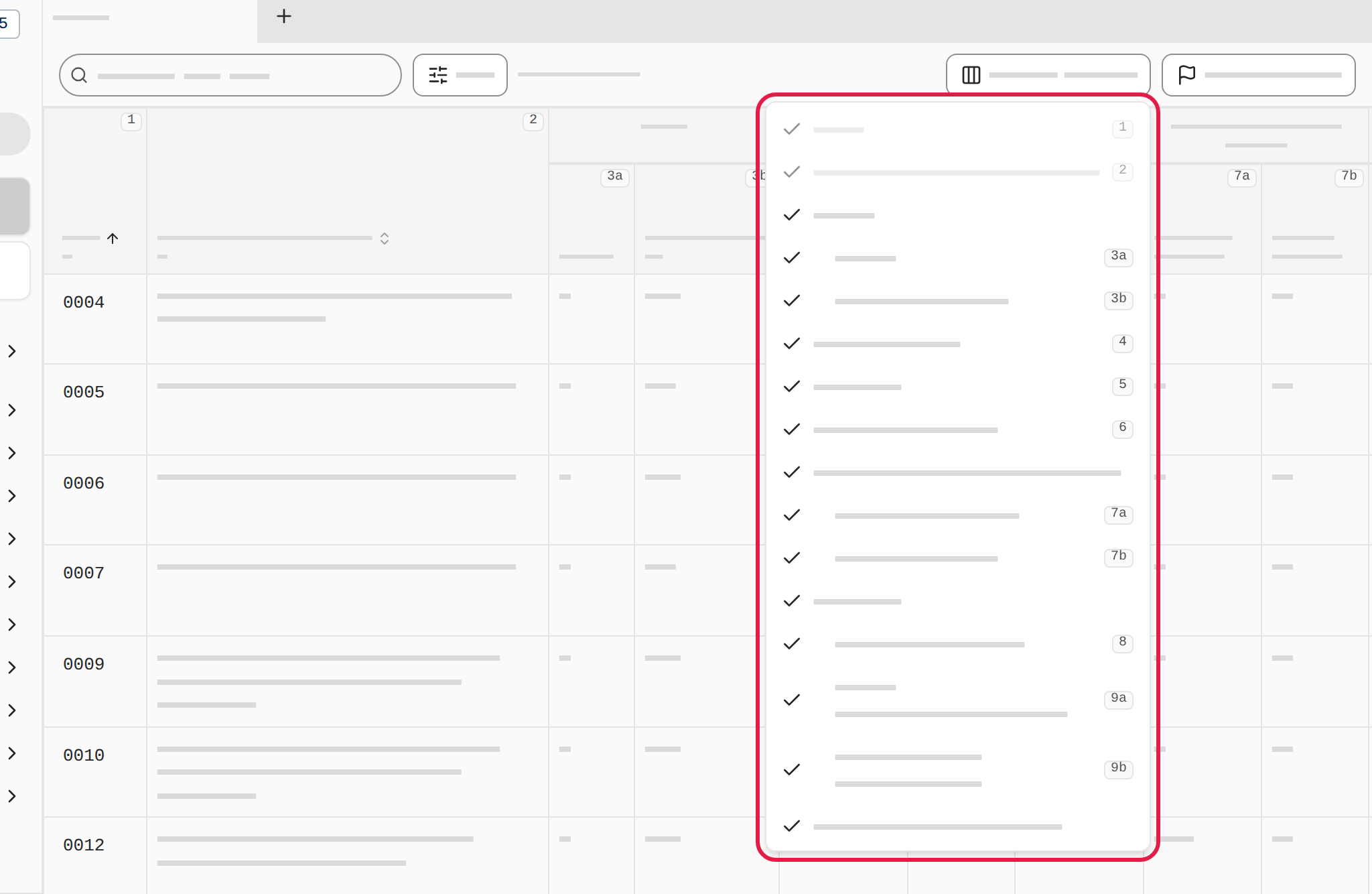
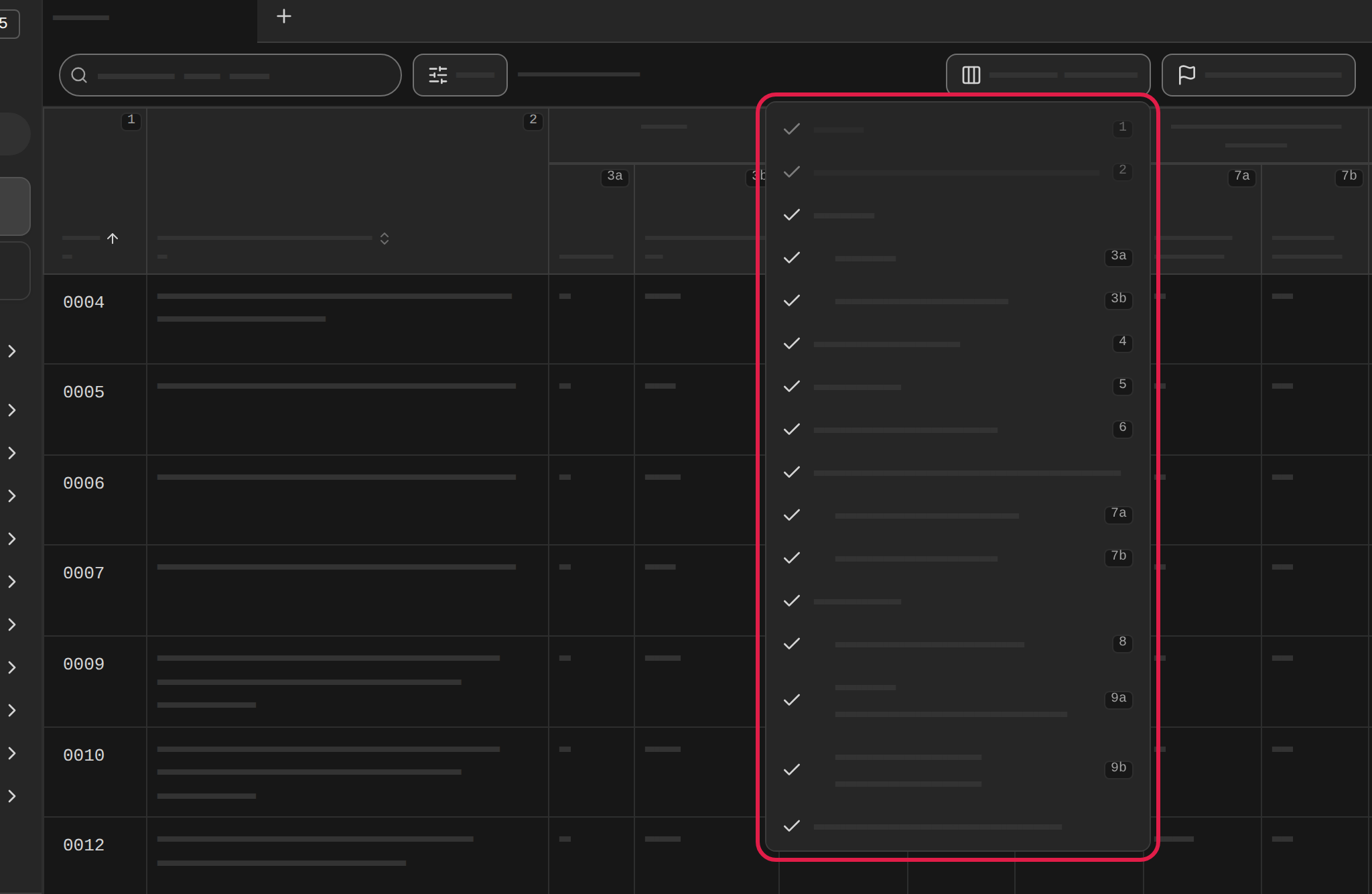
Copy link to “Hide or show columns”- Choose Columns above the table on the right. The list shows the columns in groups, with each column’s number beside it.
- Clear the tick by a column to hide it, or tick it to show it again. The list stays open, so you can choose several.
- Choose a group’s heading to show or hide the whole group at once.
- Press Esc, or choose somewhere outside the list, to close it.
See how many columns show
Copy link to “See how many columns show”The Columns button shows how many columns are showing, out of how many there are. The UN number and the name are not counted.
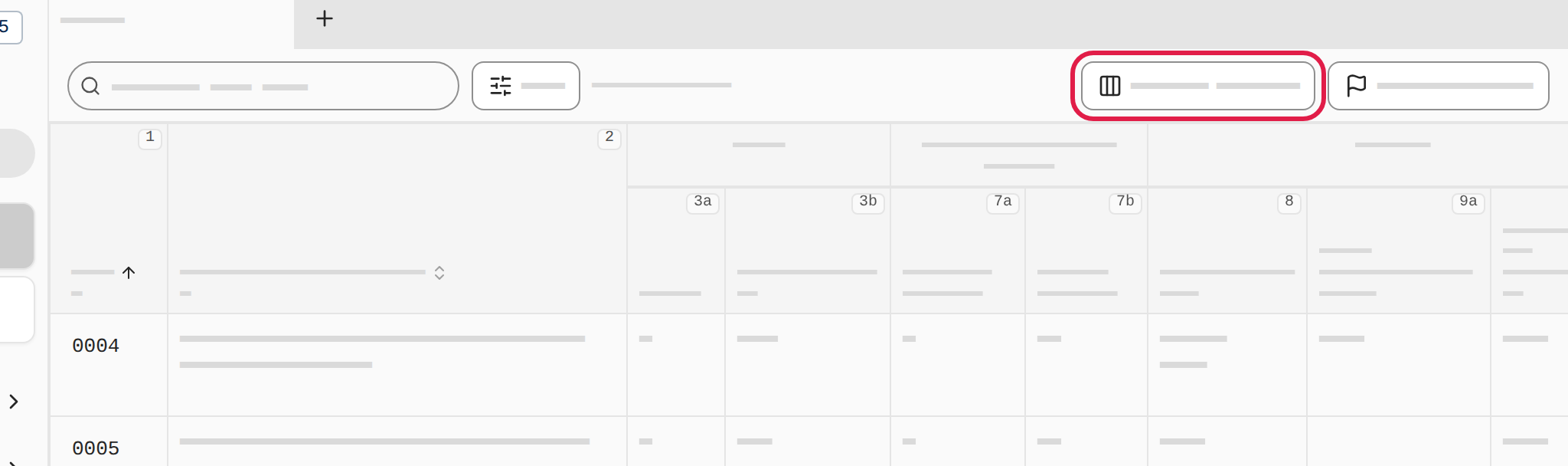
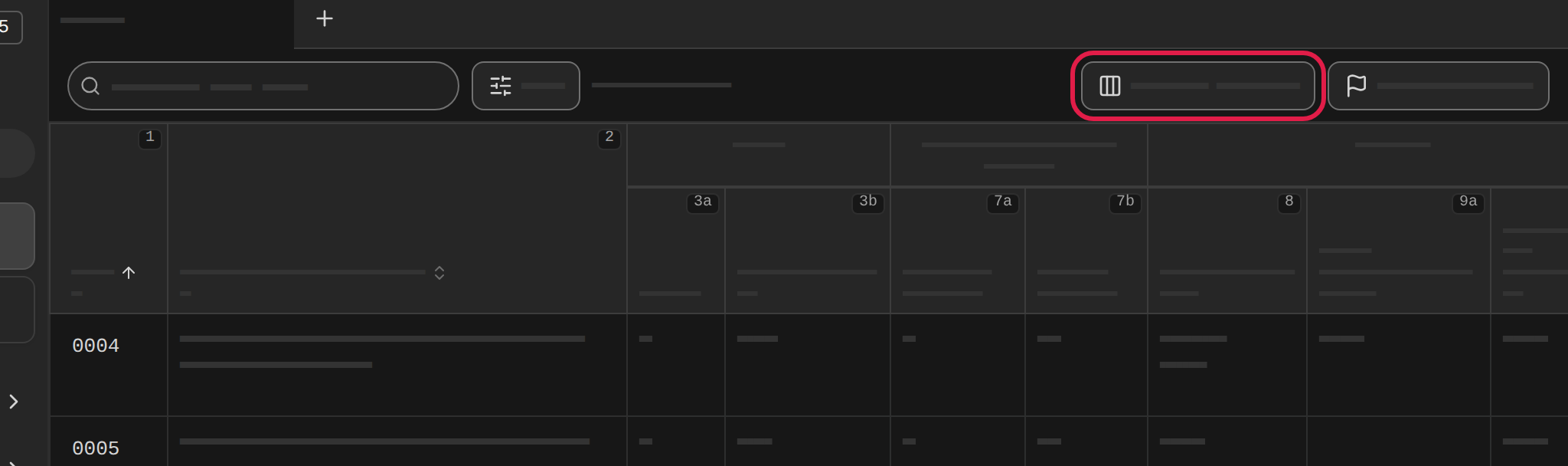
Your choice belongs to the tab. Another tab with Table A can show other columns. A filter on a hidden column still applies. The filters are in Filter a column.
On a phone Table A shows each row as a card with every column, so there is no Columns. More about it is in On a phone.
Read a row
Copy link to “Read a row”- Find the row. How to search is in Search by UN number or name.
- Each column has its number at the top, as in ADR. The UN number and the name stay on the left when you scroll sideways.
- A row whose carriage has a special status shows that status as a red message instead of the other columns.
If you find an error in a row, send the editors a report, as described in Report an error in Table A.
Open a reference from a row
Copy link to “Open a reference from a row”- Choose a code in the row, for example the packing instruction P001 in column 8. The place the code refers to opens in a peek beside the table, and Table A stays as it is, so you can come back to the row without having to find it again.
- Choose another code to open another peek. Each peek gets its own tab at the top of the panel.
- Hold down Ctrl (⌘ on a Mac) while you choose the code to open the place in a new tab instead.
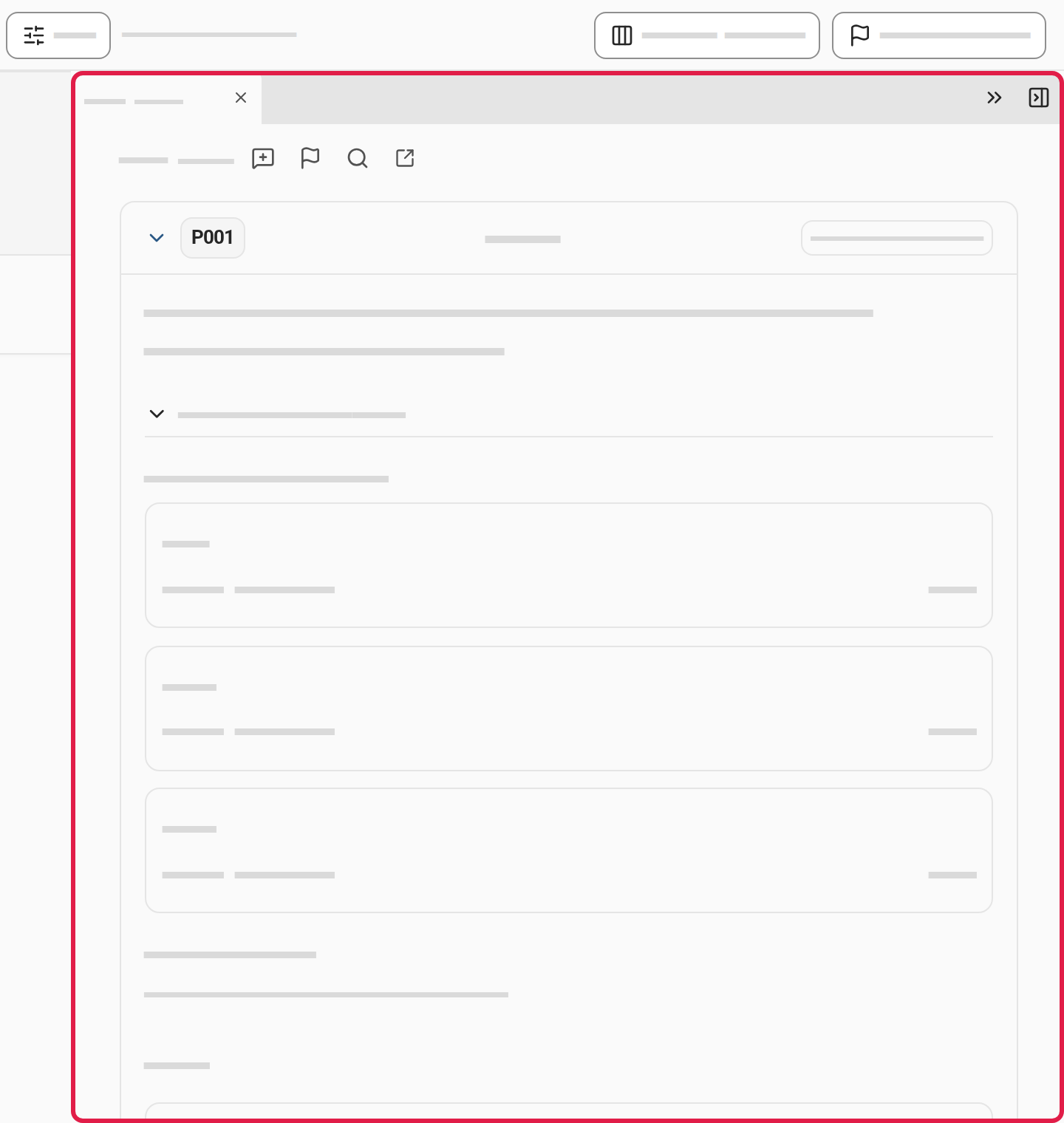
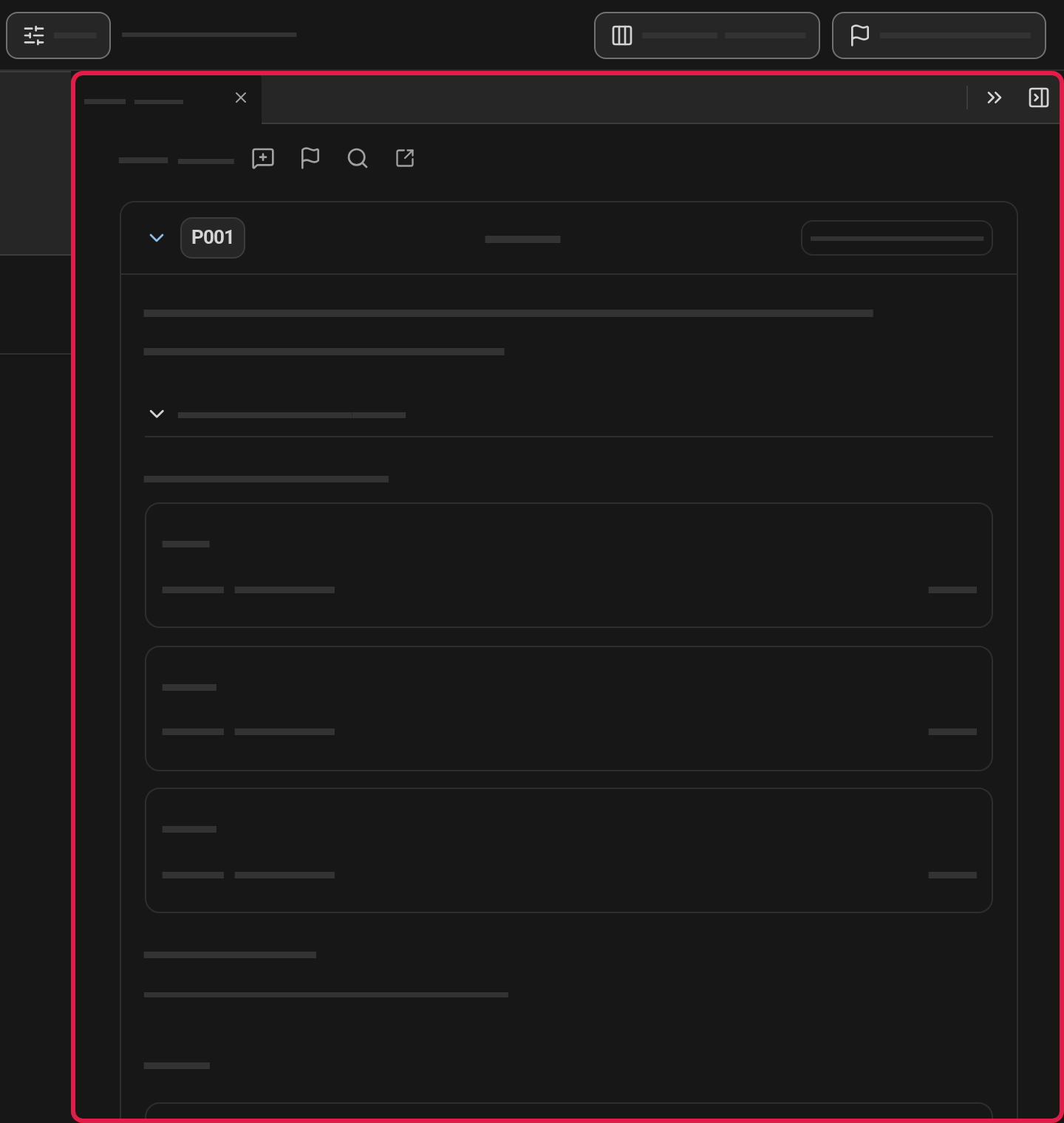
The peek works as in the rest of ADR Pro: you can put the panel away, close it or open the section as a tab. See Minimize or close the panel.
On a phone
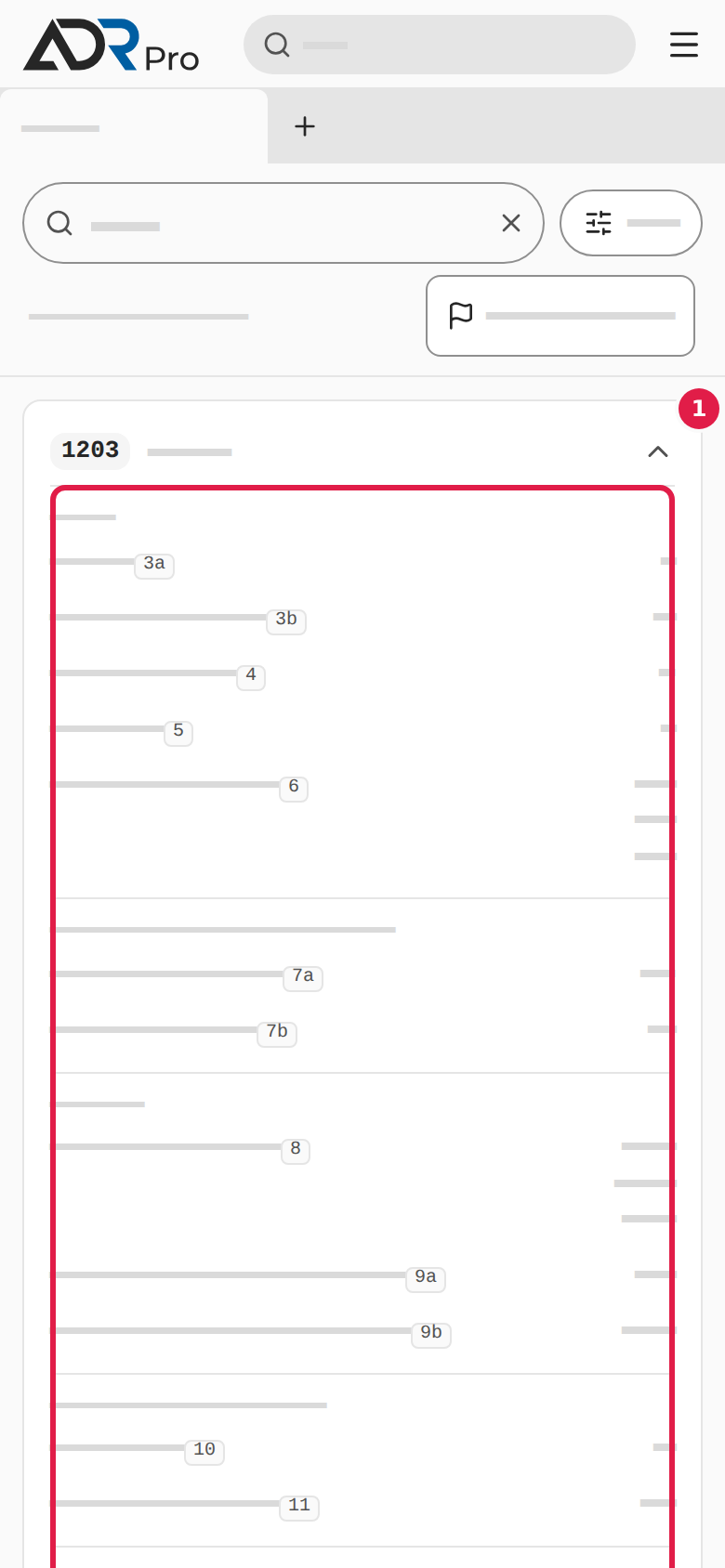
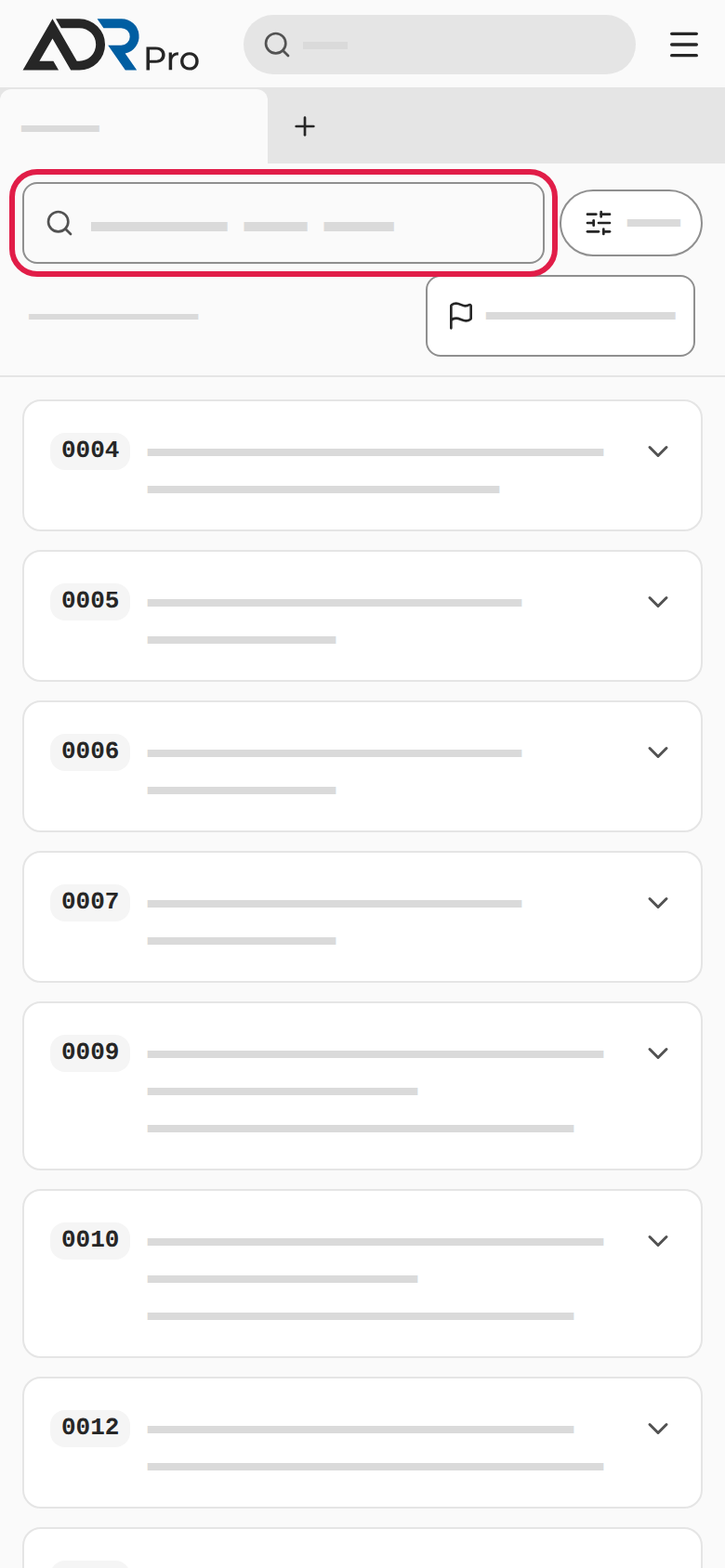
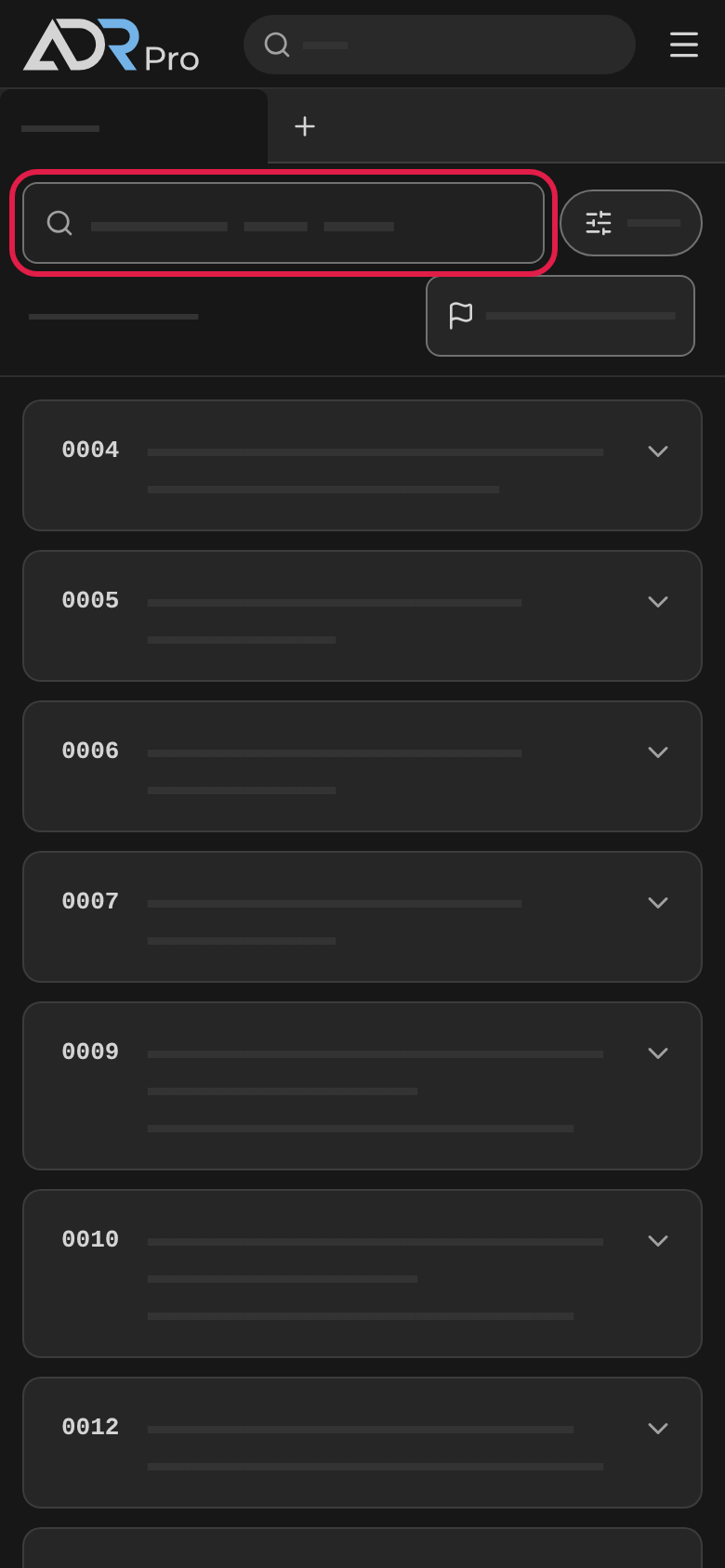
Copy link to “On a phone”Table A shows each row as a card with its UN number and name.
- Search: Choose the menu button and the Table A card, and type a UN number, a name or a code in the UN number or name search field at the top. The search works as on a computer, as described in Search by UN number or name.
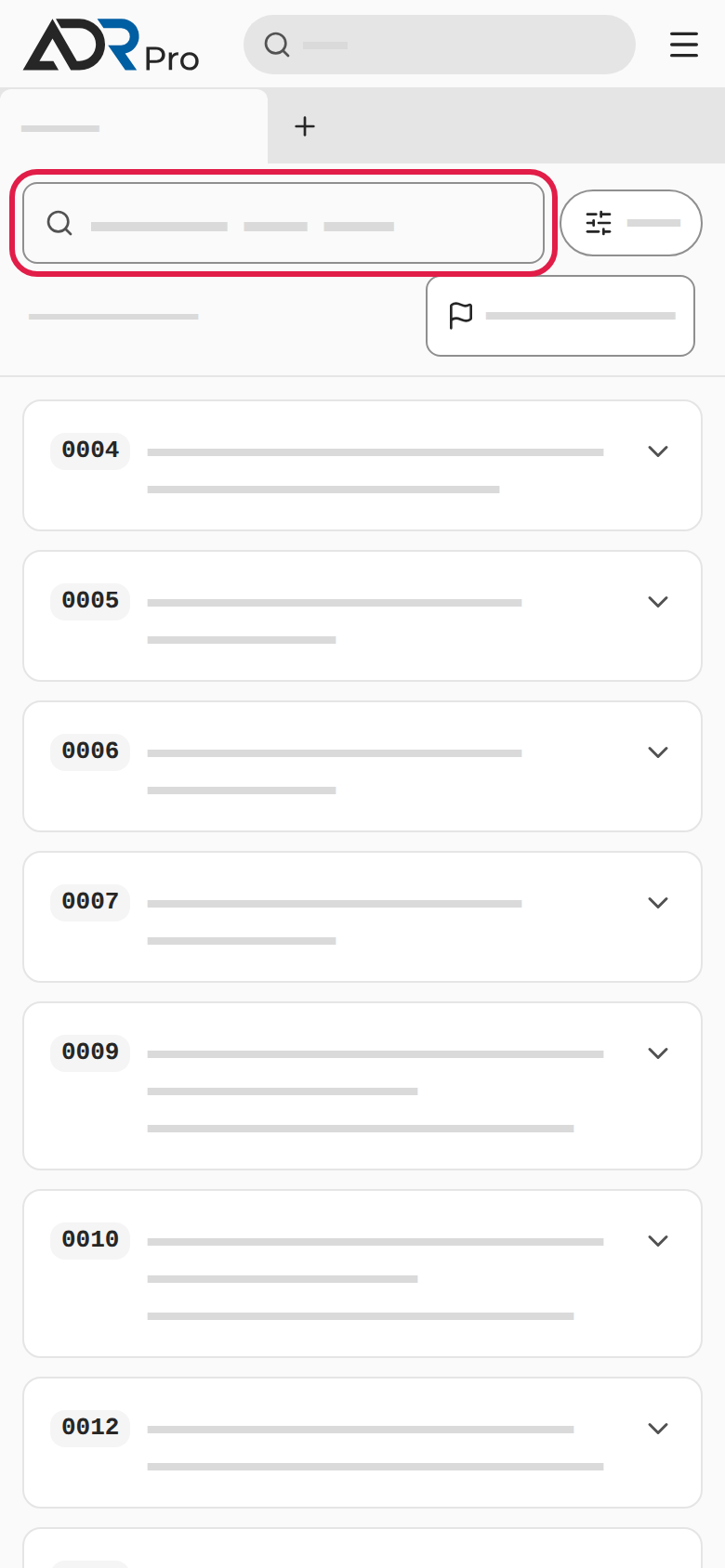
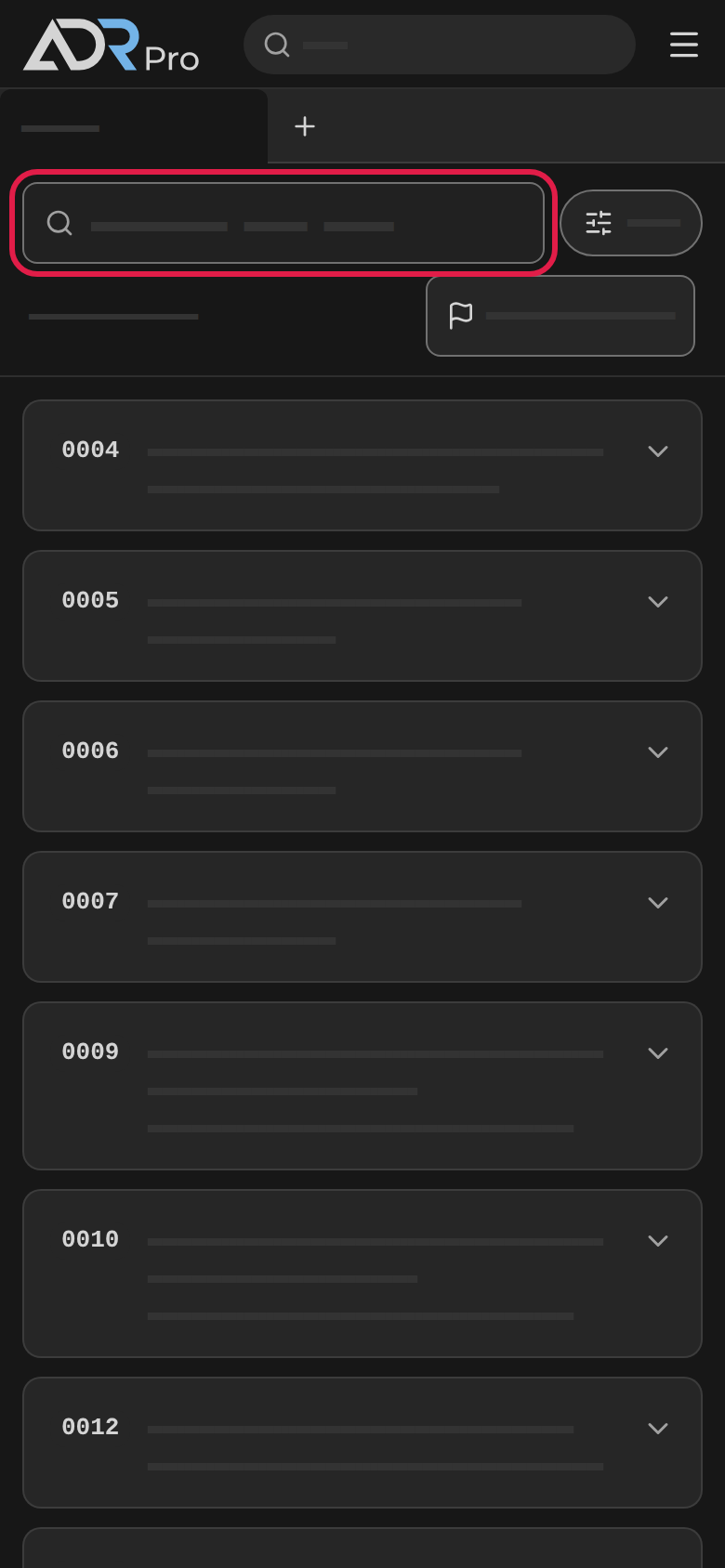
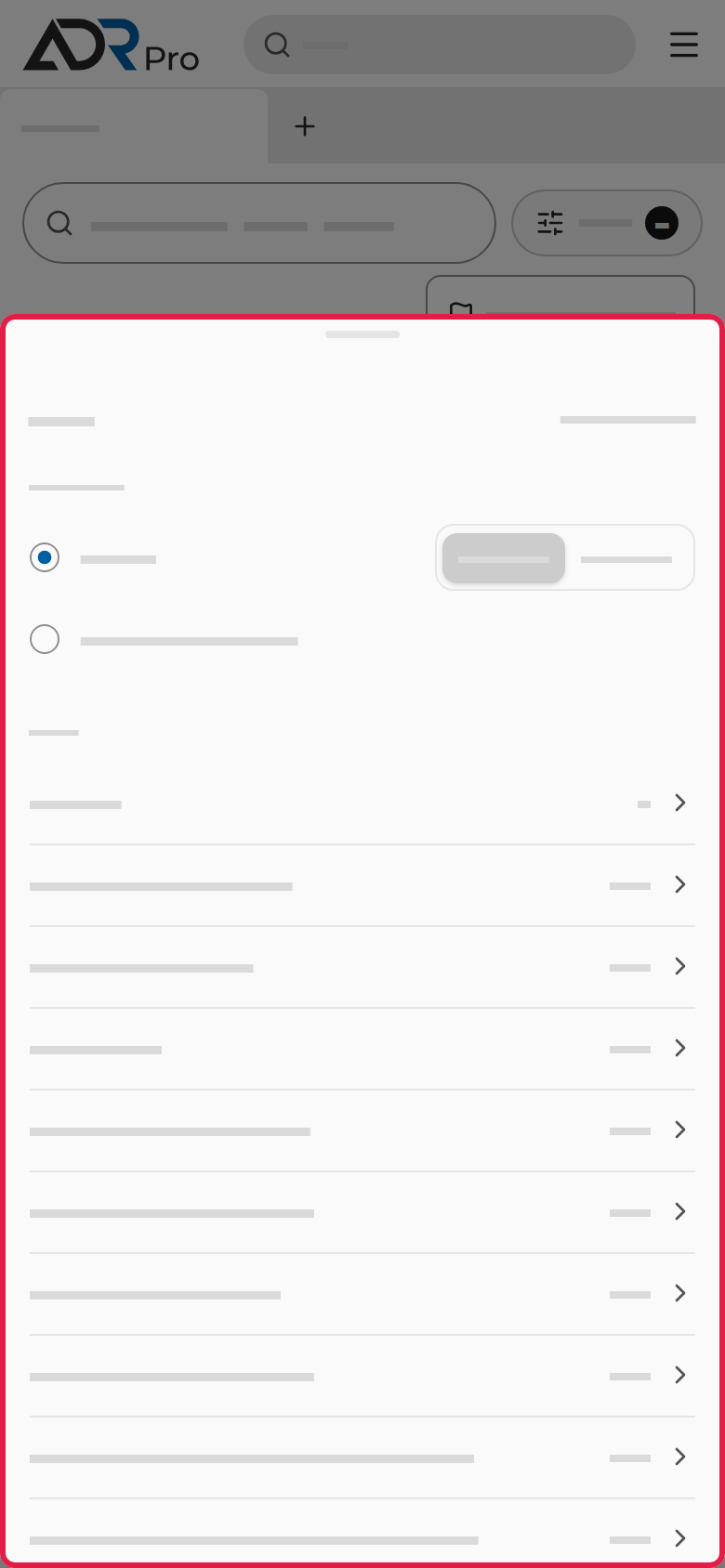
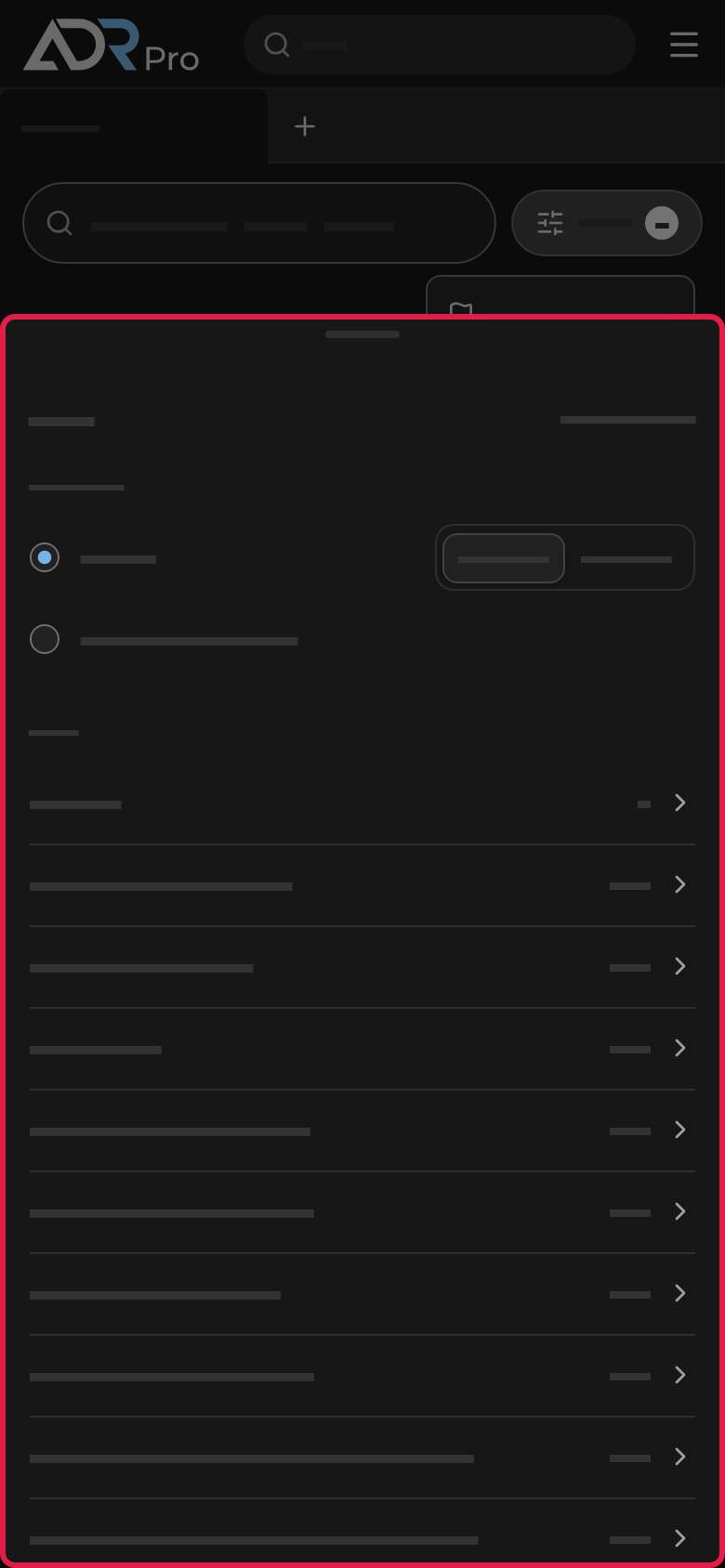
- Filter and sort: Choose Filters beside the search field, and a sheet opens. Under Sort by, choose UN no. or Name, and Ascending or Descending. Choose a column under the filters, tick the values you want to see and choose Apply. Clear all (…) removes every filter.
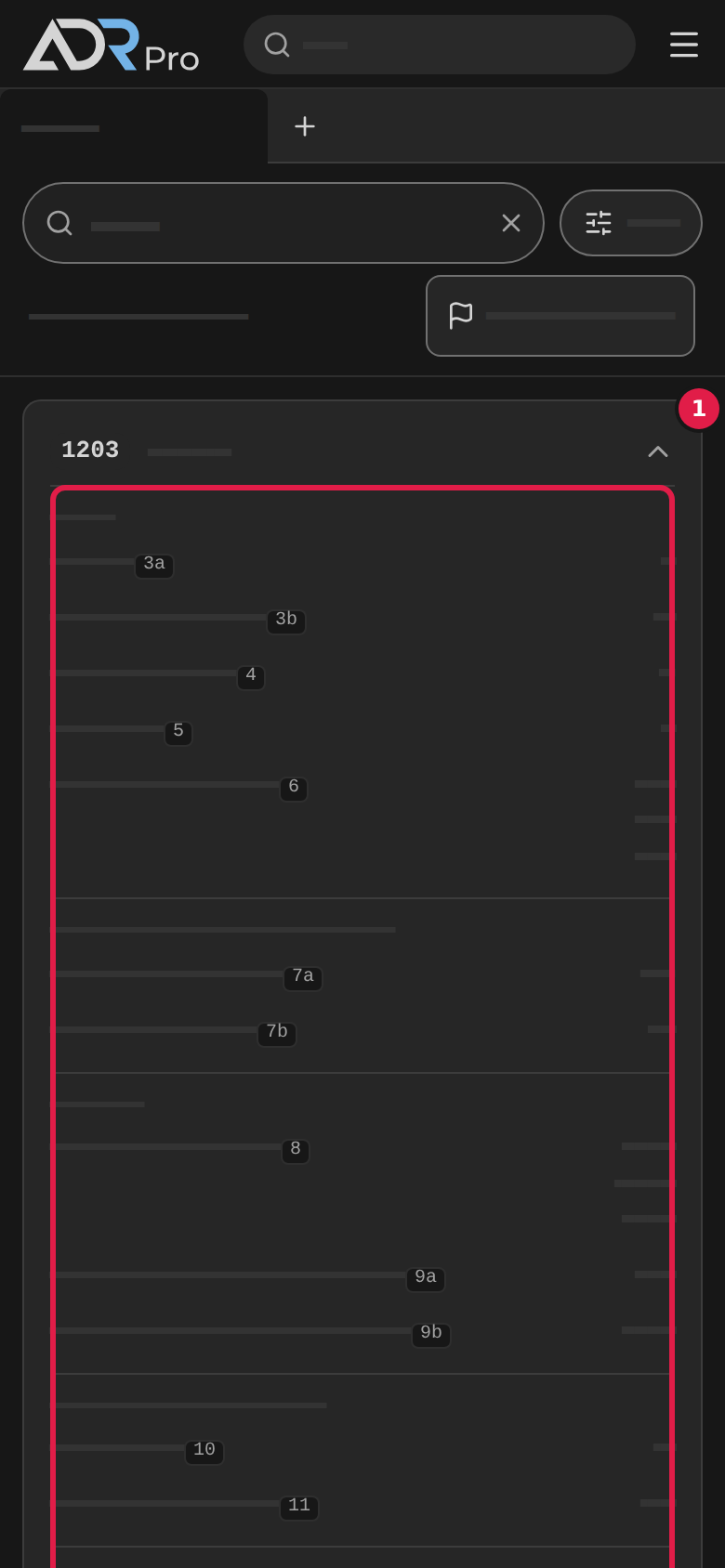
- Open a card: Choose the card’s top line (1). The card unfolds and shows the row’s columns in groups, each with the column’s number. Choose a code in the card, for example a section number or a packing instruction, and it opens as a peek in a sheet. Choose the top line again to fold the card up.