Settings
Under Settings you decide the theme, the width of the panels, and how the text sits on the page. You choose the language in the account menu. This is where each choice is.
Open the settings
Copy link to “Open the settings”Under Personalization you decide how ADR Pro looks. The choices apply to the device you are using, so your phone and your computer can look different.
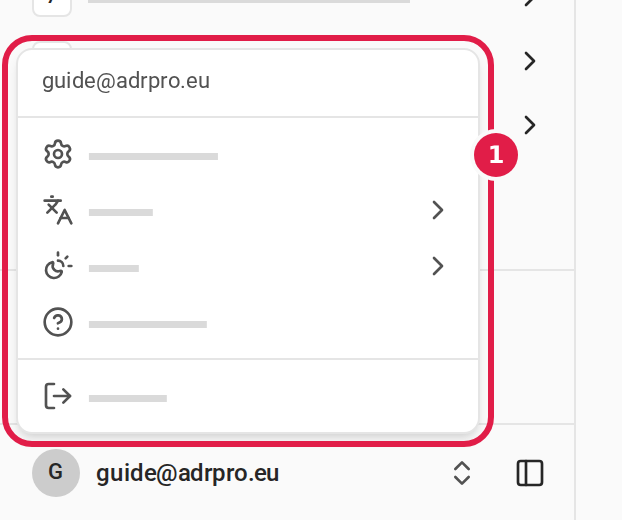
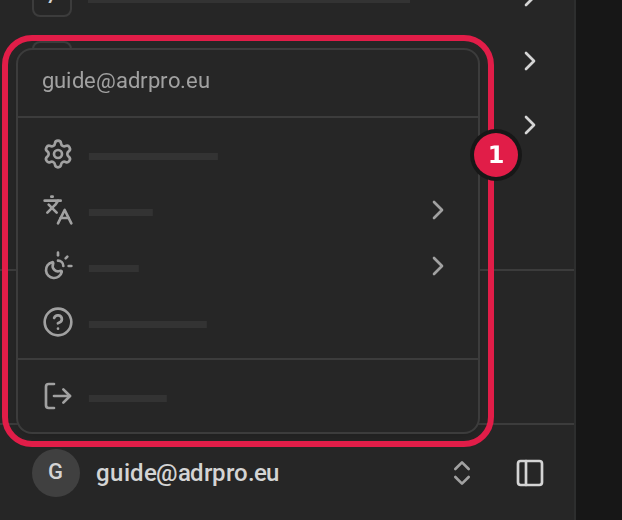
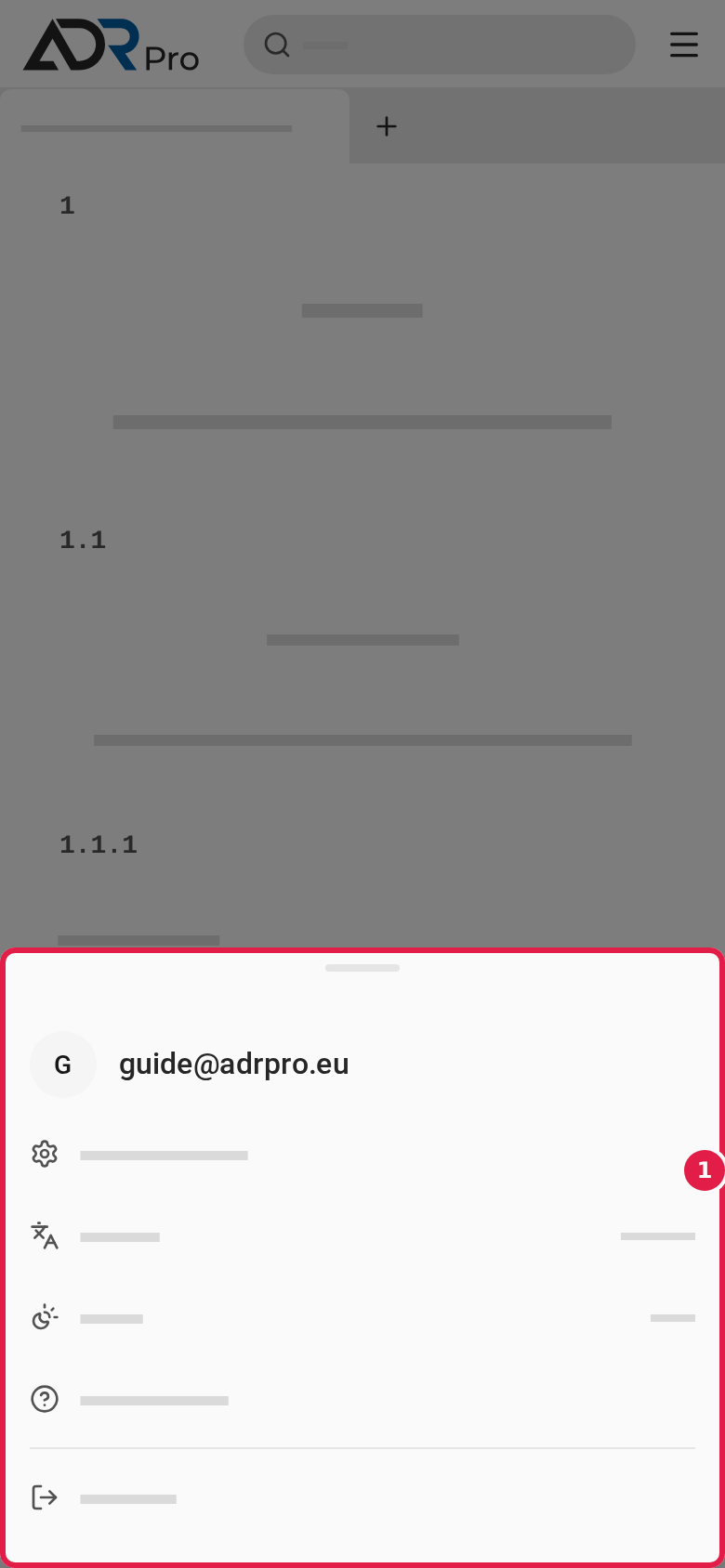
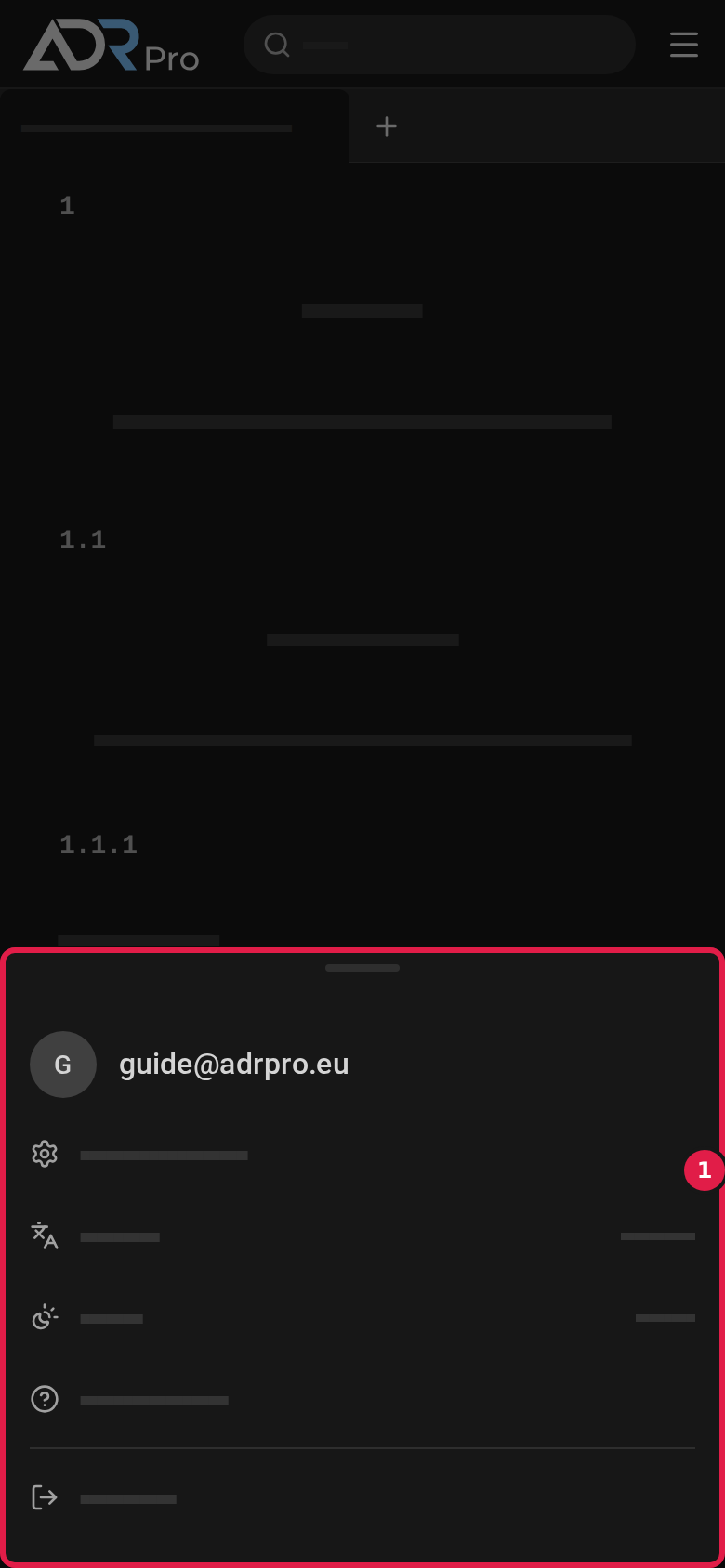
- Choose your name or email address at the bottom of the sidebar to open the account menu. On a phone, first choose the menu button at the top right.
- Choose Settings (1).
- Choose Personalization in the list of settings pages. On a phone, the settings open as a list of the pages. At the top of each page, Settings takes you back to the list.
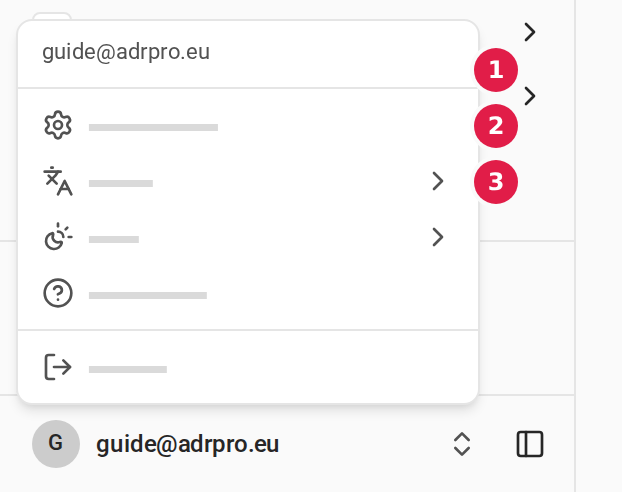
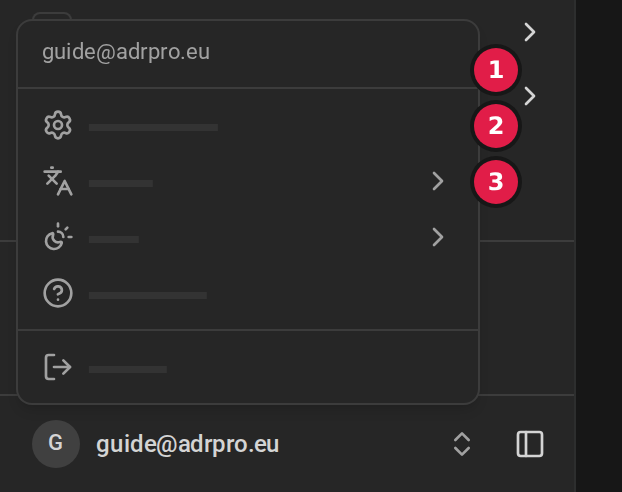
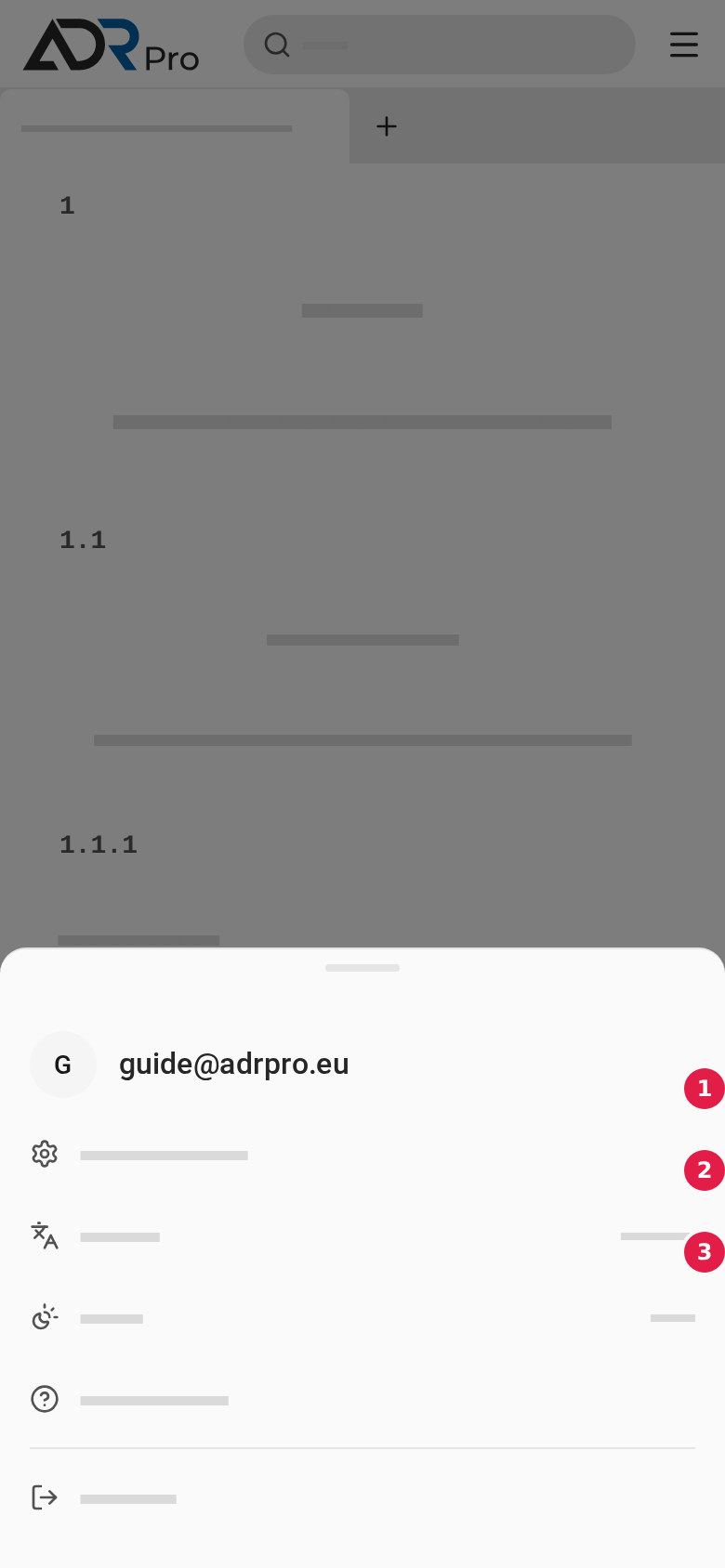
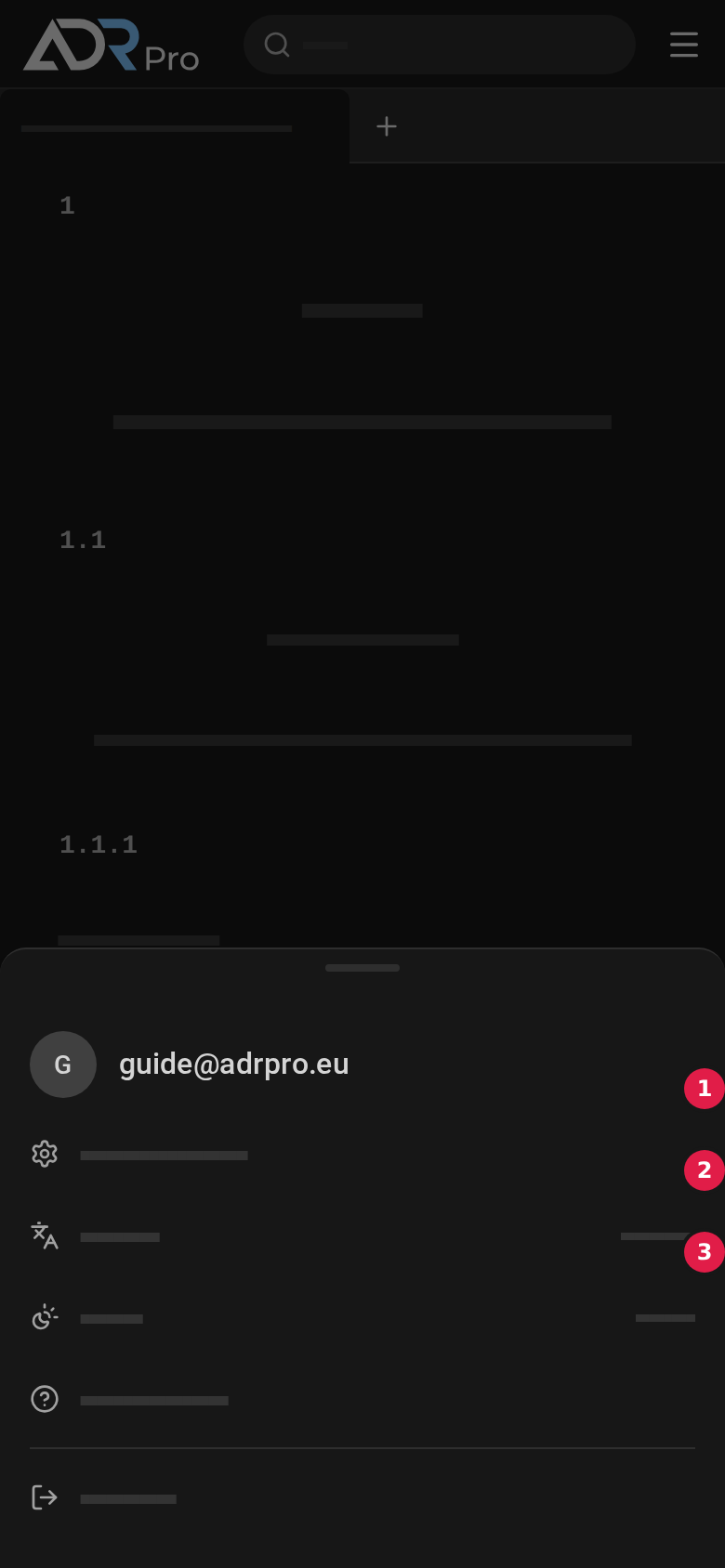
You can also change the theme and the language straight from the account menu, with Theme (3) and Language (2).
Language
Copy link to “Language”ADR Pro has two languages: the interface language, which menus and buttons are in, and the content language, which the text of ADR is in. You choose the first, and the second follows when ADR exists in that language.
Change the language from the account menu
Copy link to “Change the language from the account menu”- Choose your name or email address at the bottom of the sidebar to open the account menu. On a phone, first choose the menu button at the top right.
- Choose Language (1), and choose the language in the list.
Theme and motion
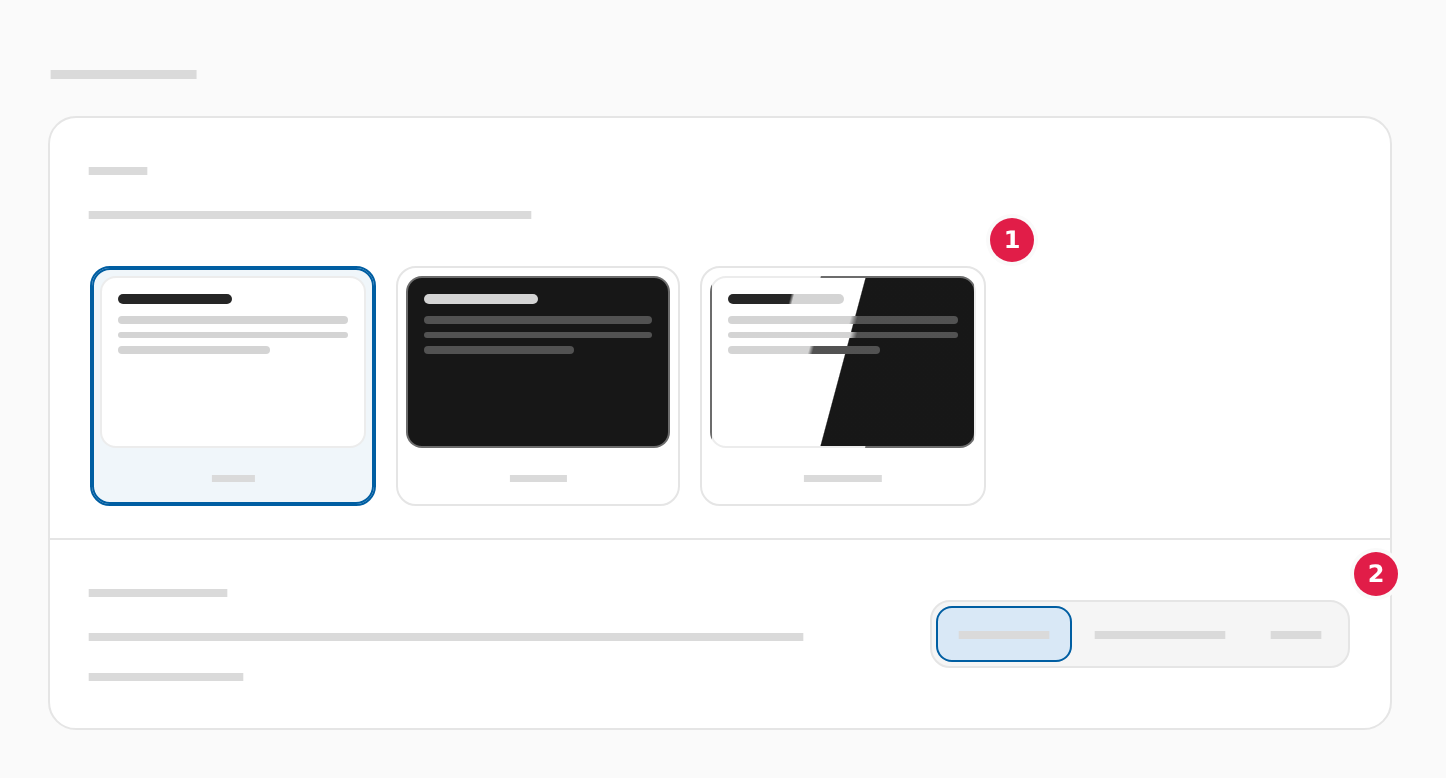
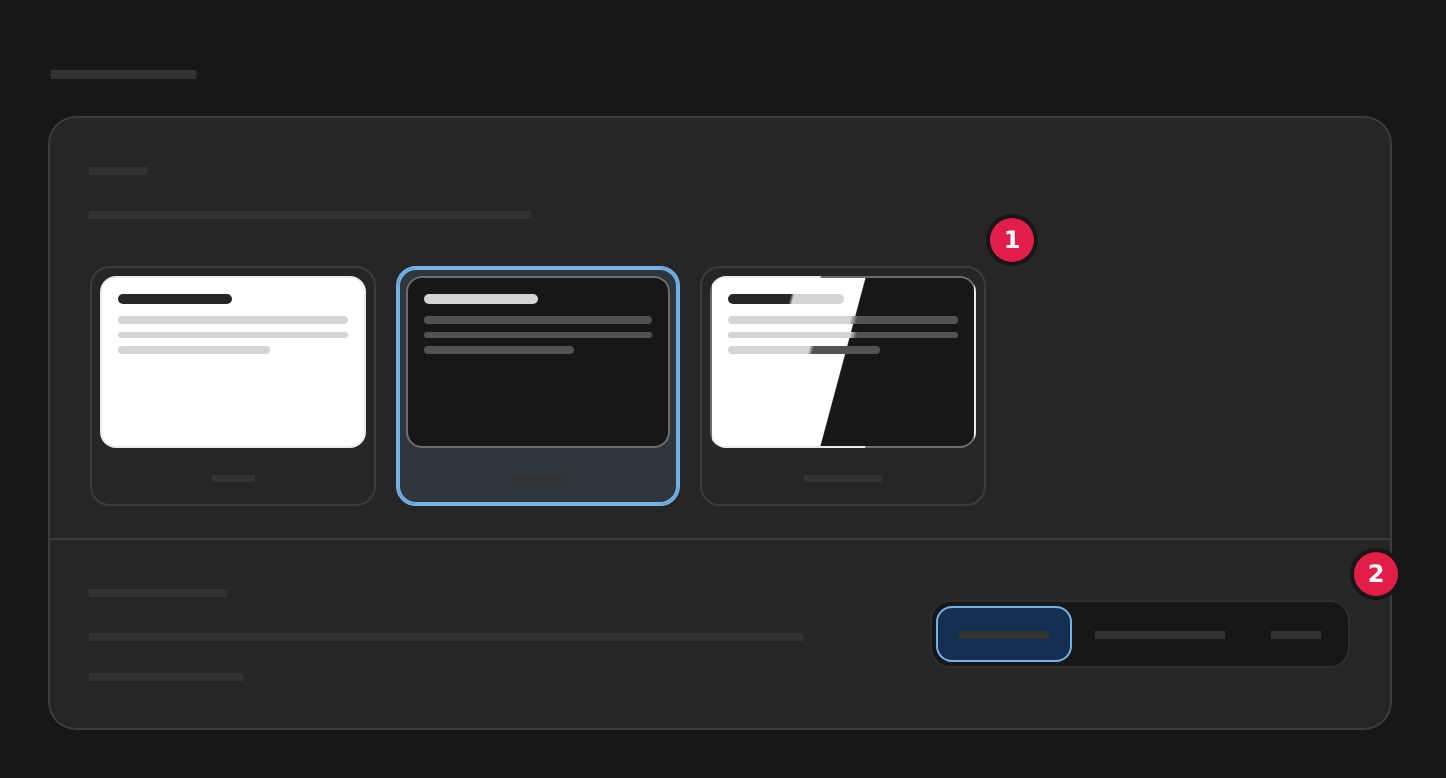
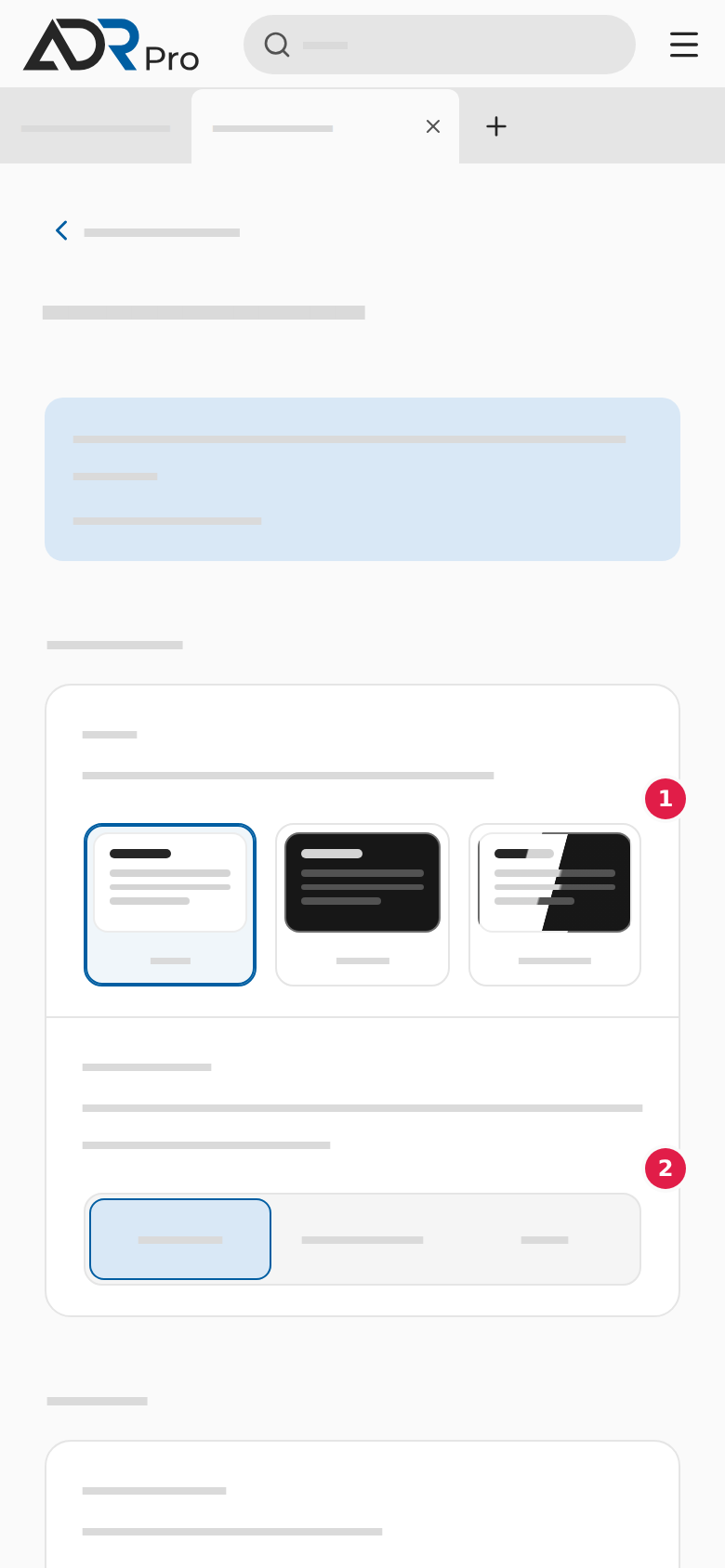
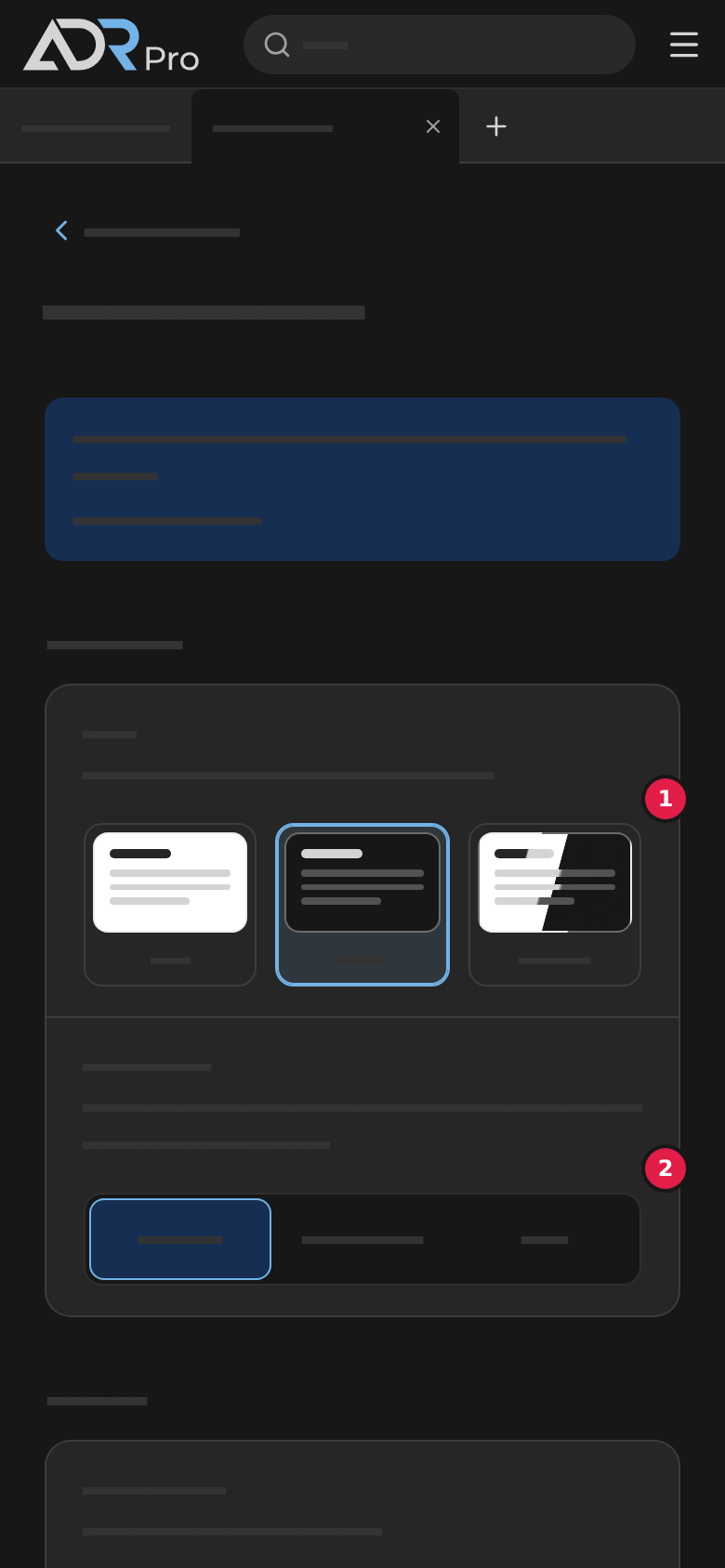
Copy link to “Theme and motion”- Choose a theme at Theme (1): Light, Dark or System, which follows your computer’s or phone’s setting.
- Choose at Motion (2) whether ADR Pro uses animations: System, which follows your device’s setting, Reduced or Full.
A choice applies at once, so there is no button to save it. On a computer, Reset at the bottom, at Panel widths, gives the panels their normal width again. More about the panels’ width is in Panel widths.
Panel widths
Copy link to “Panel widths”- Drag the sidebar’s inner edge (1) to make the sidebar wider or narrower. Choosing the edge hides the sidebar, and a double-click gives it its normal width again.
- Drag the outline’s inner edge (2) to change the width of the outline on the right.
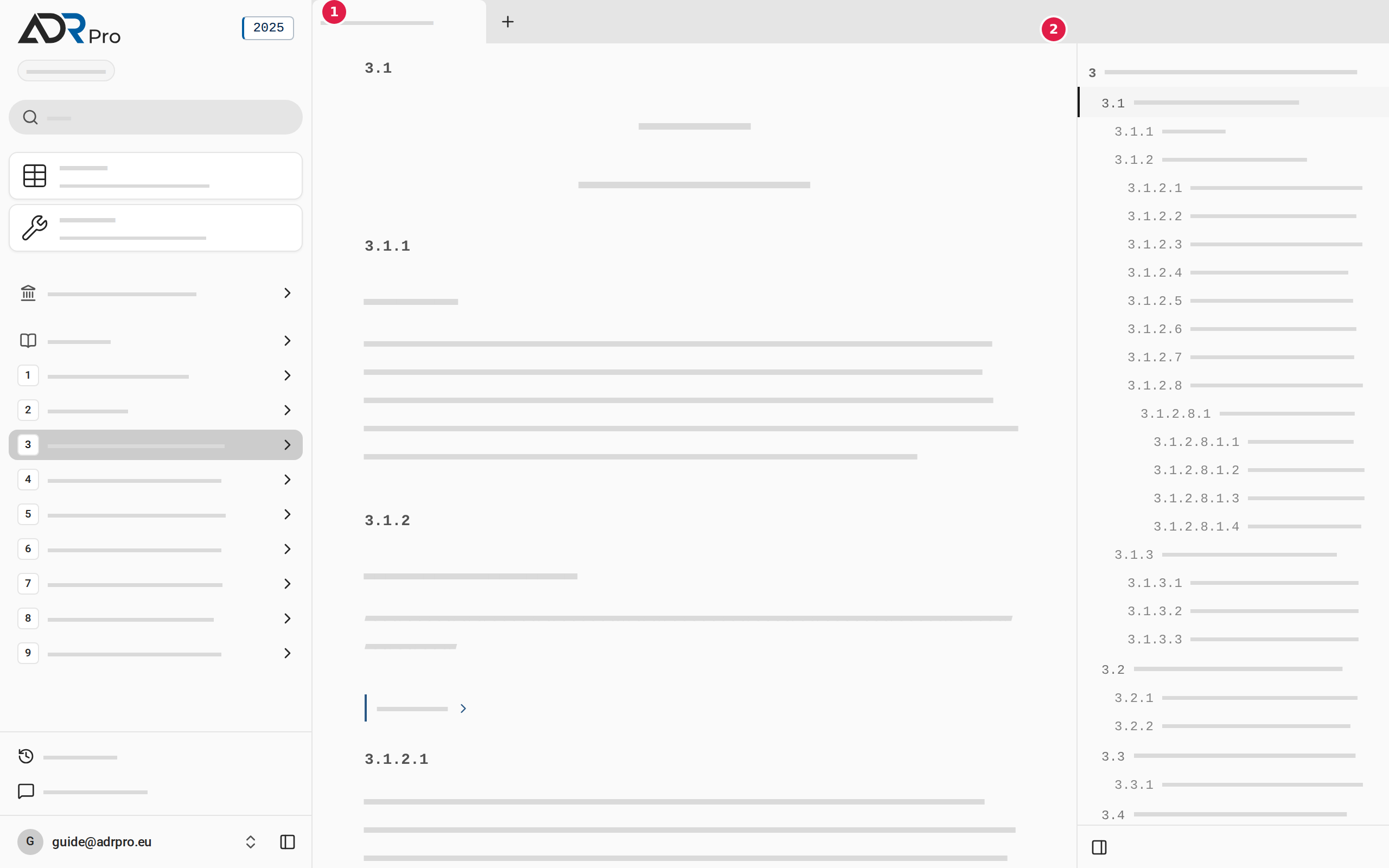
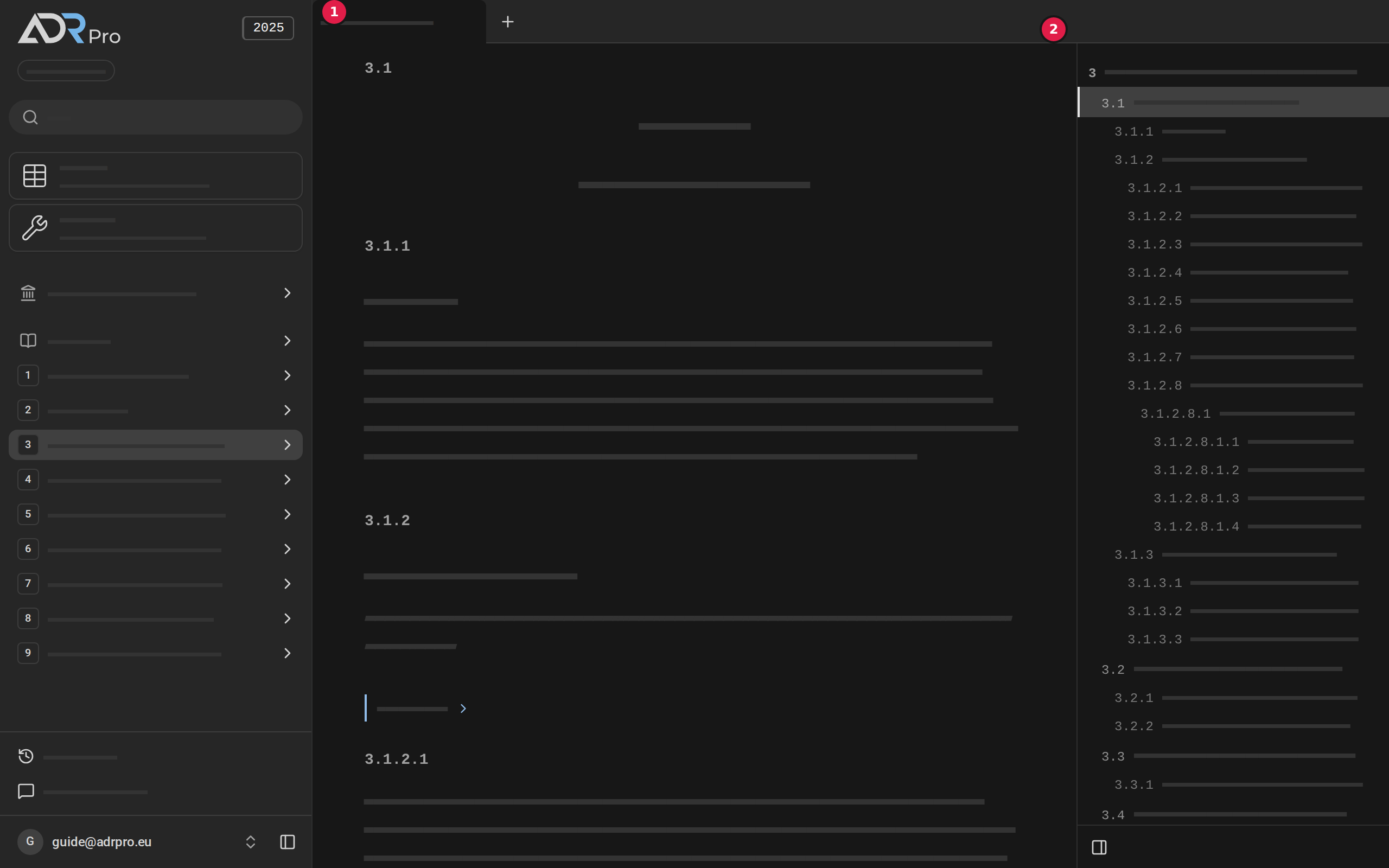
- To give both panels their normal width again, choose Reset at Panel widths under Personalization, as described in Theme and motion. The button can only be chosen once a panel has another width.
The panels are on a computer. On a phone, the sidebar opens as a full-width menu.
Text width, line spacing and size
Copy link to “Text width, line spacing and size”Under Reading you adjust how the text of ADR sits on the page. The choices apply to the device you are using, and they work at once, so you can see the difference in the example at the bottom of the group while you choose.
- Choose your name or email address at the bottom of the sidebar, choose Settings, and choose Personalization. On a phone, first choose the menu button at the top right, as described in Open the settings.
- Choose the air between lines at Line spacing (1): Compact, Default or Relaxed.
- Choose the size of the text at Text size (2): S, M, L or XL.
- On a computer, also choose the line length at Reading width (3): Narrow, Medium or Wide.
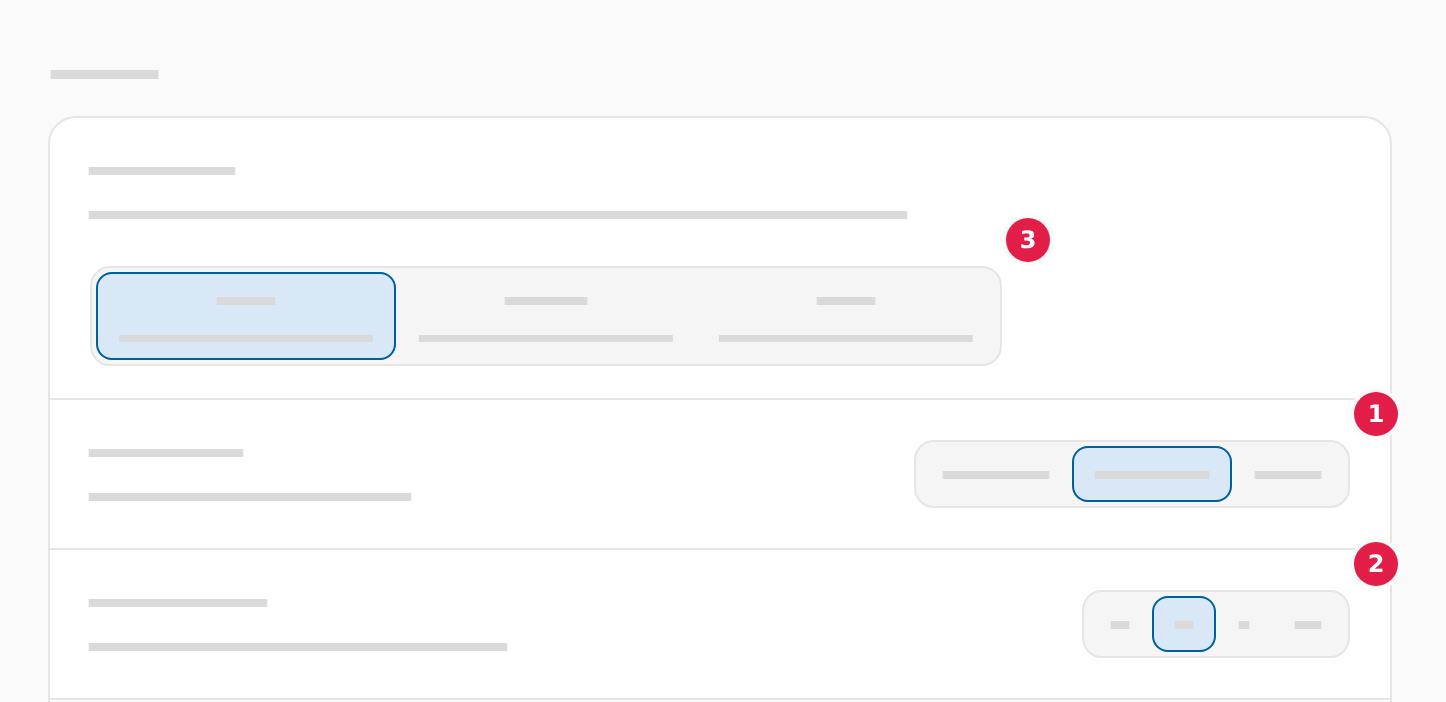
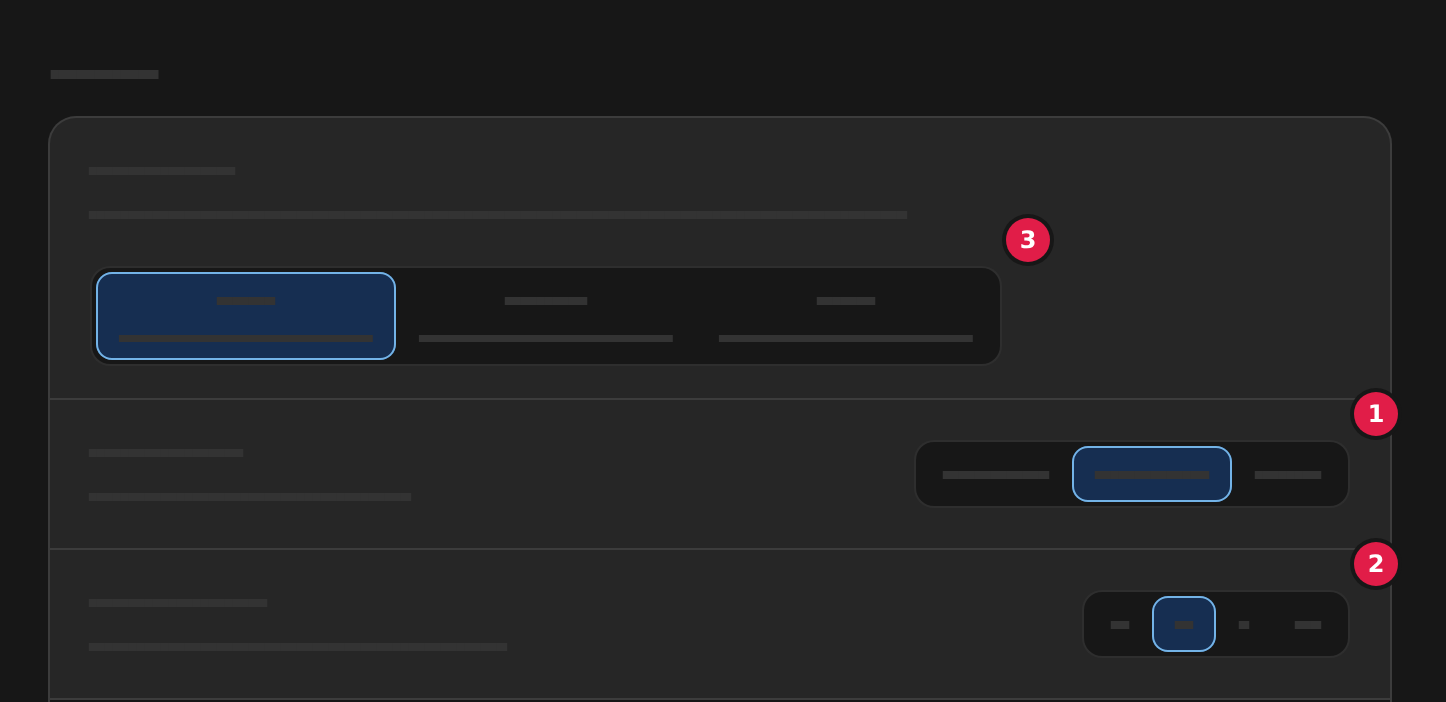
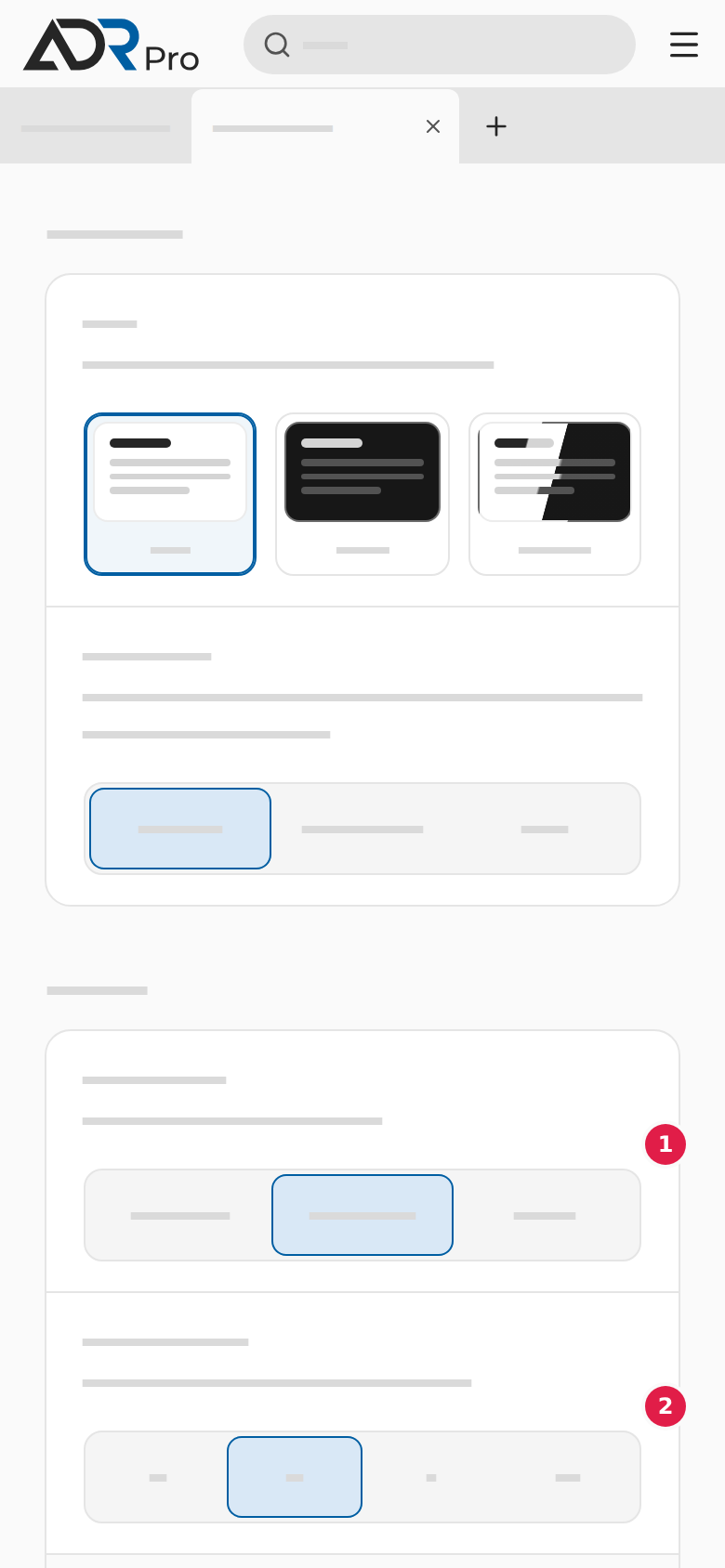
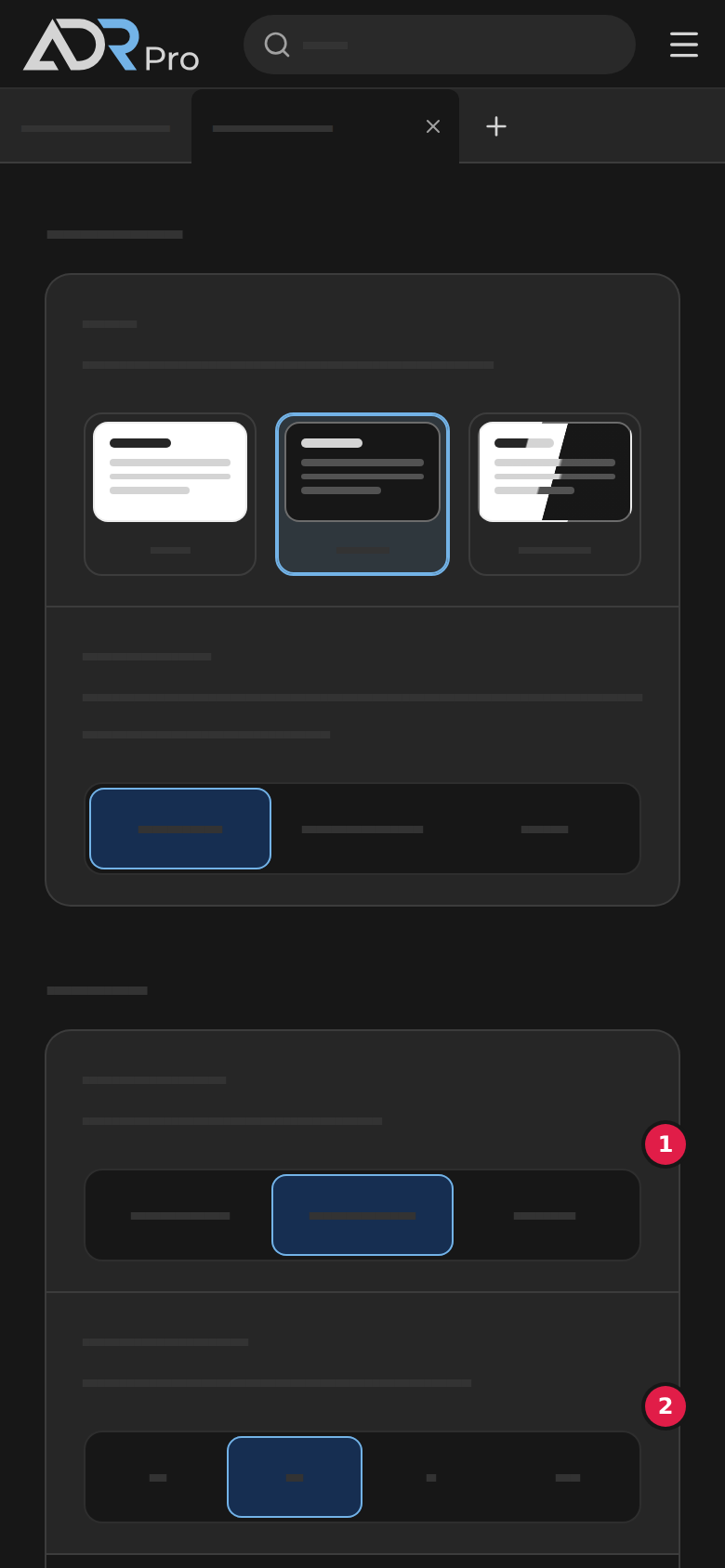
There is no button to save: your choices apply when you go back to a tab. Choose Default and M, and on a computer Narrow, to get the text as it was at the start.
The content language
Copy link to “The content language”- When ADR exists in the language you chose, ADR Pro shows the text, Table A and search in that language.
- When ADR does not exist in the language yet, you see the text in Danish.
- When a language is on its way, you can choose it, but a message in that language says it is coming soon. You keep your current language. Close the message with its button.
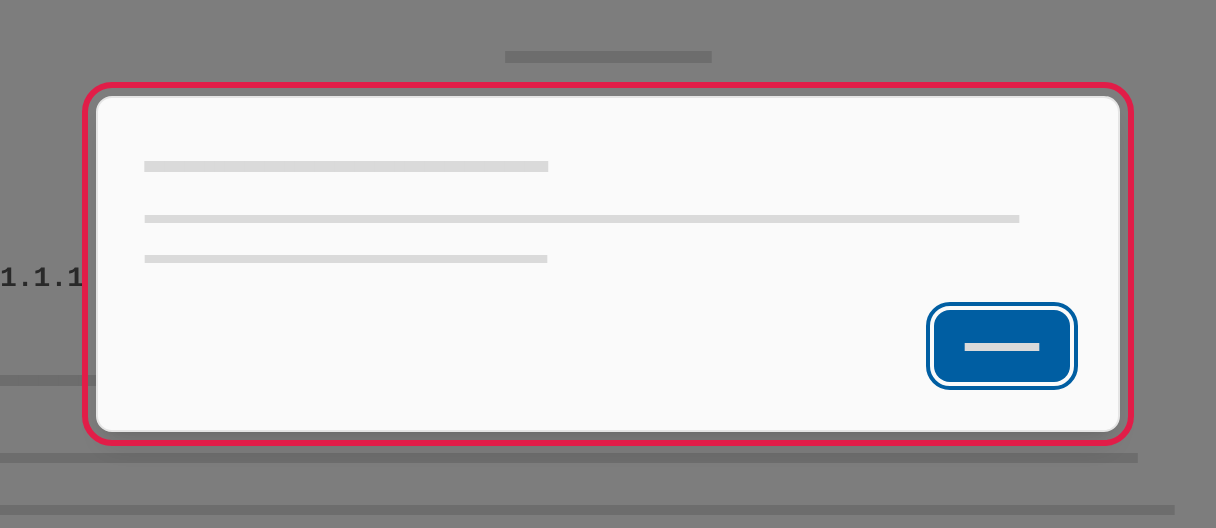
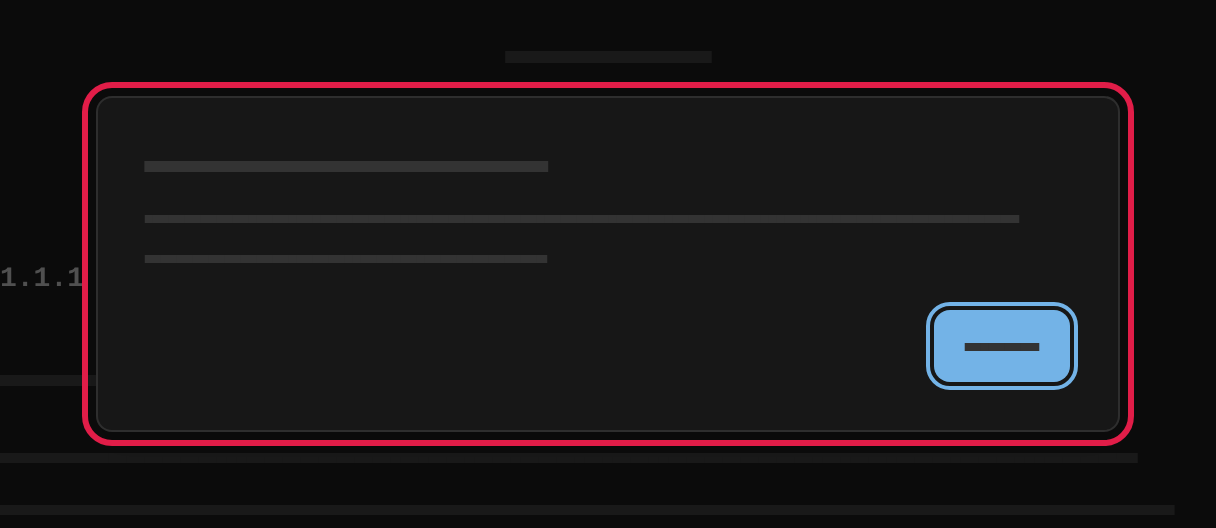
If the edition you are reading is not released in the new language, ADR Pro moves you to the edition in force in that language. The message Edition changed names both editions. Choose OK. See also Switch edition.