Exemption calculator
The exemption calculator works out the load’s points under 1.1.3.6 and shows whether it is under the exemption. You add the dangerous goods and type the quantity, and the calculator finds the transport category and the factor in the edition you are reading.
The calculator keeps the goods on the device, as described in What you enter stays on the device in Tools.
Work out the load’s points
Copy link to “Work out the load’s points”- Add the dangerous goods, as described in Add dangerous goods in Tools.
- Type the quantity in the field under Quantity (1). The unit is beside it. On a phone, choose the goods, type the quantity and choose Save.
- The line shows the goods’ points (2).
- By the heading Dangerous goods are the points for the whole load out of 1,000, and whether the load is Under the exemption or Over the exemption (3). On a phone the points also stay at the top while you scroll.
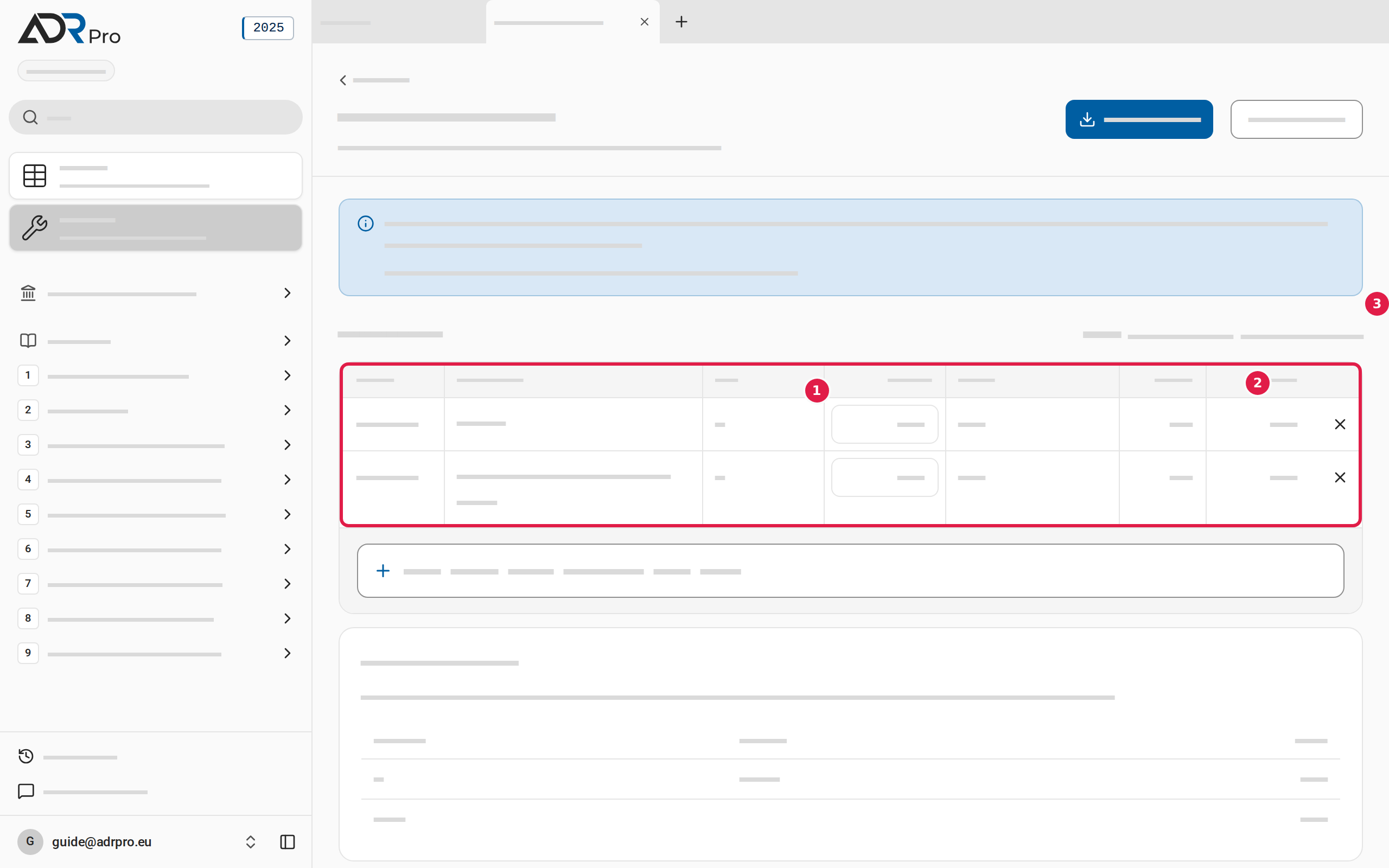
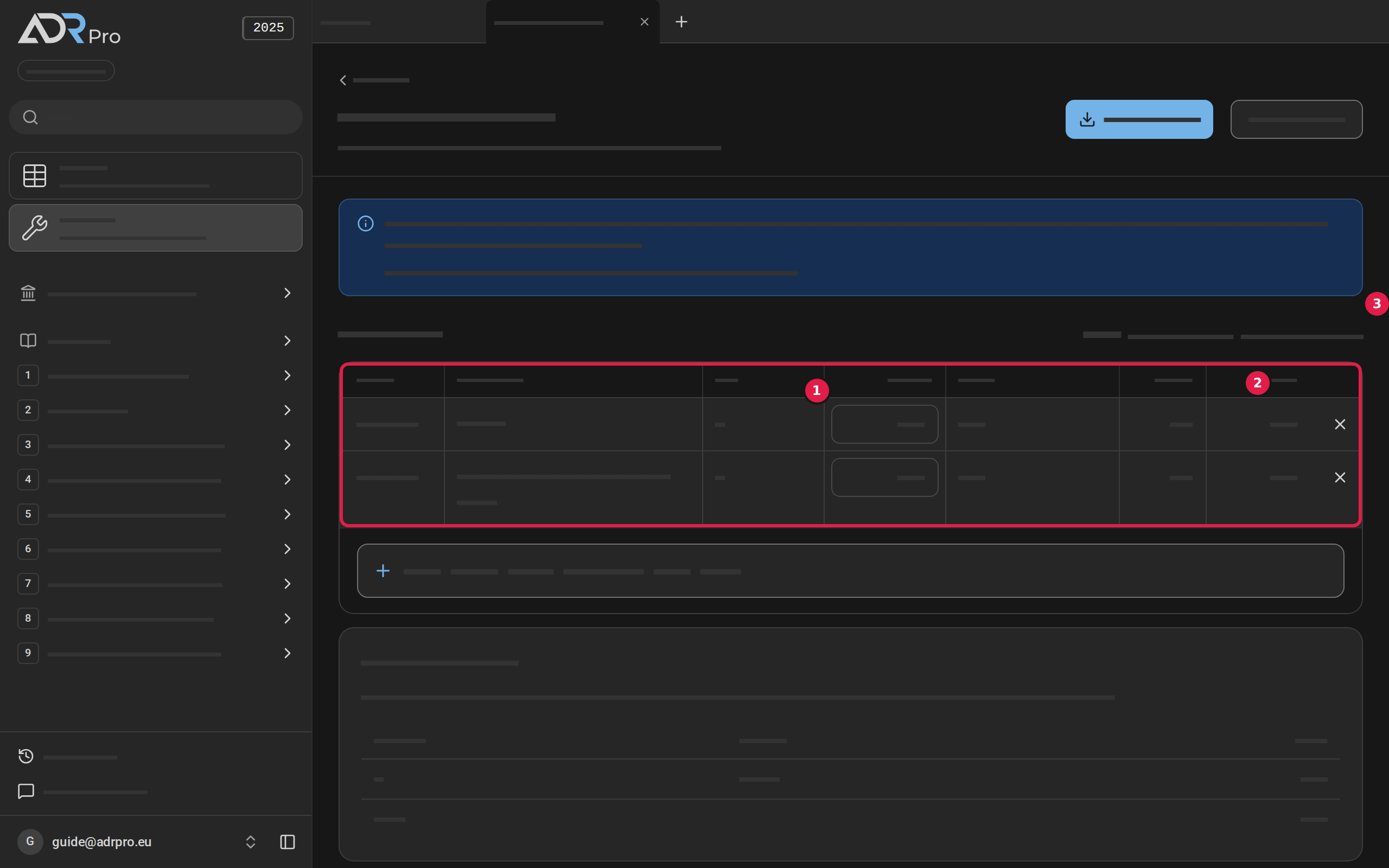
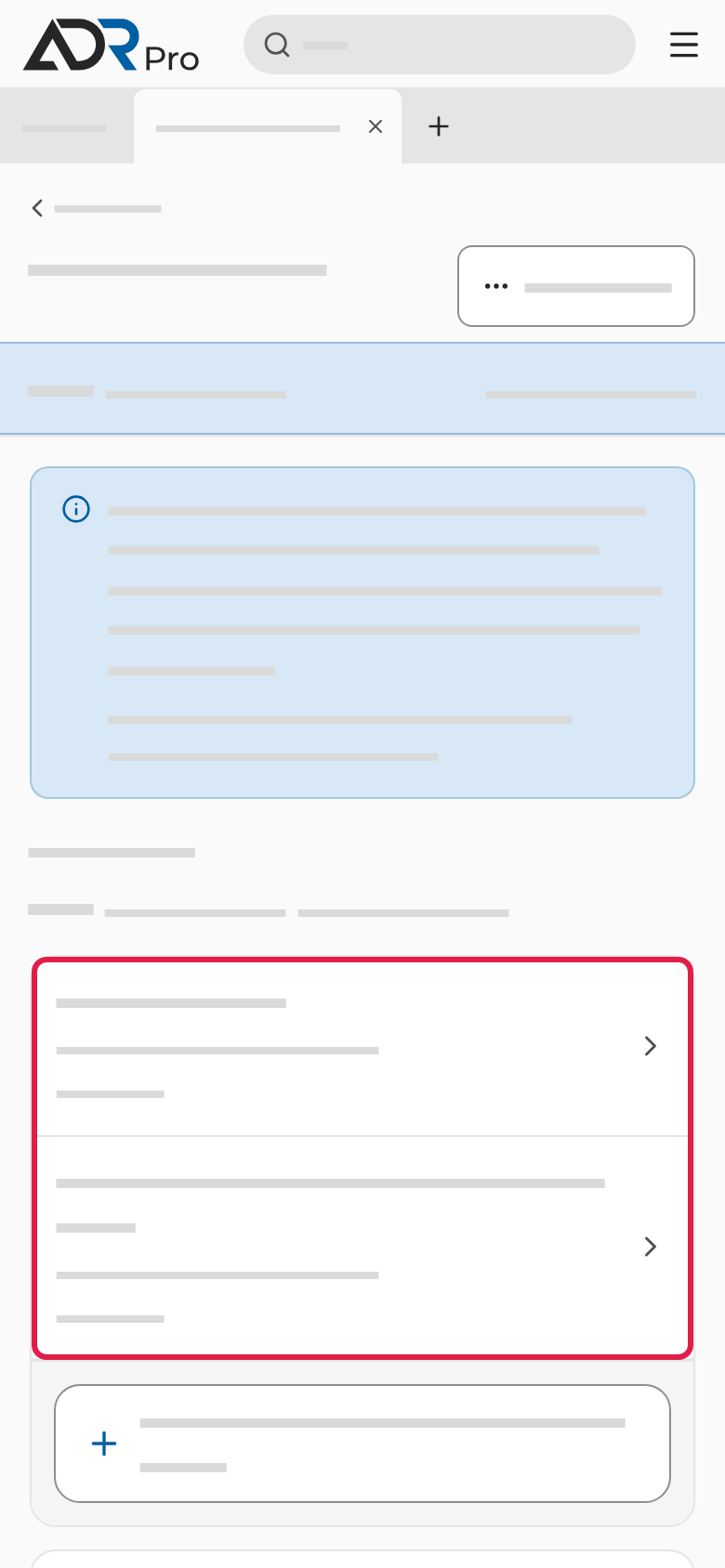
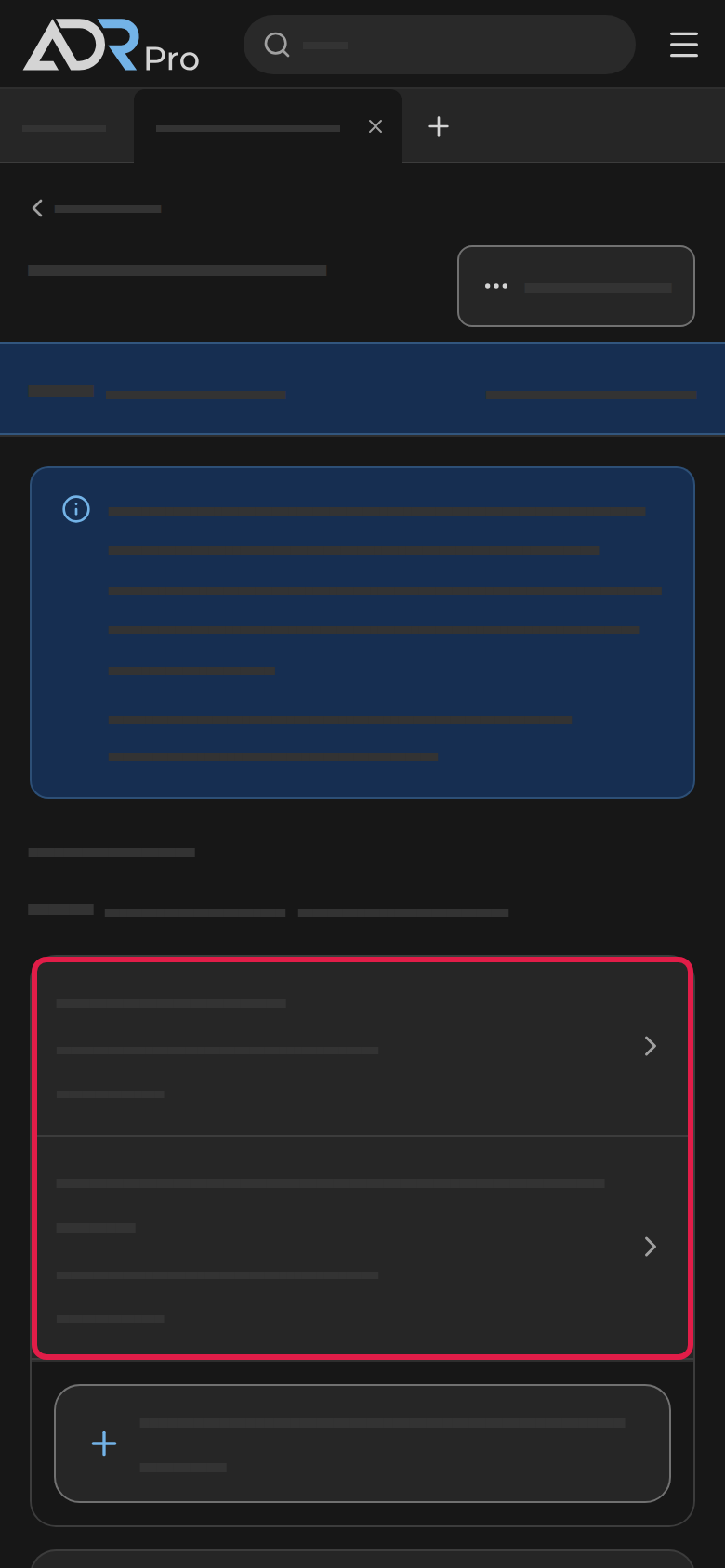
Where the agreement does not decide the unit for the goods, choose the unit under Unit on the line. Where the transport category depends on the packing group, choose the packing group on the line. Until then the line says that the goods are not computed, and why.
A line you have just added waits for its quantity without showing an error. If you leave the field without typing a quantity, the line says that the goods are not computed, and the result becomes Incomplete result.
See the quantity per transport category
Copy link to “See the quantity per transport category”Under the dangerous goods is Per transport category: the quantity and the points for each transport category, and the points in Total (1). This is what the transport document must state when the exemption is used.
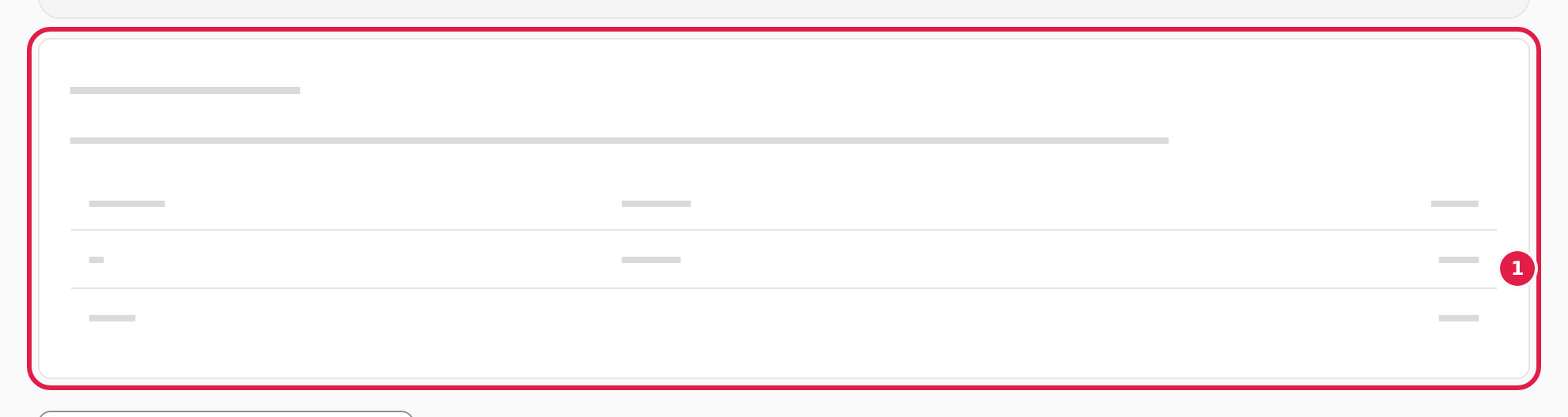
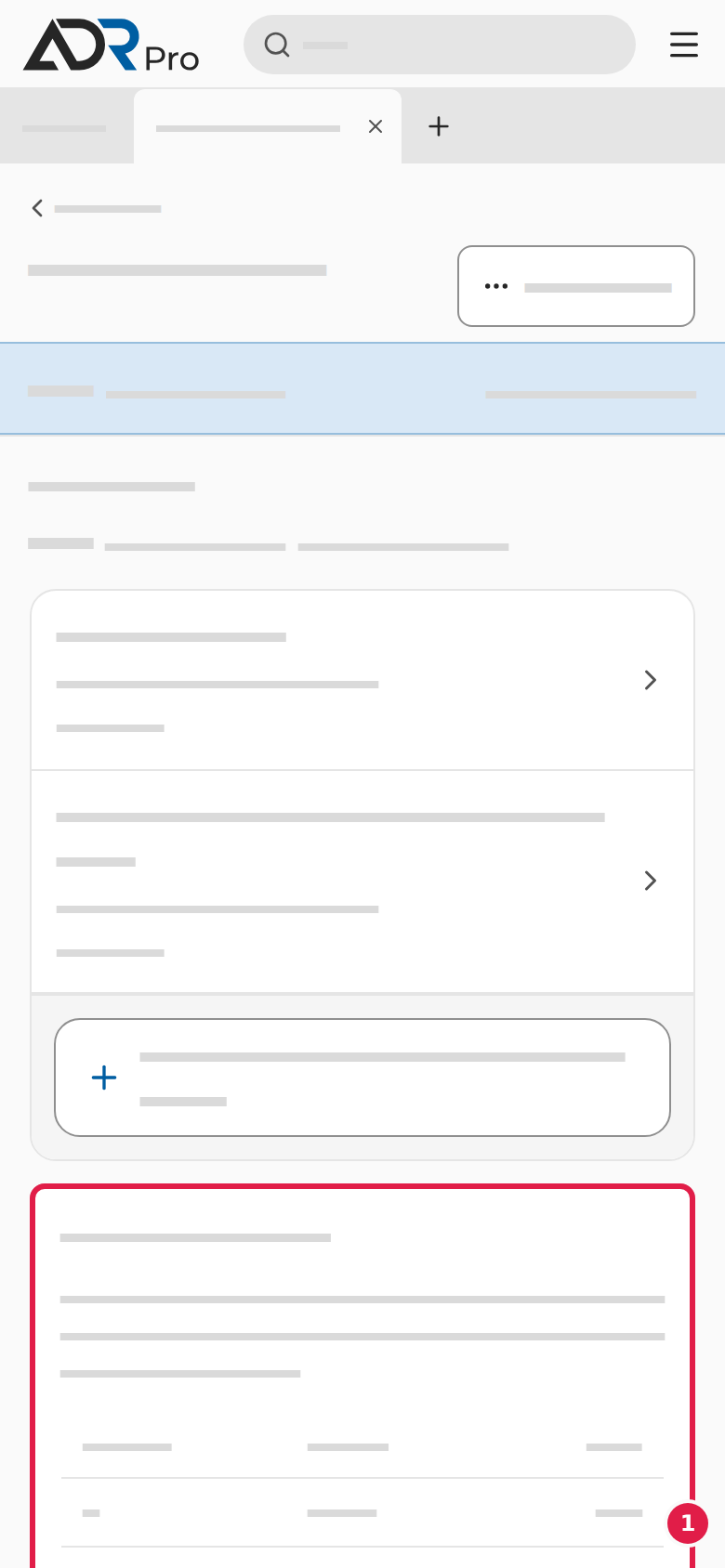
Further down is Under the exemption, in two halves: Exempt from, the provisions you are exempt from under the exemption, and Still applies, those that still apply.
Transfer the goods to a transport document
Copy link to “Transfer the goods to a transport document”The transport document is required even when the load is under the exemption. The calculator can copy the goods into a transport document.
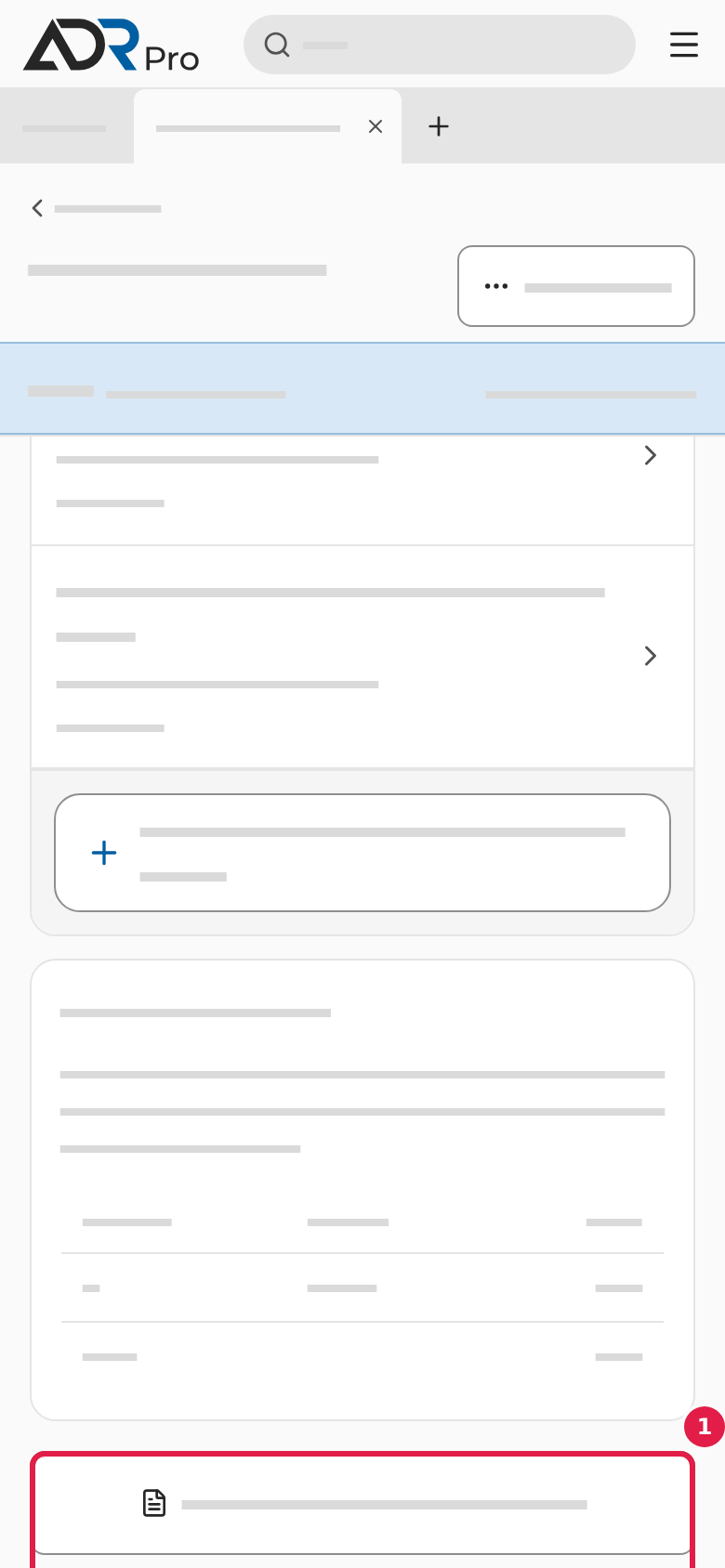
- Choose Transfer to transport document (1) under Per transport category.
- If the transport document is open in another tab with dangerous goods, a dialog asks what you want to do. Choose Replace to replace the goods in the document with the goods from here, or Add to add them.
- The transport document opens with the goods and their quantities. If it was not open, it is a new document with only the goods from here. Fill in the rest, as described in Transport document.


The copy goes one way: if you change the calculation afterwards, the document does not change, and the other way round.