Search and find
ADR Pro has two ways to find something. Search finds sections, Table A rows and the documents’ text in the whole agreement, and find highlights a word in the section or the peek you have open.
Search the whole agreement
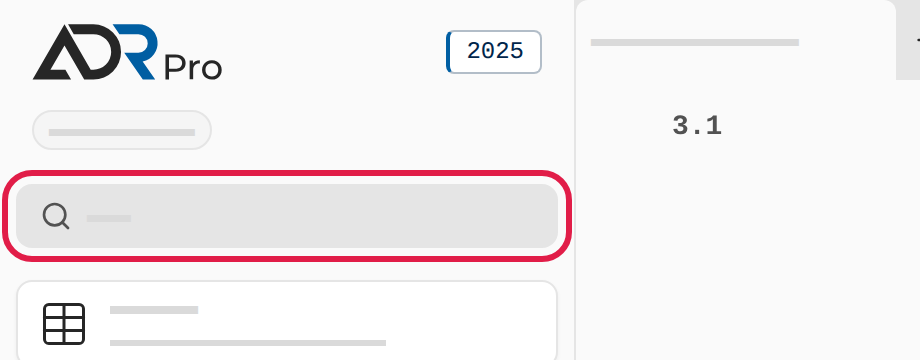
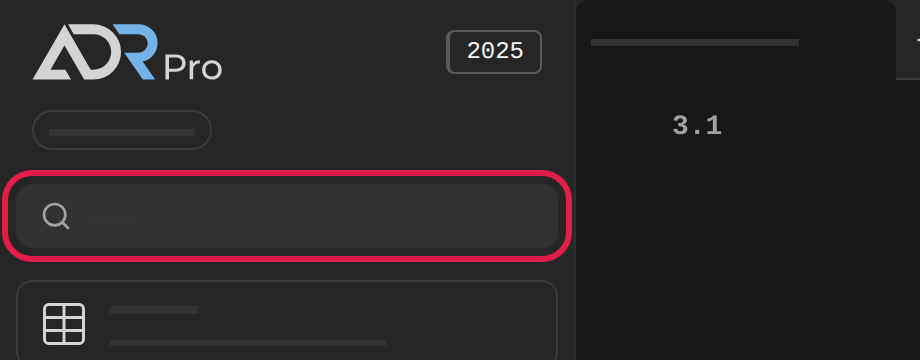
Copy link to “Search the whole agreement”Search finds ADR’s sections and the documents’ text by their content, and Table A rows by UN number or name. To find a word only in the section you are reading, use find instead.
- Choose Search at the top of the sidebar, or press Ctrl+K (⌘K on a Mac). On a phone, choose Search at the top of the screen.
- Type at least two characters: a word, a section number or a UN number.
Search only part of the agreement
Copy link to “Search only part of the agreement”Search looks in the whole agreement until you choose otherwise. You can narrow it, so it finds only in Table A, in one of the documents or in one of parts 1 to 9.
-
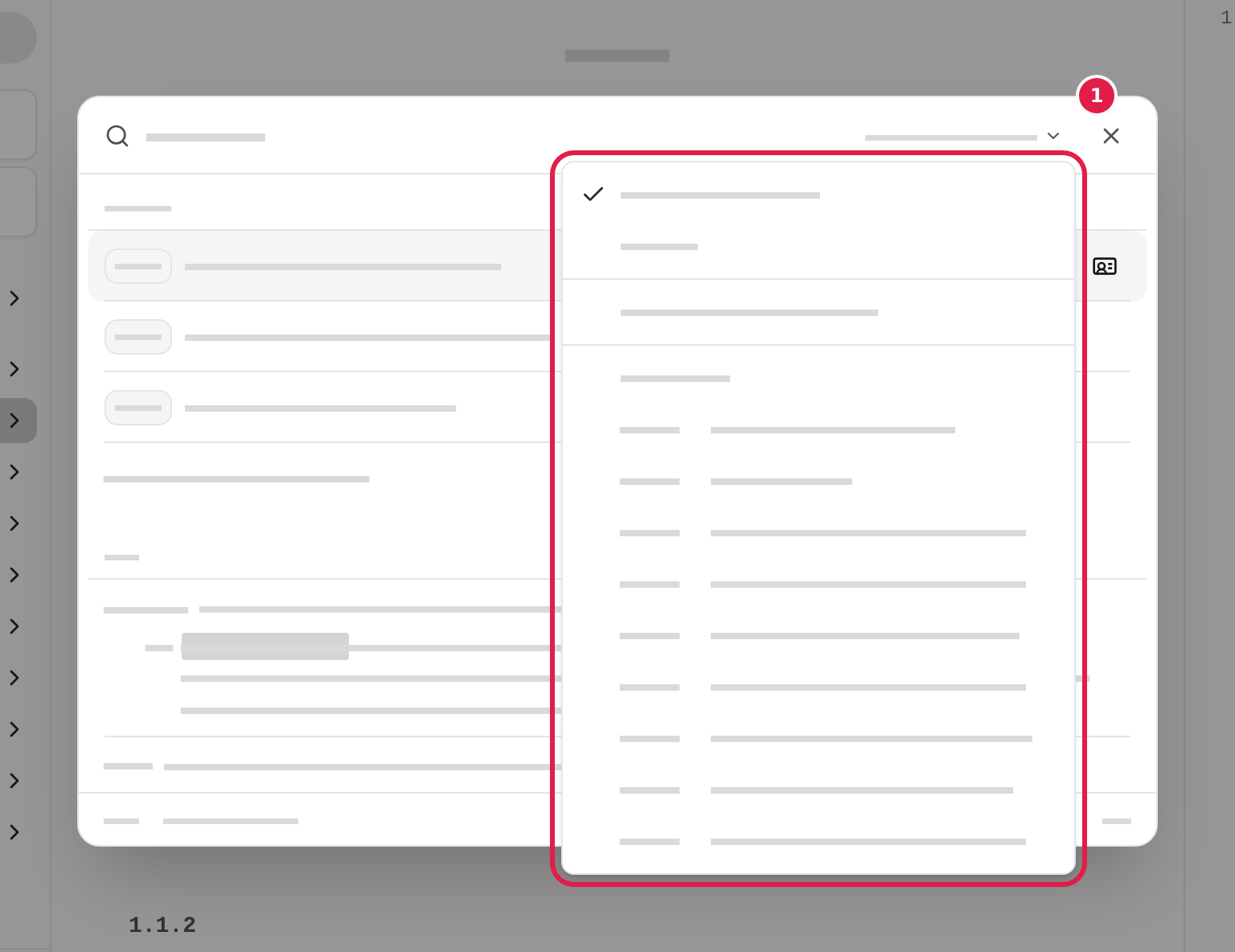
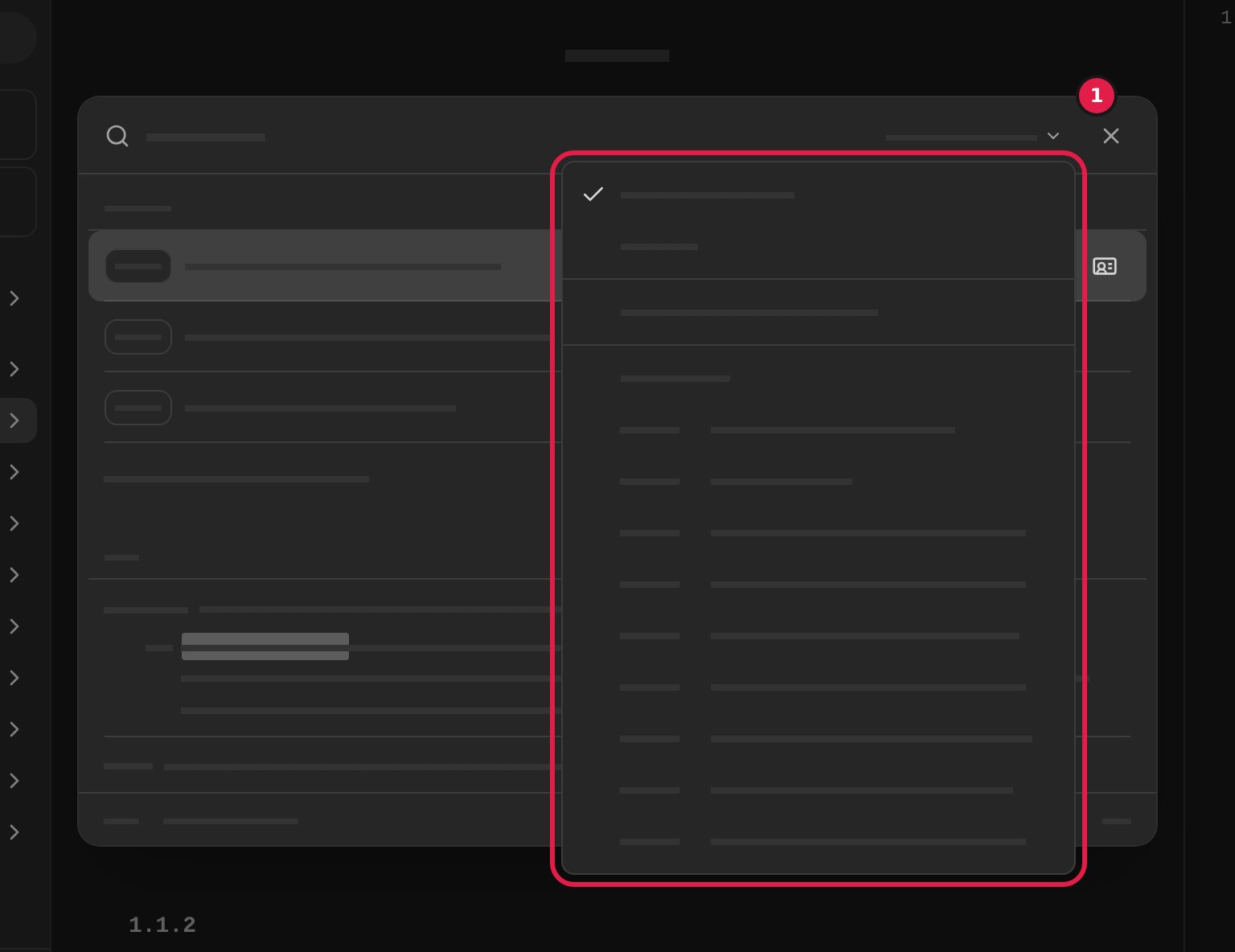
Choose Whole agreement (1) at the end of the search field.
-
Choose Table A, a document or a part in the menu. What you chose now stands at the end of the field, and search finds only there.
When the search field is empty, you can press Backspace to search the whole agreement again.
-
If search finds nothing in what you chose, choose Search the whole agreement to search all of it.
On a phone the choices open as a sheet at the bottom of the screen.
Open a result
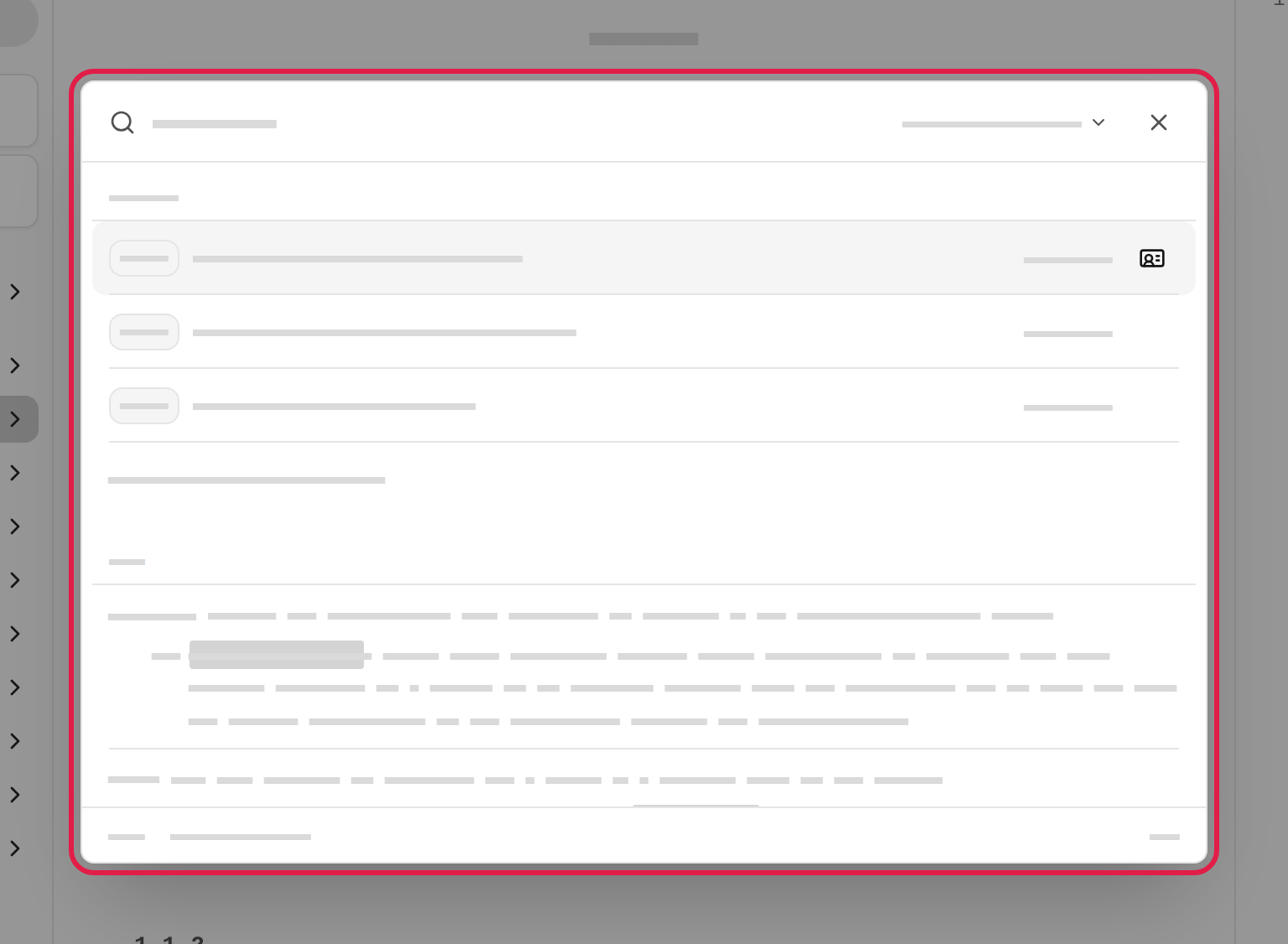
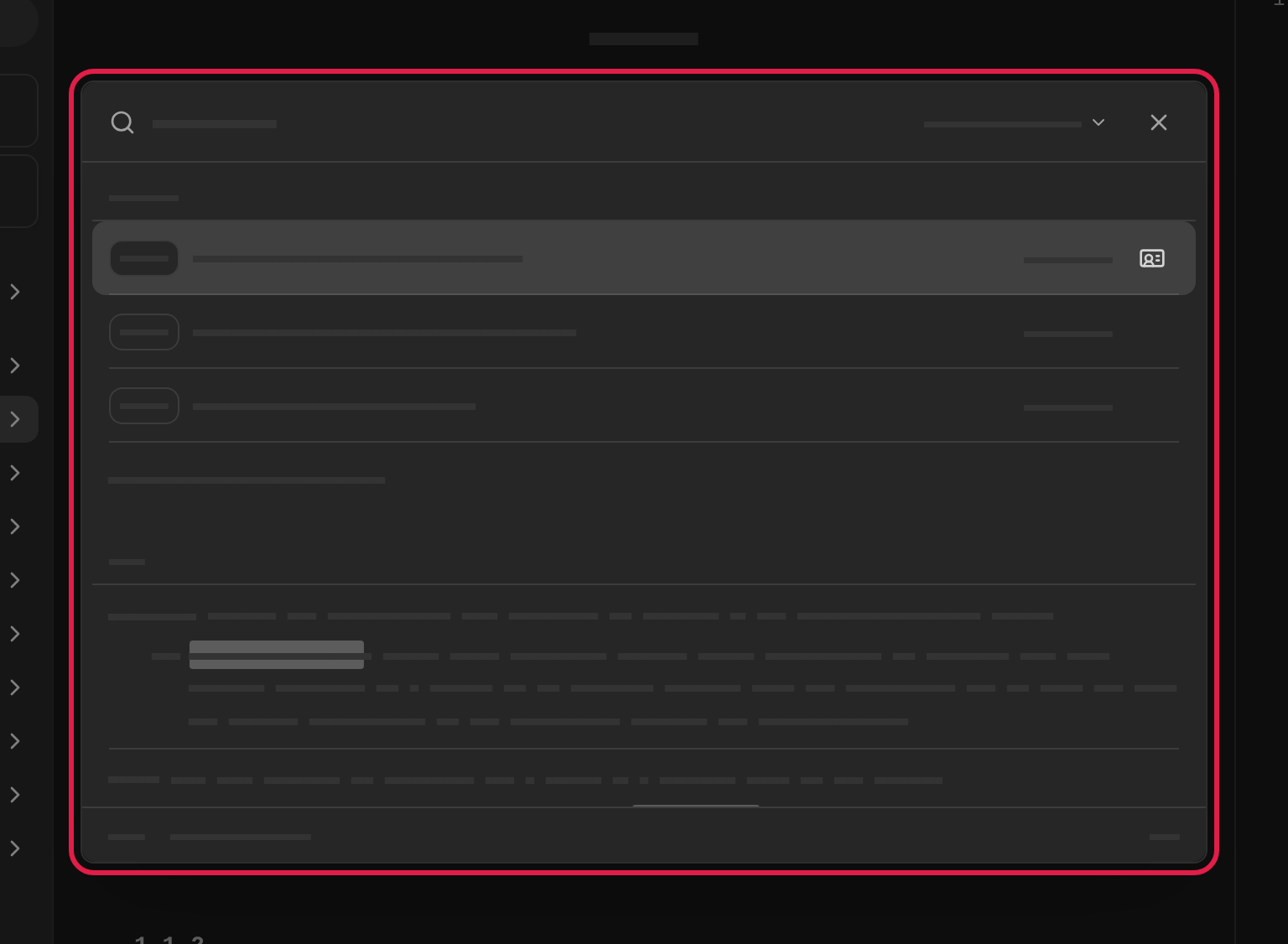
Copy link to “Open a result”- The results come in groups: Table A first with the matching rows, then ADR with the sections and an extract of their text, and last a group for each document with a hit.
- Choose a result, or move to it with the arrow keys and press Enter (Open). The tab you are reading goes to the result.
- To come back to what you are reading now without having to find it again, hold down Ctrl (⌘ on a Mac) while you choose the result, or press Ctrl+Enter (⌘Enter on a Mac). The result opens in a new tab.
- Choose the cross in the search field to start over, or press Esc to close search.
Find in the section
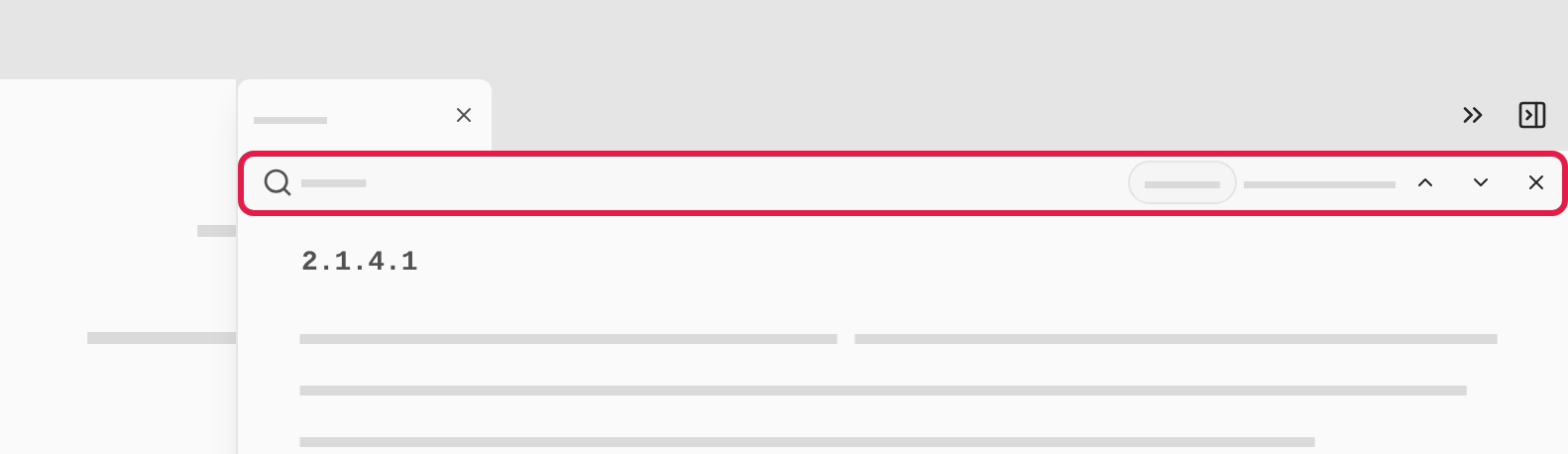
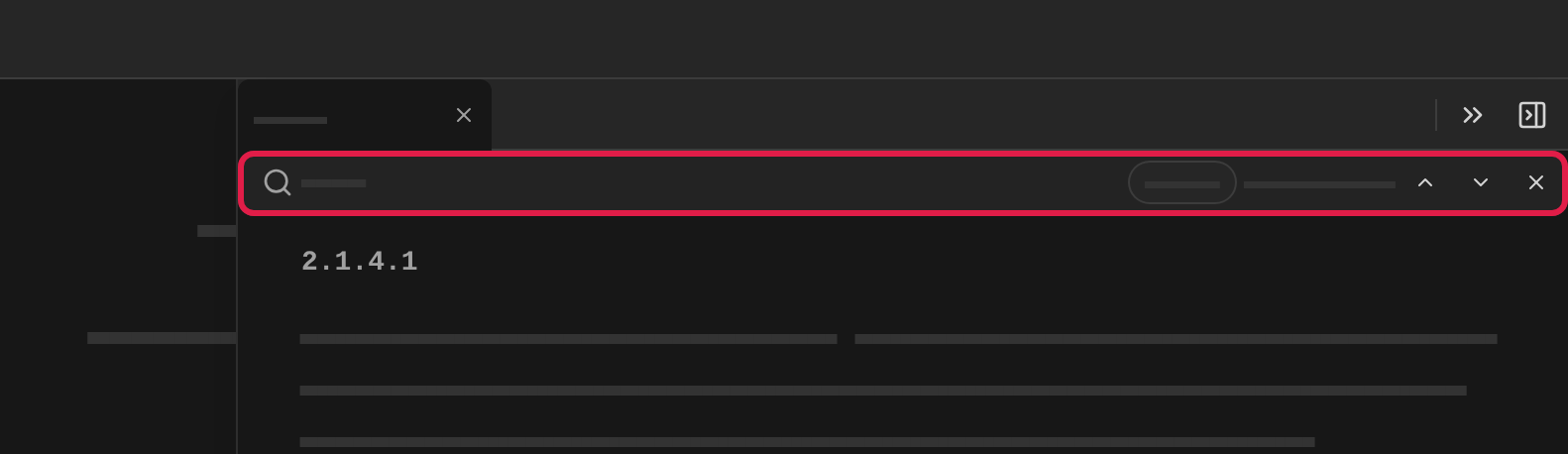
Copy link to “Find in the section”Find highlights a word in the text you have open and lets you step from match to match. To search the whole agreement, use search instead.
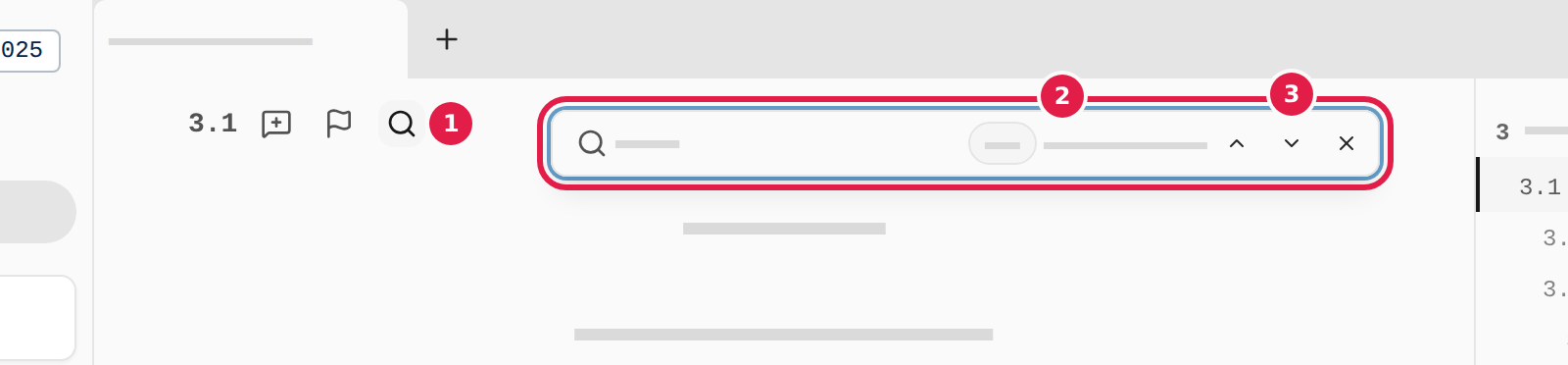
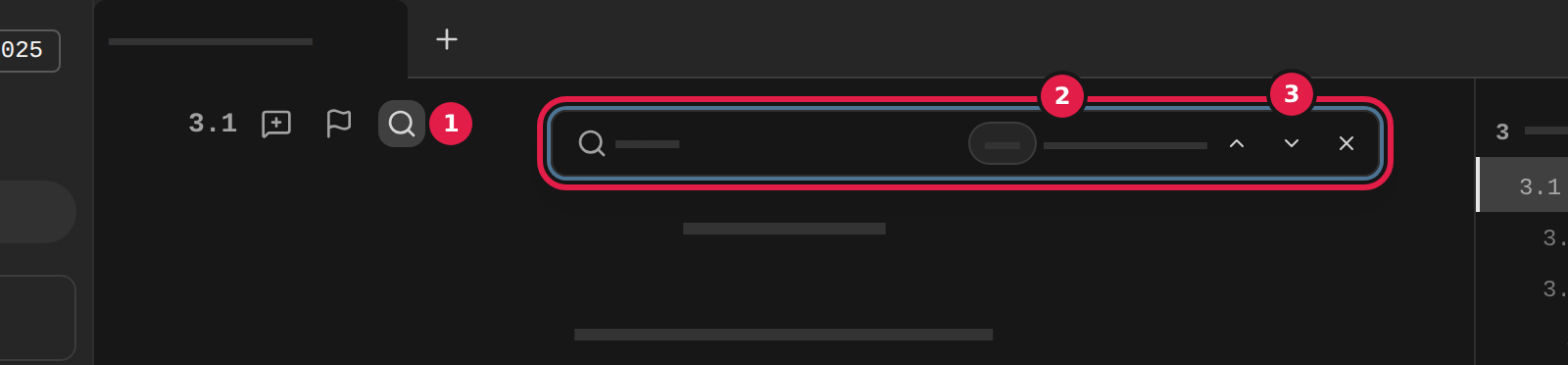
- Point at the section’s heading and choose the magnifying glass (1) by the heading, or press Ctrl+F (⌘F on a Mac) to find in the whole document.
- Type the word in the field. The matches are highlighted in the section and the sections under it, and the field shows how many there are.
- Choose the down arrow (3) or the up arrow in the field to step between them.
Enter goes to the next and Shift+Enter to the previous.
- Choose the section number in the field (2) to switch to Whole document, and back again.
- Choose the cross in the field, or press Esc, when you are done.
Find in a peek
Copy link to “Find in a peek”- Open a peek. How to do it is in Open a reference as a peek.
- Choose the magnifying glass by the section’s heading in the panel, or press Ctrl+F (⌘F on a Mac) while you are in the panel.
- Type the word in the find field under the panel’s tabs. It finds only in the peek, and your find in the text beside it keeps its own word.
- Press Esc to clear the field. The panel stays open.