Transport document
Transport document makes the document for the journey as a PDF. You fill in the consignor and consignee and add the dangerous goods, and the tool writes the goods’ description from Table A in the edition you are reading.
The document stays on the device, as described in What you enter stays on the device in Tools.
Fill in the consignor and consignee
Copy link to “Fill in the consignor and consignee”- Type the consignor’s name (1), street, postal code and city under Consignor. Country is filled in with Denmark, and CVR (optional) can be left empty. On a phone, choose Add consignor, fill in the fields and choose Done.
- Fill in Consignee the same way.
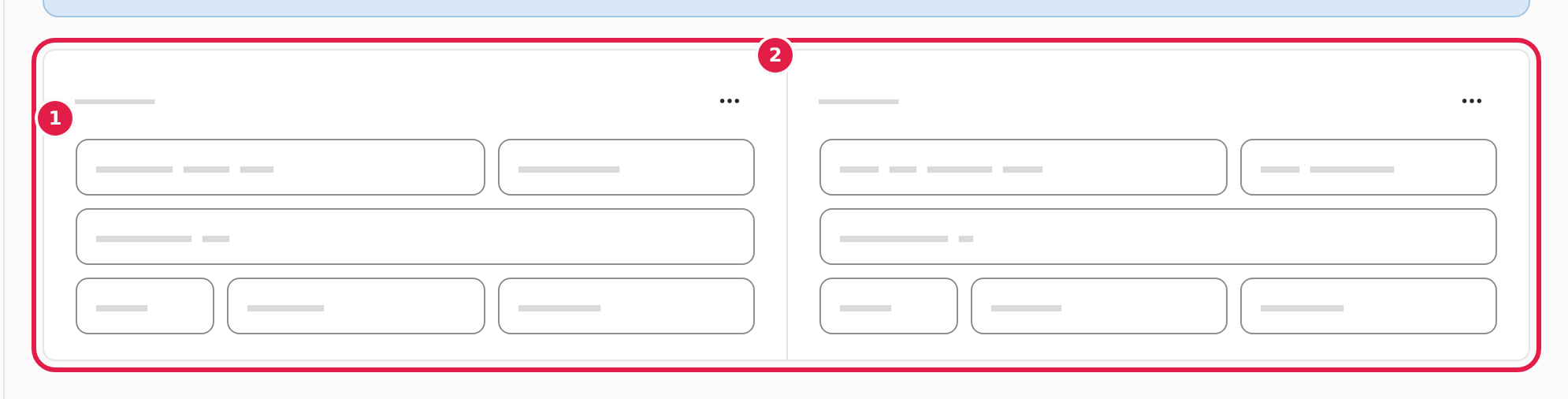
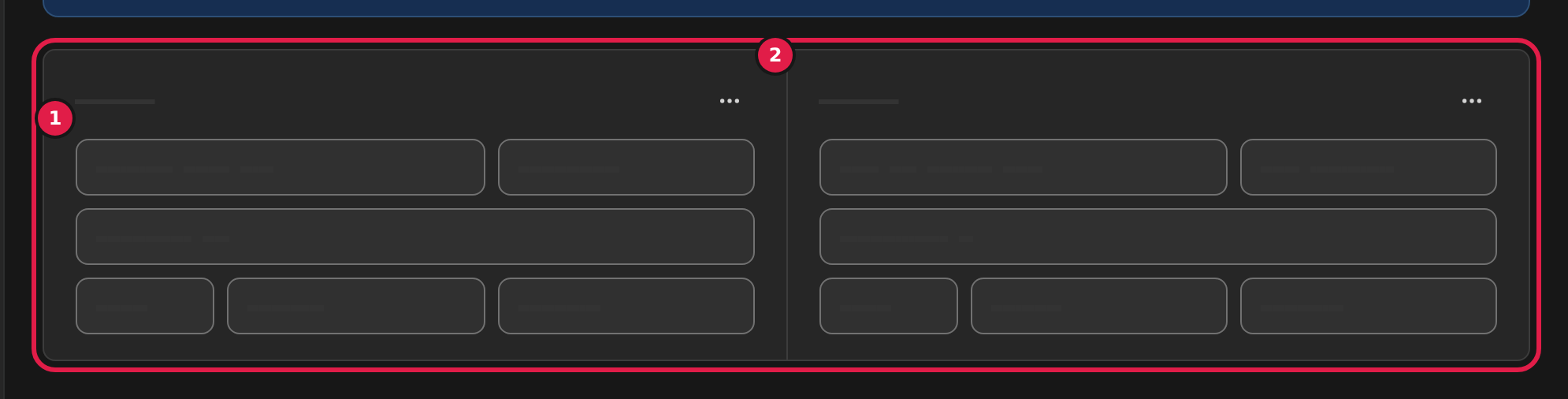
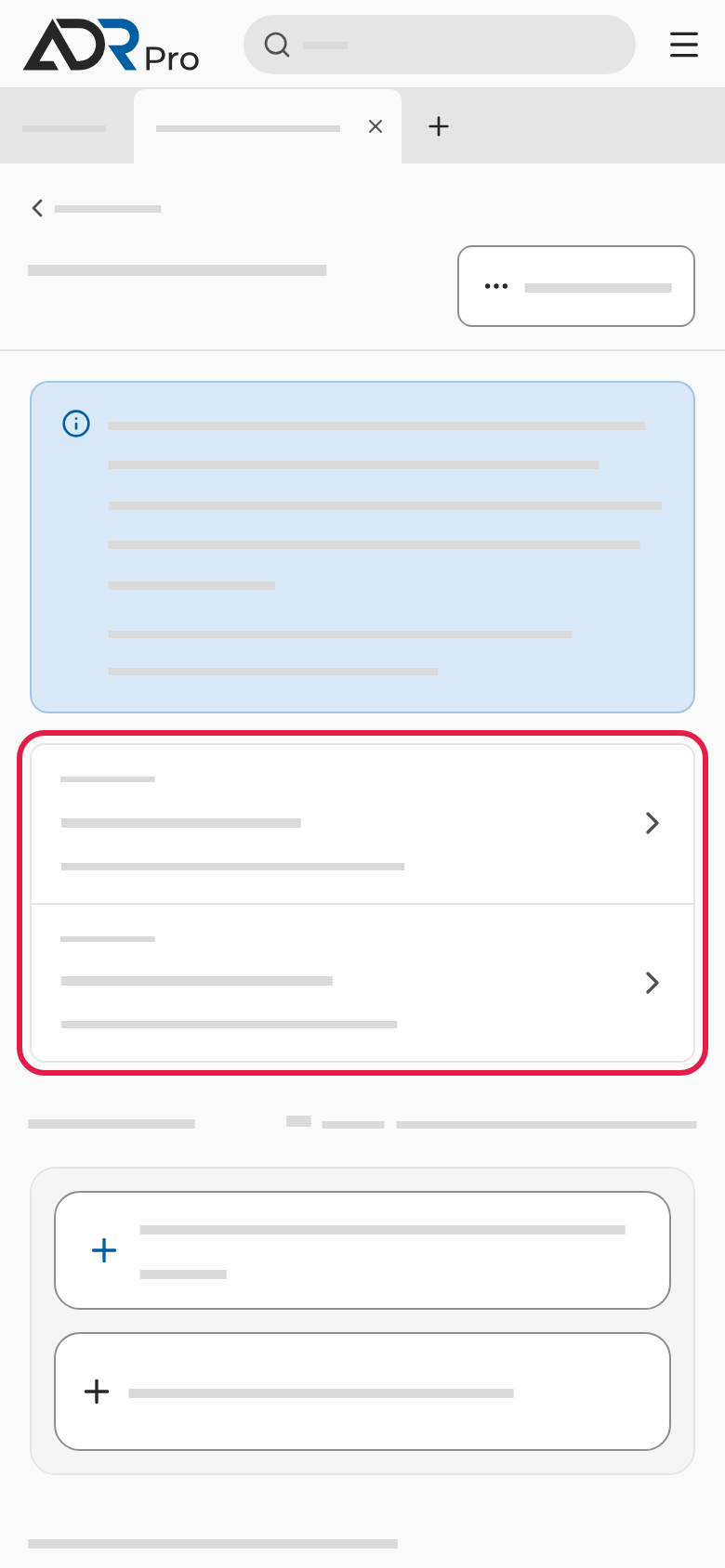
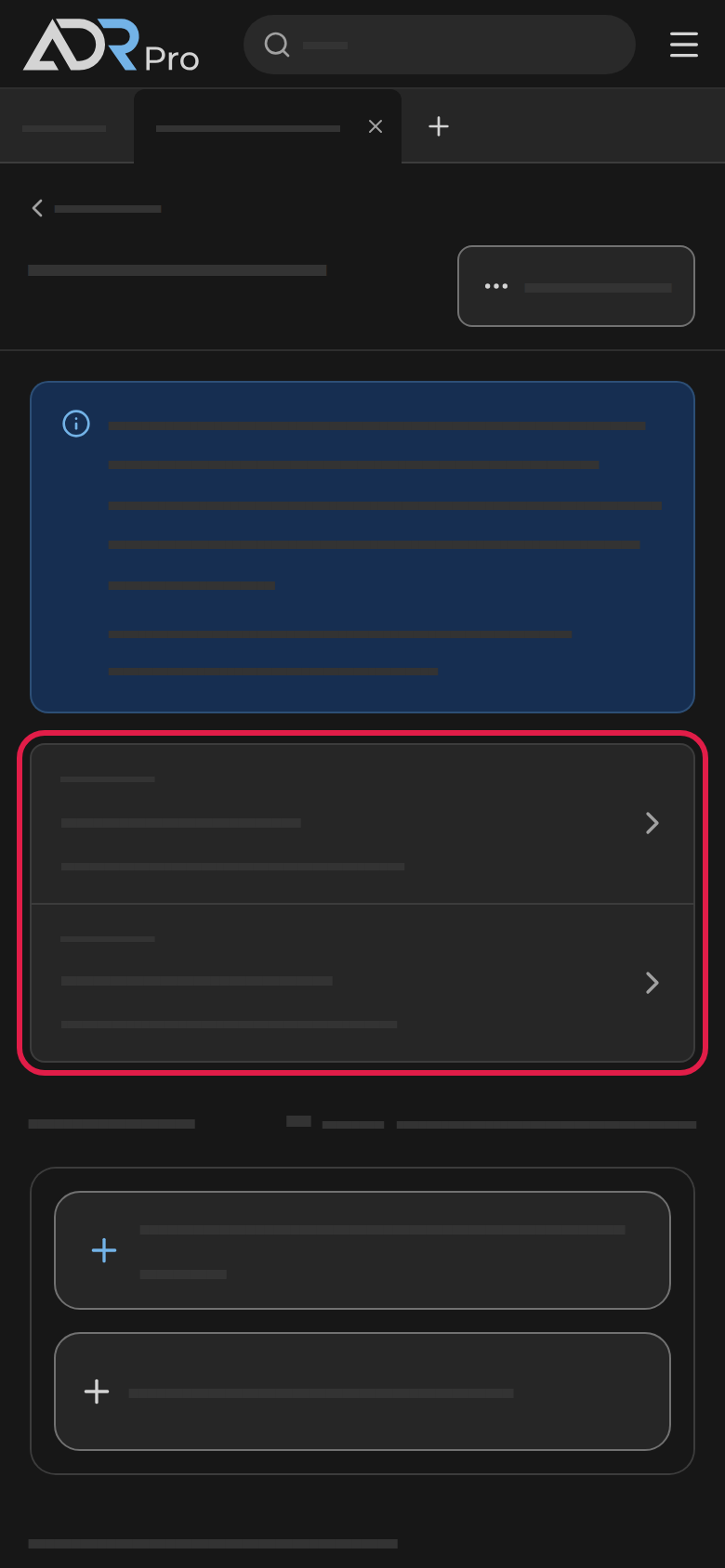
Choose the button with three dots (2) by Consignor or Consignee to see two choices. On a phone they are in the dialog.
- Use my organisation’s address fills in the fields with your organisation’s details. You can choose it when the organisation has a name.
- Swap consignor and consignee swaps the two.
Add dangerous goods
Copy link to “Add dangerous goods”The dangerous goods stand in a table with the document’s columns: Packages, Quantity, Packaging and Description of goods.
- Add the goods under Dangerous goods, as described in Add dangerous goods in Tools.
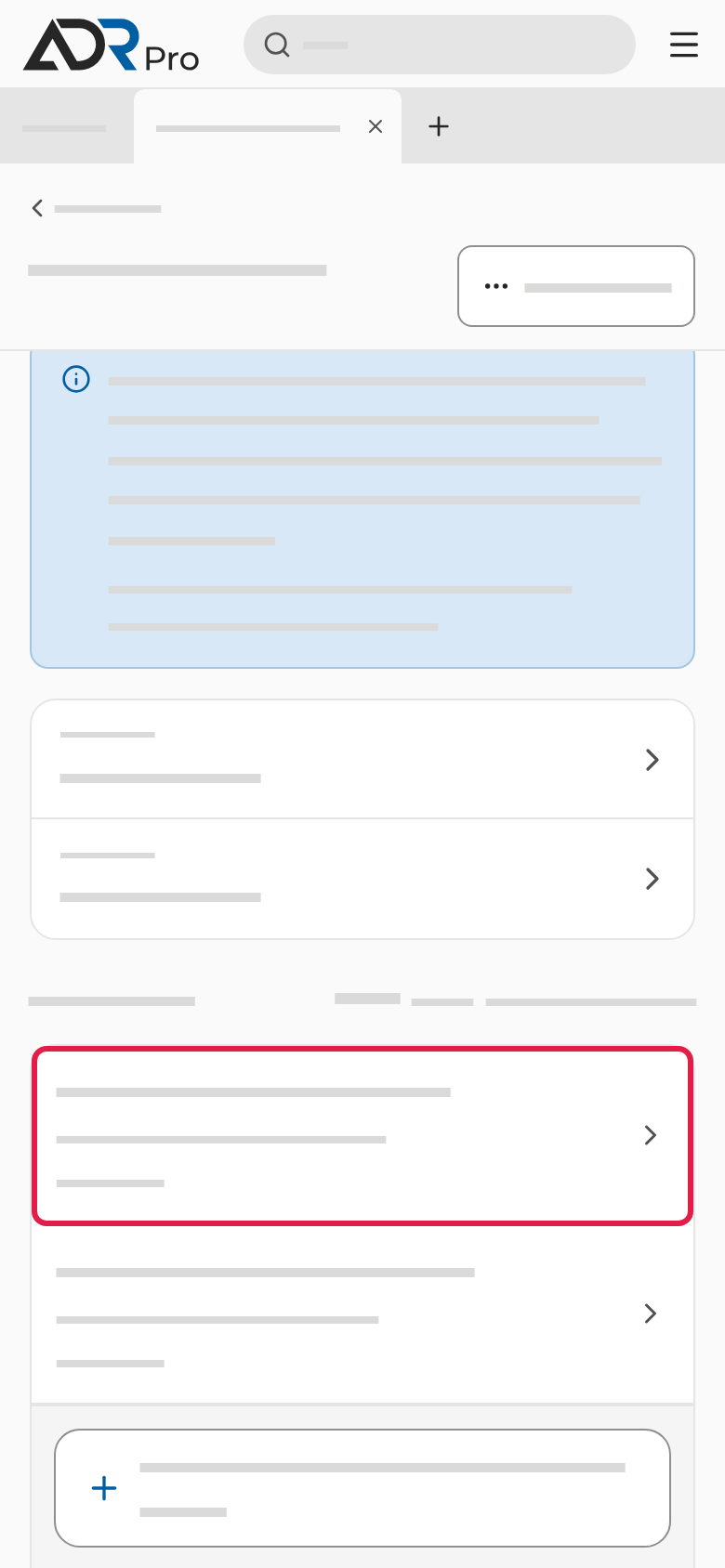
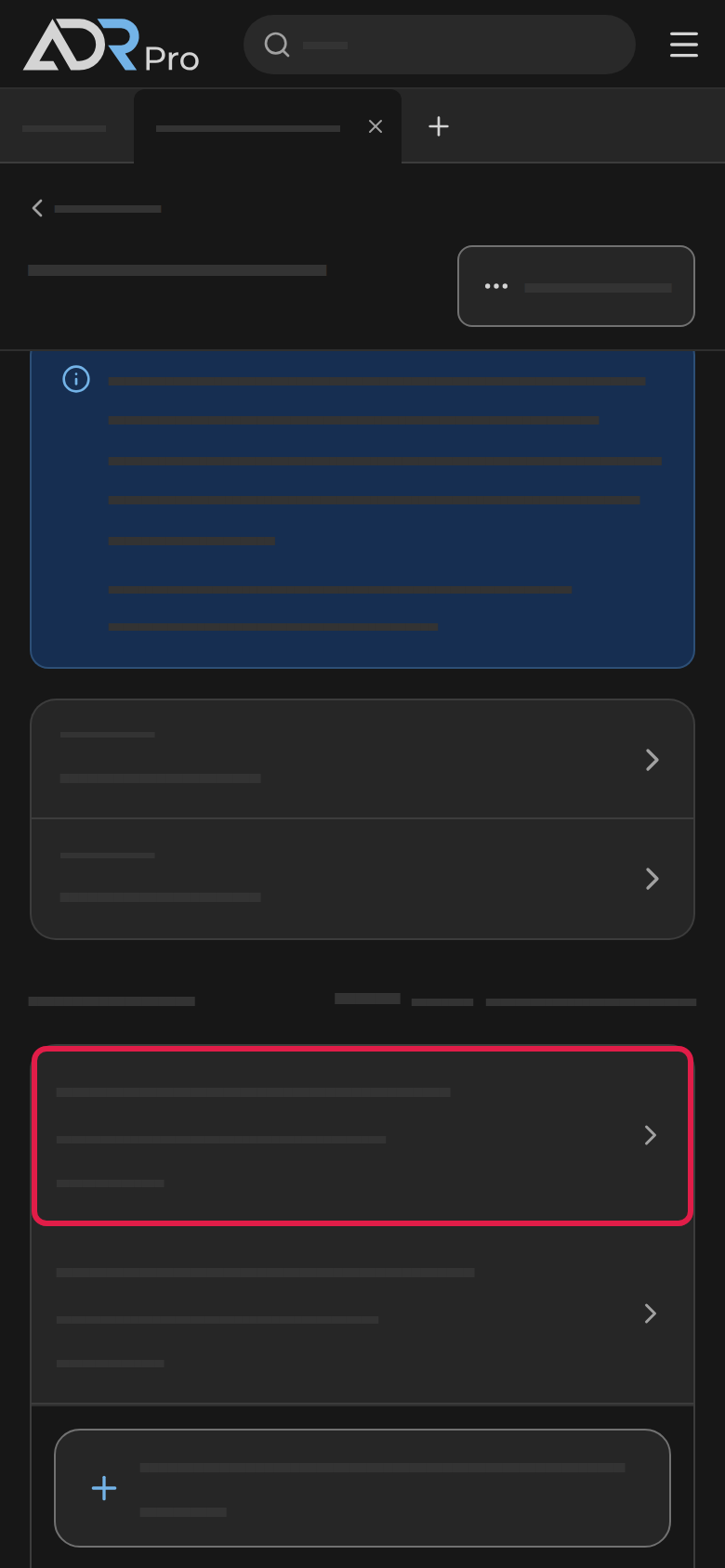
- Type the quantity (1), the number of packages (2) and the packaging (3), for example drum or box. On a phone, choose the goods, fill in the fields and choose Save.
- The tool writes the goods’ description from Table A in the column Description of goods, as it will stand on the document.
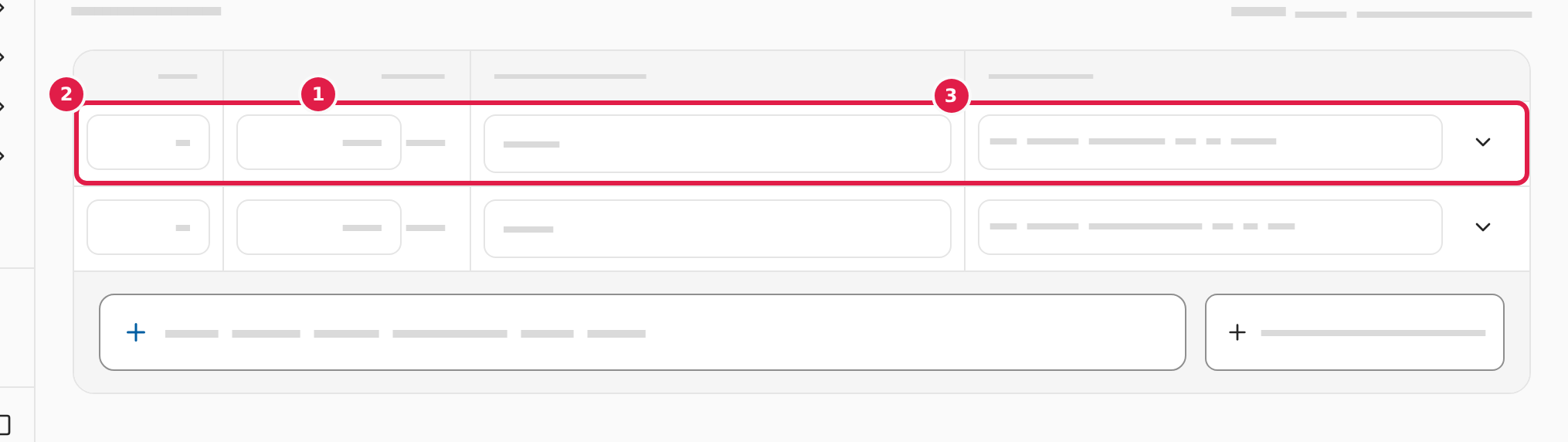
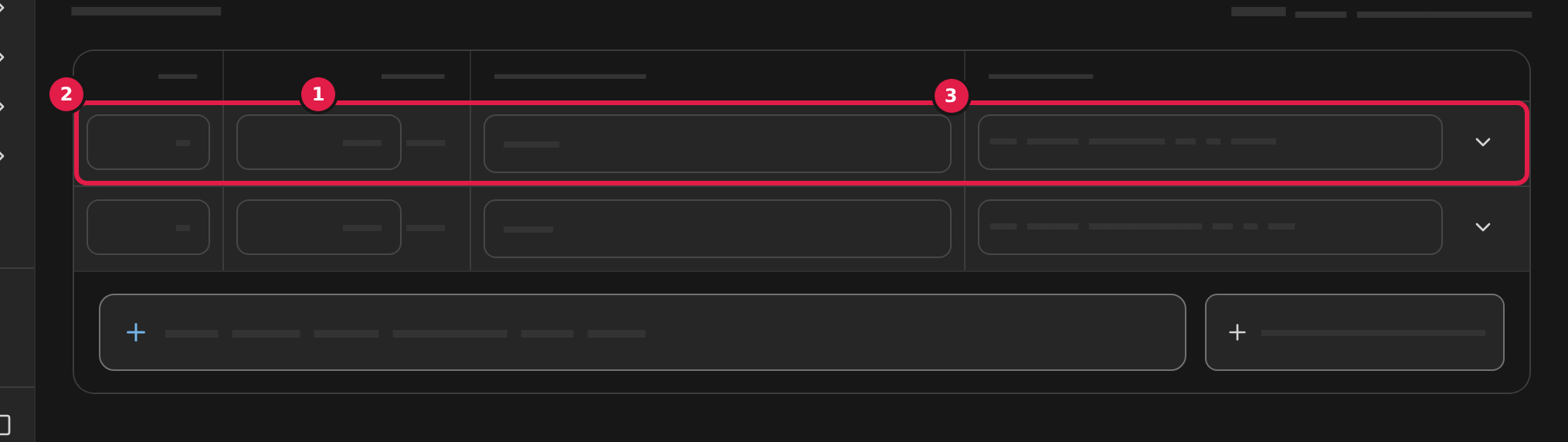
As you type the packaging, the tool suggests the agreement’s packaging types. One you choose stands with its code in parentheses, for example Tromler, plast, aftageligt låg (1H2).
The quantity and the number of packages can be left empty. Then the fields are empty on the document, and you can write them in by hand. Goods without a quantity are not counted towards the exemption.
By the heading Dangerous goods are the points for all the dangerous goods, and whether they are under the exemption.
A line you have just added is folded out. Choose the arrow by the line to fold it in or out. The folded-out line holds what shapes the description, the line’s points and Remove from the document. A folded line shows the special entries you have chosen. On a phone, choose the line to see it all.
When two lines may not be loaded together on one vehicle under 7.5.2.1, it says so under both lines, and you cannot download the document. Remove one of the lines and make a separate transport document for it.
Edit the description
Copy link to “Edit the description”- Edit the text in the column Description of goods. On a phone, choose the line and edit the text under Description.
- The line is now marked Edited. If you change anything in the folded-out line, your text is replaced by the agreement’s. Choose Restore the agreement’s text in the folded-out line to get the tool’s text back.
When Table A has several proper shipping names for a UN number, choose the right one under Proper shipping name in the folded-out line. When the goods are a sample, turn on Sample (2.1.4.1). Then the goods need no technical name, but you can add it under Add an entry.
Add special entries
Copy link to “Add special entries”Some consignments need more in the description, for example that the packaging is empty and uncleaned.
- Choose Add an entry in the folded-out line.
- Search the list, or find the entry in its group, and choose it.
- The entry stands by the goods. When it has fields you must fill in, it says To fill in under the field until you have done so.
- Choose the cross by an entry to remove it.
The entries under Empty and uncleaned replace one another. Once you have chosen one of them, the list offers none of the others for the same line.
Follow national rules
Copy link to “Follow national rules”When the edition you are reading has the country’s own rules as a companion document, you can choose the rules for each line under Rules in the folded-out line: ADR or National rules.
A line under national rules gets “AFFALD” (waste) before the proper shipping name and “Transport i henhold til nationale regler” (transport under national rules) after its description, and the goods need no technical name. The line counts as transport category 0, so the exemption cannot be used on the document. Empty, uncleaned packagings are the exception: they count like other goods.
Add goods without a UN number
Copy link to “Add goods without a UN number”- Choose Goods without a UN number by the field you add dangerous goods in. On a phone, choose Add goods without a UN number.
- Type the description as it should stand on the document, and fill in the quantity, unit, number of packages and packaging.
Add statements
Copy link to “Add statements”Under Statements and remark is Statements: the statements and entries that go on the document, including those the goods require.
- Choose Add a statement, and choose the statement in the list.
- Fill in the fields the statement has.
Beside it is Remark, for text you want on the document. You can drag the field larger by its corner.
Setup
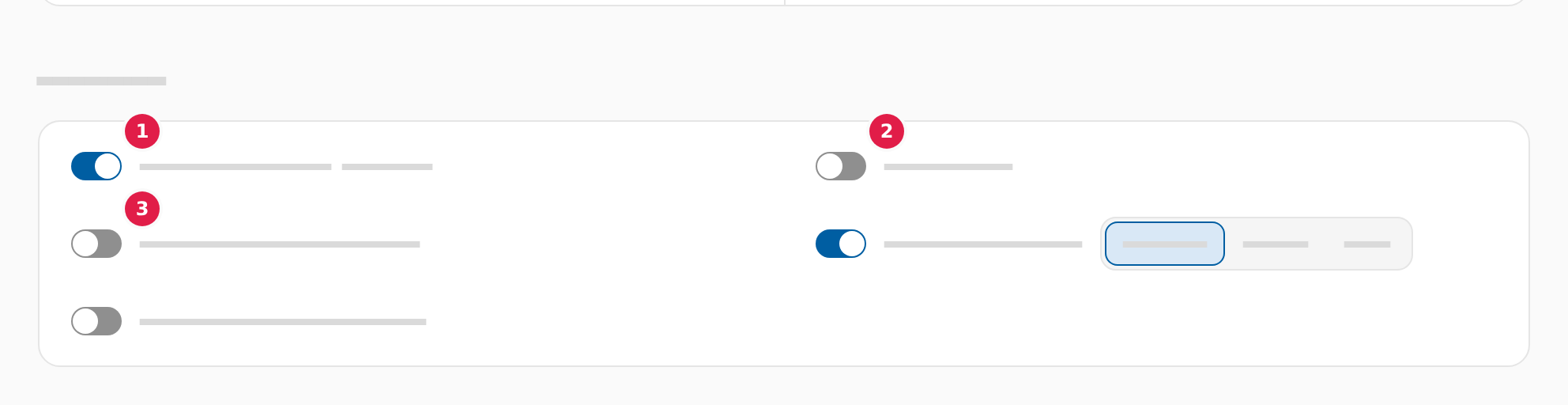
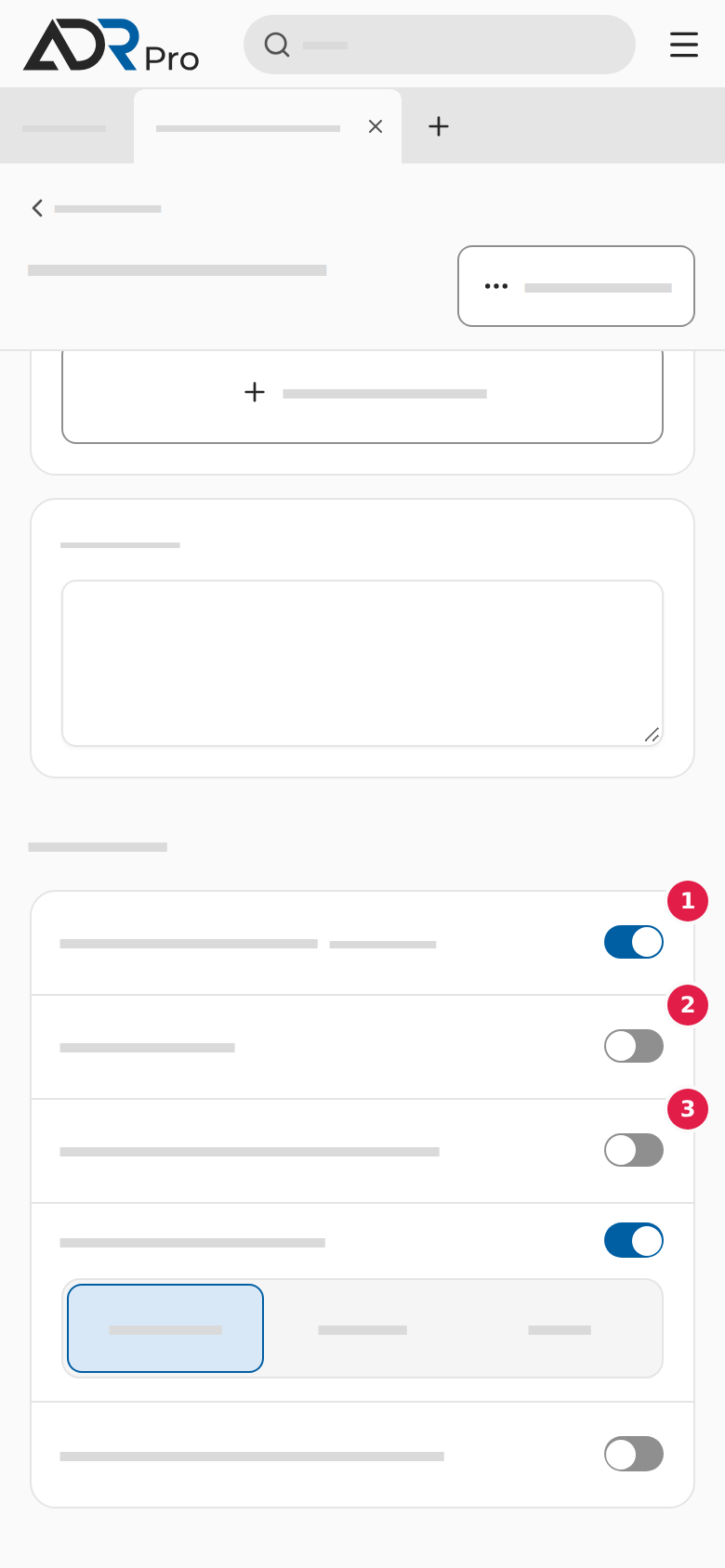
Copy link to “Setup”Under Setup are the document’s choices, each with its switch.
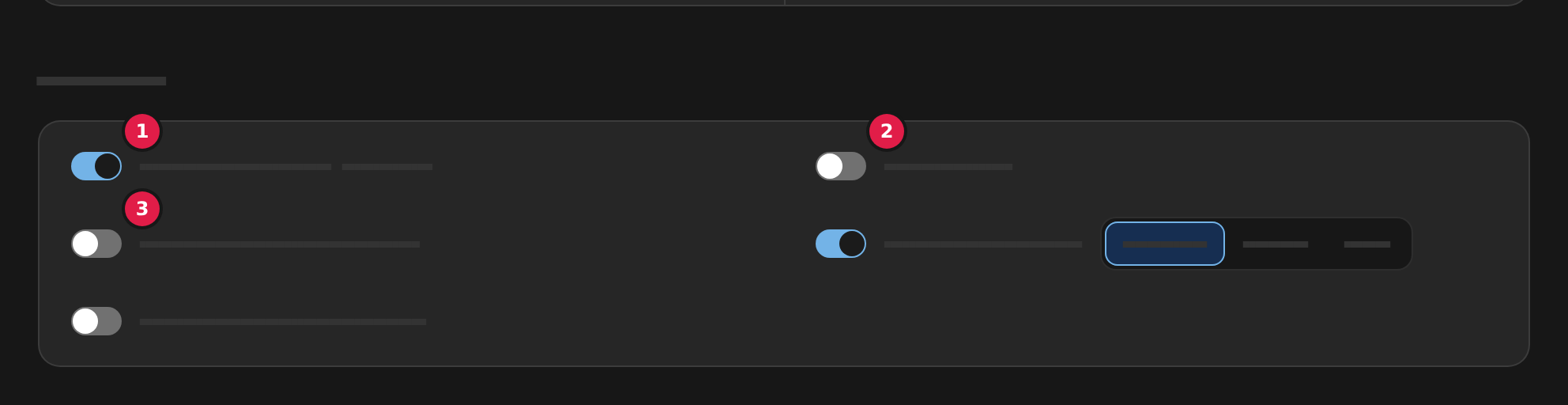
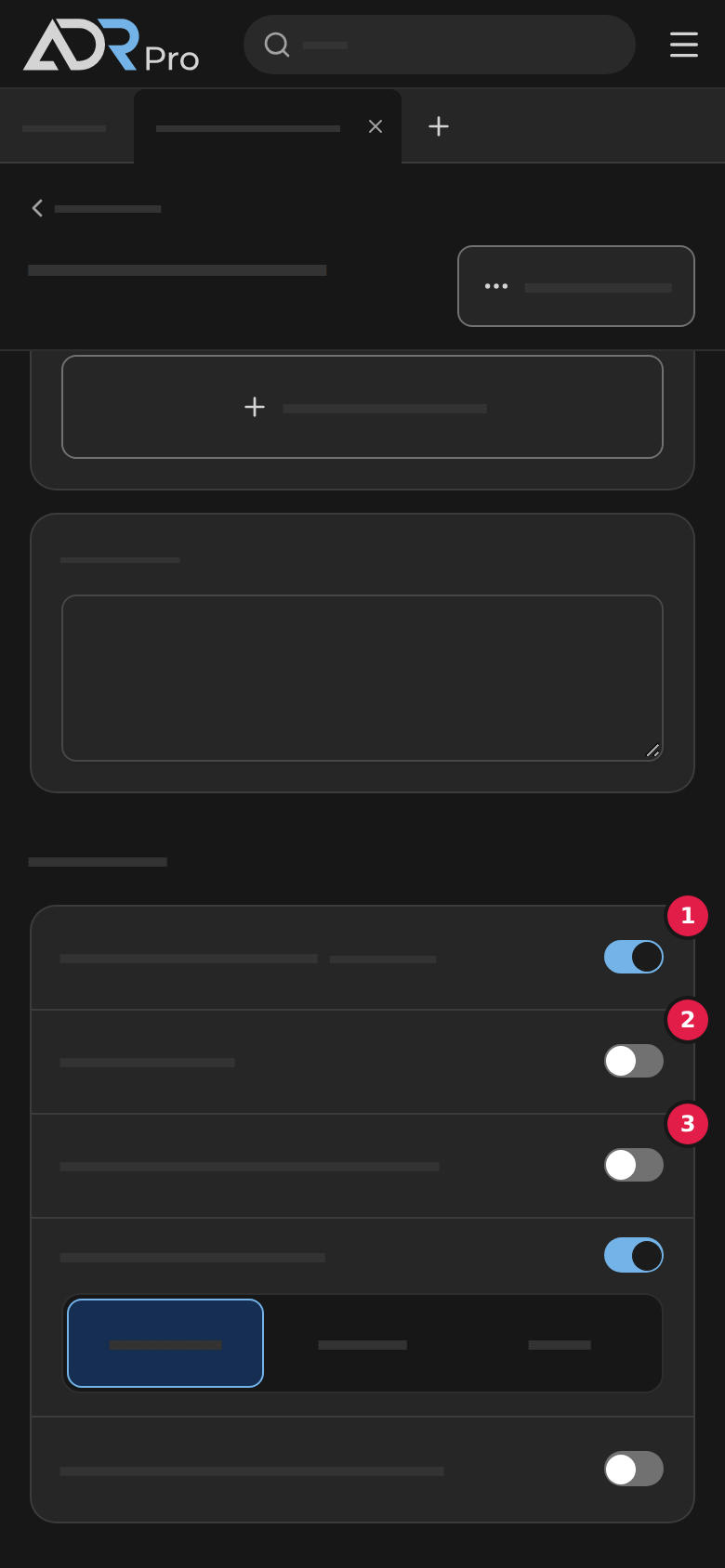
- The exemption is used (1) puts the quantity and points per transport category on the document. You can turn it on when all the dangerous goods are computed and under the exemption. Otherwise the switch says why it cannot. When it is on, Per transport category stands under the dangerous goods.
- Signatures (2) puts the consignor’s signature and Received by on the document. When it is on, type the name of the person who signs in Signatory beside it.
- Empty rows for handwriting (3) fills the rest of the page of dangerous goods with empty ruled rows, so you can write more in by hand.
The switches are off until you turn them on. Only Field names also in is on from the start, with English.
Turn on PG before the packing group to write “PG” before the packing group on every line, for example “PG II”.
Field names in another language
Copy link to “Field names in another language”The document is in the language ADR Pro is in. From the start the field names are in English as well, because Field names also in under Setup is on.
- To have the field names in another language, choose French or German at Field names also in.
- To have the field names in one language only, turn Field names also in off.
Download the document as a PDF
Copy link to “Download the document as a PDF”Choose Download as PDF at the top of the page, as described in Download as PDF, and start over in Tools.
- First come the consignor and consignee and the dangerous goods, as you entered them. Each line takes two rows with a rule between them. When Empty rows for handwriting is on, empty ruled rows stand under them. Then come the statements, the remark and the signatures.
- The last page has the totals per UN number and packing group. When The exemption is used is on, the quantity and points per transport category are there too.