UN cards
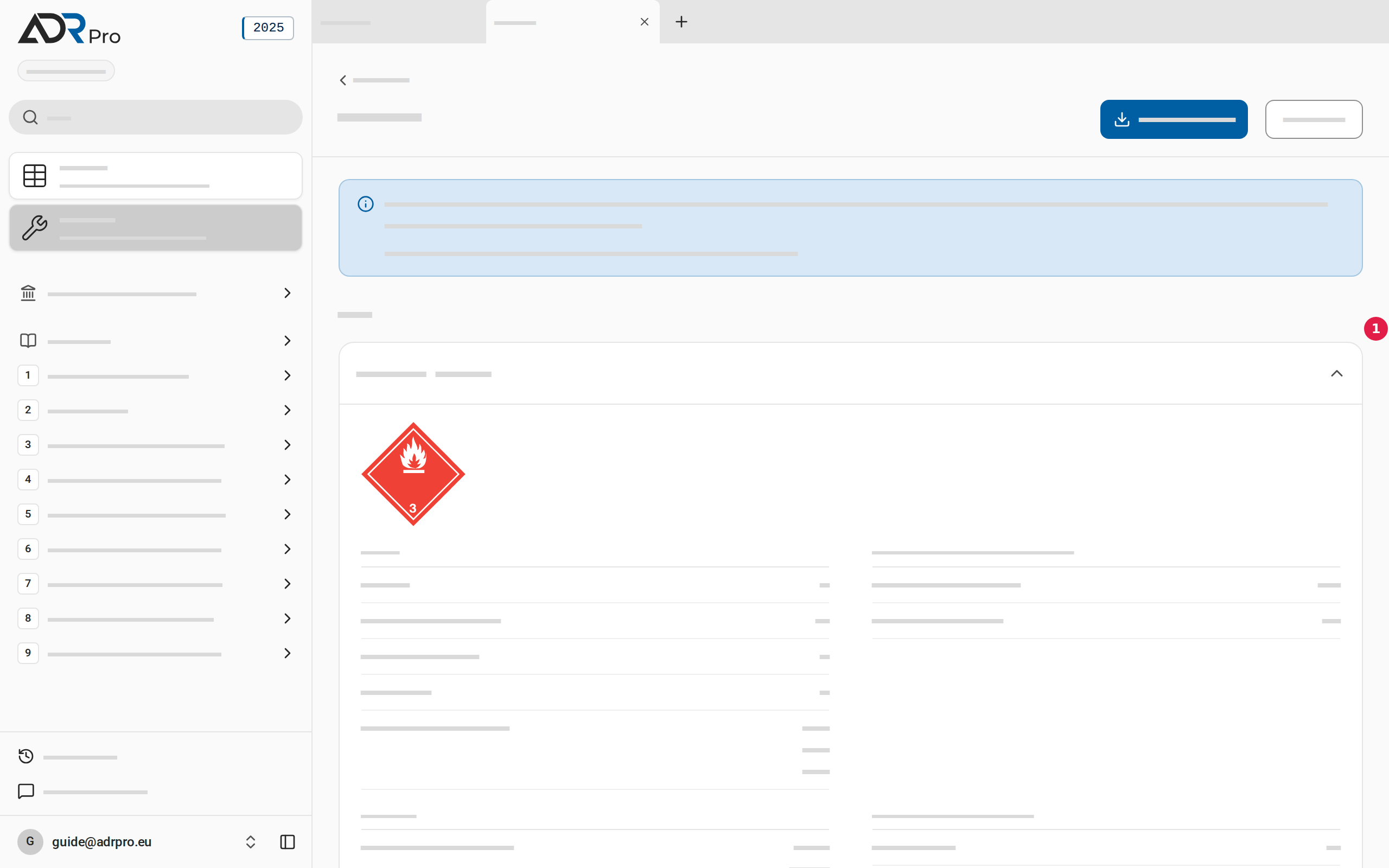
UN cards makes one card per UN number with the goods’ labels and Table A’s details about them. The cards are downloaded as one PDF.
UN cards keeps the cards on the device, as described in What you enter stays on the device in Tools.
Make UN cards
Copy link to “Make UN cards”- Add the dangerous goods, as described in Add dangerous goods in Tools. Each UN number gets its own card under Cards, and a card you have just added is open.
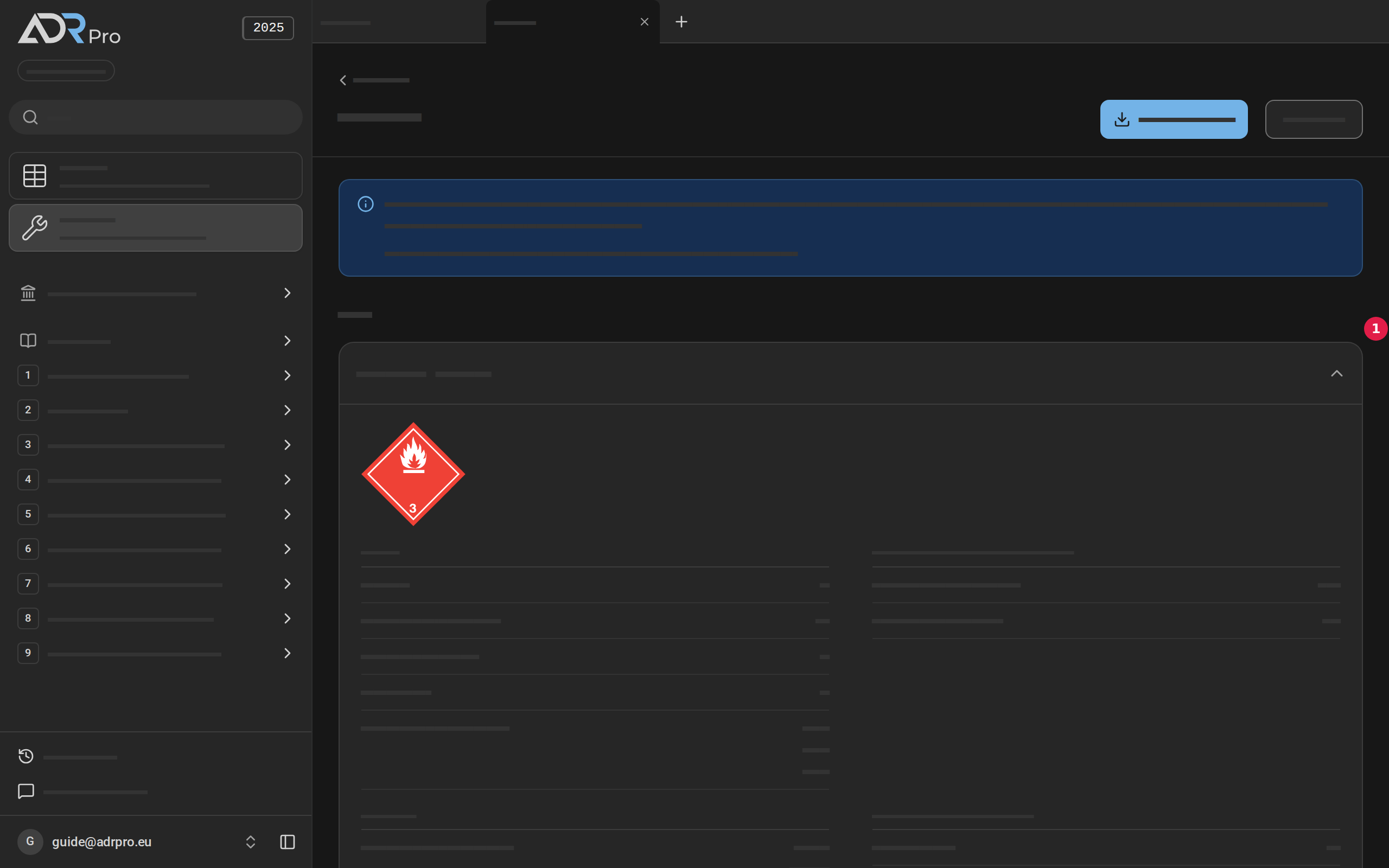
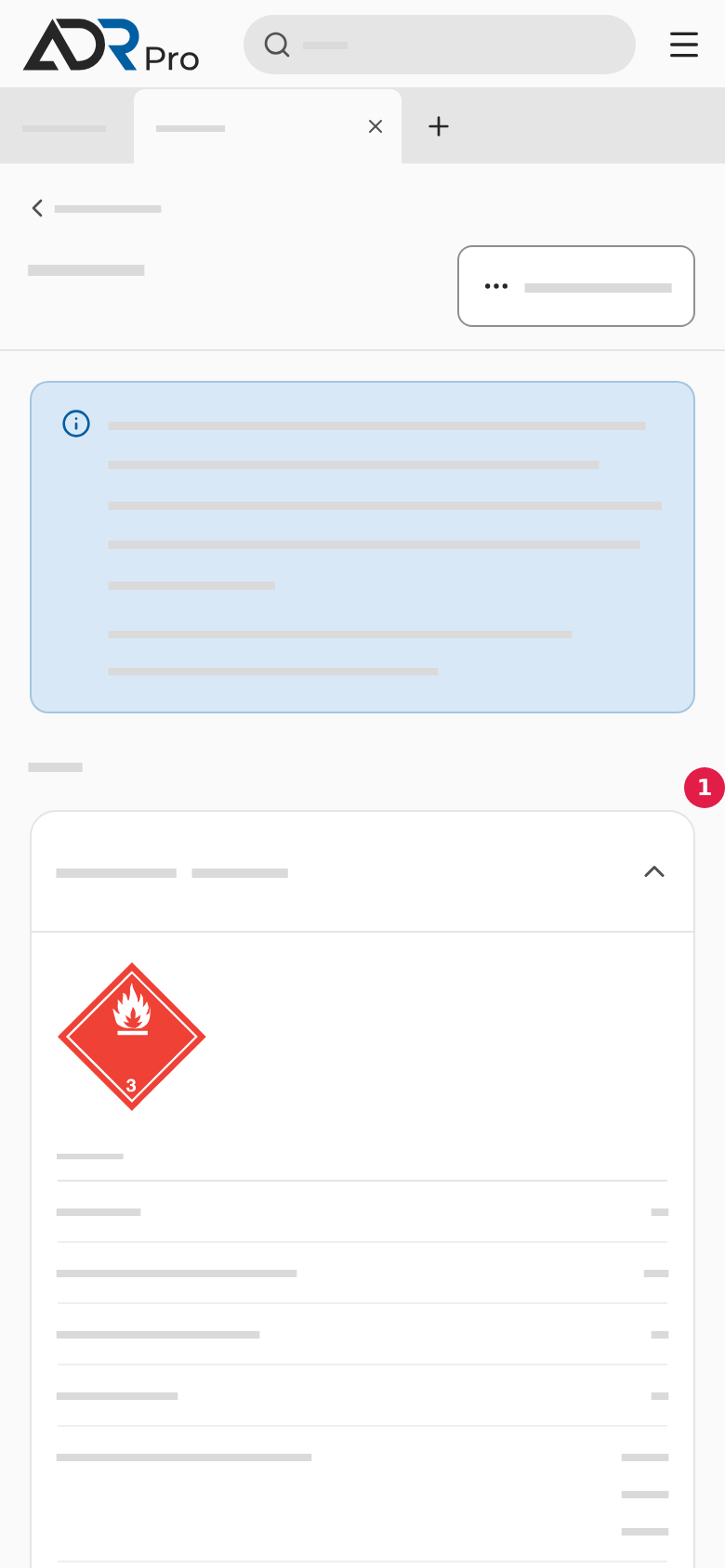
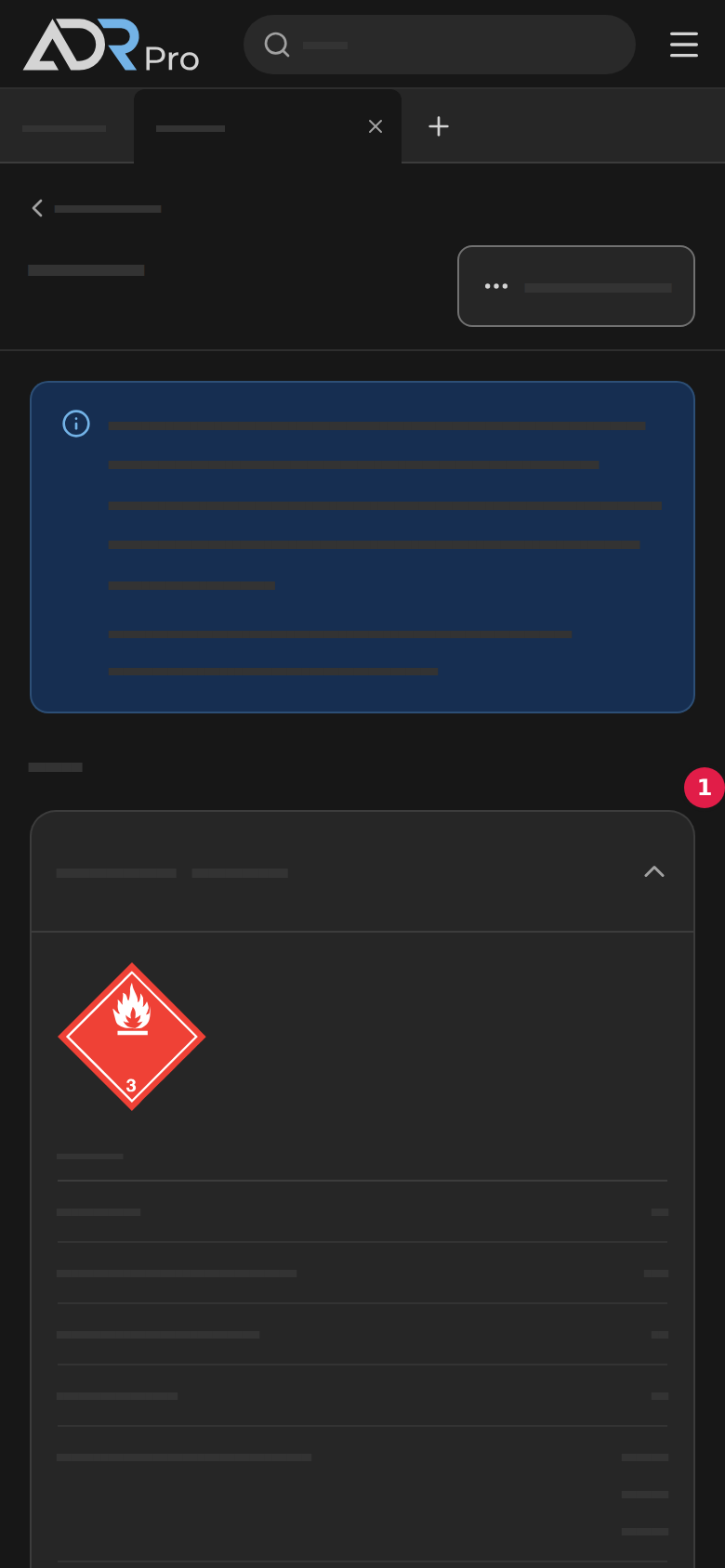
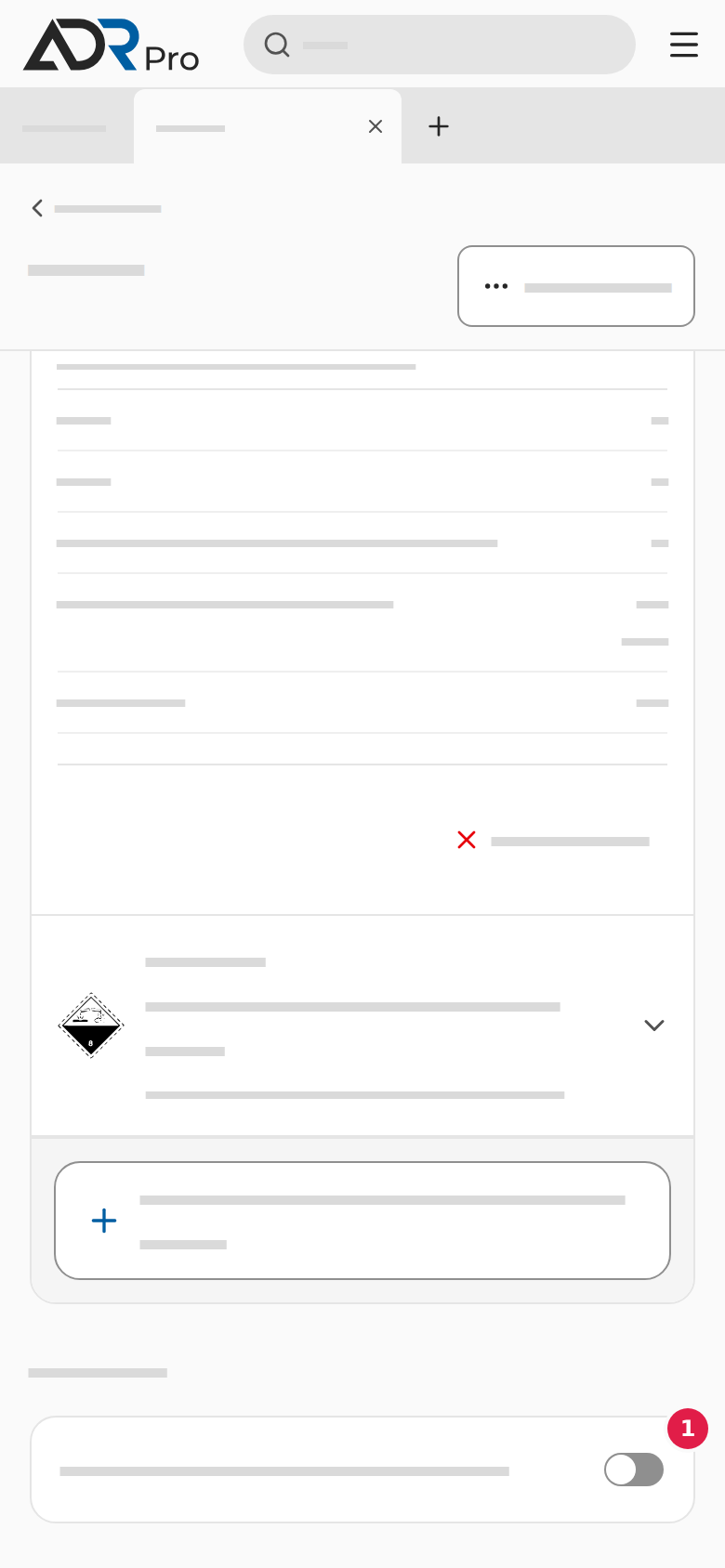
- Choose the top of a card (1) to fold it open or closed. When you open UN cards again, the first card is open.
- A folded card shows the goods’ labels before the UN number, and the goods’ class, packing group and transport category. An open card shows the labels larger and all of Table A’s details about the goods.
Make a UN card from Table A
Copy link to “Make a UN card from Table A”- Find the goods in Table A, as described in Search by UN number or name in Table A.
- Point at the goods’ row, and choose the card button by the UN number. On a phone, open the goods’ card and choose Make UN card.
- UN cards opens with the goods. If UN cards was already open in a tab, the goods join the cards there.
Download the cards as a PDF
Copy link to “Download the cards as a PDF”Turn on Include the packing instructions (1) under Setup to have the goods’ packing instructions in the PDF. The choice stays on the device until you turn it off.


Choose Download as PDF at the top of the page, as described in Download as PDF, and start over in Tools. The PDF has a page per card. When Include the packing instructions is on, each instruction is there once, also when several cards use it.