Editions and changes
A new edition of ADR comes out every other year, and corrections between editions come as updates. This is how you switch edition, what happens when a new edition comes into force, and how you see what has changed.
Switch edition
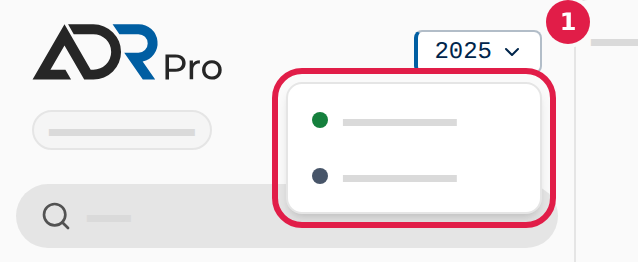
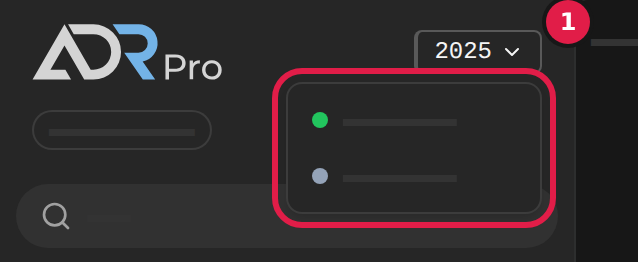
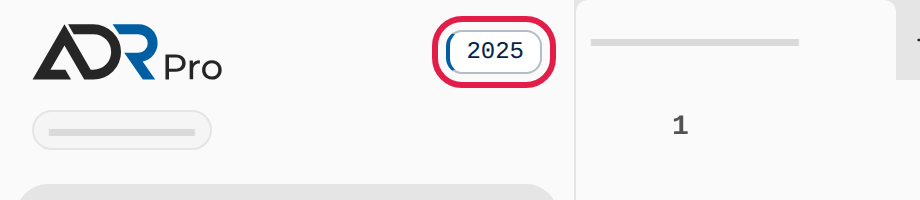
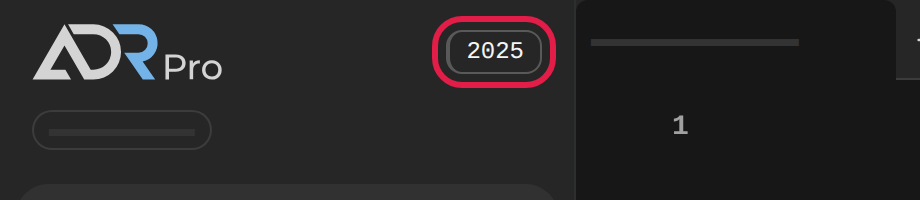
Copy link to “Switch edition”The tag at the top of the sidebar shows which edition of ADR you are reading. When a previous edition can still be read, the tag is a button, so you can switch between the two.
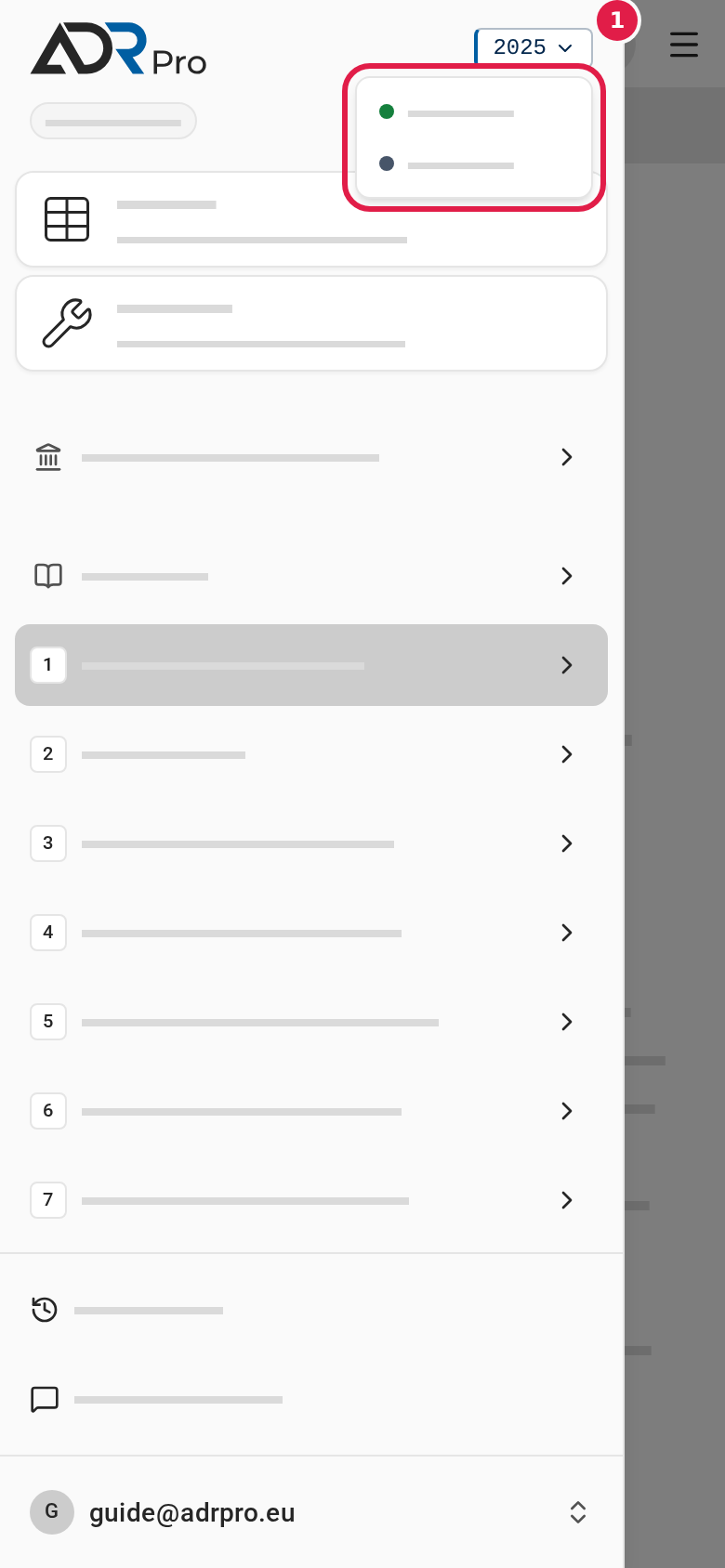
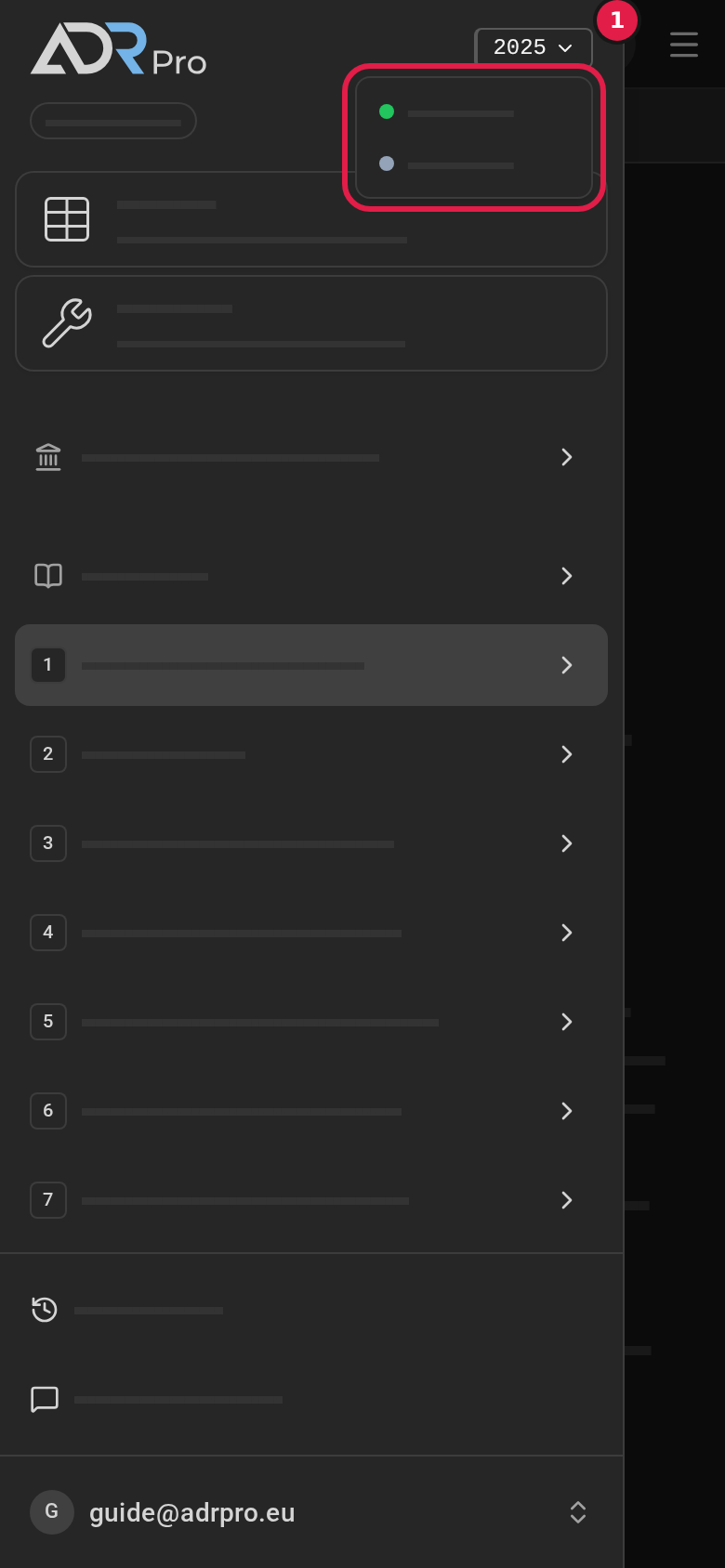
- Choose the edition tag (1) at the top of the sidebar. On a phone, first choose the menu button at the top right.
- Choose the edition in the list that opens:
- The edition with the green dot is the one in force now.
- The edition with the grey dot is the edition before it.
- ADR Pro now shows the edition you chose, and the tag shows its year. Your tabs stay where they were.
The browser remembers your choice, so you read the same edition the next time you open ADR Pro.
When there is only one edition
Copy link to “When there is only one edition”When no previous edition can be read, the tag is not a button. It just shows the current edition.
If the previous edition is archived while you are reading it, ADR Pro moves you to the current edition with the message The previous edition is no longer in force, so you’re reading the current edition.
What happens when a new edition comes into force is in When a new edition is released.
When a new edition is released
Copy link to “When a new edition is released”A new edition of ADR comes out every other year. The tag at the top of the sidebar shows which edition you are reading.
When the new edition comes into force
Copy link to “When the new edition comes into force”- If you have ADR Pro open, it moves to the new edition by itself. The page reloads, and you do not need to do anything.
- A short message says ADR … is now the current edition.
- Your tabs stay where they were. If a section is not in the new edition, the tab shows the nearest section above it, with a message saying so.
- If the computer was asleep or offline, ADR Pro moves as soon as you come back to it.
Read the previous edition
Copy link to “Read the previous edition”The previous edition can be read until it is archived.
- Choose the edition tag at the top of the sidebar. When there is a previous edition, the tag is a button.
- Choose the edition with the grey dot. ADR Pro now shows the previous edition.
- Choose the edition with the green dot to go back.
What has changed since the previous edition is marked in the text. How to see it is in Find what changed.
Find what changed
Copy link to “Find what changed”When a new edition of the ADR is released, ADR Pro marks what changed or is new compared with the previous edition. The marks show when there is a previous edition to compare with.
- Read the section as always. A paragraph that changed or is new has a thin line in the margin to the left of the text.
- Point at the line. It tells you whether the paragraph is Changed in ADR … or New in ADR ….
In Table A a changed row has the line beside the row. On a phone the row’s card says Changed or New at the top.
See the previous text
Copy link to “See the previous text”- Choose the line beside a changed paragraph. A box opens under the paragraph with the previous text from the previous edition.
- For a new paragraph the box says that it did not exist in the previous edition.
- Choose the cross in the box, or press Esc, to close it.
For a changed row in Table A the box shows the row’s previous values.
See the updates
Copy link to “See the updates”When we correct the text in ADR Pro, we publish the correction as an update. The Updates page lists them all, and the Update available button tells you when a correction reaches what you have open.
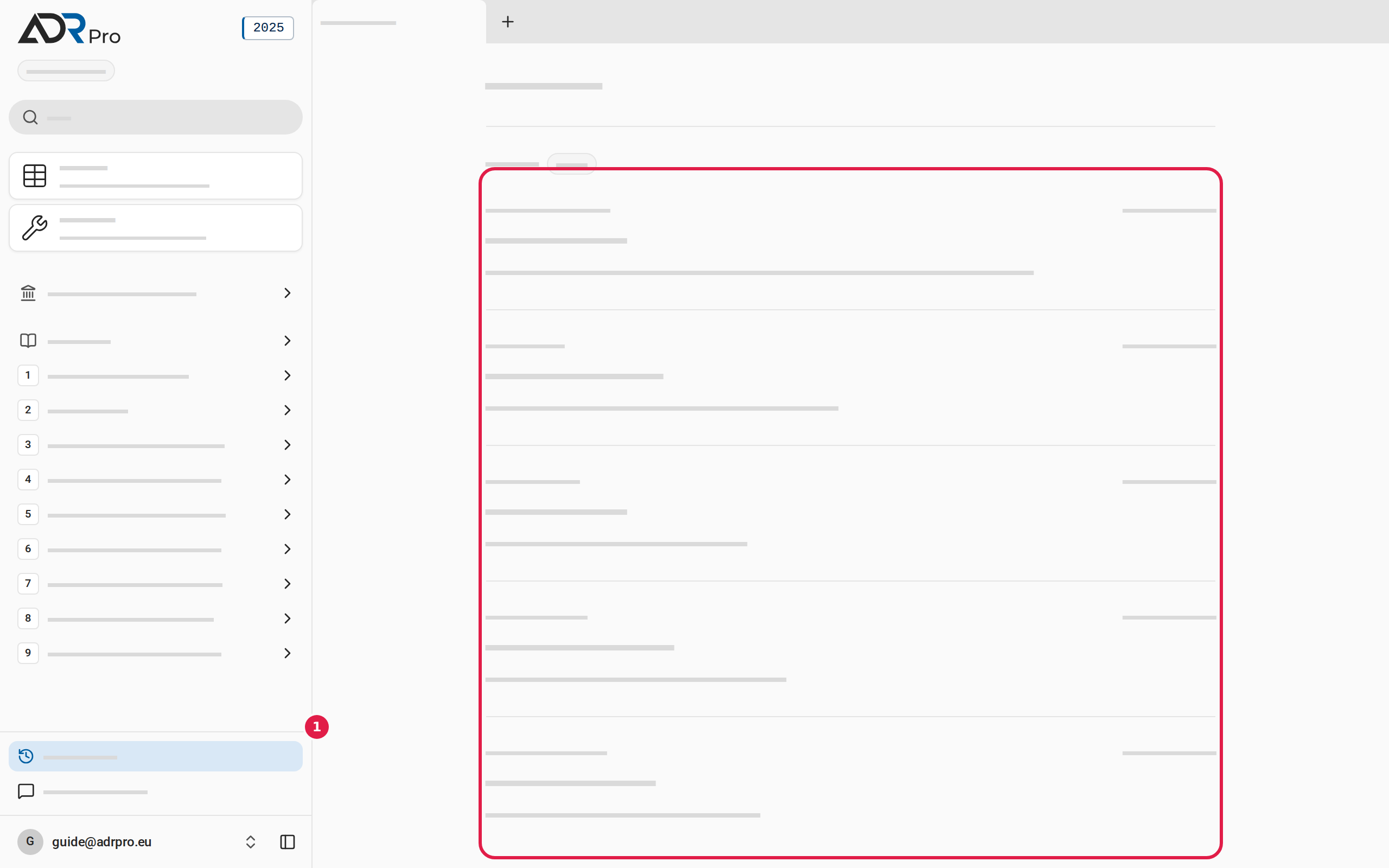
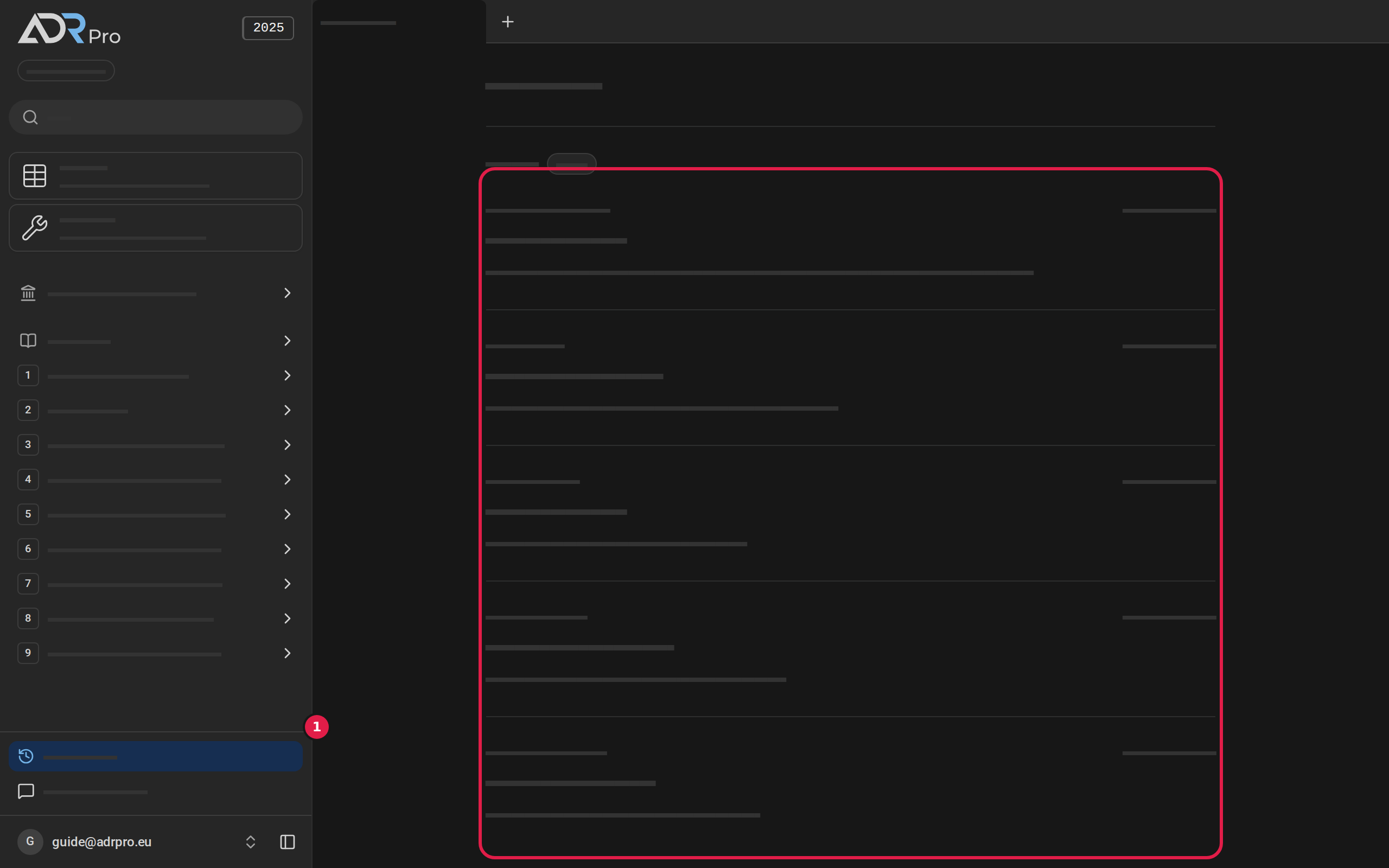
- Choose Updates (1) in the sidebar under the sections. On a phone, choose the menu button first. A dot by Updates means there is something new you have not seen.
- The page opens in its own tab. Under Edition are the updates to the edition you are reading, newest first.
- Each update shows the date, how many sections changed, a name and a short description.
- Updates to a previous edition are gathered at the bottom. Choose Previous edition or Archived to unfold them.
Apply an update
Copy link to “Apply an update”- When an update changes the edition and language you are reading, the sidebar shows the Update available button above Updates. On a phone the menu button gets a dot. Choose the menu button to see the button.
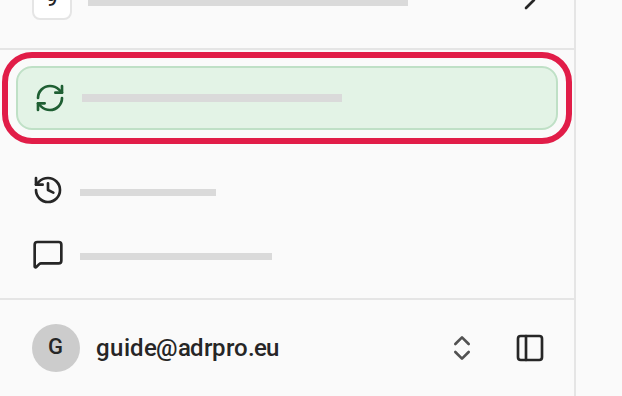
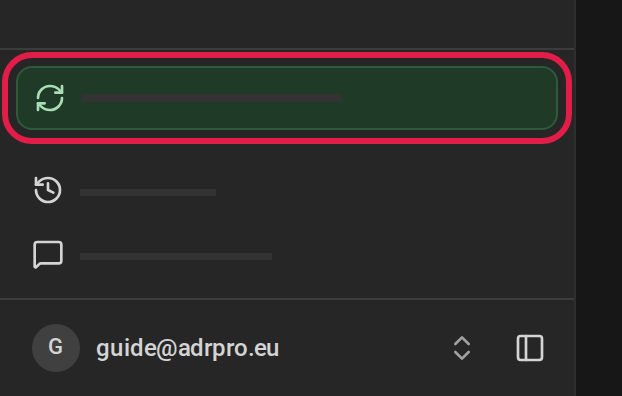
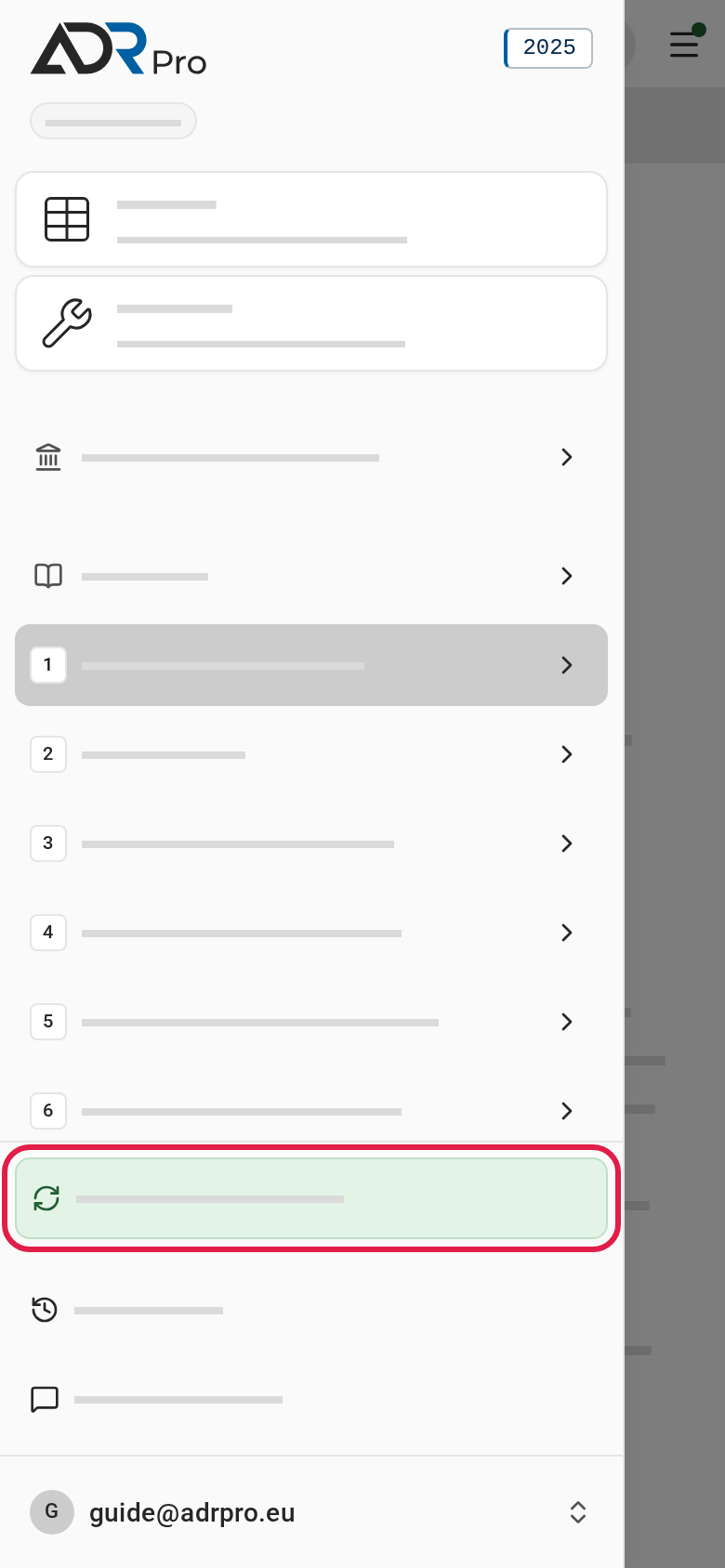
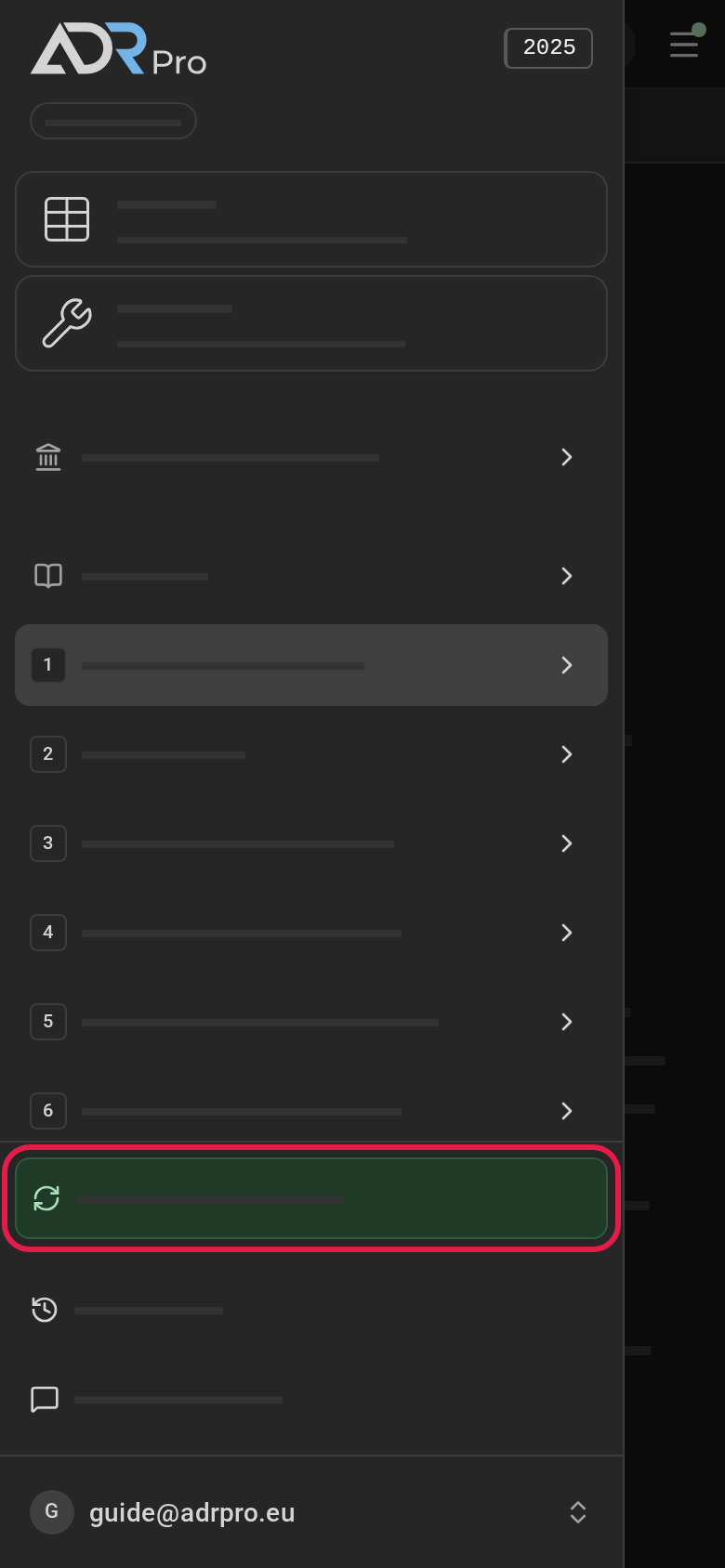
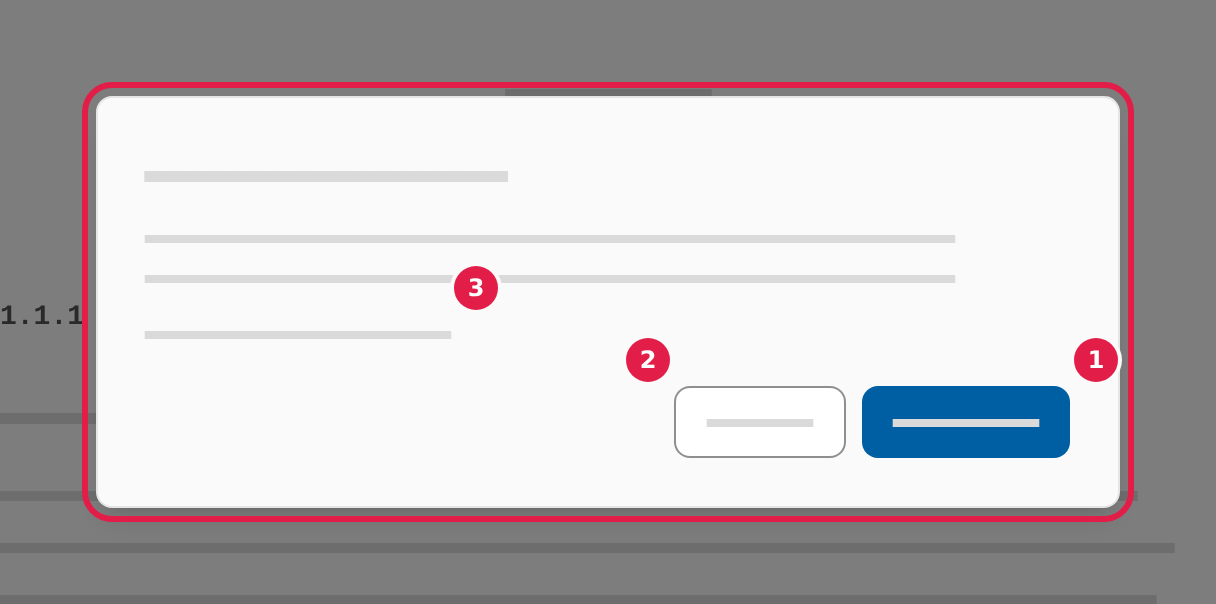
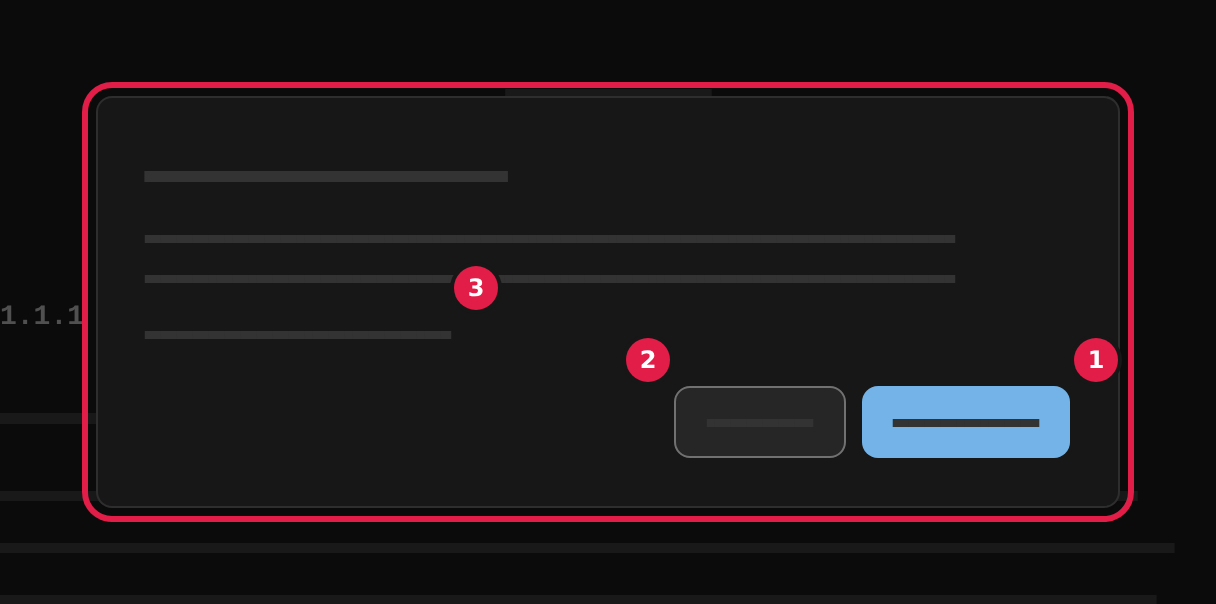
- Choose Update available. A window opens with An update is available.
- Choose Update now (1). The page reloads with the new text. Your tabs stay where they were, even in the middle of a section.
- Choose Not now (2) to keep reading. The button stays until you apply the update or reload the page.
- Choose See what changed (3) to open Updates without applying the update yet.
When a whole new edition of ADR comes into force, it works another way. That is in When a new edition is released.