Tools
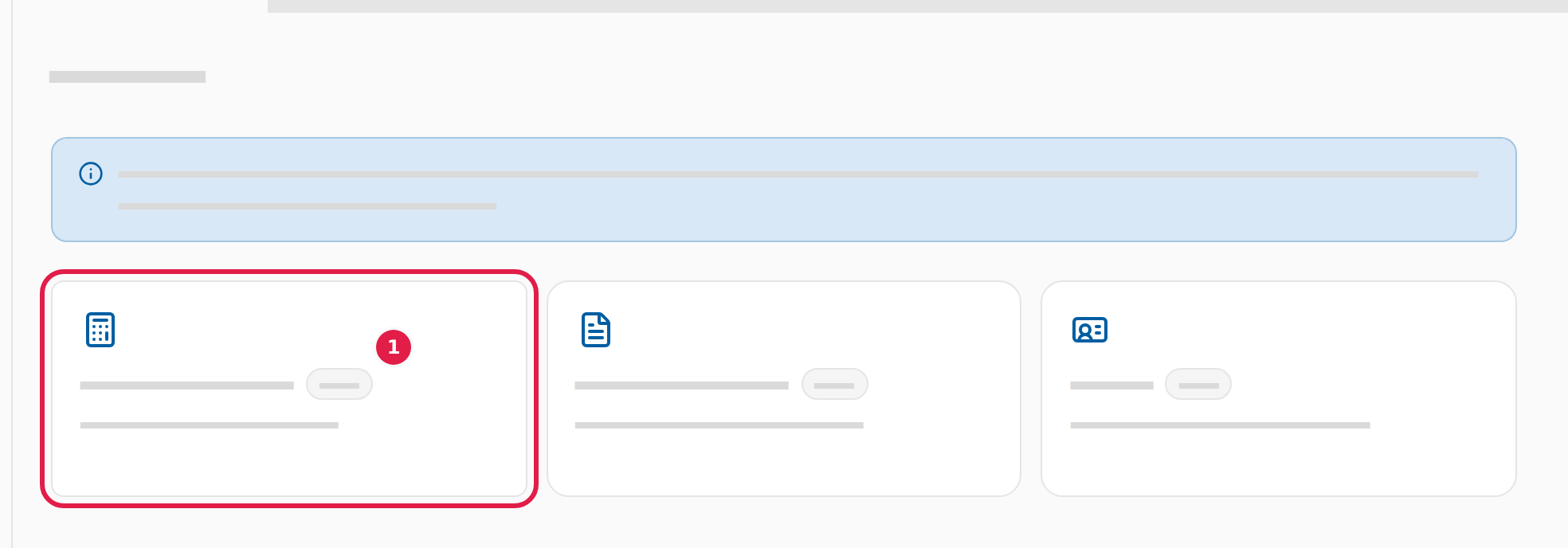
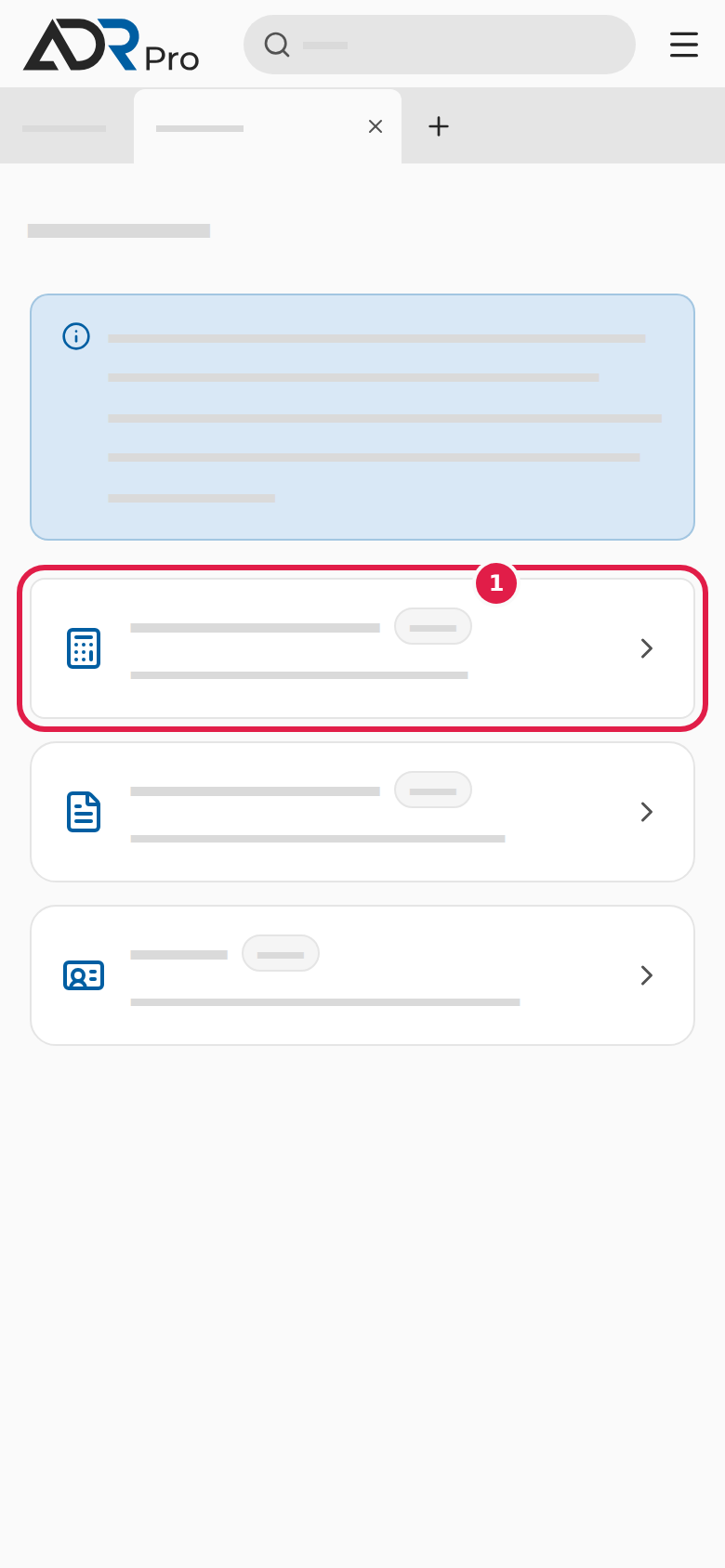
The tools use the agreement’s data for three tasks: the exemption calculator works out the load’s points, Transport document makes the document for the journey, and UN cards makes a card per UN number. This is how you open them, and what the three have in common.
Open the tools
Copy link to “Open the tools”-
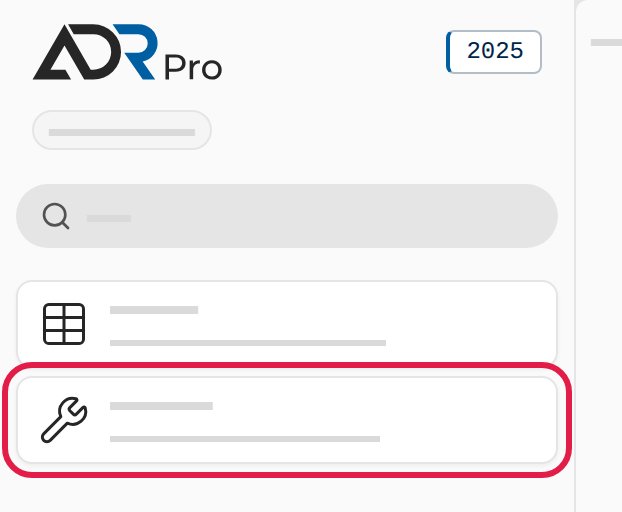
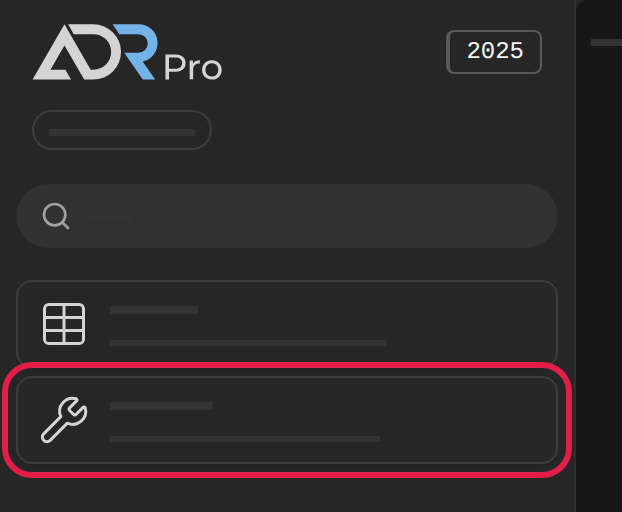
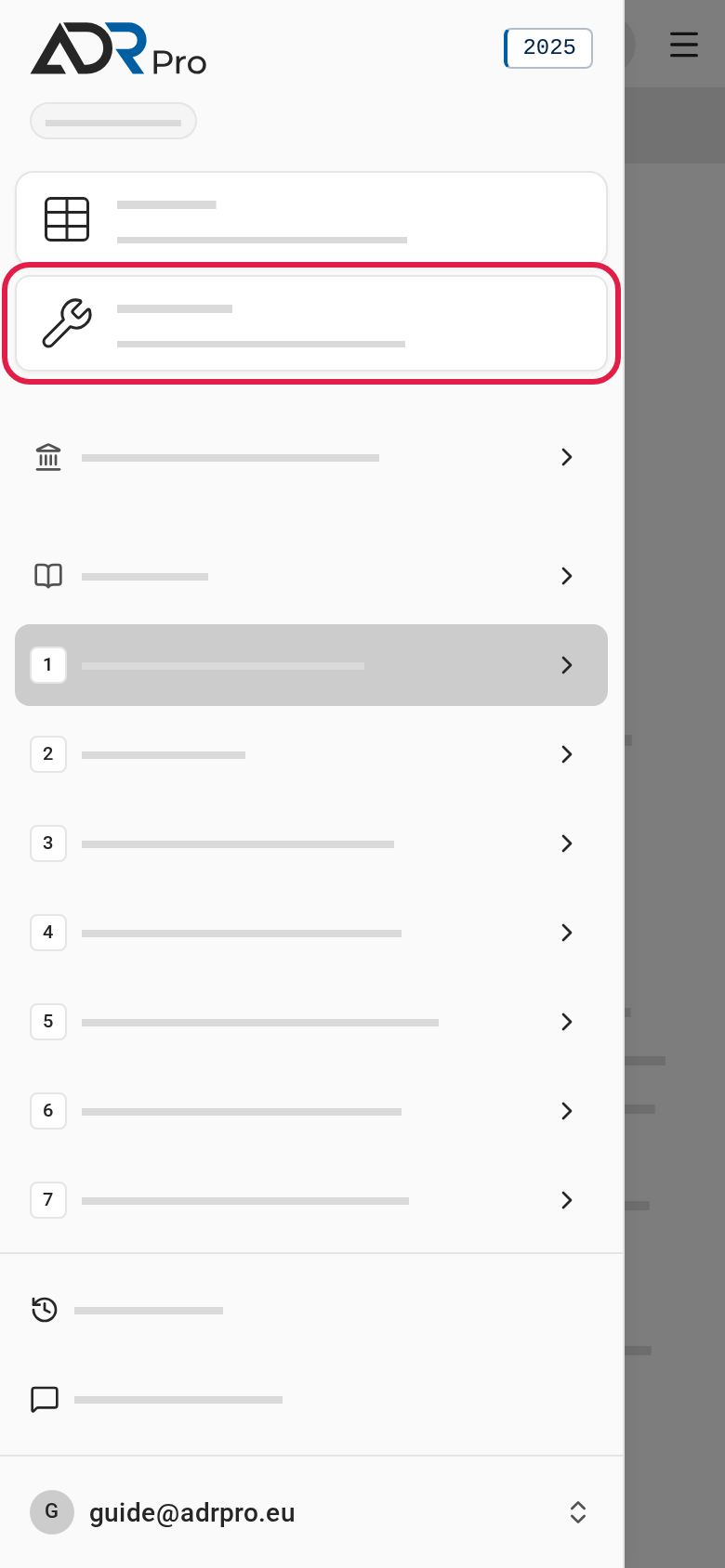
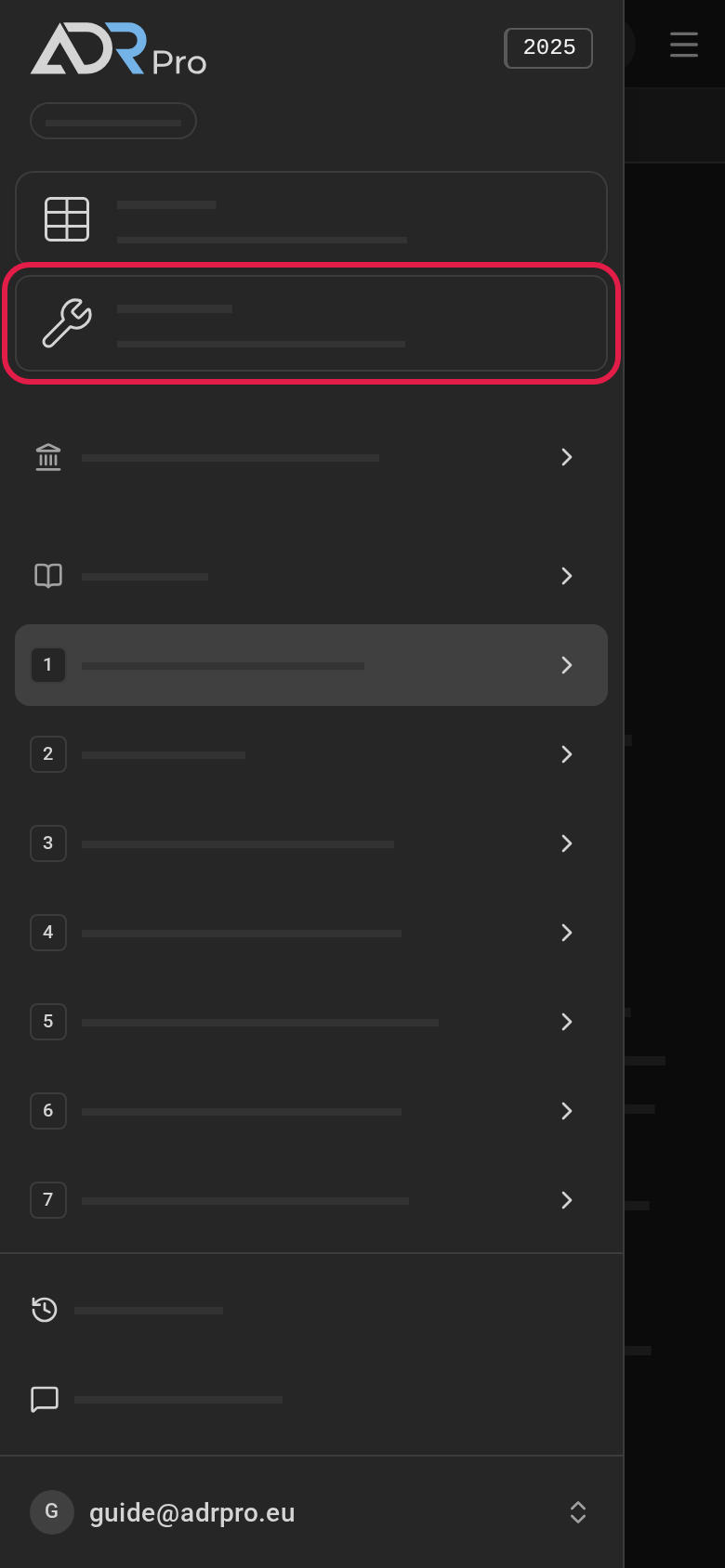
Choose the Tools card in the sidebar. On a phone, first choose the menu button.
-
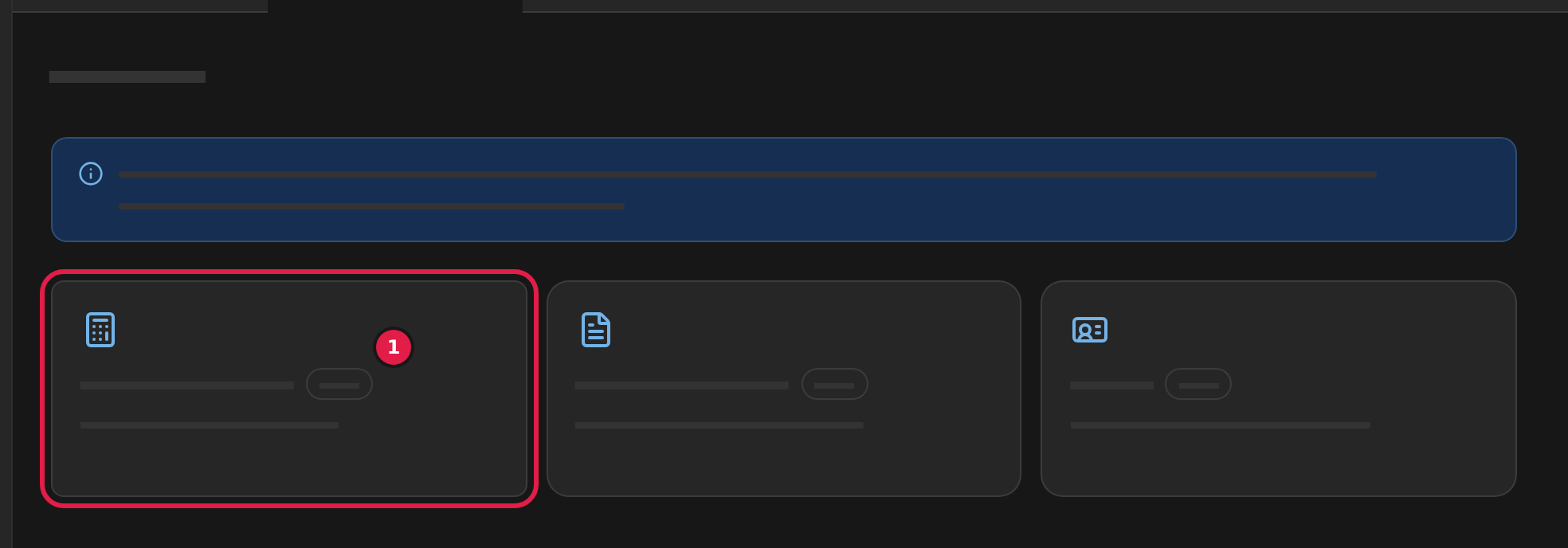
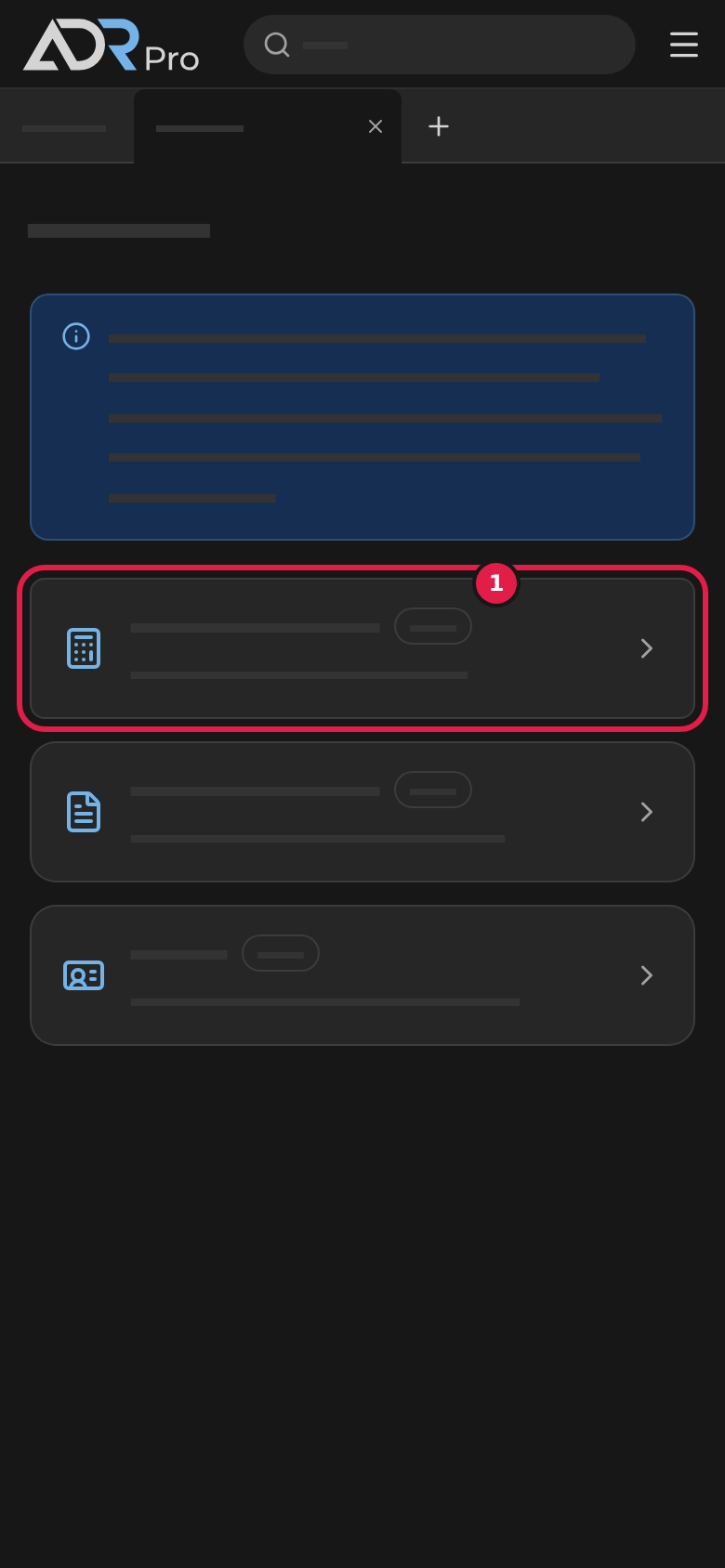
The Tools page opens in a tab of its own. If it is already open, ADR Pro switches to it. The page shows the three tools, each with the Beta tag (1).
-
Choose the tool you want to use. It opens in the same tab. If the tool is already open in another tab, ADR Pro switches to that tab.
Choose Tools at the top of a tool’s page to go back to the page with the three tools.
Add dangerous goods
Copy link to “Add dangerous goods”You add dangerous goods the same way in all three tools, from Table A in the edition you are reading.
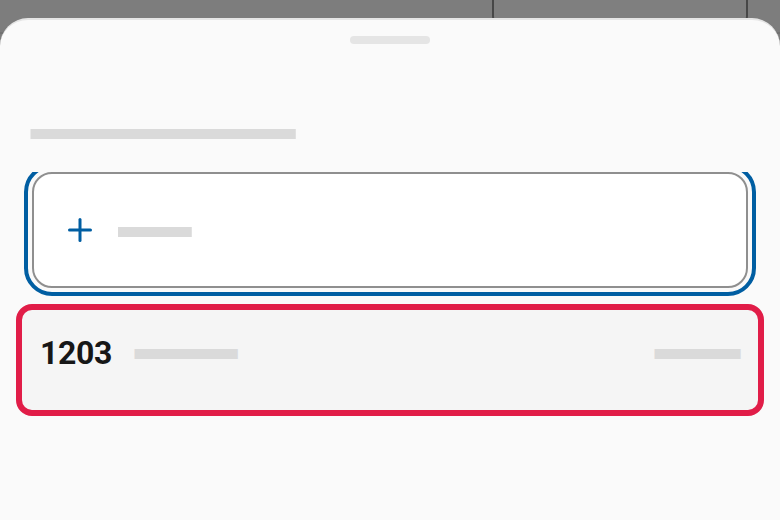
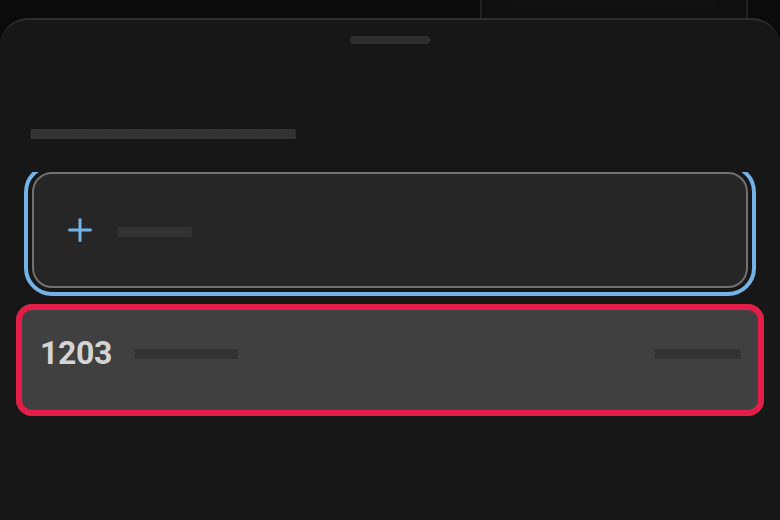
- Choose the field Add dangerous goods: UN number or name at the end of the list of dangerous goods. On a phone the field opens in a dialog.
- Type a UN number or a name. The list under the field shows the dangerous goods that match, with class and packing group.
- Choose the goods in the list. They join the list in the tool. In the exemption calculator and Transport document, the goods open on a phone, so you can type the quantity. Choose Save when you are done.


Remove dangerous goods
Copy link to “Remove dangerous goods”-
Choose the cross by the goods in the exemption calculator. In Transport document, fold the line out with the arrow and choose Remove from the document. In UN cards, fold the card out and choose Remove card.
On a phone, choose the goods and then Remove in the exemption calculator, or Remove from the document in Transport document.
-
A dialog asks whether you want to remove the goods. Choose Remove in it.
Download as PDF, and start over
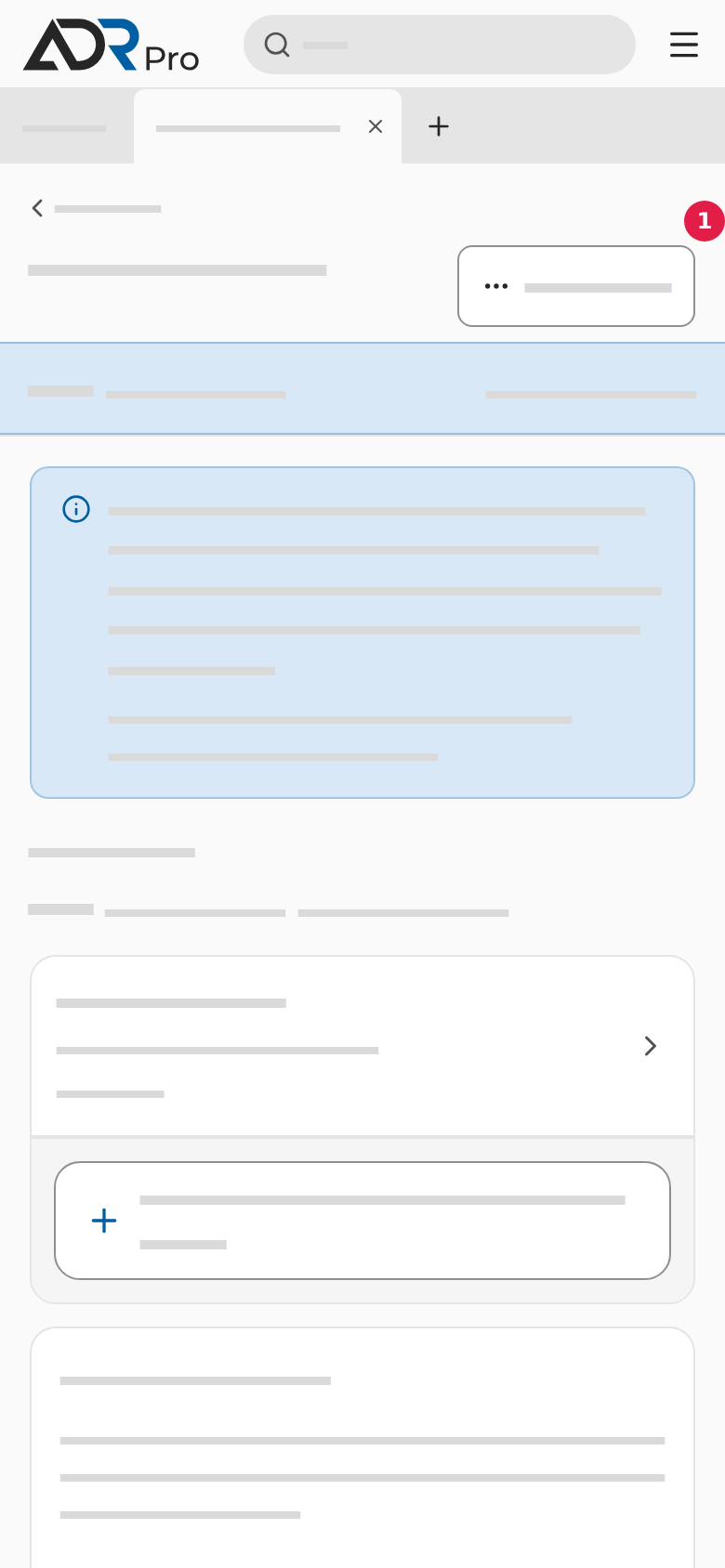
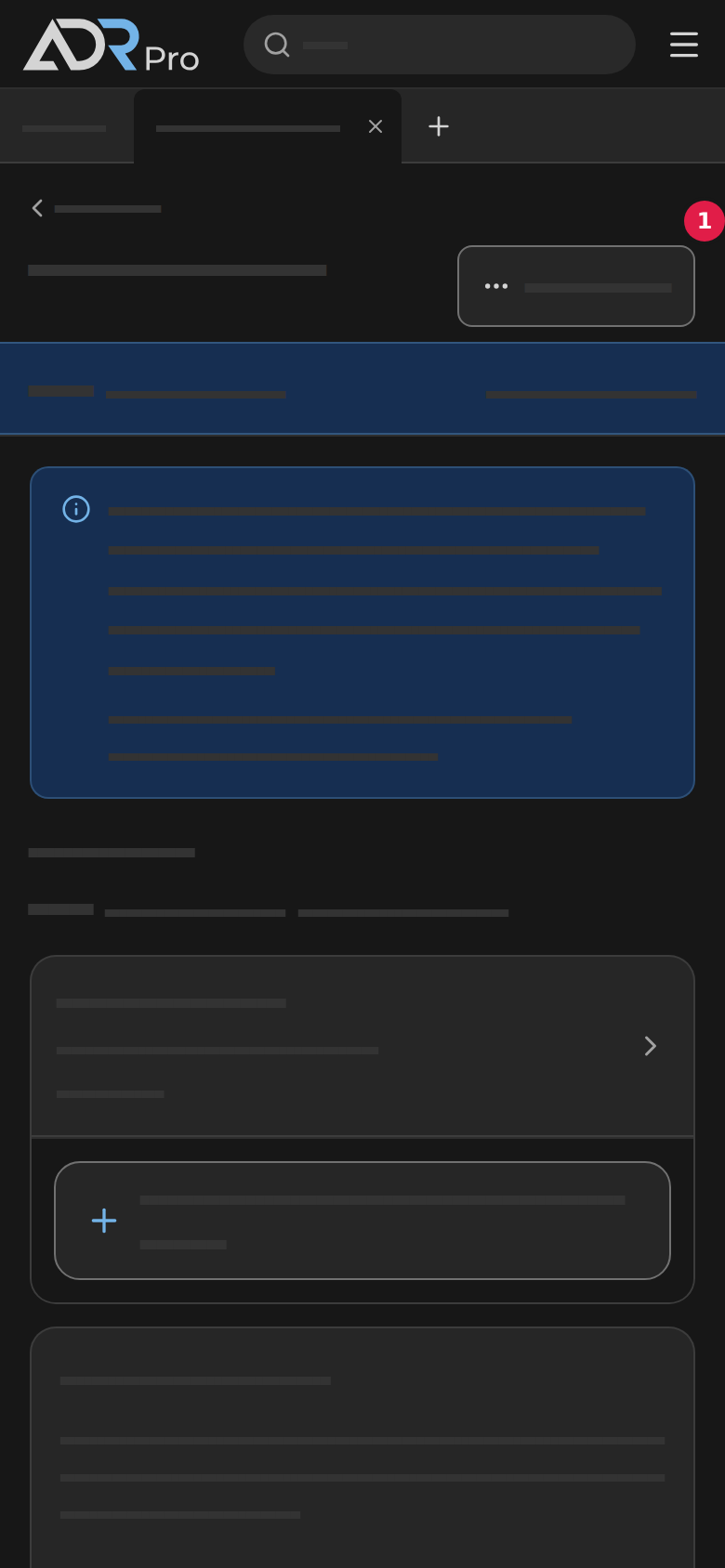
Copy link to “Download as PDF, and start over”At the top of each tool are Download as PDF (1) and a button that starts over (2): New calculation in the exemption calculator, New document in Transport document and New cards in UN cards. When the tool is narrow, as on a phone or a tablet, they are gathered under Actions.


To download the PDF:
- Choose Download as PDF. If the buttons are gathered under Actions, choose that first.
- The PDF is downloaded to your device. You can save it, send it or print it.
To start over:
- Choose New calculation, New document or New cards. If the buttons are gathered under Actions, choose that first.
- A dialog asks whether you want to start over. What you have entered cannot be retrieved. Choose Download the PDF first if you want it as a PDF before.
- Choose Start new or Make new in the dialog.
What you enter stays on the device
Copy link to “What you enter stays on the device”A tool keeps what you enter in the browser on the device you use. It stays there when you reload the page or close ADR Pro, too, and the tool’s tab is still there when you come back. It is not kept in your account. Neither the tool’s tab nor what you have entered comes with you to your other devices.
When you close the tool’s tab, or the tab goes from the tool back to the Tools page, what you have entered is deleted, and the tool starts empty next time. If you have entered something, a dialog asks first. Choose Download as PDF to have it as a PDF, Leave to go on and delete it, or Stay to stay in the tool. If you have downloaded the PDF and changed nothing since, the dialog does not ask.
When you open a tool in an edition or a language you have not used it in before, it starts from what you entered last, worked out for what you are reading now.