References, footnotes and instructions
The text of ADR often refers to another section, to a footnote or to a packing instruction. This is how you open a reference without leaving what you are reading, and how you read footnotes and instructions.
Open a reference as a peek
Copy link to “Open a reference as a peek”A peek shows the section a reference points to in a panel beside your text. It is like keeping a finger between the pages. You can read the reference and come back to where you were reading without having to find it again.
- Choose a reference in the text (1), for example a section number.
- The section opens in the peek panel on the right. It shows the section with its subsections.
- Choose a reference inside the panel to open another peek. Each peek gets its own tab at the top of the panel. Choose a tab to switch between them.
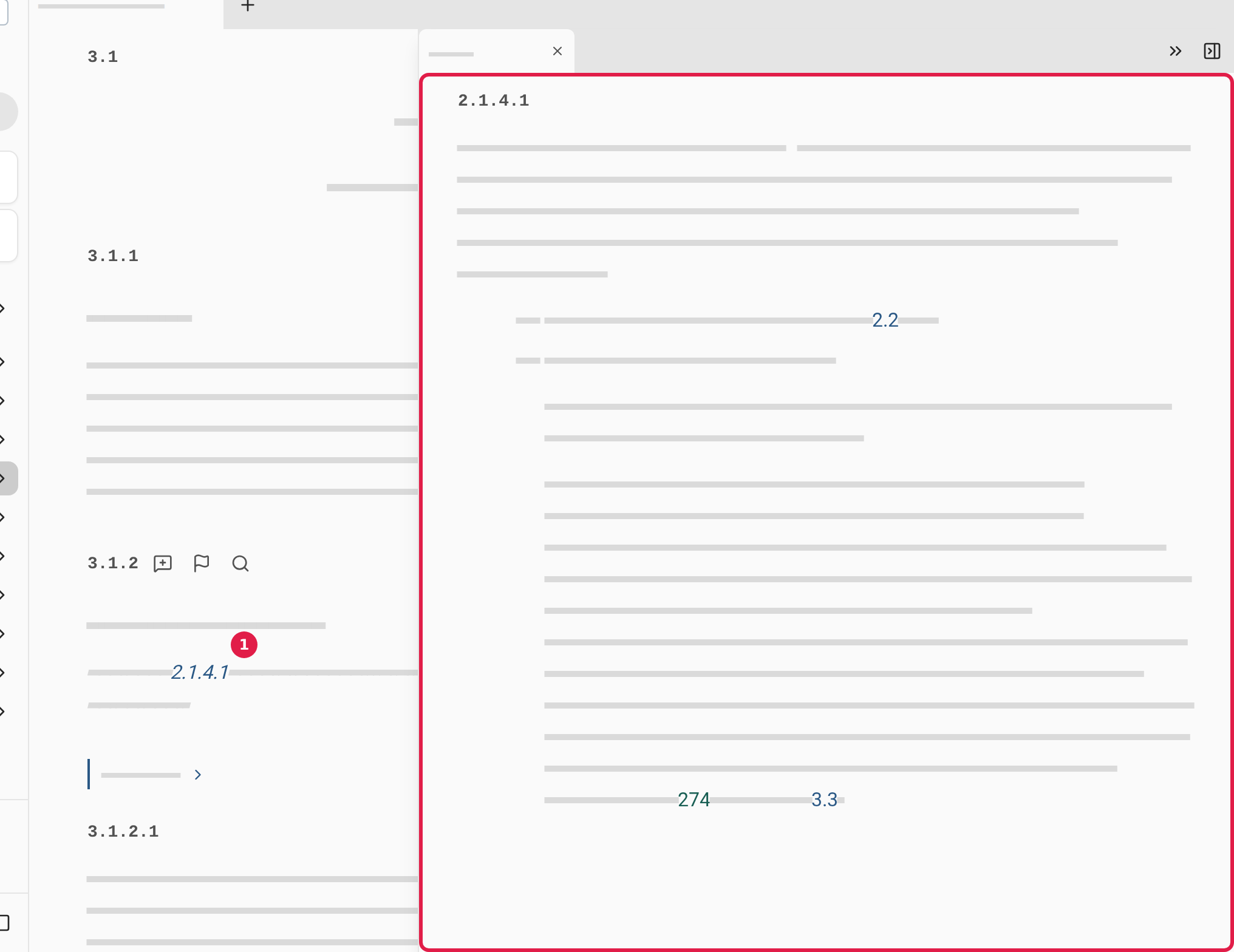
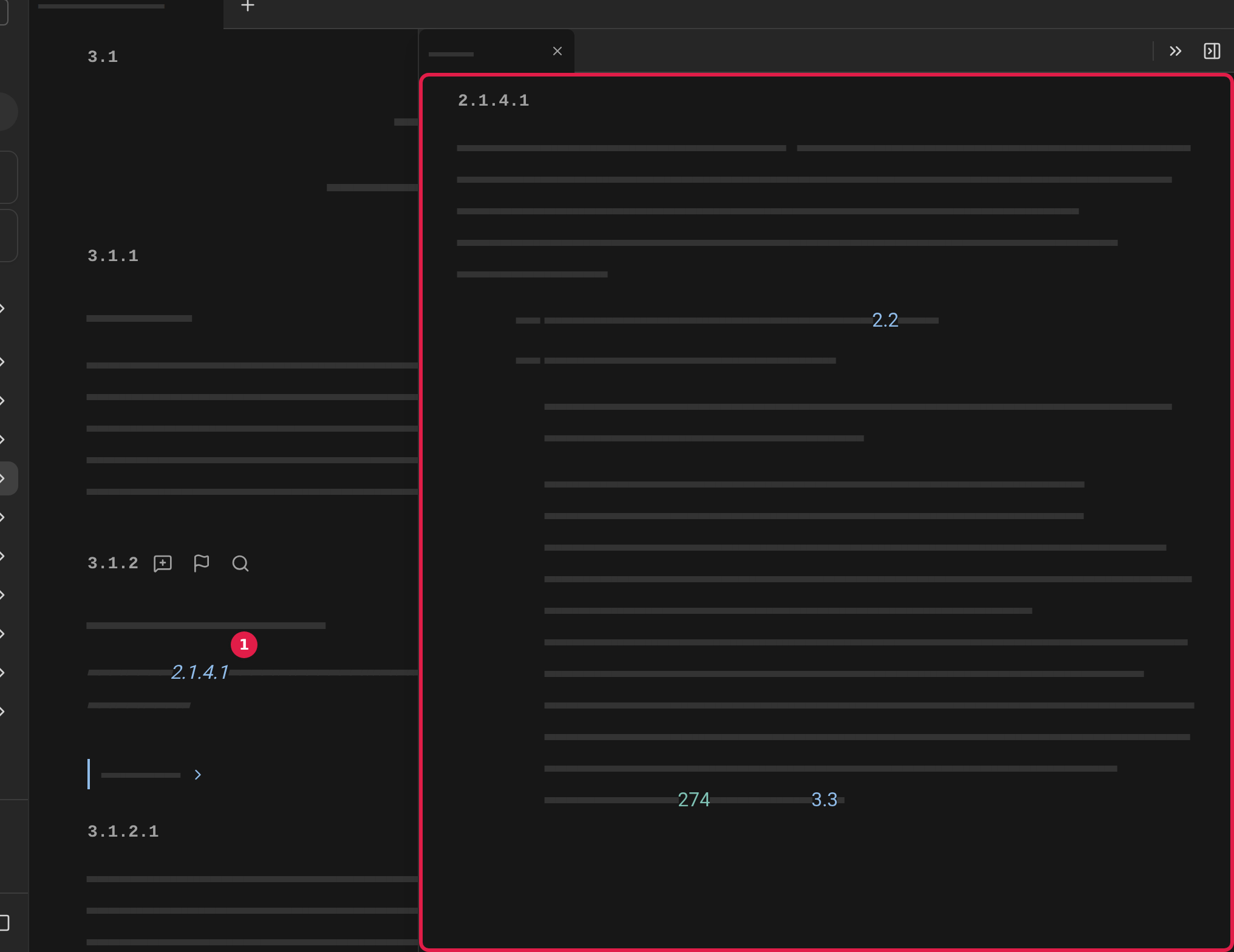
Your peeks belong to the tab you are reading in, and are still there when you come back to the tab.
Open the peek as a tab
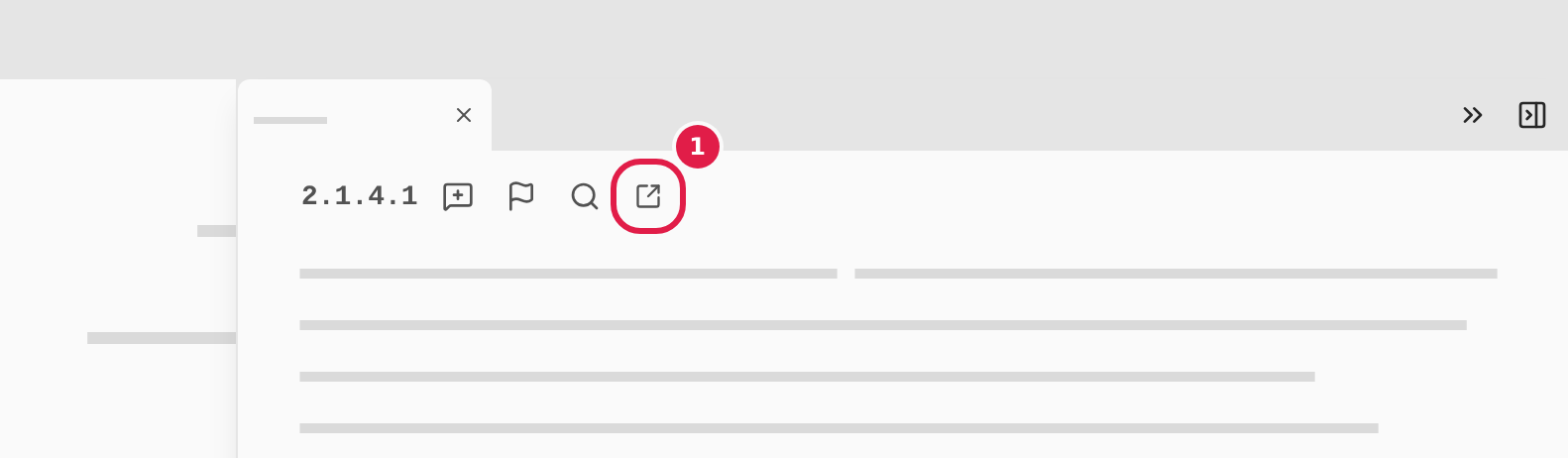
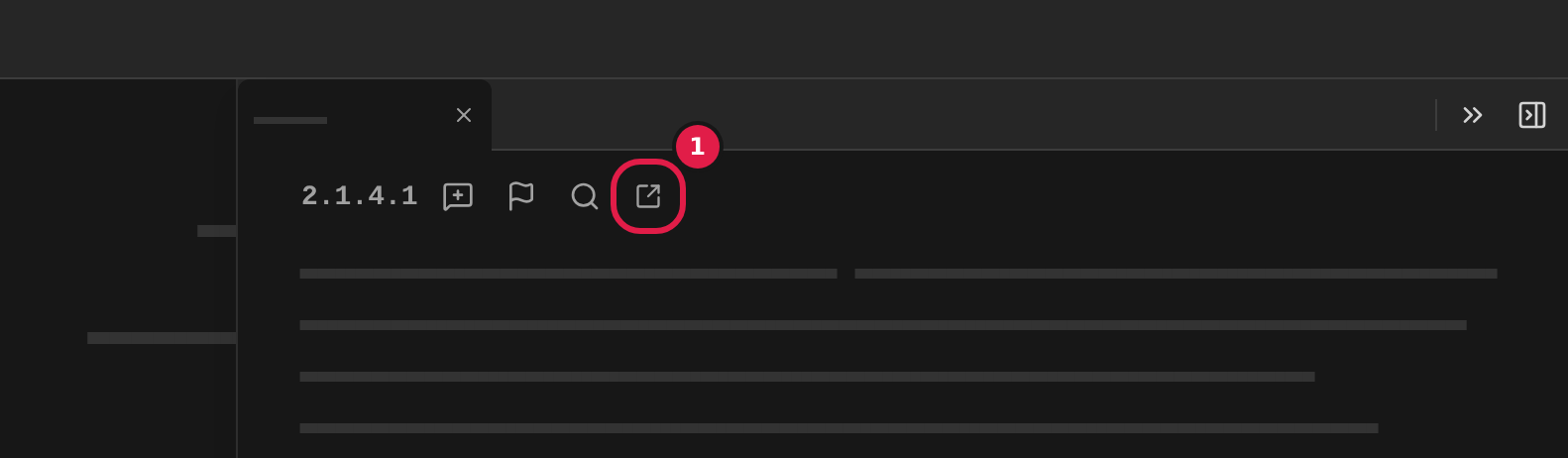
Copy link to “Open the peek as a tab”- Point at the section’s heading in the panel.
- Choose the arrow out of the box (1) by the heading. The section opens in a new tab, and the peek stays in the tab you came from.
You can also hold down Ctrl (⌘ on a Mac) while you choose a reference in the text. The section then opens straight in a new tab instead of as a peek.
Minimize or close the panel
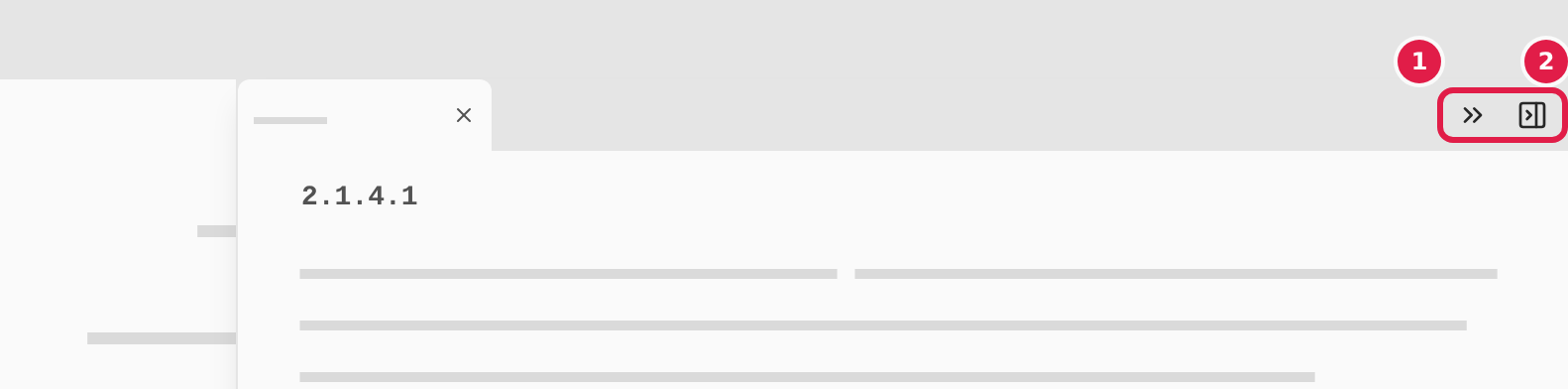
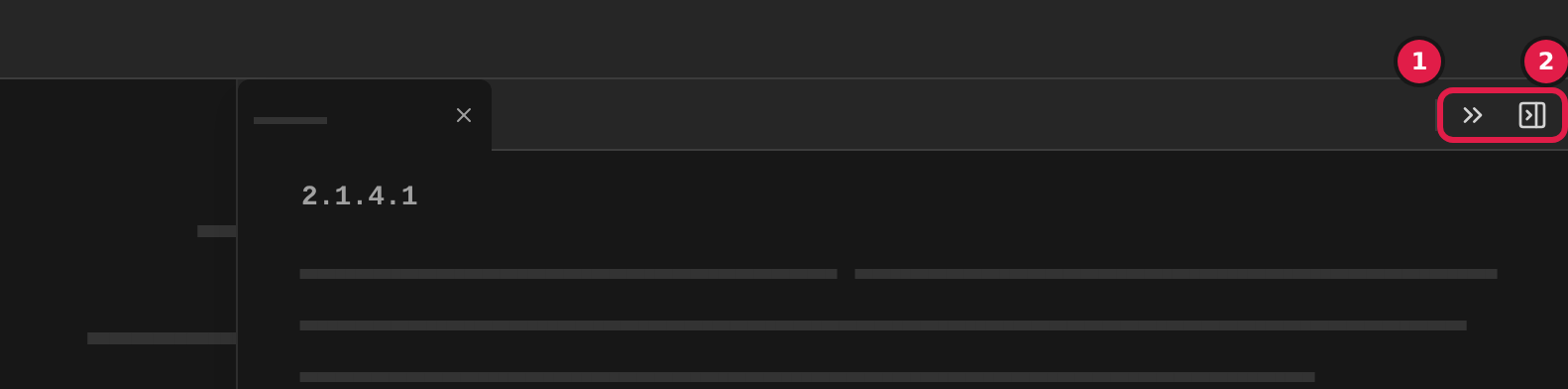
Copy link to “Minimize or close the panel”- Choose the double arrow (1) at the top of the panel to minimize the panel. Choose the double arrow at the edge to bring it back.
- Close a peek as you close a tab: with the cross on its tab.
- Choose the panel button (2) to close all peeks. If you have several open, a window asks whether you want to close them all. Choose Close all in it.
Read a footnote
Copy link to “Read a footnote”A footnote is marked in the text with a small mark, for example a). You can read it without the text moving.
- Choose the footnote mark in the text, for example a). The footnote opens at the mark, and the text stays where it is.
- Choose the cross by the footnote, or press Esc, to close it.
Some long footnotes open in a larger window instead. On a phone the footnote opens in a sheet at the bottom of the screen. Drag the sheet down to close it.
See all of a section’s footnotes
Copy link to “See all of a section’s footnotes”- Find the line with the number of footnotes, for example 1 footnote, at the end of the section (1).
- Choose it. All of the section’s footnotes are listed with their marks.
- Choose it again to hide the list.
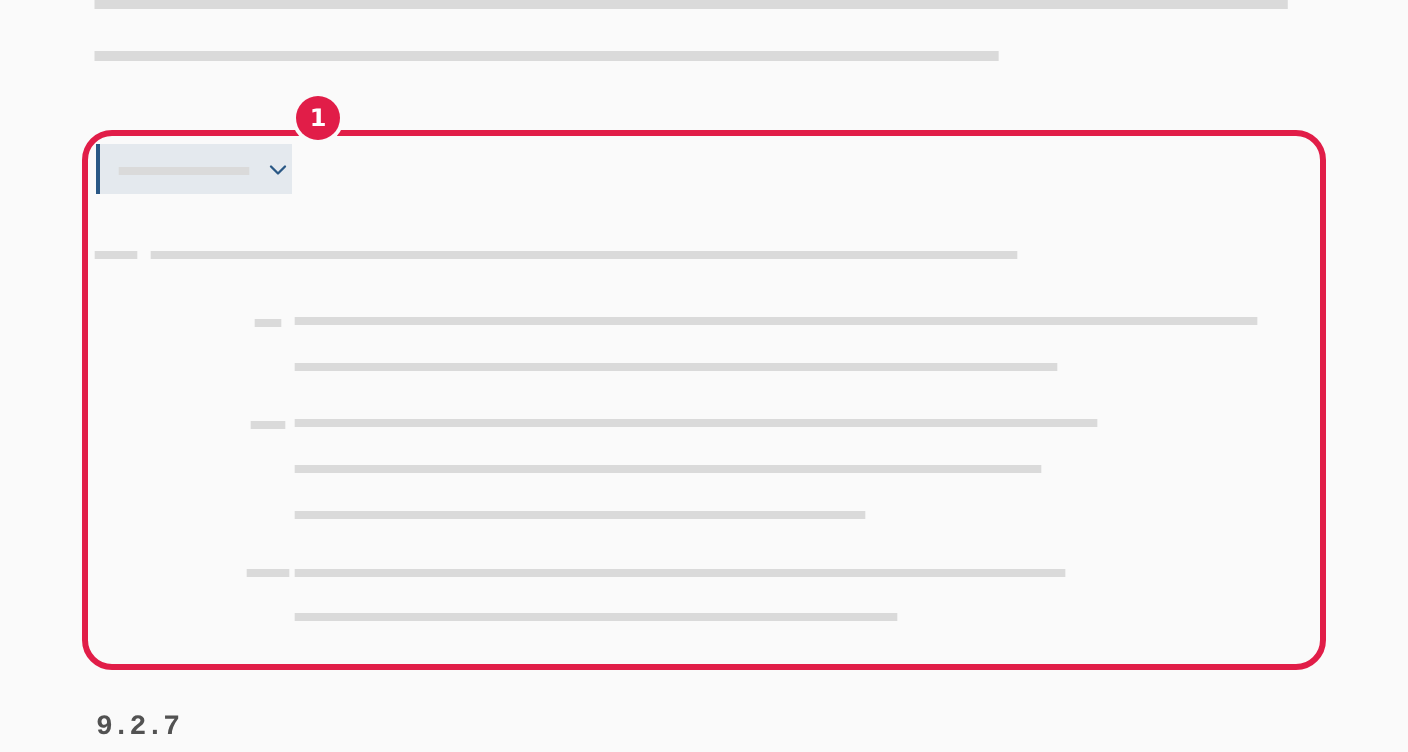
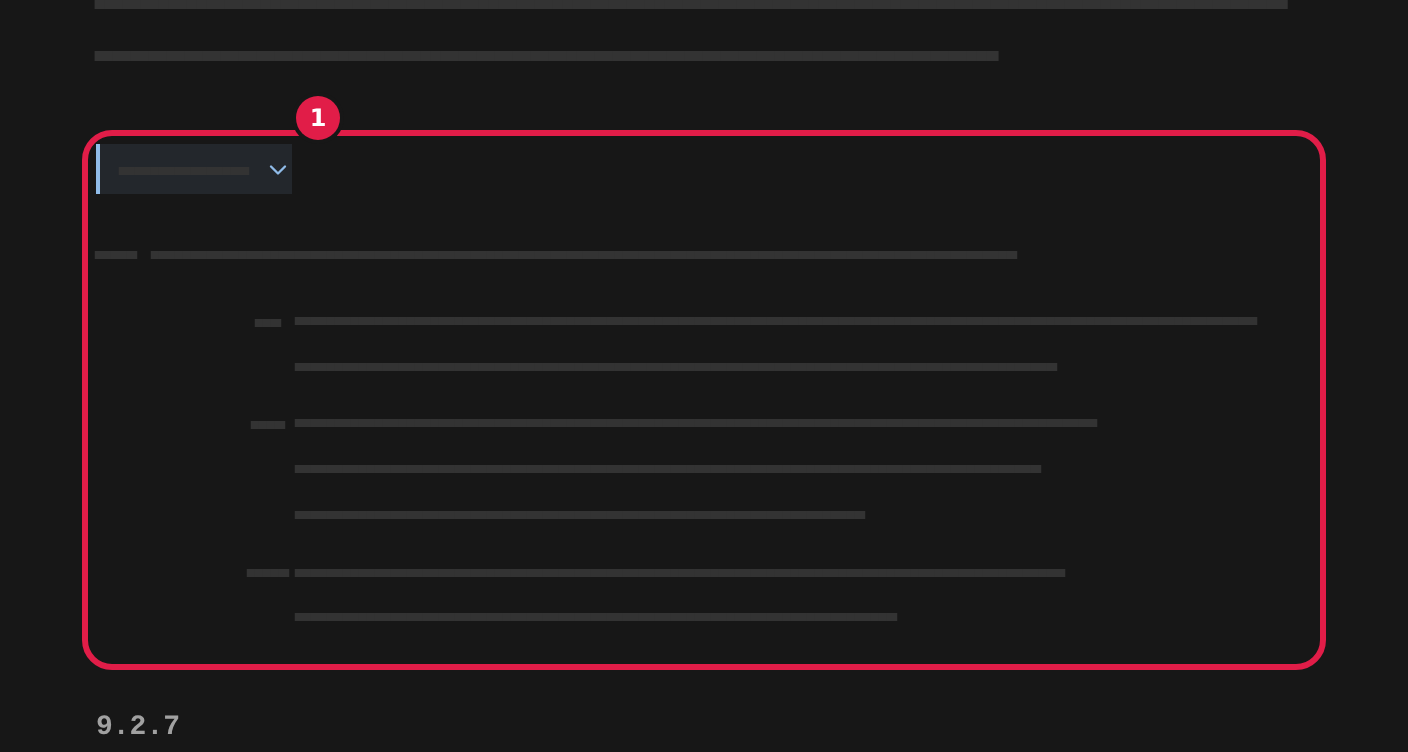
Packing instructions have their own footnotes, gathered at the bottom of each instruction.
Read a packing instruction
Copy link to “Read a packing instruction”The packing instructions in chapter 4.1, such as P001 and IBC03, are shown as cards with the instruction’s code at the top. You can expand and collapse a card, and open it straight from a reference.
- Open the section with the instruction, for example 4.1.4.1 for the P instructions. See Finding your way around.
- Choose the top of the card (1) with the code to expand the instruction. Choose it again to collapse it.
- Expand and collapse the instruction’s parts the same way, with the arrow by each part.
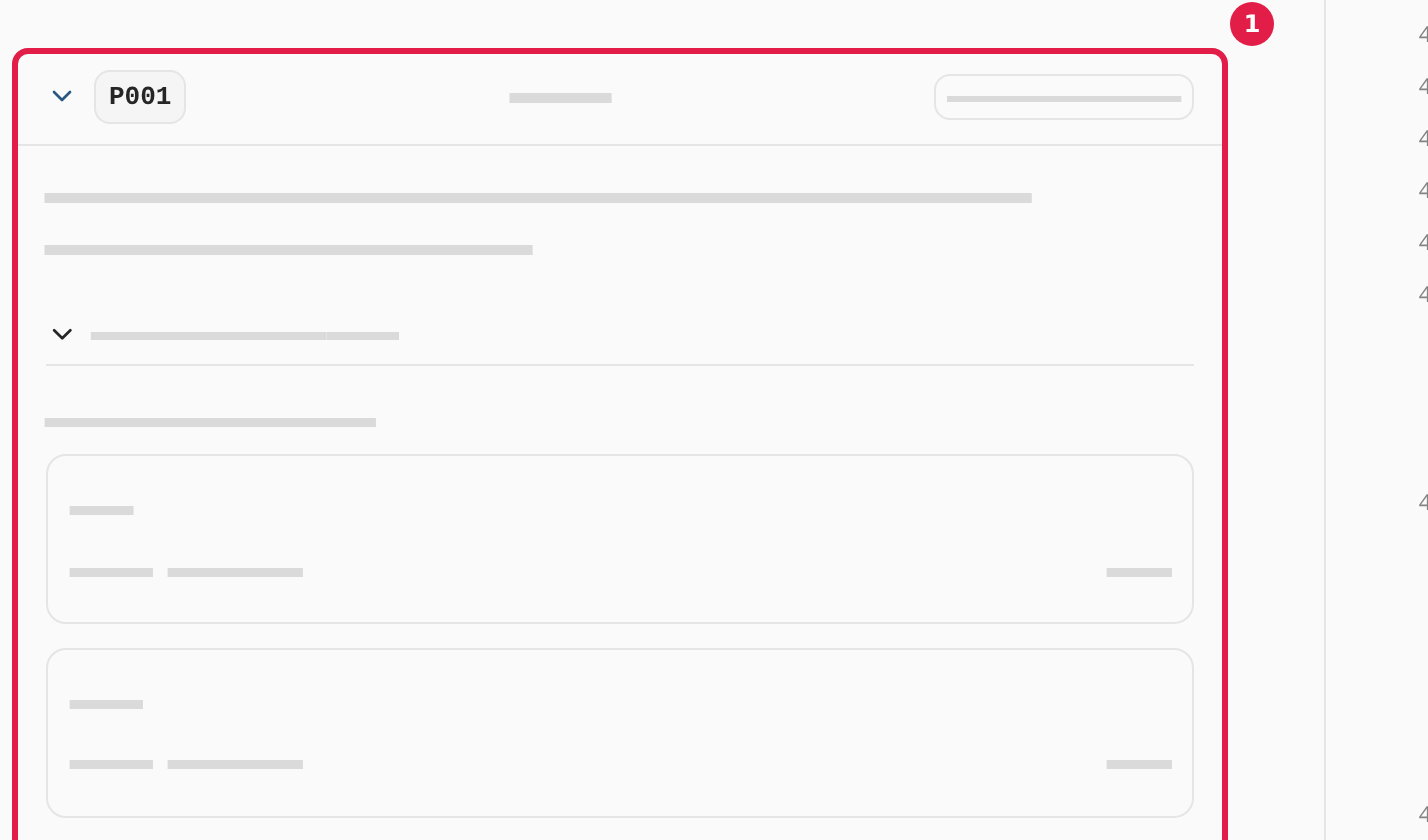
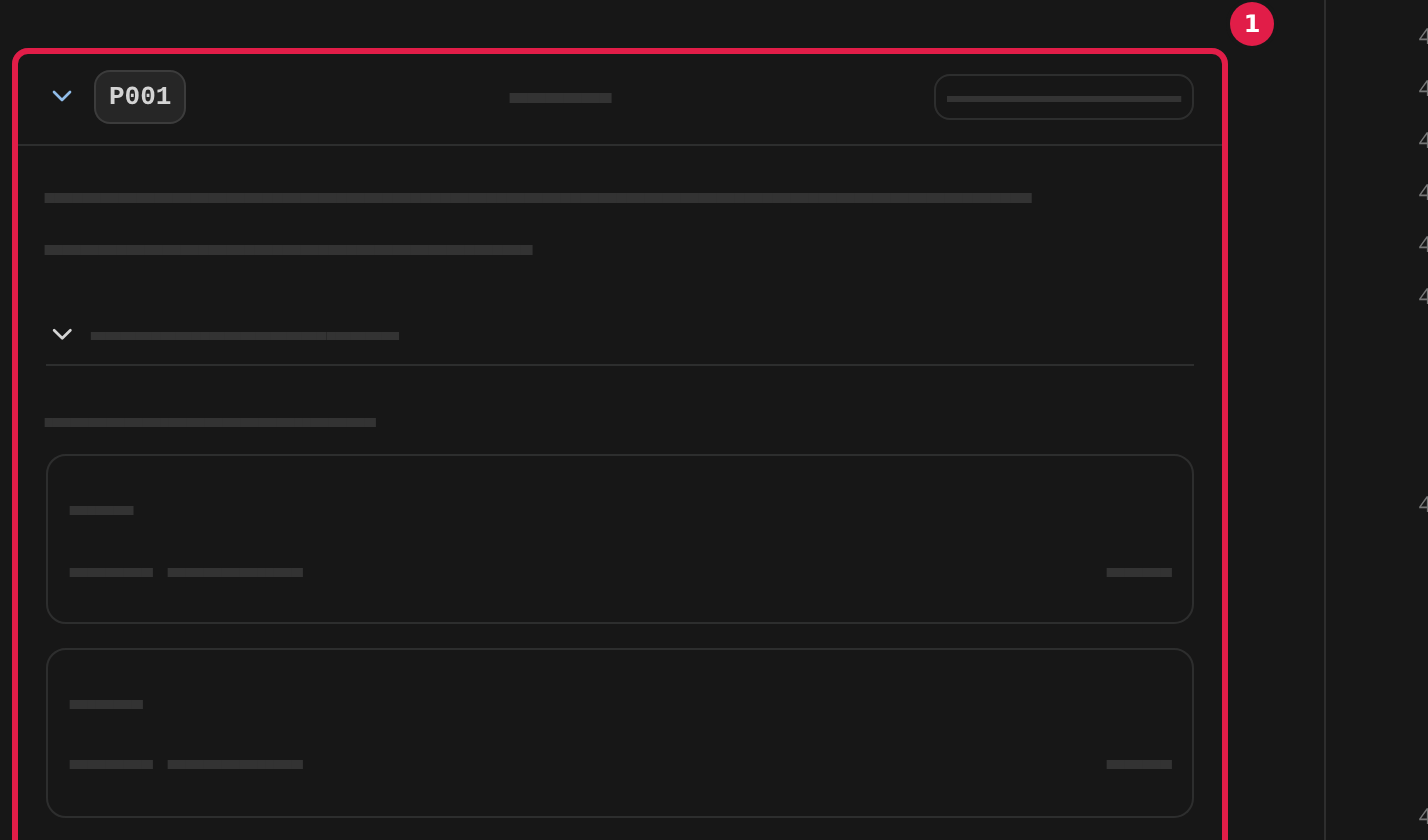
When you find a word with find, ADR Pro expands the instructions the word is in by itself.
Open an instruction from a reference
Copy link to “Open an instruction from a reference”- Choose the code where the text refers to an instruction, for example in column 8 of Table A. The instruction opens as a peek beside what you are reading. More about peeks is in Open a reference as a peek.
- Hold down Ctrl (⌘ on a Mac) while you choose the code to open the section with the instruction in a new tab instead.